

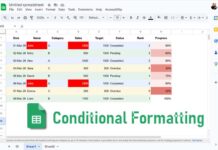
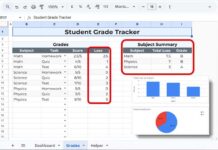
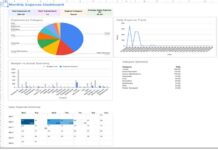

















Conditional Formatting in Google Sheets lets you automatically highlight important data, making it easy to spot trends, patterns, and key values without manually scanning large spreadsheets.
This ultimate hub brings together 80+ practical tutorials, covering everything from basic highlighting rules to advanced formula-driven techniques. Whether you want to track deadlines, detect duplicates, analyze rankings, or build dynamic dashboards, this hub points you to the tutorials you need to make your spreadsheets smarter and more visual.
Use the table of contents below to explore tutorials, master Conditional Formatting, and take your Google Sheets skills to the next level.
🧮 Basics & Formulas
Learn the fundamentals of formula-based Conditional Formatting. These tutorials help you build flexible rules using logical functions, named ranges, and relative references.
Tutorials:
- Using INDIRECT in Conditional Formatting: Highlight cells across sheets using INDIRECT.
- AND, OR, and NOT in Conditional Formatting: Combine multiple conditions.
- Multiple OR in Conditional Formatting Using Regex: Highlight values matching multiple text patterns.
- Relative Reference in Conditional Formatting: Make rules flexible across rows and columns.
- ISBETWEEN Function in Conditional Formatting: Highlight values within a range.
- Using Named Ranges in Conditional Formatting: Simplify formulas with named ranges.
- Highlight Cells Based on Multiple Conditions: Apply rules for one or more conditions.
- Highlight Cells Containing Special Characters: Detect symbols or punctuation.
- Highlighting Named Ranges: Apply formatting directly to named ranges.
- Highlight Indirect Range: Format ranges defined in another cell.
📅 Date, Time & Calendar Automation
Track deadlines, schedules, and recurring events dynamically.
Tutorials:
- Date-Related Conditional Formatting Rules: Highlight dates using logical rules.
- Highlight Cells Based on Expiry Date: Track upcoming deadlines.
- Highlight Earliest Events: Highlight the first N upcoming items.
- Highlight the Next N Working Days: Plan tasks using working-day calculations.
- Highlight Recurring Event or Payment Dates: Format repeating dates automatically.
- Highlight Latest Value or Status Change Rows: Identify recent updates.
- Google Sheets Sales Calendar – Top 3 Highlighting: Highlight best-performing days.
- Highlight Today and N Cells Below: Highlights today and the cells below in a calendar grid.
- Highlight Weekends: Format weekends in lists or calendars.
- Highlight Current Time: Apply dynamic formatting based on the current time.
- Highlight Upcoming Birthdays: Automatically mark birthdays.
- Cycle Highlights – Rotate Daily: Move highlights in a repeating cycle.
- Auto-Highlight Rotating Weekly Tasks: Highlight the current week in a rotation.
🔁 Duplicate & Unique Value Mastery
Identify duplicates and unique data efficiently.
Tutorials:
- Duplicates Across Tabs: Find duplicates across sheets.
- Highlight Duplicates: Quickly detect repeated values.
- Compare Two Lists: Highlight matches or mismatches.
- Cell-by-Cell Differences: Compare two sheets at a granular level.
- Partial Matching Duplicates: Detect similar text entries.
- Visible Duplicates: Work with filtered data only.
- Matching Data Across Two Sheets: Find shared values.
- Same Cells in Another Sheet: Format based on corresponding cells.
- Unique Digit Numbers: Highlight numbers with unique digits.
- Nth Occurrence: Track a value’s 2nd, 3rd, or Nth appearance.
- Duplicates Based on Date Difference: Highlight duplicates within a period.
- Conditional Duplicates: Apply extra criteria for duplicates.
- Adjacent Duplicates: Detect consecutive duplicates.
- Distinct and Unique Values: Highlight first occurrences or unique items.
🛠️ Formatting Management & Troubleshooting
Manage, audit, and maintain formatting rules efficiently.
Tutorials:
- Copy Values Without Formatting: Paste data without rules.
- Find All Conditional Formatting Cells: Audit your sheet.
- Highlight Text Only: Apply rules specifically to text.
- Highlight All Formulas: Identify formula cells.
- Highlight Cells with Specific Functions: Locate key formulas.
- Highlight Entire Error Rows: Detect rows containing errors.
- Highlight Blanks After Unmerging: Fix formatting issues.
- Highlight Invalid Drop-down Entries: Spot non-allowed values.
- Highlight Column if Any Cell Has Error: Track column-level errors.
🧩 Lookup & Reference Formulas
Use lookups and references to highlight matches or intersections.
Tutorials:
- Highlight VLOOKUP Results: Visualize lookup matches.
- Highlight Intersections: Find overlapping values.
- Highlight Filtered Formula Output: Format rows matching formula results.
📈 Math, Stats & Ranking
Analyze numbers, trends, and rankings in your data.
Tutorials:
- Percentile Rank Formatting: Highlight values by percentile.
- SUMIF in Conditional Formatting: Highlight groups when their total meets or exceeds a target.
- Highlight Last N Values: Focus on recent entries.
- Highlight Max Value in a Row: Identify row-wise maxima.
- Highlight Top 2 Values by Condition: Format top category values.
- Highlight Groups Exceeding Target: Highlight entire groups based on shared or individual SUMIF targets.
- Compare Up/Down in Ranking: Track ranking changes.
- Highlight Largest 3 Values (+Ties): Analyze top values row-wise.
- Highlight Max Value in Each Group: Compare group maxima.
- Highlight Min Excluding Zeros/Blanks: Identify minimums with conditions.
- Highlight SUMIFS Rows: Format rows by aggregated totals.
- Highlight Smallest N Values in Row: Track row minima.
- Highlight Max Leaving Duplicates Row-Wise: Detect unique maxima.
- Highlight Top 10 Ranks in Columns: Format top ranks per column.
- Highlight Unique Top N Values: Combine uniqueness with ranking.
- Highlight Min in Each Group: Compare group minima.
- Highlight N Consecutive Decreases: Detect downward trends.
- Highlight Data Spikes (Increases): Detect upward trends.
- Highlight Smallest N Values in Column: Track column minima.
- Highlight Median: Format around median values.
🗂️ Row & Group Highlighting
Format rows, columns, and grouped data for clarity.
Tutorials:
- Conditional Formatting by Data Groups: Highlight alternating category rows.
- Highlight Entire Row: Apply row-based rules.
- Highlight Rows on Value Change: Detect transitions.
- Highlight Every Nth Row/Column: Create repeating patterns.
- Conditional Format a Chessboard Pattern: Highlight cells in a chessboard-style alternating pattern.
- Highlight by Issue/Return Status: Format rows based on status.
- Highlight Rows with All Content: Identify fully completed rows.
- Highlight Row Above Hidden Row: Track rows above hidden ones.
- Highlight Alternate Rows: Create striped layouts.
- Highlight Entire Column: Apply column-wide rules.
- Highlight N Column Groups Alternately: Alternate column groups.
🌈 Visuals & Progress Tracking
Enhance dashboards and progress tracking visually.
Tutorials:
- Color Scale: Create heatmaps and gradients.
- Highlight Multiple Tables: Apply rules to specific structured tables.
- Highlight Groups Using Checkboxes: Build interactive formatting.
Conclusion
Conditional Formatting in Google Sheets is a powerful tool for turning raw data into actionable insights. From duplicates to complex formula-driven rules, this hub covers real-world use cases and links to tutorials that let you highlight trends, track dates, manage rankings, and build dashboards efficiently.
Bookmark this page as your central reference for Conditional Formatting, and explore related hubs on Pivot Tables, XLOOKUP, and QUERY to maximize your spreadsheet productivity.
