

In Google Sheets, you can use a custom rule in conditional formatting to highlight all cells that contain formulas. This makes it easier to audit spreadsheets, debug errors, and visually separate calculated values from static data.
You can also view formulas directly without highlighting them using built-in options in the menu.
Quick Answer: Highlight Cells with Formulas
Use this formula in Format → Conditional Formatting → Custom formula is:
=ISFORMULA(A1)
👉 Apply it to your desired range (e.g., A1:F100 or the entire sheet).
Highlight All Cells with Formulas (Step-by-Step)
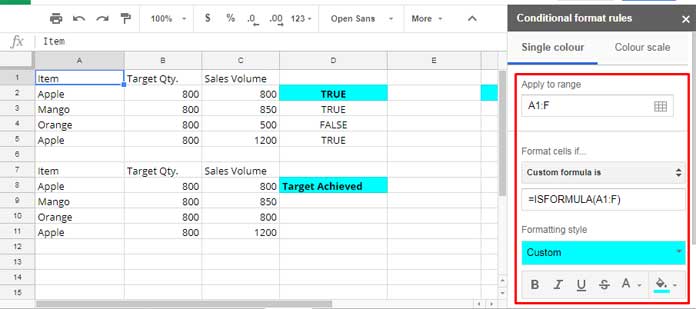
In this example, we will highlight formulas in the range A1:F.
- Select the range A1:F
- For the entire sheet: click the top-left corner (between row numbers and column letters)
- Go to Format → Conditional Formatting
- Under Apply to range, confirm or update the range
- Under Format cells if, select Custom formula is
- Enter:
=ISFORMULA(A1)
- Choose a fill color under Formatting style
- Click Done
👉 This will highlight all cells containing formulas in the selected range.
Important Notes
- Use A1 (first cell reference) — not the full range inside the formula
- The formula is applied relative to each cell in the selected range
- Works for:
- entire sheet
- specific columns
- dynamic ranges
Highlight Entire Rows That Contain Formulas
If you want to highlight full rows where any cell contains a formula:
=ISFORMULA($A1)
👉 Apply this to a wider range like A1:F100
View All Cells Containing Formulas (Without Highlighting)
If you prefer to see formulas instead of highlighting, use these methods:
Method 1: Show Formulas
- Go to View → Show → Formulas
- This will display formulas instead of results
- Toggle again to revert
Method 2: Find and Replace
- Go to Edit → Find and Replace
- In Find, enter: =
- Select This Sheet (or your preferred range)
- Check Also search within formulas
👉 This will locate all cells containing formulas instantly
Common Mistakes
- ❌ Using
=ISFORMULA(A1:F)(incorrect usage) - ❌ Applying the rule to the wrong range
- ❌ Forgetting that the formula should reference the first cell only
- ❌ Expecting it to detect formulas in other sheets
When to Use This
Highlighting formulas is especially useful when:
- Auditing large spreadsheets
- Debugging calculation errors
- Reviewing shared files
- Separating input vs calculated values
Conclusion
Highlighting cells with formulas in Google Sheets helps you quickly identify calculated values and improves spreadsheet auditing and debugging. Using the ISFORMULA function in conditional formatting gives you a simple yet powerful way to visualize formulas across any range.
This tutorial is part of The Ultimate Guide to Conditional Formatting in Google Sheets, where you can explore more formatting techniques, practical examples, and advanced use cases to better manage and analyze your data.




Thank you!