

Quick Answer:
To highlight cells containing special characters in Google Sheets, use this custom formula in conditional formatting:
=LEN(TRIM(REGEXREPLACE(A1, "[A-Za-z0-9]", "")))>0With the help of a custom rule, you can easily highlight any cell, column, or row that contains special characters in Google Sheets.
In this tutorial, special characters refer to anything other than letters (A–Z), numbers (0–9), and spaces. However, you can customize the formula to allow specific characters when needed.
Examples of Special Characters
Some common special characters include:
; < = > [ \ ] ^ _ ` { | } ~ ? @ ! & " # $ % ' ( ) * + , - . :
Foreign characters are also treated as special characters. For example, in the name “Anne Brontë”, the character ë will be detected.
Highlighting Cells that Contain Special Characters
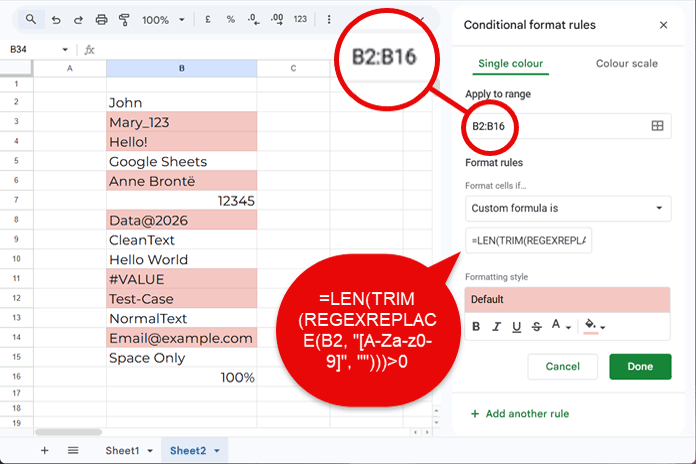
Assume you want to highlight cells with special characters in the range B2:B16.
Use the following formula in conditional formatting:
=LEN(TRIM(REGEXREPLACE(B2, "[A-Za-z0-9]", "")))>0Steps:
- Select your data range (e.g., B2:B16).
- Go to Format > Conditional formatting.
- Under Format cells if…, choose Custom formula is.
- Enter the formula.
- Choose a formatting style and click Done.
Highlight Entire Rows or Columns with Special Characters
Highlight Entire Columns
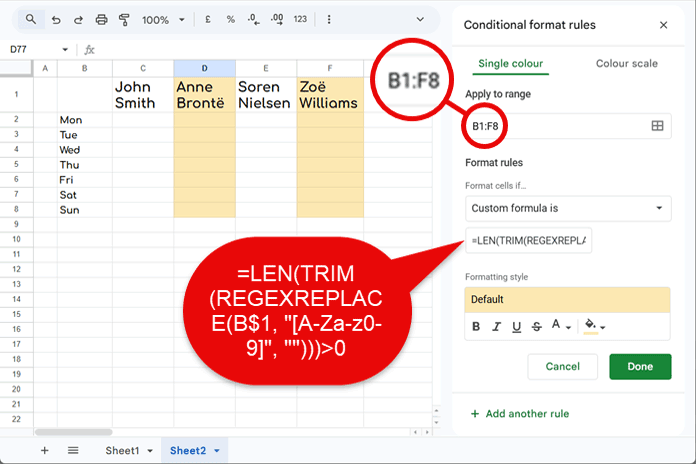
Assume your table is in the range B1:F8.
=LEN(TRIM(REGEXREPLACE(B$1, "[A-Za-z0-9]", "")))>0- Detects special characters in row 1
- Highlights entire corresponding columns
Make sure the Apply to range covers your full dataset (e.g., B1:F8).
This ensures the formatting is applied to entire columns based on matches in the reference row (B1:F1).
Highlight Entire Rows
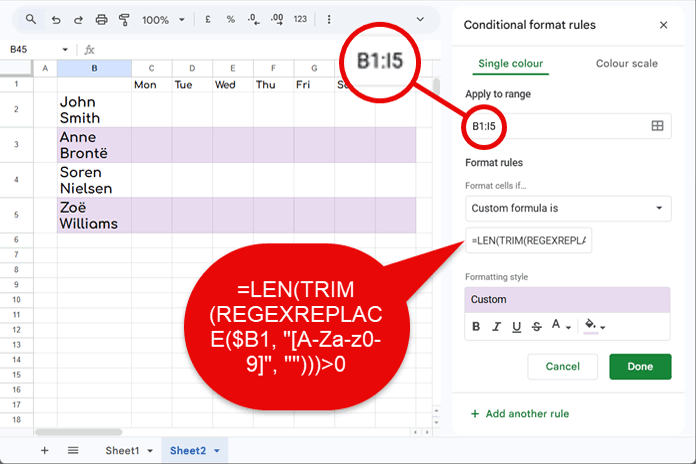
Assume your data range is B1:I5.
=LEN(TRIM(REGEXREPLACE($B1, "[A-Za-z0-9]", "")))>0- Detects special characters in column B
- Highlights entire rows where matches occur
When highlighting entire rows, ensure the Apply to range covers your full dataset (e.g., B1:I5).
This allows the rule to apply across all columns, while the formula uses column B (via $B1) as the reference to determine which rows to highlight.
How This Formula Works
- REGEXREPLACE removes all alphanumeric characters
- TRIM removes extra spaces
- LEN counts the remaining characters
If the result is greater than 0, it indicates that the cell contains special characters, and the cell will be highlighted.
Exclude Specific Special Characters
To allow certain characters like _ or @, modify the formula:
=LEN(TRIM(REGEXREPLACE(A1, "[A-Za-z0-9@_]", "")))>0You can add any characters inside the square brackets to exclude them from detection.
Conclusion
This tutorial is part of The Ultimate Guide to Conditional Formatting in Google Sheets, where you can explore 80+ practical formatting techniques, including advanced highlighting rules, real-world use cases, and optimization tips.
If you’re working extensively with data validation or cleanup, mastering these formulas can significantly improve your workflow.




Can I exclude a particular character (or characters)? Meaning, if a large number of cells contain a dash (“-“) and I do not wish to have any cell highlighted that contains a “-“, is there a way to adjust your formula to not highlight those cells?
Hi, Bill,
Add one more rule.
To exclude underscore from the highlighting;
=not(regexmatch(to_text(A1),"_"))To exclude underscore and a question mark from the highlighting;
=not(regexmatch(to_text(A1),"_|\?"))Color under “Formatting style” should be set to white.
Best,