
Want to monitor your habits and track your progress over a month or across an entire year?
This free Google Sheets Habit Tracker is clean, easy to use, and automatically updates your progress as you track your habits. It includes 12 monthly trackers and an interactive Dashboard to help you stay consistent and visualize your progress.
Powered by LAMBDA and dynamic array formulas, the template automatically adapts to changes in your habit list, keeping the Dashboard and reports up to date—no Apps Script required.
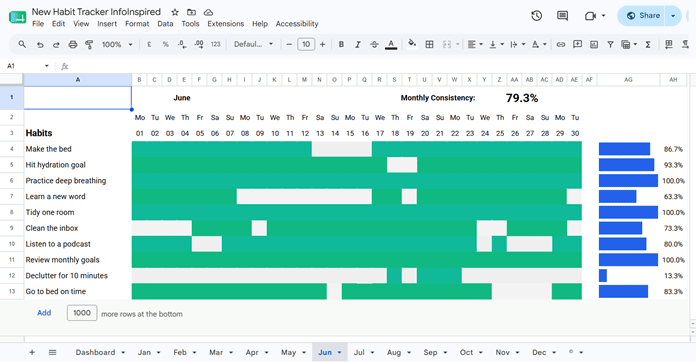
The monthly trackers feature interactive highlighting, so you can mark completed habits with a single click or tap for a clean, app-like experience.
Simply add your habits, mark your daily progress, and let the Dashboard summarize your consistency throughout the year.
Click the button below to create your own copy of the template.
Features
Here’s what you’ll get with this free Google Sheets Habit Tracker template:
Monthly Tracker Tabs
- Clean, modern interface with an app-like experience.
- Track habits and monitor your monthly consistency in real time.
- View each habit’s completion percentage with a sparkline bar chart.
- Mark or unmark habits with a click (or tap on mobile), or press the Spacebar.
- Add, remove, or rename habits without affecting formulas or formatting. Each month can have its own set of habits.
Dashboard
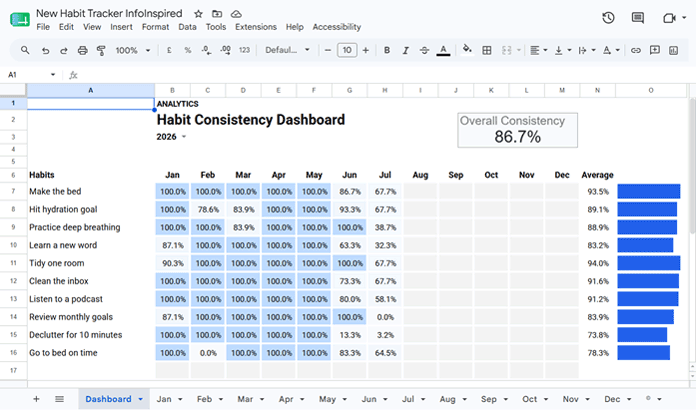
- Automatically builds the yearly habit list by aggregating unique habits from all monthly tabs.
- View the yearly average completion rate and monthly sparkline for each habit.
- Monitor your overall progress with the Overall Consistency scorecard.
- Built entirely with dynamic formulas, so the Dashboard updates automatically as your habit list changes.
- A Year selector lets you switch to a new year. February automatically adjusts for leap years.
How to Use the Free Habit Tracker Template for Google Sheets
Follow these steps to start tracking your habits:
- Open the Dashboard tab and select the year from the drop-down in cell B3.
- Go to the corresponding monthly tab. If you’re starting a new year, begin with Jan. Otherwise, start with the current month.
- Enter your habits in A4:A13. If you need more rows, enter the required number next to Add and click Add to insert additional habit rows.
- Record your daily habit completion in the tracking area (B4:AF).
For example, if your first habit is Make the Bed in A4, mark B4 when you complete it on the 1st, C4 on the 2nd, D4 on the 3rd, and so on. Leave a cell blank if you don’t complete the habit that day.
To mark or unmark a habit, simply click the cell (or tap it on mobile). You can also press the Spacebar to toggle its status.
That’s it! The monthly summaries and Dashboard update automatically as you track your habits.
Start a New Year
When you’re ready to track a new year, choose one of these options:
- Keep previous years: Make a copy of the template first, then follow the steps below in the copied file.
- Reuse the same file: Follow the steps below in the current file.
- In each monthly tab, select the entire tracking area (B4:AF) and press the Spacebar once to unmark all completed habits.
- Go to Dashboard!B3 and select the new year.
Important: Always mark or unmark habits with a click or the Spacebar. Never use the Delete key in the tracking area (B4:AF), as it removes the underlying functionality instead of simply clearing the completed status.
Frequently Asked Questions
Can I track more than 10 habits?
Yes. In any monthly tab, enter the number of additional rows next to Add and click Add to insert more habit rows.
Can I use different habits every month?
Yes. The Dashboard automatically aggregates unique habits from all monthly tabs, so your reports update automatically even if your habit list changes from month to month.
Does the template work on mobile?
Yes. You can mark habits by tapping the corresponding cells. However, the template is best used on a desktop or laptop, as each monthly tracker contains 28–31 daily columns in addition to the Habit and Status columns, making it easier to navigate on a larger screen.
Does this Habit Tracker template require Apps Script?
No. Everything is built using Google Sheets formulas, including LAMBDA and dynamic array functions.
Can I reuse this Habit Tracker template every year?
Yes. The Year drop-down in the Dashboard lets you switch to a new year, and the February tab automatically adjusts for leap years. For the steps to preserve previous years or reset the tracker, see Start a New Year in the How to Use section.
How is the Overall Consistency score calculated?
The Dashboard first calculates the yearly average completion rate for each habit and then averages those values to produce the Overall Consistency score. This gives every tracked habit equal weight, even if your habit list changes throughout the year.
Related Google Sheets Templates
You may also like these Google Sheets templates:
- Daily Water Intake Tracker: Automated Google Sheets Template
- Google Sheets Reading List Tracker Template (Free Download)
- Self-Discipline Tracker in Google Sheets (Free Template + Complete Guide)
- Free Google Sheets Fitness Tracker (Template + Dashboard)
Conclusion
This Habit Tracker template keeps habit tracking simple while providing meaningful insights into your daily routines. Simply record your daily habits, and the monthly summaries and yearly Dashboard update automatically—no formulas or manual maintenance required.
If you’d like to build the template yourself and learn how it works, check out Create a Habit Tracker in Google Sheets: Step-by-Step Guide, where I explain every formula used in the template.
Looking for more productivity templates? Browse the Free Google Sheets Templates (Premium & Fully Automated) collection for budgeting, fitness, reading, and other ready-to-use templates.