

Tracking your workouts shouldn’t feel like a workout. This Google Sheets Fitness Tracker helps you log workouts, track progress, and visualize results—all in one place.
It’s a powerful yet easy-to-use workout tracker built entirely in Google Sheets, with no Apps Script required. More than just a basic log, this Google Sheets Fitness Tracker uses advanced functions like QUERY, HSTACK, and SCAN to create a dynamic dashboard that rivals dedicated fitness apps.
Why Use a Google Sheets Fitness Tracker?
There are plenty of fitness tracker apps available—both free and paid. However, a Google Sheets Fitness Tracker is:
- Free to use
- Fully customizable
- Accessible across all your devices
More importantly, your workout data belongs to you. You can export it, back it up, or move it to another platform anytime without restrictions.
Zero Subscription Fees
There are no “Pro” tiers or hidden paywalls. Once you copy the template, it’s yours to use. Just make sure you follow the applicable copyright terms when sharing or redistributing it.
Download the Free Google Sheets Fitness Tracker
You can preview the template and make your own copy using the button below:
How to Use the Google Sheets Fitness Tracker
The template includes four tabs:
- Dashboard
- Workout_Log
- Exercise_List
- Helper
Let’s understand the purpose of each tab and where you should enter your data.
Workout_Log: Logging Your Daily Workouts
The Workout_Log sheet in this Google Sheets Fitness Tracker helps you record and analyze your daily workouts efficiently.
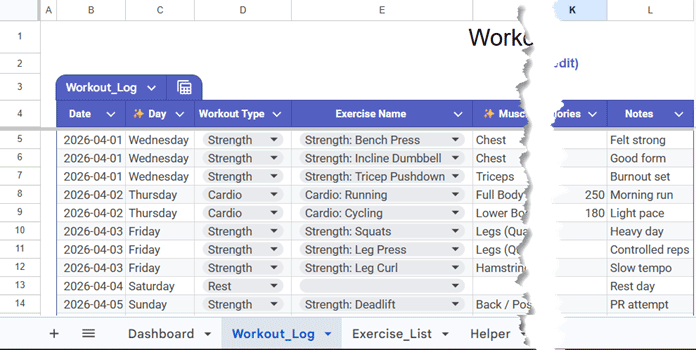
Field Descriptions
Date
Enter the date of your workout.
✨ Day
Automatically generated from the Date. No manual input is required.
Workout Type
Select a workout type from the drop-down list.
If your desired type is not available, add it in the Exercise_List sheet (column B).
Exercise Name
Choose the exercise from the drop-down. Each exercise is prefixed with its workout type (e.g., “Strength: Bench Press“) to help you identify the correct exercise.
If you add a new workout type, enter the exercise name in column C of the Exercise_List sheet, prefixed with the workout type.
✨ Muscle Group
Automatically populated using a formula. Do not edit.
If you add a new workout type, update the muscle group in column D of Exercise_List.
Sets
Enter the number of sets.
Reps
Enter repetitions per set.
Weight
Enter weight for strength workouts.
- Use 0 for exercises like Plank
- Optionally include body weight for Pull-Ups
Duration
Enter duration for cardio exercises.
Calories
Enter the estimated calories burned for cardio exercises.
Notes
Add any additional comments.
Important Notes
- Columns starting with “✨” contain formulas. Do not edit them.
- To clear entries, delete only input columns and leave formula columns untouched.
- Accurate data ensures the Google Sheets Fitness Tracker dashboard generates correct insights.
Exercise_List: Managing Workout Types and Exercises
The Exercise_List sheet powers the drop-downs in your Google Sheets Fitness Tracker.

Fields
- Workout Type
- Exercise Name
- Muscle Group
How to Add New Workouts
- Add entries at the bottom
- Enter values in columns B, C, and D
- Prefix exercise names with workout type (e.g., Strength: Bench Press)
Important Note
- The “Rest” entry represents a rest day
- It intentionally has no exercise or muscle group—do not modify it
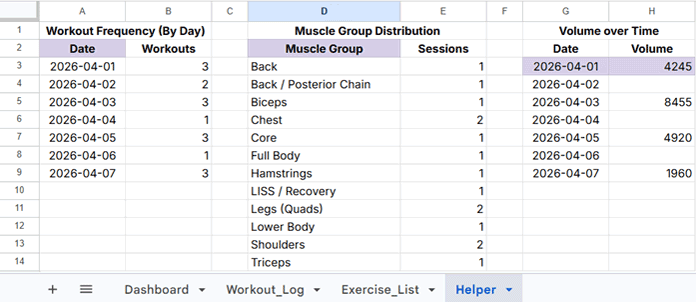
Helper Sheet: Where Background Calculations Happen
This sheet requires no manual changes.
It contains three helper tables that automatically generate:
- Workout Frequency (by day)
- Muscle Group Distribution
- Daily Strength Volume
These power the charts in the Dashboard.
Dashboard: View Reports and Workout Insights
In the Dashboard sheet:
- Enter the start and end dates in C2 and C3
- Double-click these cells to select dates from the calendar popup
- For better visualization, use a one-week date range to keep charts clear and uncluttered
- For longer date ranges, you may need to adjust the chart width for better readability
Dashboard Overview

KPI Cards
- Total Exercises
- Total Volume (kg)
- Current & Longest Streaks
- Cardio Calories
- Cardio Duration (min)
- Strength & Cardio Sessions
Visual Trends
- Workouts per Day (Column Chart)
- Daily Strength Volume (Line Chart)
Distribution
- Muscle Group Distribution (Pie Chart)
Key Features of This Google Sheets Fitness Tracker Template
Automated Progress Calculations
This Google Sheets Fitness Tracker automatically calculates workout frequency, volume, streaks, and muscle distribution.
Dynamic Charts and Dashboard
All charts update automatically based on your selected date range.
Customizable Workout Categories
Easily add new workout types, exercises, and muscle groups.
How to Create This Google Sheets Fitness Tracker
Follow the steps below to build your own Google Sheets Fitness Tracker from scratch.
Create a new sheet: https://sheets.new/
Rename it (e.g., Fitness Tracker) and create four tabs:
- Dashboard
- Workout_Log
- Exercise_List
- Helper
Step 1: Create the Workout_Log Sheet
In the Workout_Log sheet, enter the following field labels in cells B4:L4:
Date
✨ Day
Workout Type
Exercise Name
✨ Muscle Group
Sets
Reps
Weight
Duration
Calories
Notes
Next, convert this range into a table:
- Select the range B4:L1000
- Right-click and choose Convert to table
Step 2: Set Up the Exercise_List Sheet
Navigate to the Exercise_List sheet.
Enter the following field labels in B4:D4:
Workout Type
Exercise Name
Muscle Group
Now, enter your data below these headers.
Example:
- Workout Type: Strength
- Exercise Name: Strength: Bench Press
- Muscle Group: Chest
When adding exercise names, always prefix them with the workout type (e.g., “Strength: “).
This approach eliminates the need for dependent drop-down lists. Since all exercises appear in a single drop-down, the prefix helps you quickly identify and select the correct exercise—especially as the list grows larger.
Keep the Sheet Clean
- Select rows 51 to 1000 and delete them to remove unnecessary empty rows.
Add Drop-Down Lists in Workout_Log
Go back to the Workout_Log sheet.
- Select D5:D1000
- Click Insert → Drop-down
- Choose Drop-down (from a range)
- Select the range Exercise_List!B5:B50
- Select E5:E1000
- Insert a drop-down as above
- Select the range Exercise_List!C5:C50
Add Formulas
- In cell C5, enter the following formula to generate the day of the week:
=ArrayFormula(IF(Workout_Log[Date], TEXT(Workout_Log[Date], "DDDD"),))This is an array formula, so you don’t need to drag it down—it will automatically apply to the entire column.
- In cell F5, enter the following formula to fetch the muscle group from the Exercise_List sheet:
=ArrayFormula(IFNA(VLOOKUP(Workout_Log[Exercise Name], Exercise_List!$C$5:$D, 2, FALSE)))This completes the setup for the Workout_Log sheet. In the next step, you can continue building the remaining parts of the tracker.
Step 3: Use Formulas to Track Progress
In the Helper sheet, you will create three helper tables that power the dynamic charts in the Dashboard of the fitness tracker template.
Before proceeding, go to the Dashboard sheet and enter the start date and end date in cells C2 and C3, respectively. These dates are required because the formulas in the Helper sheet use them to filter data from the Workout_Log sheet.
Workout Frequency
In cell A2, enter the following QUERY formula to generate workout frequency:
=QUERY(Workout_Log[[#ALL],[Date]],
"select Col1, count(Col1)
 where Col1 >= date '" & TEXT(Dashboard!C2, "yyyy-mm-dd") & "'
 and Col1 <= date '" & TEXT(Dashboard!C3, "yyyy-mm-dd") & "'
 group by Col1
 label count(Col1) 'Workouts'", 1)
Muscle Group Distribution
In cell D2, use the following QUERY formula to create the muscle group distribution:
=QUERY(
HSTACK(Workout_Log[✨ Muscle Group], Workout_Log[Date]),
"select Col1, count(Col1)
 where Col1 is not null
 and (Col2 >= date '" & TEXT(Dashboard!C2, "yyyy-mm-dd") & "'
 and Col2 <= date '" & TEXT(Dashboard!C3, "yyyy-mm-dd") & "')
 group by Col1
 label Col1 'Muscle Group', count(Col1) 'Sessions'"
)
Daily Strength Volume
Creating daily strength volume requires two formulas.
Step 1: Generate a Date Sequence
In cell G3, enter the following formula to generate a sequence of dates between the selected start and end dates:
=SEQUENCE(DAYS(Dashboard!C3, Dashboard!C2)+1, 1, Dashboard!C2)This will return numeric values. Select the range and apply:
Format → Number → Date
Step 2: Calculate Volume
In cell H3, enter the following formula to calculate daily strength volume:
=ArrayFormula(
IFNA(
VLOOKUP(
G3:G,
QUERY(
HSTACK(Workout_Log[Sets]*Workout_Log[Reps]*Workout_Log[Weight], Workout_Log),
"select Col2, sum(Col1)
 where Col4 = 'Strength'
 and (Col2 >= date '" & TEXT(Dashboard!C2, "yyyy-mm-dd") & "'
 and Col2 <= date '" & TEXT(Dashboard!C3, "yyyy-mm-dd") & "')
 group by Col2"
),
2,
FALSE
)
)
)
This completes the helper table setup. These calculations will automatically update and feed data into the charts in the Dashboard, enabling dynamic tracking of your fitness progress.
Step 4: Automated Fitness Dashboard
You are now in the final stage of creating the Dashboard report.
This sheet uses several formulas to generate key insights. Let’s go through them one by one.
Key Metrics
Total Logged Days – C5
=COUNTUNIQUEIFS(Workout_Log[Date], ISBETWEEN(Workout_Log[Date], $C$2, $C$3), TRUE)Total Volume (kg) – F5
=SUMPRODUCT(
ISBETWEEN(Workout_Log[Date], $C$2, $C$3),
Workout_Log[Workout Type]="Strength",
Workout_Log[Sets],
Workout_Log[Reps],
Workout_Log[Weight]
)
Total Exercises – I5
=COUNTUNIQUEIFS(Workout_Log[Exercise Name], ISBETWEEN(Workout_Log[Date], $C$2, $C$3), TRUE)Current and Longest Streak – L5
=LET(
udt, UNIQUE(FILTER(Workout_Log[Date], Workout_Log[Workout Type]<>"Rest", ISBETWEEN(Workout_Log[Date], $C$2, $C$3))),
streak, SCAN(0, SEQUENCE(COUNT(udt)),
LAMBDA(acc, val,
LET(
prv, IFERROR(CHOOSEROWS(udt, val-1)),
cur, CHOOSEROWS(udt, val),
IF(cur-prv>1, 0, acc+1)
)
)),
cs, (CHOOSEROWS(streak, -1)+1) *
IF(XLOOKUP(C3, Workout_Log[Date], Workout_Log[Workout Type], "Rest", -1, -1)="Rest", 0, 1),
ls, MAX(streak)+1,
IFERROR(
JOIN(CHAR(10),
VSTACK(
ls & IF(ls>1, " days", " day"),
cs & IF(cs>1, " days", " day")
)
),
"-"
)
)
Note
Seeing 0 days as the current streak?
If you perform light activities such as stretching or walking on rest days, consider logging them as Mobility or Active Recovery in the Workout_Log sheet to maintain your streak.
Additional Metrics
Strength Sessions – C7
=COUNTIFS(
Workout_Log[Workout Type], "Strength",
ISBETWEEN(Workout_Log[Date], $C$2, $C$3), TRUE
)
Cardio Sessions – F7
=COUNTIFS(
Workout_Log[Workout Type], "Cardio",
ISBETWEEN(Workout_Log[Date], $C$2, $C$3), TRUE
)
Cardio Duration – I7
=SUMIFS(
Workout_Log[Duration],
Workout_Log[Workout Type], "Cardio",
Workout_Log[Date], ">=" & $C$2, Workout_Log[Date], "<=" & $C$3
)
Cardio Calories – L7
=SUMIFS(
Workout_Log[Calories],
Workout_Log[Workout Type], "Cardio",
Workout_Log[Date], ">=" & $C$2, Workout_Log[Date], "<=" & $C$3
)
Create Charts
Build three charts using data from the Helper sheet:
- Workouts per Day → Column Chart
- Daily Strength Volume → Line Chart
- Muscle Group Distribution → Pie Chart
To create charts:
- Go to the Helper sheet
- Select the relevant table
- Click Insert → Chart
Once created, copy and paste the charts into the Dashboard, and then remove them from the Helper sheet if needed.
Top 5 Exercise Frequency
Finally, in cell K27 of the Dashboard, enter the following formula to display the top 5 most performed exercises:
=IFERROR(
SORTN(
QUERY(
HSTACK(Workout_Log[Exercise Name], Workout_Log[Date]),
"select Col1, count(Col1)
 where Col1 <> ''
 and (Col2 >= date '" & TEXT(C2, "yyyy-mm-dd") & "'
 and Col2 <= date '" & TEXT(C3, "yyyy-mm-dd") & "')
 group by Col1
 order by count(Col1) desc
 label count(Col1) ''"
),
5, 1, 2, 0
),
"-"
)
This completes the Dashboard setup. Your Google Sheets Fitness Tracker Template will now automatically generate insights, trends, and visual reports based on your workout data.
Who Should Use This Google Sheets Fitness Tracker?
This Google Sheets Fitness Tracker is ideal for:
- Fitness Beginners – Build consistency
- Gym Enthusiasts – Track strength and volume
- Home Workout Users – Log bodyweight routines
- Cardio Users – Track duration and calories
- Data-Driven Users – Analyze trends and progress
Frequently Asked Questions (FAQ)
Does this fitness tracker require coding or Apps Script?
No, this tracker does not require any coding or Apps Script. It is built entirely using built-in Google Sheets functions like QUERY, ARRAYFORMULA, and VLOOKUP.
Can I track both strength and cardio workouts?
Yes, this Google Sheets Fitness Tracker supports both strength and cardio workouts. You can log sets, reps, and weight for strength training, as well as duration and calories for cardio sessions.
How does the dashboard update automatically?
The dashboard updates automatically using formulas that pull data from the Workout_Log and Helper sheets. Once you enter your workout data, charts and metrics adjust instantly based on the selected date range.
Related Google Sheets Templates You May Like
- Create a Habit Tracker in Google Sheets: Step-by-Step Guide
- Self-Discipline Tracker in Google Sheets (Free Template + Complete Guide)
- Free Time Blocking Template in Google Sheets (Smart & Easy to Use)
Conclusion
My goal with this post is to provide a free yet premium Google Sheets Fitness Tracker that is both powerful and easy to customize.
Whether you’re a beginner or an advanced user, you can start using this template right away. All formulas are already built in, so you don’t need to worry about breaking anything.
If you haven’t already, now is the perfect time to make a copy of the Google Sheets Fitness Tracker and start tracking your workouts today.
Your feedback is valuable—try the template and share your thoughts in the comments.
Looking for more tools like this? Check out our Premium Google Sheets Templates (Fully Automated & Dynamic) library.




I’m looking forward to trying this template for a few weeks. Can you explain what the term “Total Volume” refers to? Is this the total amount of weight I have lifted? Will the calculations still work if I am using pounds (USA) instead of kilograms?
Thanks for trying the template.
Yes, Total Volume means the total load lifted during your selected date range for strength workouts. It is calculated as:
Sets × Reps × Weight
» Sets = how many rounds you perform an exercise
» Reps = how many repetitions in each round
For example, 3 sets of 10 reps at 100 lb = 3,000 lb total volume.
And yes, it works perfectly with pounds too. If you enter weight in lb, the Total Volume will also be in lb (you can rename the label if needed).
You can also check the Helper tab to see the daily breakdown of Total Volume.