

Staying hydrated supports your energy, focus, digestion, and overall well-being. But during a busy day, it is easy to forget how much water you have actually consumed.
That is why I created this Daily Water Intake Tracker in Google Sheets — a free automated template that helps you monitor your hydration with checkboxes, progress percentages, and motivational rewards.
You do not need to enter formulas or do manual calculations. Simply open the sheet, tick your water intake throughout the day, and let the tracker update automatically.

Preview and Download the Template
Before you begin, preview and copy the free template using the button below:
Preview & Download Water Intake Tracker
Why Use a Daily Water Intake Tracker in Google Sheets?
A water tracker can help you build a consistent hydration habit without needing a separate mobile app.
This Daily Water Intake Tracker in Google Sheets is useful because it is:
- Free to use
- Accessible on desktop, laptop, tablet, and mobile
- Easy to update with one tap
- Automatically calculates progress
- Reusable every year
- Customizable for glasses, ounces, or milliliters
How to Use the Daily Water Intake Tracker in Google Sheets
Using this tracker is simple.
Monthly Tabs Included
The template contains 12 monthly sheets:
- January
- February
- March
- April
- May
- June
- July
- August
- September
- October
- November
- December
Current Year Setup
The template is currently configured for 2026.
When the year changes, open each monthly sheet and replace 2026 in cell B2 with the new year.
Water Intake Units
By default, intake is measured in glasses:
- 1 glass
- 2 glasses
- 3 glasses
- up to 8 glasses
- 8+ glasses
You can also customize the labels to:
Ounces
- 8 oz
- 16 oz
- 24 oz
- up to 64 oz
- 64+ oz
Milliliters
- 237 mL
- 474 mL
- 711 mL
- up to 1896 mL
- 1896+ mL
Note: 1 standard glass is commonly treated as 8 oz (about 237 mL).
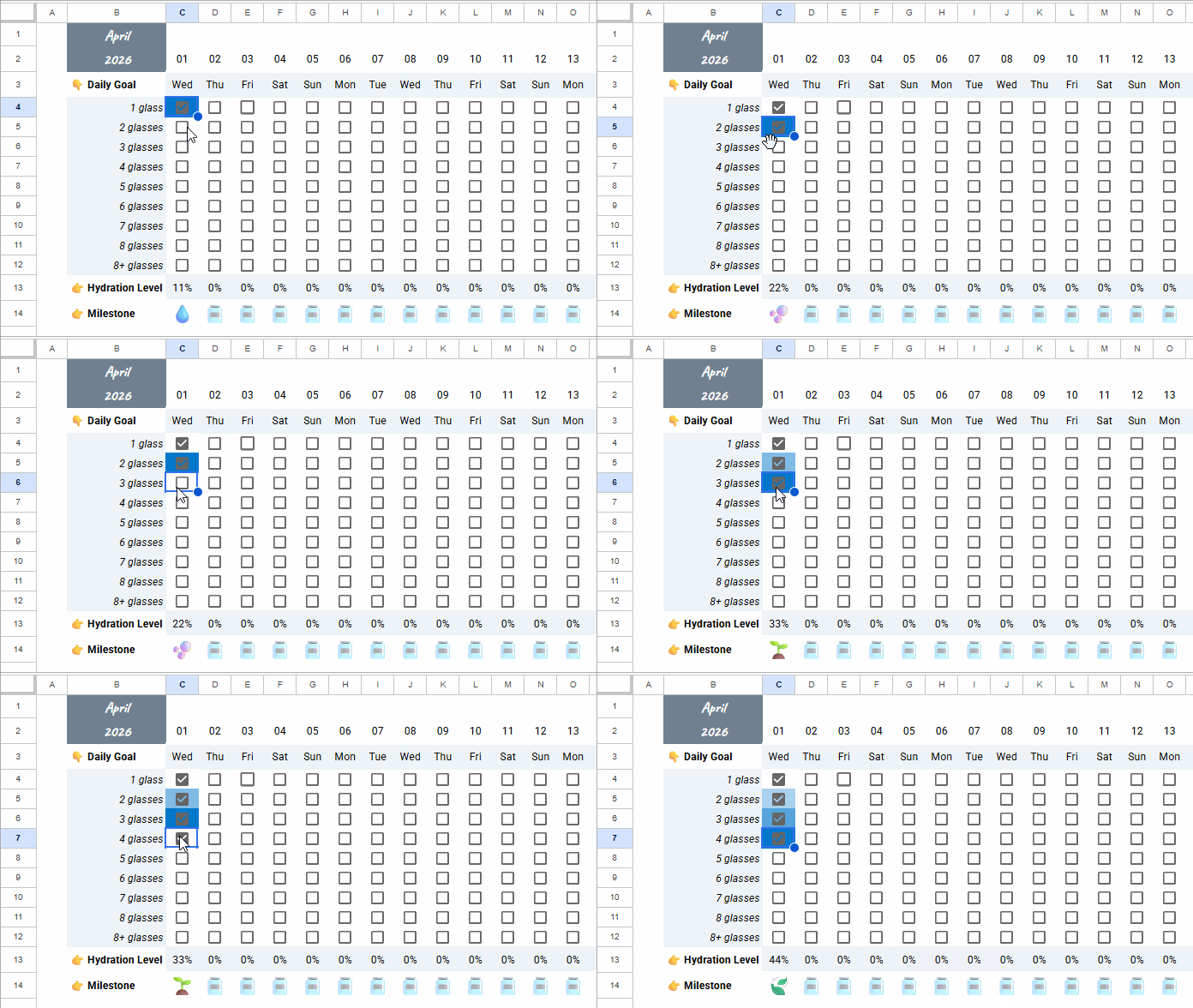
How to Track Water Intake Each Day
- Open the sheet for the current month.
Example: If today is April 1, go to the April sheet. - If you drink 3 glasses, tick the first three checkboxes under that date.
- If you drink 2 more glasses later, tick the next two checkboxes.
- Continue checking boxes throughout the day.
- Watch your progress percentage and reward emoji update automatically.
Additional Customization
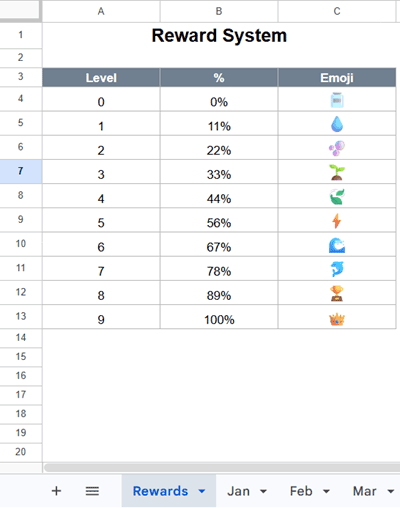
Change Reward Emojis
The template includes 10 reward emojis.
To replace them:
- Open the Rewards sheet.
- Go to range
C4:C13. - Replace the emojis with your preferred icons.
What Makes This Daily Water Intake Tracker Different?
Unlike basic trackers, this template includes:
- Dynamic calendar structure for any year
- Simple checkbox-based daily tracking
- Automatic progress calculation
- Monthly overview with color scale formatting
- Motivational reward system
- Reusable template for future years
- Works across desktop and mobile devices
How to Create a Daily Water Intake Tracker in Google Sheets from Scratch
If you prefer building your own version, follow these steps.
Step 1: Open a New Google Sheet
Open a blank sheet by visiting sheets.new
Rename the first sheet tab to:
- Rewards
Then click the + button to add a new sheet tab and rename it:
- Jan
Step 2: Set Up the Rewards Sheet
Create the following table in A3:C13:
| Level | % | Emoji |
|---|---|---|
| 0 | 0% | 🫙 |
| 1 | 11% | 💧 |
| 2 | 22% | 🫧 |
| 3 | 33% | 🌱 |
| 4 | 44% | 🍃 |
| 5 | 56% | ⚡ |
| 6 | 67% | 🌊 |
| 7 | 78% | 🐬 |
| 8 | 89% | 🏆 |
| 9 | 100% | 👑 |
No formulas are needed in this sheet.
Step 3: January Sheet Setup
Enter:
Januaryin cellB12026in cellB2
Step 4: Add Calendar Dates Automatically
Enter this formula in C2 to return the dates for the month and year entered in cells B1 and B2, respectively:
=LET(start, DATE(B2, MONTH(B1&1), 1), SEQUENCE(1, DAY(EOMONTH(start, 0)), start))Format C2:AG2 as d mmm by going to:
Format > Number > Custom date and time
Enter this formula in C3 to return the corresponding weekday names:
=ArrayFormula(IF(C2:AG2, TEXT(C2:AG2, "ddd"),))Step 5: Add Water Intake Labels
Enter this list in B4:B12:
- 1 glass
- 2 glasses
- 3 glasses
- 4 glasses
- 5 glasses
- 6 glasses
- 7 glasses
- 8 glasses
- 8+ glasses
Step 6: Insert Checkboxes
Create the checkboxes in C4:C12 one cell at a time.
- Select
C4 - Go to Data > Data validation
- Click + Add rule
- Choose Tick box under Criteria
- Enable Use custom cell values
- Enter:
- Ticked =
1 - Unticked =
FALSE
- Click Done
Repeat down to C12, changing the ticked value:
| Cell | Ticked | Unticked |
|---|---|---|
| C4 | 1 | FALSE |
| C5 | 2 | FALSE |
| C6 | 3 | FALSE |
| C7 | 4 | FALSE |
| C8 | 5 | FALSE |
| C9 | 6 | FALSE |
| C10 | 7 | FALSE |
| C11 | 8 | FALSE |
| C12 | 9 | FALSE |
Then copy C4:C12 and paste across D4:AG12.
Step 7: Calculate Daily Progress Percentage
Enter this formula in C13:
=BYCOL(C4:AG12, LAMBDA(col, TO_PERCENT(ROUND((MAX(col)/9)*100, 0)/100)))Step 8: Show Reward Emojis Automatically
Enter this formula in C14:
=ArrayFormula(IF(C3:AG3="",,XLOOKUP(C13:AG13, Rewards!B4:B13, Rewards!C4:C13)))Step 9: Apply Color Scale Formatting
Select:
C4:AG12
Go to:
Format > Conditional formatting
Choose:
Color scale
Set:
- Minimum = White
- Maximum = Deep Ocean Blue
#0077CC
Click Done
Step 10: Hide Extra Columns for Shorter Months
Select:
AE2:AG14
Add a new rule using custom formula:
=ISBLANK(AE$2)Set:
- Fill color = White
- Text color = White
Move this rule above the color scale rule.
This hides unused days for shorter months like February.
Step 11: Final Formatting
Select checkbox range:
C4:AG12
Set text color to dark grey.
Then adjust:
- Column width
- Row height
- Alignment
For a cleaner layout.
You can also remove gridlines by going to:
View > Show > Gridlines (uncheck).
Step 12: Duplicate for Other Months
Duplicate the January sheet and rename it:
- Feb
- Mar
- Apr
- May
- Jun
- Jul
- Aug
- Sep
- Oct
- Nov
- Dec
Then only change the month name in B1.
Frequently Asked Questions
How much water should I drink daily?
Hydration needs vary based on age, activity level, weather, and health conditions.
Can I use this tracker on mobile?
Yes. Google Sheets works on Android phones, iPhones, tablets, and desktops.
Can I track ounces or milliliters instead of glasses?
Yes. You can customize the labels easily.
Is this template free?
Yes, the template is free to use.
Conclusion
A Daily Water Intake Tracker in Google Sheets is one of the easiest ways to stay consistent with hydration.
This template keeps things simple:
- Tick boxes as you drink water
- View progress instantly
- Stay motivated with rewards
- Reuse every year
Whether you use the free template or build your own, tracking your hydration becomes easier when the system is effortless.
For more ready-to-use spreadsheets, check out our Ultimate Library of Free Google Sheets Templates (Fully Automated & Dynamic).
Start today and build a healthier habit.




