

Managing your money in a spreadsheet shouldn’t feel like solving a math problem.
This automated 50/30/20 Budget Template for Google Sheets helps you track your income, expenses, and savings with an easy-to-read dashboard based on the 50/30/20 budgeting rule.
Whether you’re creating your first budget or replacing a manual spreadsheet, this template automatically calculates your monthly budget targets, tracks your spending, and shows your progress with interactive charts. It works entirely in Google Sheets, so there’s nothing to install.
What Is the 50/30/20 Budget Rule?
The 50/30/20 budget rule divides your after-tax (net) income into three spending categories:
- 50% Needs: Essential expenses such as rent, groceries, utilities, insurance, transportation, and minimum loan payments.
- 30% Wants: Discretionary spending, including dining out, entertainment, shopping, hobbies, and vacations.
- 20% Savings: Money allocated toward your financial goals, such as building an emergency fund, investing, making extra debt payments, or saving for a major purchase.
For example, if your monthly net income is $4,000, your budget would look like this:
- Needs (50%): $2,000
- Wants (30%): $1,200
- Savings (20%): $800
Why Use the 50/30/20 Budget Rule?
The 50/30/20 budget rule is easy to follow and flexible. By allocating just 30% of your income to discretionary spending, it helps reduce overspending while encouraging regular savings. Instead of managing dozens of budget categories, you simply divide your income into three broad groups: Needs, Wants, and Savings.
Who Is This Template For?
- Anyone following the 50/30/20 budgeting rule.
- People who prefer Google Sheets over budgeting apps.
- Anyone looking for a free budget spreadsheet with charts.
Key Features of This Google Sheets Budget Template
Unlike basic budget templates, this Google Sheets budget template updates automatically based on the month and year you select, giving you up-to-date reports and charts without any manual work.
There’s no need to create a new sheet every month or delete previous data. Just keep adding your transactions and use the Month and Year drop-downs to view your Target vs. Actual budget for any month.
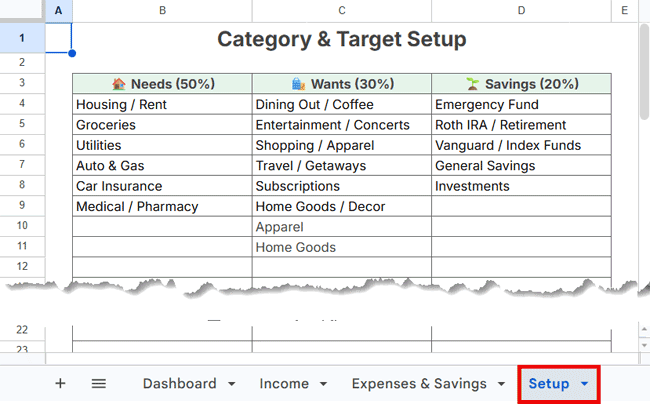
The Setup sheet lets you define your own expense categories under Needs (50%), Wants (30%), and Savings (20%). These categories automatically appear as drop-down lists in the Expenses & Savings sheet, making data entry quick and consistent. When you select a category, the transaction is automatically classified as a Need, Want, or Saving.
The Google Sheets budget template includes the following reports and visualizations:
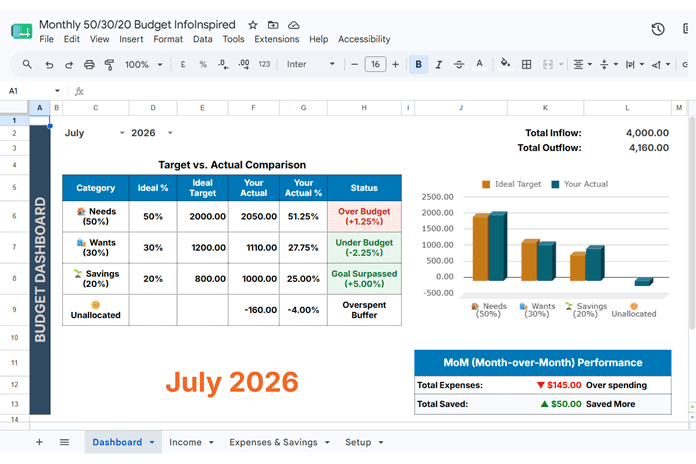
Target vs. Actual Comparison
- Compare your actual spending with your target for Needs, Wants, and Savings.
- See status indicators such as Over Budget, Under Budget, Goal Surpassed, and Below Target.
- Track any remaining unallocated income.
Budget Chart
- Instantly compare your target and actual spending so you can quickly identify overspending or unused budget.
Month-over-Month Performance
- Compare your current month’s spending and savings with the previous month to quickly see what’s changed.
The formulas handle all the calculations automatically, so you can spend less time updating spreadsheets and more time reviewing your budget.
How to Use the Google Sheets 50/30/20 Budget Template
1. Create Your Personal Copy:
If you haven’t already, create your own copy of the template by clicking the download link above, then choosing File > Make a copy. This saves an editable copy to your Google Drive.
2. Input Your Net Income:
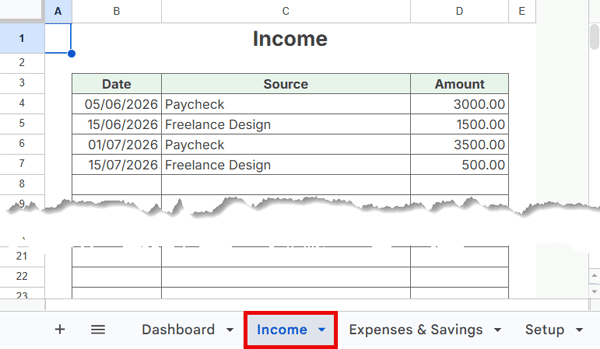
Go to the Income sheet and record your net income.
Enter the Date and Amount for each income entry. The Source column is optional. The Google Sheets budget template uses the date to filter data by month and year and the amount to calculate your monthly 50/30/20 budget targets.
3. Expense Categories:
Go to the Setup sheet and enter your expense categories under:
- 🏠 Needs (50%)
- 🛍️ Wants (30%)
- 🌱 Savings (20%)
4. Log Your Income and Expenses:
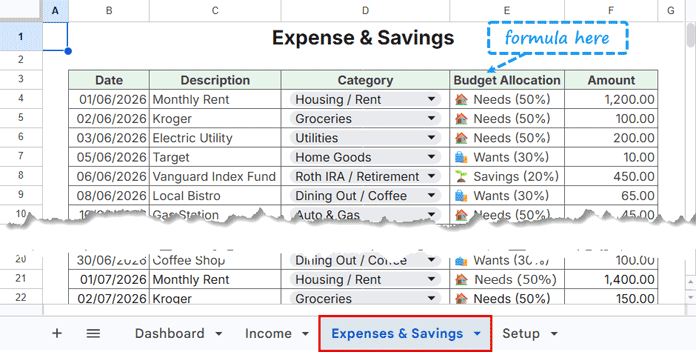
In the Expenses & Savings sheet, record each expense or savings transaction.
| Column | Required |
|---|---|
| Date | ✓ |
| Description | Optional |
| Category | ✓ |
| Budget Allocation | Automatic |
| Amount | ✓ |
Leave the Budget Allocation column unchanged. It’s filled automatically based on the selected category.
5. Track Your Progress Visuals:
Open the Dashboard sheet and select the month and year using the drop-down lists.
The dashboard automatically updates to display:
- Target vs. Actual comparison
- Budget status for each category
- Remaining unallocated income
- Target vs. Actual column chart
- Month-over-month spending and savings trends
Frequently Asked Questions About the 50/30/20 Budget Rule
How do I handle irregular monthly income?
No problem. The Google Sheets budget template calculates your 50/30/20 targets based on the total income recorded for the selected month. Your income doesn’t need to be the same every month.
What if my expenses and savings don’t add up to my income?
That’s perfectly fine. The dashboard displays any remaining amount as Unallocated Income in the Target vs. Actual Comparison section. This helps you identify whether you have money left over or have overspent for the month.
Is this Google Sheets 50/30/20 Budget Template completely free?
Yes. You can download and use this Google Sheets template for free for personal use.
Can I customize the expense categories?
Yes. Add or edit categories in the Setup sheet. The drop-down list updates automatically.
Does the template work every year?
Yes. Since transactions are filtered by month and year, you can continue using the same spreadsheet without creating a new file each year.
Wrap-up
I hope this template makes it easier to stick to the 50/30/20 budget rule without spending time maintaining a spreadsheet. Once it’s set up, all you need to do is record your transactions and review the dashboard each month.
This tutorial focuses on using the template rather than explaining the formulas behind it. Since the dashboard is fully automated, you don’t need to understand the formulas to use it effectively.
If you have any questions about the template or run into any issues, feel free to leave a comment below. I’ll be happy to help.
If you’re looking for a traditional monthly budget, check out my Household Budget Planner for Google Sheets.
Explore my complete collection of Free Google Sheets Templates.
