



















You can use the RANK function to rank values in an entire dataset. But what if you want to rank values based on specific conditions instead? While Google Sheets doesn’t have a built-in RANKIF function, you can still achieve conditional ranking using a few different formulas.
There are four main ways to perform RANK IF in Google Sheets:
- COUNTIFS
- SUMPRODUCT
- FILTER + RANK
- QUERY + RANK
We’ll explore each method so you can choose the one that works best for you.
Sample Data and Problem Statement
Let’s say we have a dataset of sales representatives, their regions, and their sales figures. The field labels (headers) in the first row of range A1:D are Date, Region, Sales Rep, and Sales ($). Our goal is to rank sales reps based on their total sales, but only within a specific region—in this case, “East.”
| Date | Region | Sales Rep | Sales ($) |
| 05/03/2025 | East | Linda | 90,000.00 |
| 02/03/2025 | East | Frank | 75,000.00 |
| 15/01/2025 | East | Askar | 60,000.00 |
| 08/03/2025 | East | Henry | 105,000.00 |
| 12/03/2025 | East | Rose | 120,000.00 |
| 25/02/2025 | West | Grace | 82,500.00 |
| 10/03/2025 | West | Tushar | 105,000.00 |
| 20/02/2025 | West | Eric | 97,500.00 |
If you wanted to rank sales across all regions, you could simply use the RANK function like this:
=RANK(D2, $D$2:$D, 0)  // Highest sales get Rank 1
=RANK(D2, $D$2:$D, 1)  // Lowest sales get Rank 1
Enter one of these formulas in cell E2 and drag it down to fill the remaining rows of the dataset.
However, this ranks all sales reps together, ignoring the region. What if you only want to rank sales within the "East" region? That’s where RANK IF comes in.
Method 1: RANK IF Using COUNTIFS
One way to perform conditional ranking in Google Sheets is by using COUNTIFS. This formula counts how many values in the "East" region are greater than the current sales value and then adds 1 to determine the rank.
=(COUNTIFS($B$2:$B, "East", $D$2:$D, ">"&D2)+1)*(B2="East")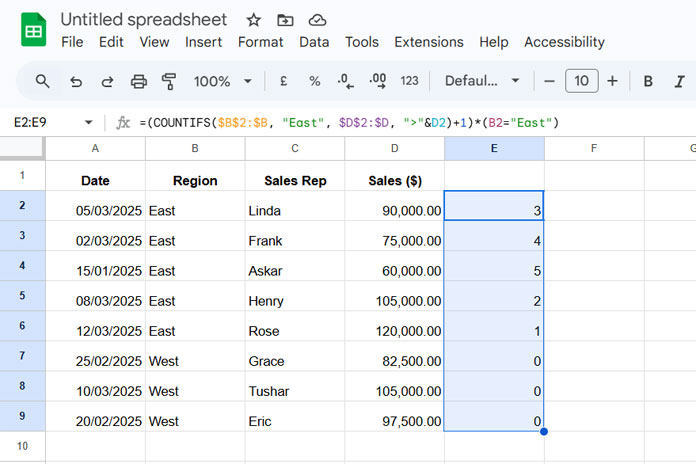
Here’s how it works:
COUNTIFS($B$2:$B, "East", $D$2:$D, ">"&D2)counts how many"East"sales values are greater than the current row’s value.- Adding
+1ensures the correct ranking. *(B2="East")ensures that sales from other regions return0, so they don’t interfere.
For example, if "East" sales values are 90,000, 75,000, 60,000, 105,000, and 120,000, the formula ranks them only within “East.”
Method 2: RANK IF Using SUMPRODUCT
Another approach is using SUMPRODUCT, which works similarly but can be more efficient for larger datasets.
=(SUMPRODUCT(($B$2:$B="East")*($D$2:$D>D2))+1)*(B2="East")This formula multiplies conditions:
($B$2:$B="East")ensures we’re only looking at"East"values.($D$2:$D>D2)checks if sales values are greater than the current value.- The sum of these conditions gives us the rank.
Since SUMPRODUCT is optimized for calculations, it can be faster than COUNTIFS in large spreadsheets.
Method 3: RANK IF Using FILTER + RANK
Unlike the previous methods, this one uses the FILTER function to first extract only "East" sales values, then applies RANK.
=IFNA(RANK(D2, FILTER($D$2:$D, $B$2:$B="East"), 0))*(B2="East")Here’s what happens:
FILTER($D$2:$D, $B$2:$B="East")extracts only sales values where the region is"East".RANK(D2, …, 0)ranks the current sales value within that filtered data.IFNAremoves errors if there’s no matching data.
This method is intuitive since it directly applies RANK to a filtered list rather than doing a count-based approach.
Method 4: RANK IF Using QUERY + RANK
This method is similar to FILTER, but it uses the QUERY function to extract data instead.
=IFNA(RANK(D2, QUERY($A$2:$D, "SELECT D WHERE B='East'"), 0))*(B2="East")Instead of filtering, QUERY($A$2:$D, "SELECT D WHERE B='East'") pulls only the relevant sales data, and then RANK assigns the ranking.
QUERY is especially useful if you have more complex filtering conditions, such as working with dates or multiple criteria.
Assigning Rank #1 to the Lowest Value
By default, all these formulas assign Rank #1 to the highest value. If you want to rank the lowest value as #1, you need to make small changes:
- In COUNTIFS and SUMPRODUCT, replace
>with<. - In RANK, change
0to1.
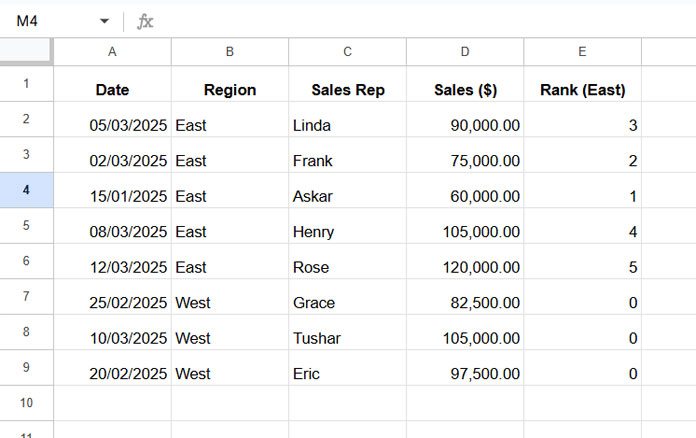
Here’s an example of how the formulas would change:
=(COUNTIFS($B$2:$B, "East", $D$2:$D, "<"&D2)+1)*(B2="East")
=(SUMPRODUCT(($B$2:$B="East")*($D$2:$D<D2))+1)*(B2="East")
=IFNA(RANK(D2, FILTER($D$2:$D, $B$2:$B="East"), 1))*(B2="East")
=IFNA(RANK(D2, QUERY($A$2:$D, "SELECT D WHERE B='East'"), 1))*(B2="East")
Ranking with Multiple Conditions
You can also add more conditions. For example, if you want to rank "East" sales from the last 30 days, add a date filter (A2:A >= TODAY()-30).
Here’s how the COUNTIFS formula would look:
=(COUNTIFS($B$2:$B, "East", $D$2:$D, ">"&D2, $A$2:$A, ">="&TODAY()-30)+1)*(B2="East")*($A$2:$A>=TODAY()-30)Similarly, you can modify the SUMPRODUCT, FILTER, and QUERY methods by adding this date condition.
FAQs
Does this work with unsorted data?
Yes! All these formulas work regardless of whether your data is sorted or not.
Can I apply the formula to all rows automatically?
Yes! You can use ARRAYFORMULA or MAP to apply it dynamically across all rows.
Resources
- How to Rank Group Wise in Google Sheets in Sorted or Unsorted Group
- How to Rank without Ties in Google Sheets
That’s it! Now you know how to perform RANK IF in Google Sheets using different methods. Whether you prefer COUNTIFS, FILTER, QUERY, or SUMPRODUCT, you have multiple ways to handle conditional ranking in Google Sheets efficiently.
