



















This post is not about the MATCHES regular expression match in Query. It’s about how to use the MATCH function in Query Where clause in Google Sheets.
No doubt, MATCH is one of the most useful functions in all popular spreadsheet applications. It returns the position of a string, date, or number value in a single row or single column range.
The position (called relative position) returned by the MATCH formula can be used as an expression in other functions. Here, that ‘other function’ is the Query.
If you’re new to Query or want a refresher, check out my detailed Google Sheets QUERY tutorial.
Yes! Here we will make use of the MATCH function in the Query Where clause, i.e., get the position of an item in a single row, inside a Query formula. The purpose?
When we use the MATCH function in the Query Where clause in Google Sheets, the goal is to search the column to filter dynamically instead of directly specifying the column number.
This tutorial is part of the WHERE Clause in Google Sheets QUERY: Logical Conditions Explained hub, which covers all logical operators, comparisons, and condition-building patterns used in QUERY statements.
Attendance Sample Data in Google Sheets
Consider a sample Attendance sheet in which the first row contains a few names (employees or students), and below are their attendance statuses such as present, absent, or holiday.
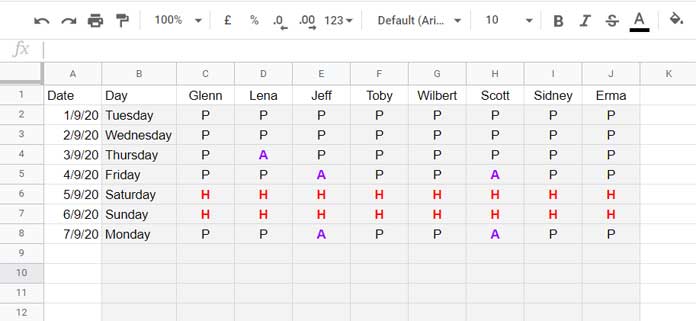
Suppose I want to filter the data for “Scott” — not all the data, but only the days he was absent (represented by “A”).
Here, I will use the MATCH function in the Query Where clause to solve this problem.
You can use a single MATCH or multiple MATCH functions in the Query Where clause in Google Sheets depending on the number of columns you want to filter.
In this case, we only want to use a single MATCH function.
Single MATCH Function in Query Where Clause in Google Sheets
Before including the MATCH function in the Query Where clause, let’s see how we would normally filter the absent days for “Scott” with a simple Query formula:
=QUERY(A1:J, "SELECT * WHERE H = 'A'", 1)Here, there’s no scope for using the MATCH function in the Where clause because we are directly specifying the column (H).
Let’s see an alternative formula.
First, count the columns from left to right in the data until you reach “Scott” in row 1. You will get the number 8 (which corresponds to column H), right?
By using the data, we can refer to columns by number in the Where clause like this:
=QUERY(A1:J, "SELECT * WHERE Col8 = 'A'", 1)Note: Previously, it was necessary to enclose the range in curly braces {} to use column numbers (e.g., {A1:J}), but now Google Sheets supports using column numbers directly with standard ranges. The old syntax with curly braces still works but is no longer required.
This opens the possibility to use the MATCH function. How?
=MATCH("Scott", A1:J1, 0)The above formula returns the column number 8 corresponding to the name “Scott”. We can replace 8 in the previous Query formula with this MATCH function:
=QUERY(A1:J, "SELECT * WHERE Col"&MATCH("Scott", A1:J1, 0)&" = 'A'", 1)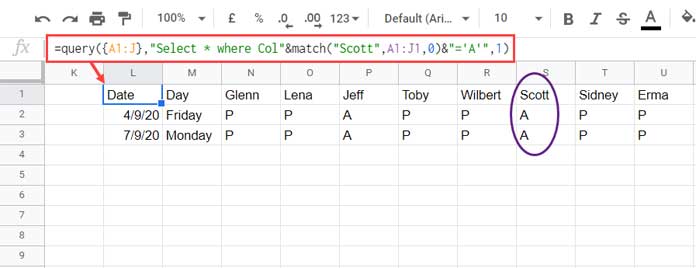
Note: If you just want the date column, replace "SELECT *" with "SELECT Col1".
If the MATCH criterion (i.e., “Scott”) is a cell reference, say in cell K1, then use this formula:
=QUERY(A1:J, "SELECT * WHERE Col"&MATCH(K1, A1:J1, 0)&" = 'A'", 1)Multiple MATCH Functions in Query Where Clause in Google Sheets
Suppose you want to check whether two employees were absent on the same day. You may then use multiple MATCH functions in the Query Where clause.
For example, considering employees “Jeff” and “Scott”:
=QUERY(
  A1:J,
  "SELECT * WHERE Col"&MATCH("Scott", A1:J1, 0)&" = 'A' AND Col"&MATCH("Jeff", A1:J1, 0)&" = 'A'",
  1
)
Here, I have used two MATCH functions inside the Where clause along with the AND logical operator.
Alternative Formulas (FILTER and Query with TRANSPOSE)
If you want to filter records for one employee, say “Scott”, you can use alternative formulas. Among these, FILTER is a top choice.
=FILTER(
  A1:J,
  FILTER(A1:J8, A1:J1 = "Scott") = "A"
)- The inner FILTER formula filters the 8th column based on the name “Scott”.
- The outer FILTER filters the rows where the 8th column contains the letter “A”.
You can find more details here: Two-Way Filter in Google Sheets: Vertical & Horizontal.
To enhance your Google Sheets skills, here’s one more formula using Query with Transpose:
=QUERY(
  HSTACK(TRANSPOSE(QUERY(TRANSPOSE(A1:J), "SELECT * WHERE Col1 = 'Scott'", 0)), A1:J),
  "SELECT Col2 WHERE Col1 = 'A'"
)
Explanation of Query with TRANSPOSE
TRANSPOSE(A1:J)changes the orientation of the data so employee names are in the first column.- The inner Query selects the row that contains “Scott” in the first column.
- Transposing the data again restores the original layout.
- We add the entire data as adjoining columns to the right.
- The outer Query filters the first column for “A”.
- Since the first column contains names, we start with
"SELECT Col2"instead of"SELECT Col1". - This returns the date column only.
- To return all columns, specify them in the Select clause, e.g.,
"SELECT Col2, Col3, Col4...".
That’s all about how to use the MATCH function in Query Where clause in Google Sheets.
Thanks for reading. Enjoy!
Resources
- How to Use IF Function in Google Sheets Query Formula
- Dynamic Column References in Google Sheets Query
- How to Offset Match Using QUERY in Google Sheets
- How to Use the Proper Function in Google Sheets Query
- Select Every Nth Column in Google Sheets Query – Dynamic Formula
- Dynamic Column ID in QUERY IMPORTRANGE Using Named Range
- Filter Out Blank Columns in Google Sheets Using Query Formula
- Google Sheets QUERY: Select Different Columns Each Day
- Count Unique in Google Sheets QUERY
- Reference a Column by Field Label in Google Sheets QUERY
