

Named ranges let you assign descriptive names to cells, ranges, and datasets in Google Sheets. They make formulas easier to read, easier to maintain, and simpler to reuse throughout a spreadsheet. Although newer features such as LET and table references can also improve formula readability, named ranges remain one of the most useful tools for organizing spreadsheets.
What are Named Ranges?
Named ranges can refer to a single cell, a range of cells, or an entire dataset. Each named range must have a unique name within the spreadsheet.
Once created, you can use these names in formulas instead of cell references. For example, you can use named ranges with functions such as SUMIF, QUERY, VLOOKUP, XLOOKUP, FILTER, IMPORTRANGE, and many others.
Why Use Named Ranges?
Suppose you have a sheet named Home Maintenance Log. If you want to reference the range A1:A100 from another sheet in the same spreadsheet, you would normally write:
'Home Maintenance Log'!A1:A100
Instead, you can assign a descriptive name such as LogDates to that range and simply use:
LogDates
Using named ranges makes formulas shorter, cleaner, and easier to understand. Descriptive names are also much easier to remember than cell references, especially in large spreadsheets.
Named ranges are not limited to formulas. You can also use them in features such as conditional formatting and data validation (drop-down lists from a range), making them useful throughout your spreadsheet.
Another advantage is that a named range is available throughout the entire spreadsheet (workbook), not just on the sheet where it was created. This means you can reference it from any sheet without worrying about long sheet names or complex cell references, making your formulas easier to read, maintain, and update. You can also reference named ranges from another spreadsheet by using the IMPORTRANGE function.
How to Create a Named Range in Google Sheets
There are two ways to create a named range in Google Sheets. One is by using the menu command, and the other is by using a keyboard shortcut.
The shortcut method is relatively new, so you may not be familiar with it.
Let’s see how to assign a name to the range D4:D9 using both methods.
Method 1: Using the Menu Command
Here are the steps to create a named range in Google Sheets:
- Select the range
D4:D9that you want to name. - Go to Data > Named ranges.
- In the Named ranges sidebar, type a name for the range in the Name field. The field may already contain a suggested name such as
NamedRange1. Replace it withSalesValue. - Click Done.
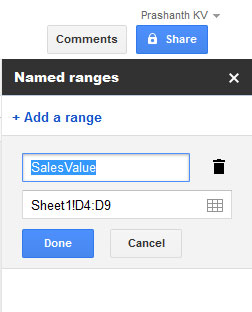
You can now use SalesValue instead of D4:D9 in formulas anywhere within the same spreadsheet.
Here are a couple of simple examples:
=MAX(SalesValue)The above formula returns the maximum value in the named range SalesValue.
={SalesValue}The above formula returns all the values from the named range SalesValue without any further processing.
Method 2: Using Keyboard Shortcuts
Here’s a quicker way to create a named range in Google Sheets:
- Select the range (for example,
D4:D9). - Press Ctrl + J on Windows/ChromeOS or ⌘ + J on Mac.
- Type the required name in the Name box.
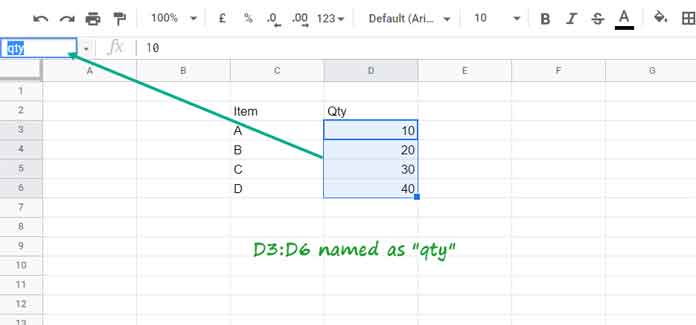
Note: You can also click directly in the Name box and enter the desired name.
Rules for Named Ranges
If you encounter the error message “The name given to this range is invalid.,” one or more of the following rules may have been violated.
A valid named range must:
- Be between 1 and 250 characters long.
- Contain only letters, numbers, and underscores (
_). - Not start with a number or the Boolean values
TRUEorFALSE. - Not be a valid cell reference in A1 or R1C1 notation.
- Not contain spaces or punctuation marks.
Best Practices
- Use descriptive names such as
SalesValueinstead ofRange1. - Use PascalCase or snake_case consistently.
- Avoid names that resemble built-in functions.
- Create one named range per dataset instead of many overlapping ranges.
- Delete unused named ranges to keep the spreadsheet organized.
Examples of Named Ranges
Using a Named Range in a Formula
In the example below, the range D4:D9 contains sales values.
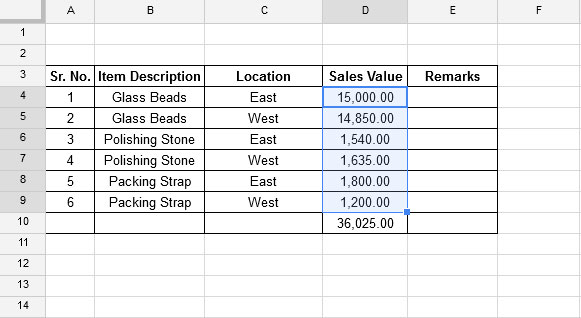
How would you normally calculate their total?
You might use the following formula:
=SUM(D4:D9)However, to make your formula cleaner and more user-friendly, you can first assign the name SalesValue to the range D4:D9 and then use the following formula:
=SUM(SalesValue)Using a Named Range in a Data Validation Drop-down
Assume the range C4:C9 has been assigned the name Location.
To create a drop-down list from this named range:
- Select the destination cell(s).
- Go to Insert > Drop-down.
- Choose Drop-down (from a range).
- In the Range field, enter:
=LocationThe drop-down list will display all the values from the named range Location.
Advanced Example: Using a Named Range with XLOOKUP
Assume your gasoline consumption data is in the range A1:C100, where the field labels in cells A1:C1 are Date, Vehicle Number, and Quantity in Gallons, respectively.
In other words, the entire table is in the range A1:C100. Let’s create a named range for this table and use it with XLOOKUP.
Assign the name gasoline_consumption to the range A1:C100 using one of the methods explained above.
The following formula searches for the vehicle number TEMP-DX-100 in the second column of the named range and returns the corresponding value from the third column:
=XLOOKUP(
     "TEMP-DX-100",
     CHOOSECOLS(gasoline_consumption,2),
     CHOOSECOLS(gasoline_consumption,3)
)
Limitations
When you insert rows within the boundaries of a named range, Google Sheets automatically expands the named range to include those rows.
For example, if the named range refers to A1:C100 and you insert a row after row 10, the reference automatically changes to A1:C101.
If you insert rows outside the boundaries of a named range, such as above the first row or below the last row, those rows are not automatically included in the named range.
For example, inserting a row above row 1 changes the reference from A1:C100 to A2:C101. In such cases, you must manually edit the named range if you want to include the new row.
The same behavior applies when inserting columns.
Therefore, standard named ranges are only partially dynamic. However, there are workarounds for this limitation.
Related Named Range Tutorials
This guide covers the fundamentals of named ranges. If you want to learn how to use them in specific Google Sheets features and functions, explore the tutorials below.
Named Ranges Basics
Named Ranges with Lookup Functions
Named Ranges with QUERY
Named Ranges with Other Functions
Named Ranges and Formatting
Conclusion
Once you’re comfortable with the basics, explore the related tutorials above to learn how to use named ranges with functions such as QUERY, VLOOKUP, SUMIF, IMPORTRANGE, and conditional formatting.




