



















You can highlight cells in one sheet based on whether the same cells in another sheet have values, and you don’t even need to mirror the data. Here’s how to highlight cells if the same cells in another sheet have values without duplicating data.
In this Google Sheets tutorial, you’ll learn how to apply conditional formatting that references another sheet to highlight matching non-blank cells.
Scenario Overview
Suppose you have two sheets in your Google Sheets file:
- Sheet1: Contains the original values
- Sheet2: You want to highlight cells here if the same cell in Sheet1 has a value
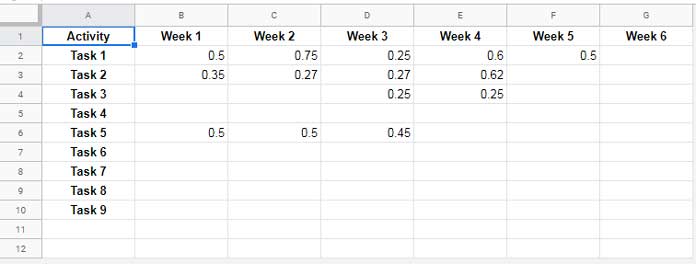
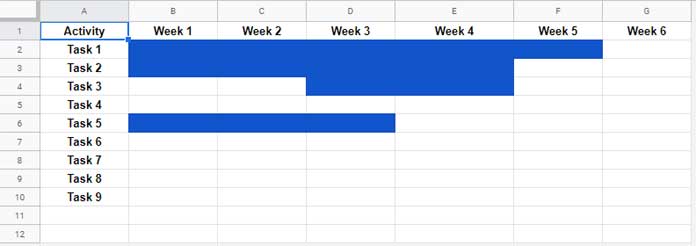
Let’s say the range B2:G10 in Sheet1 contains various entries, and you want to highlight the same cell positions in Sheet2 only if there’s a value in Sheet1.
Example Setup
Sheet1’s Data:
Sheet2’s Highlighting Result:
Why Not Mirror the Data?
You could mirror cells using formulas like ='Sheet1'!B2, but that would overwrite Sheet2’s content and structure. This method highlights cells without changing or duplicating any data in Sheet2.
How to Highlight Cells by Another Sheet’s Data
Step 1: Use This Conditional Formatting Formula
=NOT(ISBLANK(INDIRECT("Sheet1!" & ADDRESS(ROW(), COLUMN()))))What it does:
ROW()andCOLUMN(): Refer to the current cell’s positionADDRESS(...): Builds a string like"B2"INDIRECT(...): Accesses that address in Sheet1ISBLANK(...): Checks if the referenced cell is emptyNOT(...): ReturnsTRUEwhen the referenced cell has a value
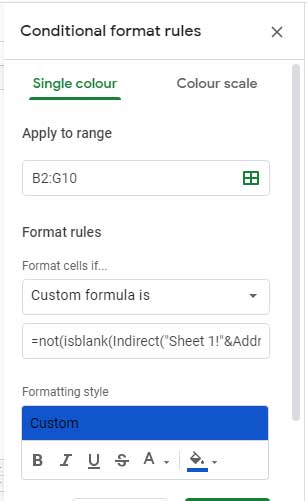
Step 2: Apply Conditional Formatting
- Go to Sheet2
- Select the range you want to highlight (e.g.,
B2:G10) - Click Format > Conditional formatting
- Under Apply to range, enter
B2:G10 - Under Format cells if, choose Custom formula is
- Paste the formula from Step 1
- Pick a fill color
- Click Done
Cells in Sheet2 will now be highlighted if the same cell in Sheet1 contains any value.
Optional: Highlight an Entire Sheet
If you’d like to highlight the entire Sheet2 (e.g., up to 1000 rows), set the Apply to range to A1:1000.
The formula still works for each cell individually.
Example Use Case
Let’s say you maintain job schedules or attendance records across multiple tabs.
This method helps you visually track updates in the source sheet without duplicating any values.
Final Tip
You’re not limited to just non-blank cells—you can customize the formula to highlight based on specific values, text, or even patterns from another sheet.
This approach is ideal when you want to highlight cells in one sheet based on values in another, without disrupting layout or content.
