

Whether you’re tracking race results, event times, or any other timed activities, finding the best (shortest) time for each individual helps you quickly summarize the results. In this guide, we’ll show you how to group names and return the fastest time for each person using simple formulas in Google Sheets.
Preparing the Data
To find the shortest time per name in Google Sheets, it’s important to organize your data in a specific way with four columns:
- First name
- Last name
- Minutes
- Seconds (which may include milliseconds)
While combining the first and last names, as well as combining the minutes and seconds, can simplify the formula, I prefer working with the four-column format. This structure adds complexity to the formula, as it involves combining the minutes and seconds, but it provides a more adaptable approach when coding the solution.
Sample Data to Find the Shortest Time Per Person
| First Name | Last Name | Min | Sec |
| Adam | Kidd | 2 | 0.8 |
| Adam | Kidd | 1 | 58.45 |
| Victoria | Lopez | 2 | 4.51 |
| Bobbie | Castillo | 2 | 9.11 |
| Bobbie | Castillo | 2 | 13.22 |
| Olga | Ashley | 2 | 36.85 |
| Olga | Ashley | 2 | 45.8 |
| Cary | Hansen | 2 | 28.56 |
| Cary | Hansen | 2 | 30.17 |
Do I Need to Sort the Table?
No. You don’t need to sort the table by name, time, or any other field. The formula will handle everything for you, including sorting names and times automatically.
Formula to Get the Fastest Time for Each Person in Google Sheets
In this setup, with your data in columns A1:D (where A1:D1 contains field labels), you can use the following formula in cell F1:
=LET(
   fn, A2:A, ln, B2:B, min, C2:C, sec, D2:D, header, A1:D1,
   table, SORT(HSTACK(HSTACK(fn, ln, min, sec), (min * 60 + sec) / 86400, fn&ln), 6, 1, 5, 1),
   fnl, CHOOSECOLS(SORT(SORTN(FILTER(table, CHOOSECOLS(table, 1)<>""), 9^9, 2, 6, 1), 5, 1), 1, 2, 3, 4),
   VSTACK(header, fnl)
)
This formula processes the range A1:D and returns the fastest time for each person as follows:
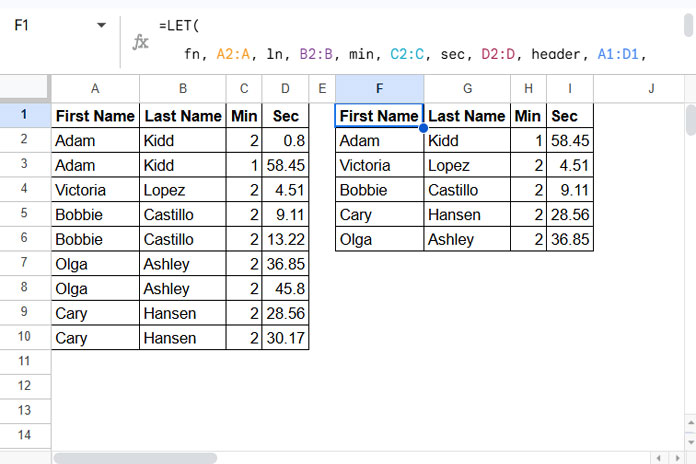
Anatomy of the Formula
There are a couple of components in the formula.
First, we assign names to each column and the header as follows:
fn, A2:A, ln, B2:B, min, C2:C, sec, D2:D, header, A1:D1This makes the formula easily adaptable to different ranges.
Then, we process the range A2:D:
table, SORT(HSTACK(HSTACK(fn, ln, min, sec), (min * 60 + sec) / 86400, fn&ln), 6, 1, 5, 1)This returns A2:D and appends two more columns: one with the combined minutes and seconds, and another with the combined first and last names. It then sorts by the combined columns, placing the names in ascending order. If the name repeats, the fastest time will be at the top.
Finally, the next part removes duplicate names and ensures we get the shortest time for each person:
fnl, CHOOSECOLS(SORT(SORTN(FILTER(table, CHOOSECOLS(table, 1)<>""), 9^9, 2, 6, 1), 5, 1), 1, 2, 3, 4)This part uses the SORTN function to remove duplicates, ensuring each person only has their fastest time listed. The SORT function sorts the data by time, arranging names by their fastest times.
VSTACK(header, fnl) simply adds the header row to the result.
And that’s how you get the fastest time for each person!
Filter and Display the Top 3 Fastest Times in Google Sheets
Once you’ve filtered the fastest time for each person, you may want to focus on just the top 3 fastest overall times. This can help you quickly identify the best performances without having to sift through a long list of results. In this section, we’ll show you how to filter and display only the top 3 fastest times in your dataset, ensuring you get the most relevant data at a glance.
To achieve this, you can incorporate the ARRAY_CONSTRAIN function into the formula.
Simply replace ‘fnl’ in VSTACK(header, fnl) with ARRAY_CONSTRAIN(fnl, 3, 4).
The updated formula will look like this:
=LET(
   fn, A2:A, ln, B2:B, min, C2:C, sec, D2:D, header, A1:D1,
   table, SORT(HSTACK(HSTACK(fn, ln, min, sec), (min * 60 + sec) / 86400, fn&ln), 6, 1, 5, 1),
   fnl, CHOOSECOLS(SORT(SORTN(FILTER(table, CHOOSECOLS(table, 1)<>""), 9^9, 2, 6, 1), 5, 1), 1, 2, 3, 4),
   VSTACK(header, ARRAY_CONSTRAIN(fnl, 3, 4))
)
This will display only the top 3 fastest times in your dataset.
Resources
- How to Add Hours, Minutes, Seconds to Time in Google Sheets
- Group and Sum Time Duration Using Google Sheets Query
- How to Remove Milliseconds from Timestamps in Google Sheets
- How to Plot a Line Chart Using Lap Times in Milliseconds in Google Sheets
- Retrieve the Earliest or Latest Entry Per Category in Google Sheets




