

Keeping track of assignments doesn’t have to be stressful. That’s why I created this free Student Assignment Tracker Template in Google Sheets—a simple, interactive template that helps you stay organized and keep an eye on upcoming deadlines without feeling overwhelmed.
Everything is on a single sheet, so you don’t have to switch between tabs. You can quickly highlight pending assignments that are overdue, due today, or due within the next n days using easy-to-use drop-down controls.
You can even combine multiple highlighting options to create a view that helps you focus on exactly what needs your attention. If an assignment is marked as High priority, you also have the option to display it in bold so it stands out even more.
The template also includes two charts that update automatically as you manage your assignments:
- Assignments by Status
- Priority Distribution
There’s also an Upcoming Deadlines section that automatically lists pending assignments due in the next 7 days, next 14 days, next 30 days, or this month.
If you’re looking for a clean, easy-to-use Student Assignment Tracker Template in Google Sheets, I hope this one makes staying on top of your coursework just a little easier.
You can download the template by clicking the button below.
Key Features
- Interactive assignment tracker on a single sheet
- Multi-select highlighting for overdue, due today, and due soon assignments
- Automatic bold formatting for high-priority assignments
- Assignment Status and Priority Distribution charts
- Upcoming Deadlines summary (Next 7, 14, 30 Days, or This Month)
- Fully customizable subjects, statuses, and submission types
How to Use the Student Assignment Tracker Template in Google Sheets
I have used a few structured tables in this Student Assignment Tracker Template instead of regular ranges. This lets me use table references in formulas and when creating drop-down lists, making the formulas much easier to read and maintain because they use table names and column headers instead of cell ranges. Another advantage is that the references automatically expand as the tables grow, so you don’t have to update formulas manually.
The template consists of two sheets:
- Drop-down Lists – Stores the lists used to create the drop-down menus in the assignment tracker.
- Assignment – The main sheet where you enter, manage, and track your assignments.
Drop-down Lists Sheet
This sheet contains three tables:
- StatusList
- SubmissionTypeList
- SubjectList
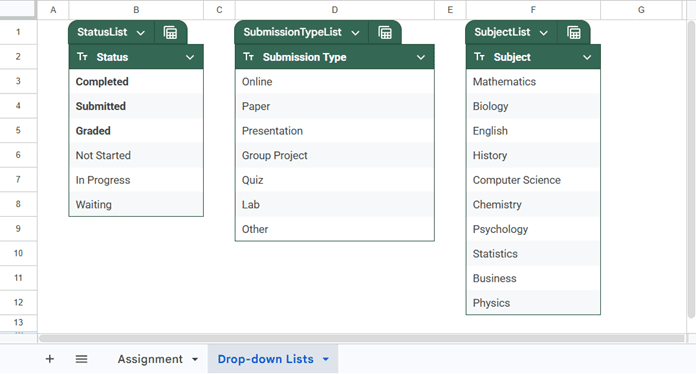
StatusList
The StatusList table contains the assignment statuses used in the tracker:
- Completed
- Submitted
- Graded
- Not Started
- In Progress
- Waiting
Do not delete the first three statuses—Completed, Submitted, and Graded. I have used these values in conditional formatting and several formulas to identify assignments that are no longer pending.
You are free to modify the remaining statuses or add new ones. However, any additional statuses should represent assignments that are still pending. Keep this in mind when customizing the list.
SubmissionTypeList
The SubmissionTypeList table contains the different assignment submission methods, such as Online, Paper, Presentation, and Quiz. Feel free to modify this list to suit your needs.
SubjectList
The SubjectList table contains the subjects available in the assignment tracker. You can edit this list by adding, removing, or renaming subjects.
Working with Tables
If you’re new to tables in Google Sheets, here are a few basics:
- To add a new item: Type the new value directly below the last row of the table. The table will automatically expand.
- To edit an item: Double-click the cell (or simply select it) and change the value.
- To delete an item: Right-click the row within the table and choose Delete table row.
That’s all you need to know about the Drop-down Lists sheet.
Assignment Sheet
The Assignment sheet is where you enter and manage all your assignments.
Start by entering your assignments in the AssignmentTable, which has the following columns:
- Assignment
- Subject
- Due Date
- Priority
- Status
- Estimated Time
- Submission Type
- Notes
Enter the assignment name in the first column. Select the subject from the drop-down list in the Subject column, enter the due date, and then choose the priority (Low, Medium, or High). Next, select the current assignment status. You can also enter the estimated time required to complete the assignment, choose the submission type, and optionally add any notes.
Once you’ve entered your assignments, the template automatically updates the highlighting, charts, and the Upcoming Deadlines section based on your entries.
Highlighting Control
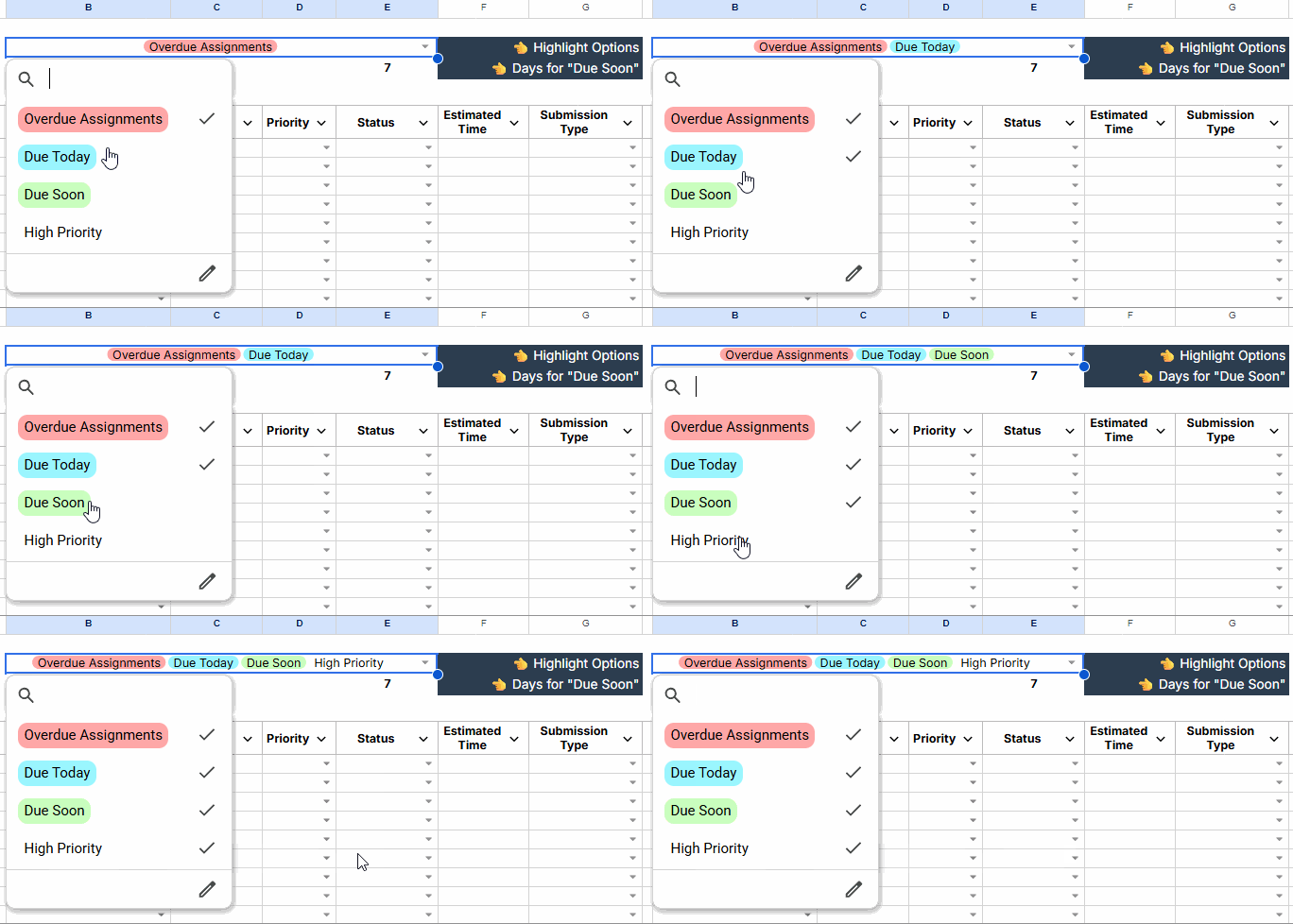
At the top of the sheet, you’ll find a multi-select drop-down in the merged range B2:E2. It contains the following options:
- Overdue Assignments
- Due Today
- Due Soon
- High Priority
The first three options appear as colored chips. When you select one of them, assignments that meet the corresponding condition are highlighted using the same color.
For example, if you select Due Today, any pending assignment that is due today (that is, its status is not Completed, Submitted, or Graded) will be highlighted in Electric Blue, matching the chip color.
If you select Due Soon, enter the number of days in the cell below the drop-down. For example:
- 7 highlights assignments due within the next 7 days, including today.
- 14 highlights assignments due within the next 14 days, including today.
- 30 highlights assignments due within the next 30 days, including today.
These assignments are highlighted in Mint Green, matching the chip color.
If you select Overdue Assignments, all pending assignments whose due dates have already passed are highlighted in Soft Pink.
You can enable any combination of these highlighting options to create the view that works best for you. For example, you can highlight Due Today and Overdue Assignments together, or activate all three at the same time.
Unlike the other options, High Priority doesn’t use a chip color. This is intentional. Rather than applying a background color, it makes the text bold for highlighted assignments whose Priority is High.
This interactive highlighting control is one of the key features of this Free Student Assignment Tracker Template in Google Sheets.
Charts
On the right side of the assignment table, you’ll find two pie charts.
The first chart, Assignments by Status, shows how your assignments are distributed across different statuses.
The second chart, Priority Distribution, shows the distribution of assignments based on their priority levels.
If you’d like to view the charts for only pending assignments, click the drop-down arrow in the Status column header (cell E5), choose Filter column, and deselect Completed, Submitted, and Graded. Since the charts are based on the filtered data, both charts will update automatically to reflect only the visible assignments.
Note: This template supports up to 100 assignments by default. If you add more rows, remember to update the chart data ranges from the Setup tab of each chart.
Upcoming Deadlines
Below the charts, you’ll find a drop-down list with the following options:
- Next 7 Days
- Next 14 Days
- Next 30 Days
- This Month
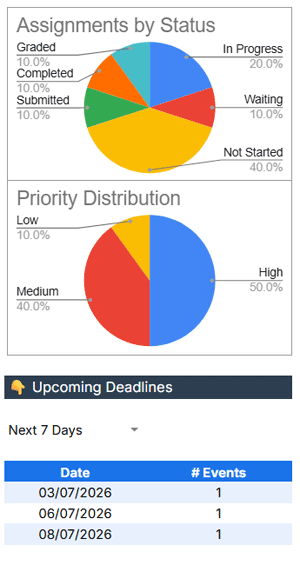
Select any option to display a table showing the dates within the selected period and the number of pending assignments due on each date.
That’s all there is to using this Student Assignment Tracker Template. I hope it helps you stay organized and never miss an assignment deadline.
Who Can Use This Student Assignment Tracker Template?
This Student Assignment Tracker Template is suitable for anyone who wants to stay organized and keep track of assignment deadlines, including:
- School students
- College and university students
- Online learners
- Students preparing for competitive exams
- Anyone managing coursework, projects, or homework in Google Sheets
Since the template is fully customizable, you can edit the subjects, assignment statuses, submission types, and other lists to match your own study routine.
Conclusion
I hope you find this free Student Assignment Tracker Template in Google Sheets useful. If you have suggestions for improvements or features you’d like to see in future versions, let me know in the comments. I’d love to hear how you’re using the template and what would make it even more useful.
Related Templates
If you found this Student Assignment Tracker Template useful, you may also like:




