

Below is a free download link to an adaptive study planner template for use in Google Sheets, along with instructions on how to use it.
This adaptive study planner template helps you effectively schedule and manage your study sessions for each chapter.
First, enter the initial study date of a chapter. Then, input your spaced repetition intervals for the second, third, and subsequent revisions of that chapter. In another column, enter the actual completion date. With each completion date, the next revision date will be calculated automatically. Continue this process with other chapters.
The number of revisions needed to effectively memorize a chapter can vary depending on the complexity of the material and individual learning styles. You are free to modify the spaced repetition intervals to suit your needs, and I’ll explain how to do that as well.
If you use Microsoft Excel, you can download the companion version here:
Excel: Adaptive Study Planner with Auto-Reschedule — built with XLOOKUP and dynamic arrays.
Adjusting the Spaced Repetition Settings
Spaced repetition refers to the interval after which you should revise a chapter.
- 1 = After 1 day
- 2 = After 2 days
- …
- 60 = After 60 days
You can find these spaced repetition intervals in the range D2:M2, and their corresponding serial numbers in D1:M1. You can modify the values in D2:M2 according to your needs.
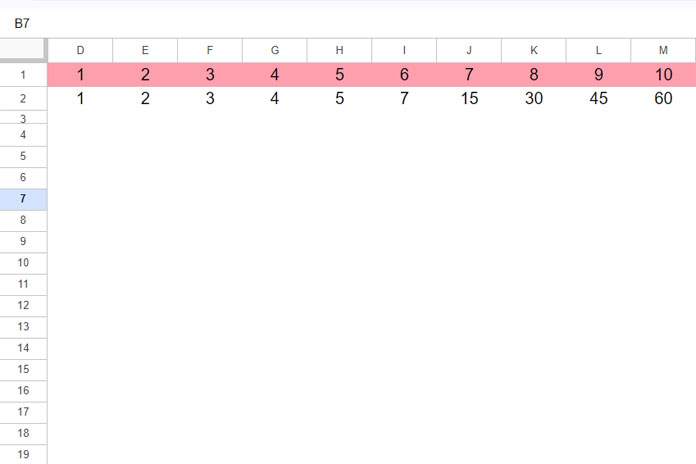
We will use the serial numbers as the input within the template. For example, if you want to start a revision after 15 days, you should specify 7, which is the serial number for 15.
Note: The template currently supports ten-spaced repetitions. If you want to add more, you can enter them in N1:S1 and N2:S2. You’ll also need to modify the ranges $D$1:$M$1 and $D$2:$M$2 in the formulas in cells C7, F7, I7, L7, O7, and R7 accordingly.
Using the Adaptive Study Planner
The template is currently set up for 6 chapters, with each chapter having three columns. You can add more chapters if needed, which I’ll explain as well.
Planning the Study of the First Chapter:
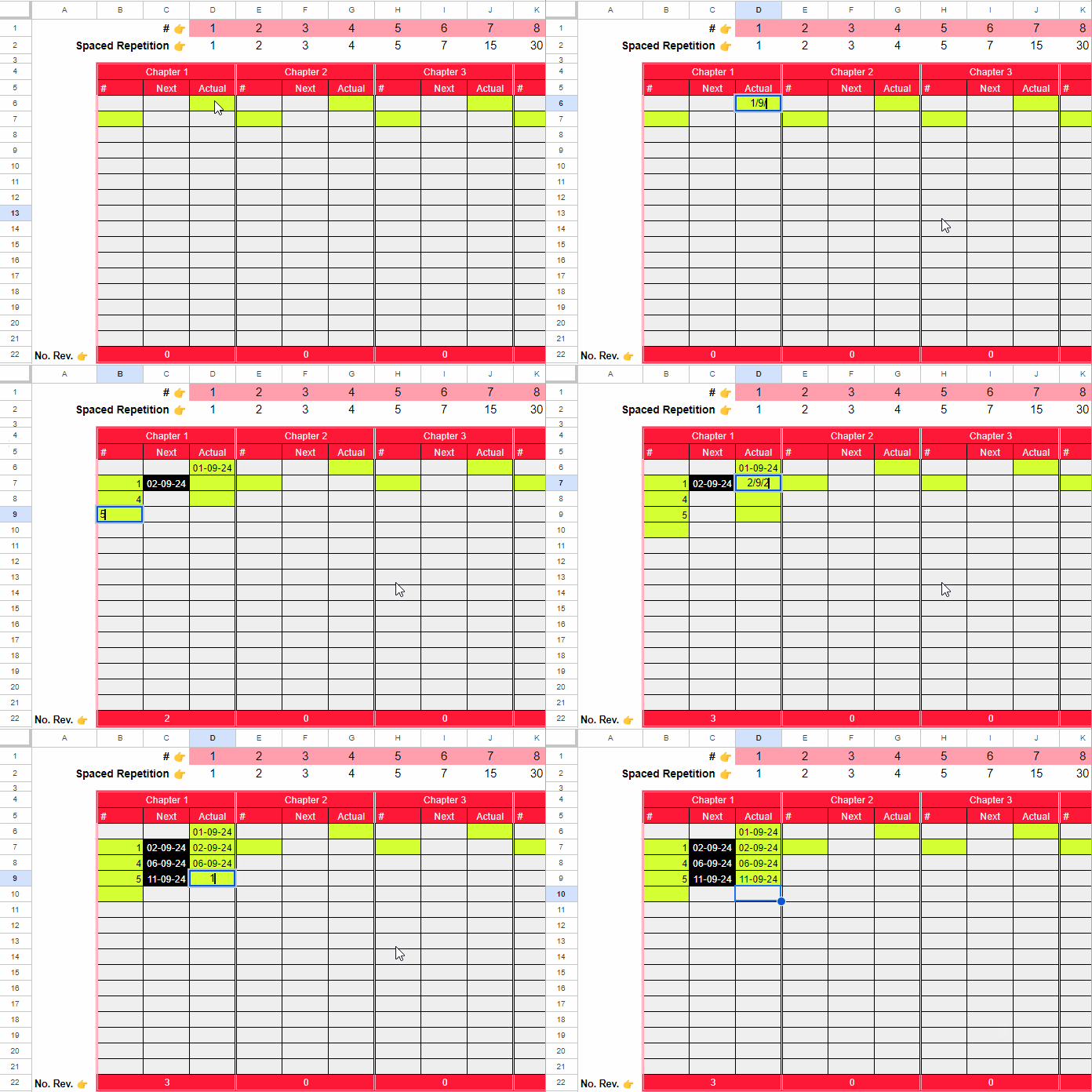
- In the third column, enter the initial study date for the chapter in the dark yellow highlighted cell (e.g., cell D6).
- In cell B7, highlighted in dark yellow, enter the serial number corresponding to your desired spaced repetition interval. For example, if you want to revise the chapter after 45 days, enter 9.
- In cells B8, B9, B10, etc., enter the serial numbers for the third, fourth, fifth, and subsequent spaced repetitions.
- You will get the second revision date in C7. Enter it in D7 to get the next completion date in C8. Enter it in D8, and continue this process until you have completed all the revision dates.
You can follow the same steps for the other chapters.
Important:
When you complete a revision according to the schedule, you do not need to make any changes. However, if any revision completion date in column D differs from the schedule in column C, update the date in column D. Then, adjust the dates of subsequent revision completions in column D based on the refreshed dates in column C.
Note: Do not make any changes to the second column in each chapter, as it is dedicated to formulas. These formulas help automatically reschedule the study planner.
Adding Chapters and Revisions
The template currently supports 6 chapters. If you want to add a 7th chapter:
- Copy the range Q4:S22.
- Navigate to cell T4 and paste the copied range.
- Delete any contents in the first and last columns.
The template currently supports up to 15 revisions. If you want to add more:
- Select row #20, right-click, and select “Insert 1 Row Below.”
Adaptive Study Planner Formula and Explanation
You can skip this part as it only covers the formulas and a brief explanation.
Under each chapter, the second cells in the second column contain formulas.
Chapter 1 Formula #1 (Cell C7):
=ArrayFormula(LET(l_up, XLOOKUP(B7:B21, $D$1:$M$1, $D$2:$M$2), IFNA(IF(D6:D20, l_up+D6:D20,))))Where:
- $D$2:$M$2 = The spaced repetition intervals
- $D$1:$M$1 = The serial numbers of the spaced repetition intervals
- B7:B21 = The user-entered spaced repetition serial numbers
- D6:D20 = The reference range containing the manually entered study dates
Formula Explanation:
XLOOKUP(B7:B21, $D$1:$M$1, $D$2:$M$2):
Looks up the serial numbers in column B from the spaced repetition table and returns the corresponding repetition intervals.
IFNA(IF(D6:D20, l_up + D6:D20, )):
Adds the spaced repetition interval to the actual/planned study date to generate the next review date.
Related Resources
- Free Student Grade Tracker Template in Google Sheets
- Free Student Assignment Tracker Template in Google Sheets
Explore our complete collection of free Google Sheets templates.




