

Stay on top of your learning with our free Excel Adaptive Study Planner. Plan smarter study sessions, review efficiently, and retain more information.
Using spaced repetition, this planner schedules reviews based on your needs. Harder topics are reviewed more often, while easier topics use wider intervals. As your exams approach, switch to shorter intervals for frequent reviews.
This planner tracks multiple chapters or topics. It is easy to use, adaptive, and keeps your study sessions organized.
Key Features of the Excel Adaptive Study Planner
- Fully adaptive spaced repetition system
- 10 review numbers with editable intervals
- Supports multiple chapters or topics
- Automatically calculates next review dates
- Compatible with Excel 2021, Microsoft 365, and Excel 2024
What is Spaced Repetition?
Spaced repetition is a learning technique based on how our memory fades over time. When you first learn something, your brain forgets it unless you review it.
This technique schedules reviews just before you are likely to forget. It strengthens memory far more effectively than cramming.
Our adaptive algorithm starts with short intervals and gradually increases them for long-term retention. You can also customize intervals to match your learning pace or upcoming exams.
Download the Free Excel Adaptive Study Planner
Before you start using it, download the planner by clicking the button below. It works in Excel versions that support XLOOKUP and dynamic arrays (Excel 2021, Microsoft 365, Excel 2024).
Download Free Excel Study Planner
Prefer Google Sheets? Check out: Google Sheets: Adaptive Study Planner with Auto-Reschedule. The layout is optimized for Google Sheets.
How to Use the Excel Adaptive Study Planner
The planner comes with 10 review numbers and suggested intervals in days.
1. Spaced Repetition Table
You’ll find the table in M2:N12:

This table powers all automatic date calculations in the planner.
The intervals are editable. You can change the days (the second column) based on your preferred review frequency. Once set, keep it as is, because this table is the source for spaced repetition in the planner.
2. Using the Template
The planner has space for 10 topics or chapters, highlighted with green cells for data entry.
Let’s begin by setting up the first chapter and entering your initial study date.
Step 1: Enter the Start Date
- Start with Chapter 1.
- Enter your first study date in the green cell (e.g., B4: 18/11/25).
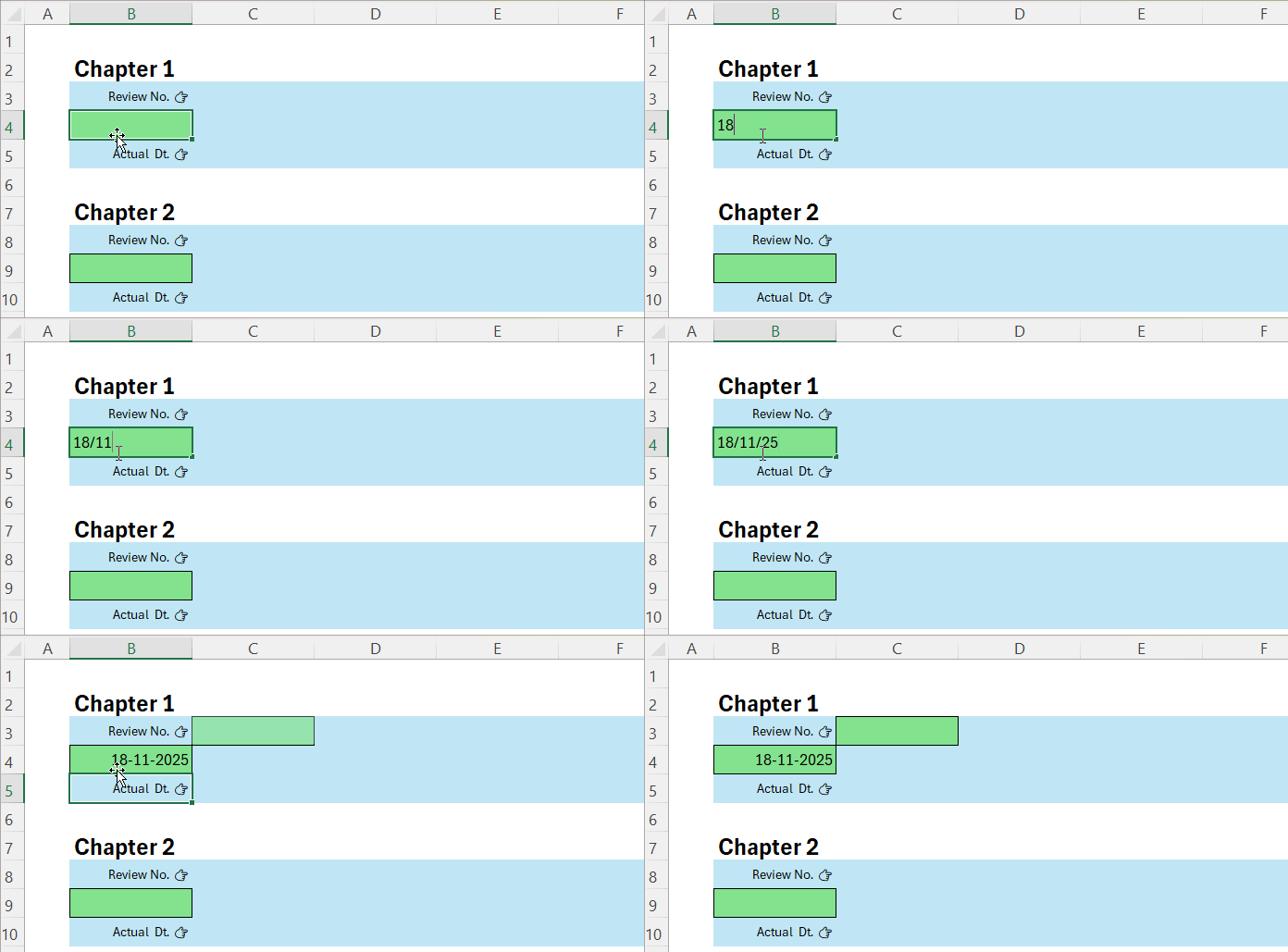
Next, you’ll tell the planner when your first review should happen by entering a review number.
Step 2: Enter Review Number
- A green cell will appear. Enter the review number for the next review.
- Example: Enter 3 → it adds 4 days to the start date and shows the next review date.
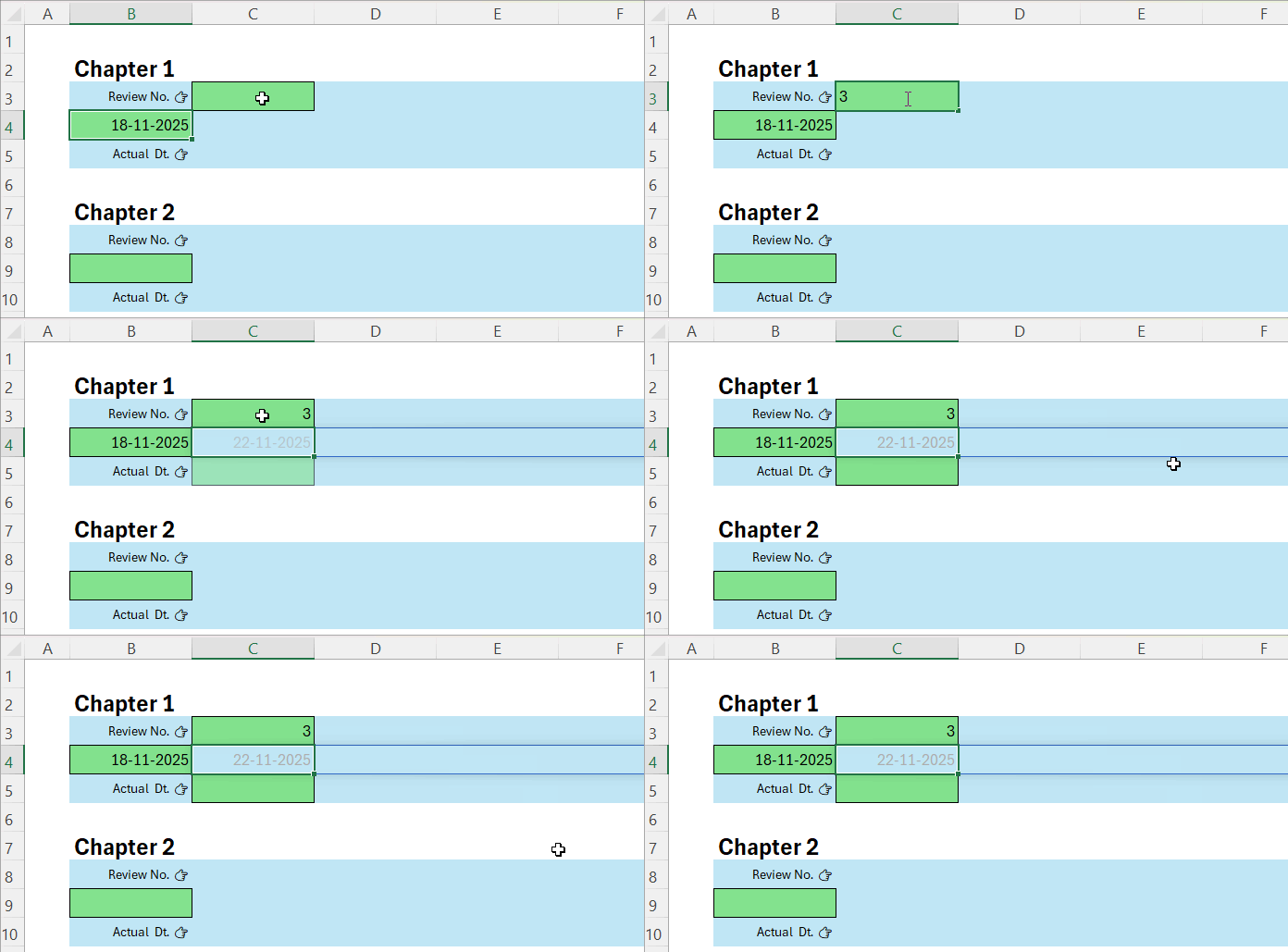
You may repeat the generated review date below to confirm it, so the planner can calculate the next review automatically
Step 3: Record Actual Review Dates
- Enter the generated review date into the green cell (e.g., C5: 22/11/25).
- The planner will then highlight the next cell for entering the review number. Follow it to schedule your next review.
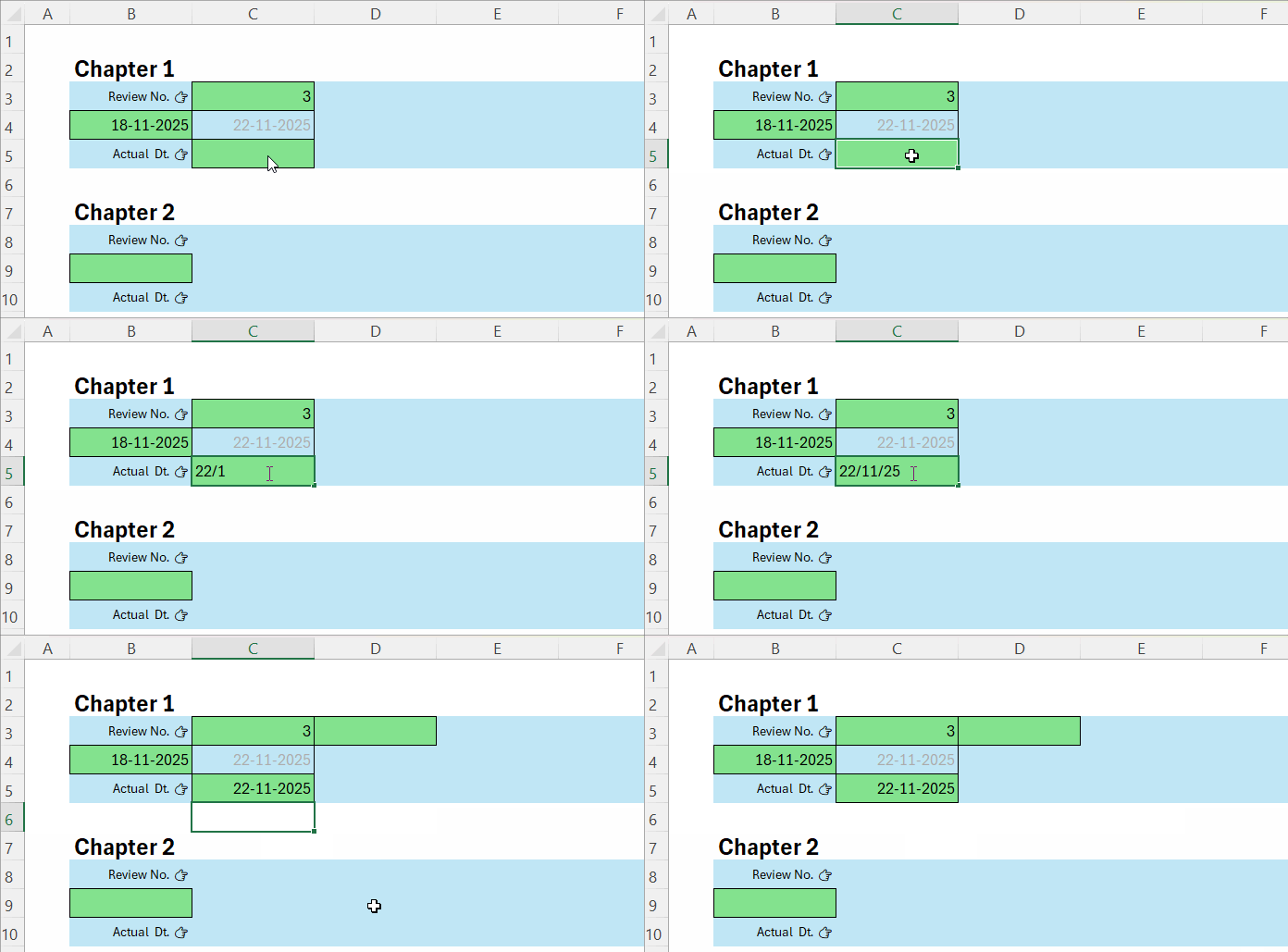
Repeat these steps for all other chapters to keep your entire study schedule on track.
Step 4: Repeat for All Chapters
- Repeat these steps for each topic.
- If you miss a planned review, enter the actual review date in the “Actual Dt. 👉” row (the third row). Then, delete all the dates next to it and re-enter the dates one by one.
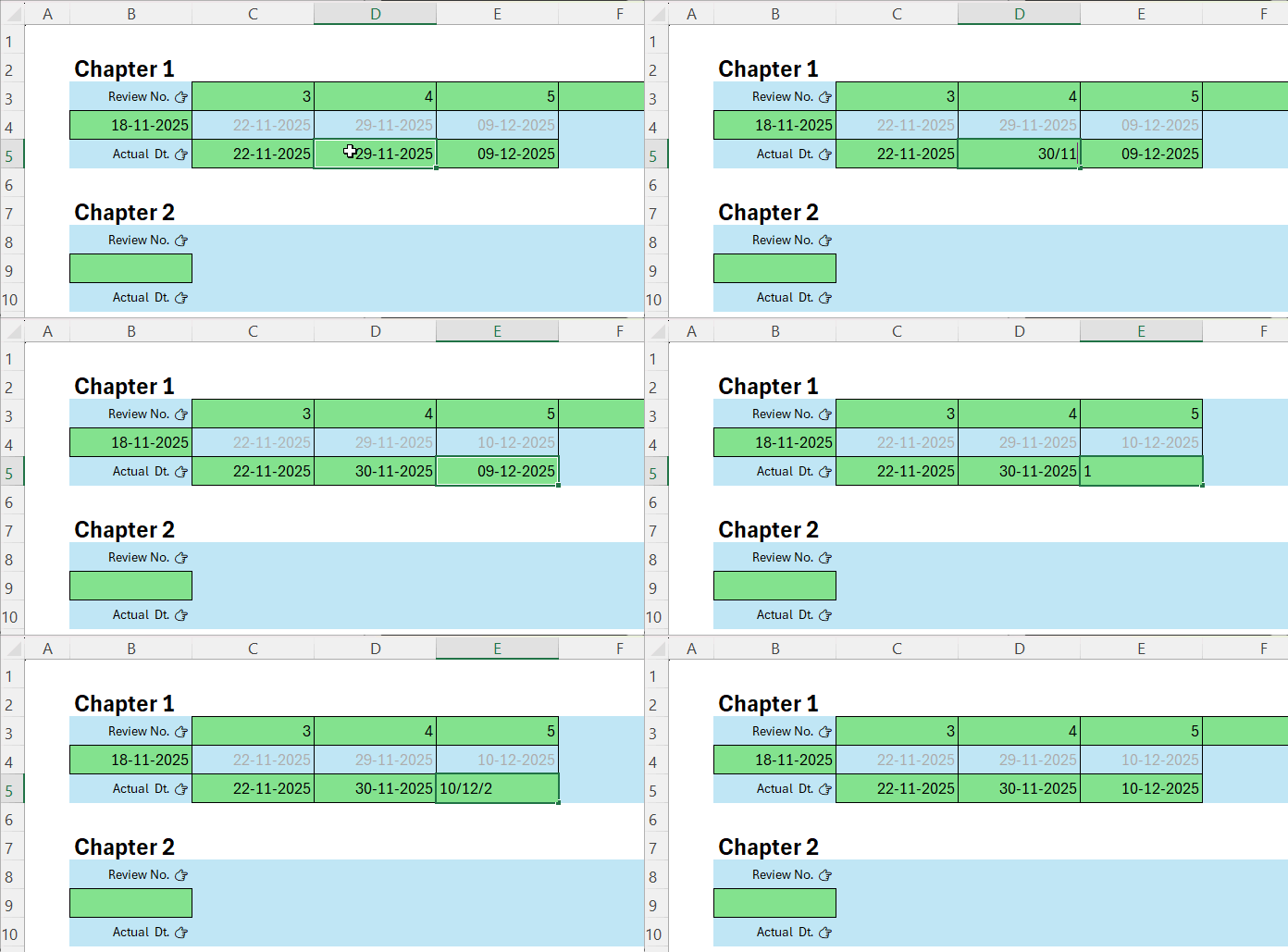
This system makes your study sessions personalized, structured, and efficient.
Formula and Highlight Rules
The planner uses a dynamic array formula and three custom highlight rules per topic to guide your entries. These highlights act as navigation aids, showing where to enter data next.
For Topic #1, the formula in C4 is:
=LET(xl, XLOOKUP(C3:K3, $M$3#, $N$3:$N$12), IFNA(IF(HSTACK(B4, C5:J5), xl+HSTACK(B4, C5:J5),""),""))- The formula looks up the review number you entered above, finds the corresponding interval, and adds it to the previous date to calculate the next review.
Highlight rules (select C3:K5 → Home > Conditional Formatting > Manage Rules):
=AND(LEN(B4), LEN(B5))→ applied to C3:K3 (guides next entry)=LEN(C4)→ applied to C4:K4 (adds a border to generated review dates)=LEN(C3)→ applied to C5:K5 (guides next entry)
This combination makes the planner interactive, adaptive, and easy to use.
Frequently Asked Questions (FAQs)
Q1: Can I modify the intervals?
Yes. You can change the days in the table to match your learning pace.
Q2: How many topics can I track?
The template tracks 10 by default. You can add more by copying the setup to new rows.
Q3: Which Excel versions work?
Excel 2021, Microsoft 365, and Excel 2024. The planner uses XLOOKUP and dynamic arrays.
Q4: How do I reset a topic?
Delete the contents in the green highlighted cells. The planner will recalculate automatically.
Q5: Can I extend the planner beyond 10 topics?
Yes. Copy the template rows to add more topics while maintaining adaptive functionality.
Conclusion
The Excel Adaptive Study Planner helps you study smarter. It automatically calculates review dates, adapts to your performance, and allows customization for each topic.
You can plan multiple chapters, retain more information, and save study time. Whether you are a student, professional, or lifelong learner, this planner makes learning structured, stress-free, and effective.




