

The SHEET and SHEETS functions let you retrieve information about worksheets in a Google Sheets file. While these functions appear simple, they become powerful when combined with functions like INDIRECT, MAP, CHOOSE, and LAMBDA.
In this tutorial, you’ll learn:
- What the SHEET and SHEETS functions do
- Their syntax and arguments
- Practical examples
- Real-world use cases where they can simplify formulas
What Is the SHEET Function in Google Sheets?
The SHEET function returns the position (index) of a worksheet within the current spreadsheet.
Syntax
=SHEET([value])Arguments
| Argument | Description |
|---|---|
value | A sheet name or other reference. This can be a sheet name (text), cell reference, range reference, named range, or table reference. If omitted, SHEET() returns the position of the current worksheet. |
Return Value
A positive integer representing the sheet’s position in the workbook.
SHEET Function Examples
Using a Sheet Name as the Argument
Assume your spreadsheet contains the following sheets in this order:
- Jan
- Feb
- Mar
- Apr
The formula below returns 2 because Feb is the second sheet.
=SHEET("Feb")If you omit the argument, the function returns the position of the current sheet.
=SHEET()Using Cell or Range References
You can also reference a cell or range on another worksheet.
=SHEET(Feb!A1)=SHEET(Feb!A1:A10)Both formulas return 2 because the referenced cell or range is on the Feb sheet.
Using SHEET with Named Ranges and Tables
The SHEET function also accepts named ranges and Google Sheets table references.
Named Range
=SHEET(Item)If the named range Item is located on the third sheet, the formula returns 3.
Table References
You can use table references such as:
=SHEET(Table2[#ALL])=SHEET(Table2)=SHEET(Table2[Name])Each formula returns the position of the worksheet containing Table2.
Using Values Stored in Cells
Sometimes the sheet name, named range, or reference is stored in a cell instead of being written directly in the formula.
For example, if cell A1 contains the text Feb, the formula below returns the current sheet’s position because A1 is treated as a reference to the cell itself, not its text value.
=SHEET(A1)Instead, use one of the following approaches depending on what A1 contains:
| If A1 contains | Use |
|---|---|
A sheet name (for example, Feb) | =SHEET(TO_TEXT(A1)) |
A cell or range reference as text (for example, Feb!A1 or Feb!A1:A10) | =SHEET(INDIRECT(A1)) |
| A named range name as text | =SHEET(INDIRECT(A1)) |
Note: Table references stored as text cannot be converted with INDIRECT(), so this approach does not work with Google Sheets Tables.
What Is the SHEETS Function in Google Sheets?
The SHEETS function returns the total number of worksheets in the current spreadsheet.
Syntax
=SHEETS()Unlike SHEET, this function doesn’t accept any arguments.
Example
If your spreadsheet contains six worksheets, the formula below returns 6.
=SHEETS()Practical Uses of the SHEET and SHEETS Functions
Although these functions return only sheet positions or the total number of sheets, they become surprisingly useful in dynamic formulas.
Here are some practical examples.
Verify a List of Sheet Names
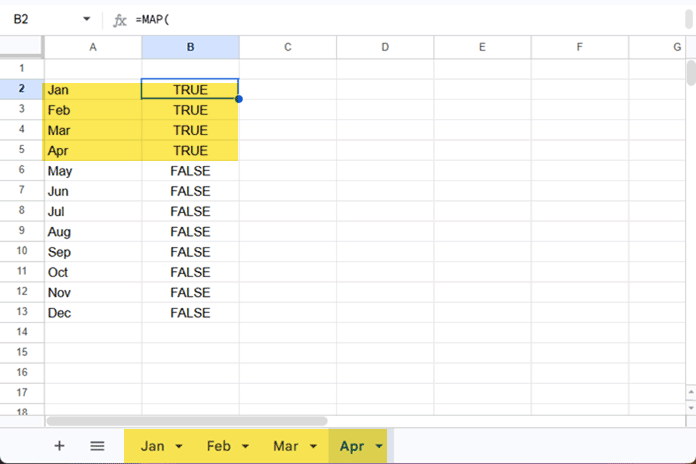
Suppose you maintain a list of worksheet names in A2:A13.
The formula below checks whether each sheet actually exists.
=MAP(
 A2:A13,
 LAMBDA(r,
  AND(
   r<>"",
   IFERROR(SHEET(TO_TEXT(r)),0)
  )
 )
)
It returns:
- TRUE for valid sheet names
- FALSE for invalid or misspelled names
How the Formula Works
SHEET(TO_TEXT(r))returns the sheet position if the sheet exists.- If the sheet doesn’t exist,
SHEET(...)returns a #REF! error. IFERROR(...,0)converts the error to 0.AND(r<>"",...)ensures blank cells are ignored.
Highlight Invalid Sheet Names
You can also use Conditional Formatting to identify incorrect sheet names visually.
- Select A2:A13.
- Go to Format > Conditional formatting.
- Choose Custom formula is.
- Enter the formula:
=AND(A2<>"", NOT(ISNUMBER(SHEET(TO_TEXT(A2)))))Any invalid sheet name will be highlighted automatically.
Make Copied Formulas Behave Differently on Each Sheet
One useful application of SHEET is creating formulas that automatically change their behavior depending on the worksheet they’re copied to.
Example 1: Change Criteria Automatically
=SUMIF(
 $B$4:$B$11,
 CHOOSE(SHEET(),"North","South","East","West"),
 $C$4:$C$11
)
If the sheets are arranged in this order:
- North
- South
- East
- West
then the formula automatically uses the matching region as the SUMIF criterion.
This eliminates the need to edit the formula after copying it to another sheet.
Example 2: Change the Function Automatically
=CHOOSE(
 SHEET(),
 SUM($C$4:$C$11),
 MAX($C$4:$C$11),
 COUNT($C$4:$C$11)
)
Depending on the sheet position, the formula returns:
| Sheet | Result |
|---|---|
| First | SUM |
| Second | MAX |
| Third | COUNT |
This technique can simplify template-based workbooks where each worksheet performs a slightly different calculation.
Sort a List of Sheet Names by Workbook Order
When you generate a list of worksheet names, the list may not reflect the actual tab order if you frequently drag and drop worksheet tabs.
Using SHEET, you can retrieve each sheet’s position and sort the list accordingly.
See the detailed tutorial:
Sort a Tab Name List by Workbook Order in Google Sheets
Find the Number of Remaining Sheets
To determine how many sheets come after the current worksheet, use:
=SHEETS()-SHEET()For example, if you’re currently on the third sheet of a workbook containing eight sheets, the formula returns 5.
This can be useful in dashboards, navigation systems, or progress trackers.
Common Errors
Here are some common errors you may encounter when using the SHEET function.
#REF! — Referenced Sheet Doesn’t Exist
This error occurs when the specified worksheet doesn’t exist in the spreadsheet.
Examples:
=SHEET("December")
=SHEET(December!A1)
#NAME? — Unknown Named Range
This error occurs when you reference a named range that doesn’t exist.
Example:
=SHEET(Sales)#ERROR! — Invalid Table Reference
A formula parse error occurs when the specified table reference doesn’t exist or is invalid.
Example:
=SHEET(Table5[#ALL])#VALUE! — Sheet Name Entered as a Number
If a worksheet name consists only of numbers, you must specify it as text. Otherwise, SHEET interprets the value as a number instead of a sheet name.
For example, if the sheet is named 10, the following formula returns a #VALUE! error:
=SHEET(10)Use the sheet name as text instead:
=SHEET("10")Things to Remember
SHEET()returns the position of a worksheet, not its Sheet ID (GID).- Omitting the argument returns the position of the current sheet.
SHEETS()returns the total number of worksheets in the spreadsheet.- The values returned by
SHEET()change if you rearrange the sheet tabs. SHEET()works with cell references, range references, named ranges, and Google Sheets Tables.- Both
SHEET()andSHEETS()include hidden sheets in their calculations. Hidden worksheets still have a position in the workbook and are counted toward the total number of sheets.
Frequently Asked Questions
What is the difference between SHEET and SHEETS in Google Sheets?
SHEET() returns the position of a specific worksheet (or the current worksheet if no argument is provided). SHEETS() returns the total number of worksheets in the spreadsheet.
Does SHEET return the Sheet ID (GID)?
No. SHEET() returns the worksheet’s position in the workbook, not its permanent Sheet ID (GID).
Does the value returned by SHEET change?
Yes. If you reorder your worksheet tabs, the value returned by SHEET() changes because it reflects the sheet’s current position.
Can SHEET be used with named ranges?
Yes. If the named range belongs to a worksheet, SHEET() returns that worksheet’s position.
Can SHEET detect whether a sheet exists?
Yes. When combined with INDIRECT() and IFERROR(), it can be used to verify whether a worksheet exists, making it useful for validating lists of sheet names.
Conclusion
The SHEET and SHEETS functions are small but useful building blocks for creating smarter Google Sheets formulas. On their own, they simply return a worksheet’s position or the total number of sheets. Combined with functions like INDIRECT, MAP, CHOOSE, and LAMBDA, however, they can help validate sheet names, create formulas that adapt to different worksheets, sort sheet lists by workbook order, and build more dynamic spreadsheet solutions.
If you regularly work with multi-sheet workbooks, these two functions are worth adding to your Google Sheets toolkit.
