

When your workbook contains many sheets (tabs), you may create a table of contents or maintain a list of sheet tab names on a dashboard for easy navigation. However, if you later rearrange the sheet tabs by dragging them into a different order, the list no longer matches the workbook order.
Instead of manually updating the list every time you reorder the tabs, you can sort it dynamically so it always reflects the current workbook tab order.
This tutorial shows you how to dynamically sort a tab name list by workbook order in Google Sheets using only native functions—no Apps Script or add-ons required.
Example: Dynamically Sort a Tab Name List by Workbook Order
The example workbook below contains the following seven sheet tabs:
- Dashboard
- HR
- Finance
- Sales
- Marketing
- Operations
- IT
The Dashboard sheet contains a table of contents—a list of the remaining sheet tab names, each linked to its corresponding sheet—in the range B2:B7.
Whenever you drag and reorder the sheet tabs, the table of contents automatically updates to match the new workbook order.
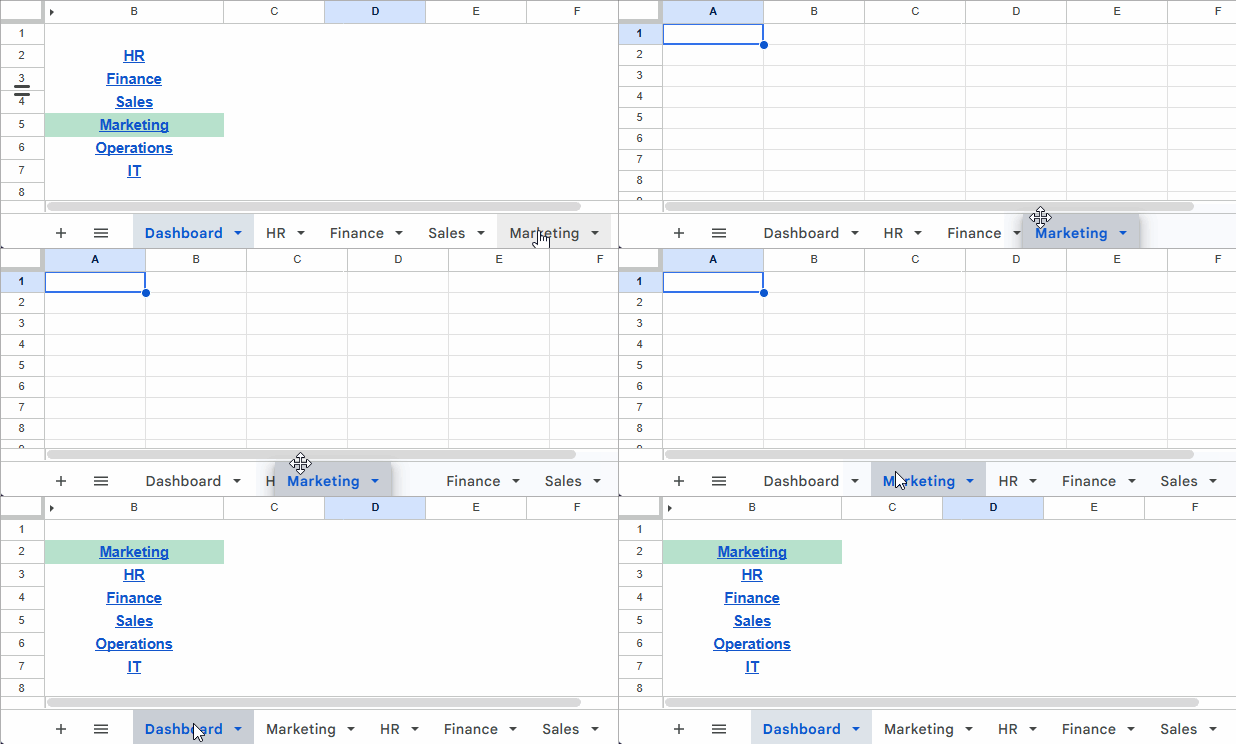
The following step-by-step guide shows you how to build this dynamic navigation list.
Step 1: Create the List of Sheet Tabs
This solution uses a helper column to store the original list of sheet tab names. The helper column acts as the source for the sorted table of contents. You can hide it later if you don’t want it to be visible.
In column A, enter your sheet tab names starting from A2. In this example, the sheet names are entered in the range A2:A7.
Since this will be used as a navigation list, you can hyperlink each sheet name so clicking it takes you directly to the corresponding sheet.
To do this:
- Select cell A2.
- Click Insert → Link.
- Select the corresponding sheet from the pop-up list.
- Repeat the process for the remaining sheet names.
Step 2: Formula to Sort the Tab Name List
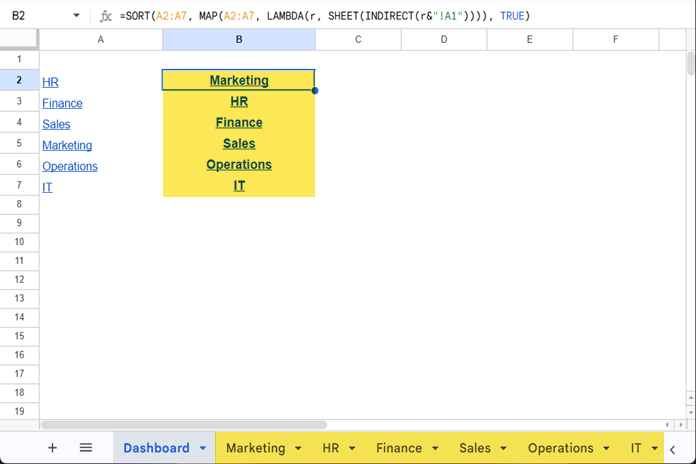
In cell B2, enter the following formula:
=SORT(A2:A7, MAP(A2:A7, LAMBDA(r, SHEET(INDIRECT(r&"!A1")))), TRUE)Replace A2:A7 with the range containing your list of sheet tab names.
The sorted list appears in column B.
Step 3: Hide the Helper Column (Optional)
Once the formula is working correctly, you can hide the helper column.
To hide column A:
- Right-click the A column header.
- Select Hide column.
The sorted list continues to work even after the helper column is hidden.
Step 4: Test the Formula
To verify that everything is working correctly:
- Drag the Marketing sheet tab and place it before HR.
- Return to the Dashboard sheet.
The tab name list updates automatically to match the new workbook order.
Why Not Sort Alphabetically?
Sorting the list alphabetically doesn’t necessarily match the workbook tab order.
For example, an alphabetical sort may return:
- Finance
- HR
- IT
- Marketing
- Operations
- Sales
However, your workbook tabs may be arranged differently.
This method sorts the list using each sheet’s actual position in the workbook, ensuring the navigation list always mirrors the current tab order.
How the Formula Works
The formula works by assigning each sheet its workbook position (sheet index) using the SHEET function. It then uses those index numbers as the sort key to reorder the list.
Here’s how each part contributes to the solution.
Convert Each Sheet Name into a Cell Reference
INDIRECT(r&"!A1")The INDIRECT function converts each sheet name into a valid cell reference.
For example:
- HR →
HR!A1 - Sales →
Sales!A1
The SHEET function accepts either a sheet name or a reference to a cell on the target sheet. This formula uses the latter approach, so INDIRECT dynamically constructs a reference such as HR!A1 from each sheet name. Alternatively, you can use TO_TEXT(r) in place of INDIRECT(r&"!A1"), as SHEET also accepts a sheet name.
Get the Sheet Index Number
SHEET(INDIRECT(r&"!A1"))The SHEET function returns the workbook position (sheet index) of each sheet.
Example:
- HR → 2
- Finance → 3
- Sales → 4
If you later drag the tabs into a different order, these index numbers change automatically.
Create an Array of Sheet Index Numbers
MAP(A2:A8, LAMBDA(r, ...))MAP processes every sheet name in the list and returns an array containing the corresponding sheet index numbers.
Without MAP, SHEET would return the index for only a single sheet.
Sort the List by Workbook Order
Finally, the SORT function sorts the original list of sheet names using the sheet index array returned by MAP.
As a result, the tab name list always stays synchronized with the workbook tab order.
Another advantage of this approach is that the sorted list retains the original hyperlinks, allowing you to continue using it as a clickable table of contents.
Notes
- Every sheet name in the helper column must exist in the workbook.
- If you rename a sheet, update its name in the helper column.
- You can safely hide the helper column after setting up the formula.
- Hyperlinks are preserved after sorting.
- No Apps Script or add-ons are required.
Frequently Asked Questions
Will the list update automatically when I reorder the sheet tabs?
Yes. The formula recalculates automatically whenever you drag the sheet tabs into a different order.
Can I keep the hyperlinks after sorting?
Yes. The SORT function preserves the hyperlinks associated with the original sheet names, so the sorted list remains fully clickable.
Can I hide the helper column?
Yes. The helper column is only used as the source list for the formula. Once everything is working correctly, you can safely hide it.
Does this method require Apps Script?
No. This solution uses only native Google Sheets functions.
Does this work if I rename a sheet?
Yes. If you rename a sheet, simply update the corresponding sheet name in the helper column. Until you do, the outdated sheet name won’t match any existing sheet and will appear at the bottom of the sorted list.
Should I include all sheet tabs in the list?
No. You can include only the sheet tabs that you want to display in the sorted list. The formula sorts only the sheet names in the specified range, so you can exclude sheets such as Dashboard, Archive, or helper sheets.
Can I use this technique for a table of contents?
Absolutely. This is one of the most practical applications of the formula. It allows you to create a dynamic table of contents that always reflects the current workbook tab order.
Conclusion
Using the SORT, MAP, LAMBDA, SHEET, and INDIRECT functions, you can automatically sort a list of sheet tab names according to the current workbook order.
Whenever you drag and reorder the sheet tabs, the navigation list updates instantly without any manual sorting.
This technique is particularly useful for dashboards, project workbooks, monthly reports, documentation sheets, and any spreadsheet that contains a large number of tabs.
