

A table of contents makes navigating large Google Sheets workbooks much easier. However, a manually created table of contents quickly becomes outdated whenever sheets are renamed, deleted, or added.
In this tutorial, you’ll learn how to create a self-healing table of contents in Google Sheets using a small Apps Script and dynamic array formulas. Once set up, it automatically keeps itself in sync with your spreadsheet, so you don’t have to manually maintain navigation links.
I call this a “self-healing” table of contents because it automatically adjusts as sheets are added, removed, or renamed, without requiring you to manually update the links.
If you’re looking for a manually created version, see my tutorial on Create a Clickable Table of Contents in Google Sheets.
Step 1: Use Apps Script to Generate Sheet Names and GIDs
Google Sheets formulas can’t generate a list of all sheet names or retrieve their corresponding Grid IDs (GIDs). That’s why we first use a small Apps Script to generate this information automatically.
Each worksheet has a unique Grid ID (GID). Unlike sheet names, the GID remains the same even if a sheet is renamed, making it ideal for creating reliable hyperlinks.
Paste the following script into Apps Script:
function listSheetGIDs() {
  const ss = SpreadsheetApp.getActiveSpreadsheet();
  const sheets = ss.getSheets();

  const output = sheets.map(sheet => [
    sheet.getName(),
    sheet.getSheetId()
  ]);

  let sh = ss.getSheetByName("Sheet IDs");

  if (!sh) {
    sh = ss.insertSheet("Sheet IDs");
  }

  sh.clear();
  sh.getRange(1, 1, 1, 2).setValues([["Sheet Name", "GID"]]);
  sh.getRange(2, 1, output.length, 2).setValues(output);
}
How to Add the Script
- Click Extensions → Apps Script.
- Delete the sample code in the editor.
- Copy and paste the script above.
- Name the project listSheetGIDs.
- Click Save.
- Click Run.
- Grant the requested permissions.
The script creates a sheet named Sheet IDs containing:
- Column A: Sheet names
- Column B: Corresponding GIDs
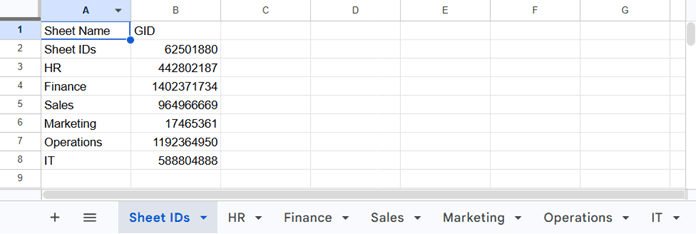
You can hide this sheet if you don’t want it to be visible.
Set Up an Automatic Trigger
To keep the Sheet IDs sheet updated automatically:
- Open the Apps Script editor.
- Click the Triggers (clock) icon in the left sidebar.
- Click Add Trigger.
- Select the
listSheetGIDsfunction. - Choose From spreadsheet as the event source.
- Choose On change as the event type.
- Save the trigger.
The script will now update the sheet list whenever the spreadsheet structure changes.
Step 2: Create the Self-Healing Table of Contents
For this example, assume your workbook contains the following sheets:
- Sheet IDs
- HR
- Finance
- Sales
- Marketing
- Operations
- IT
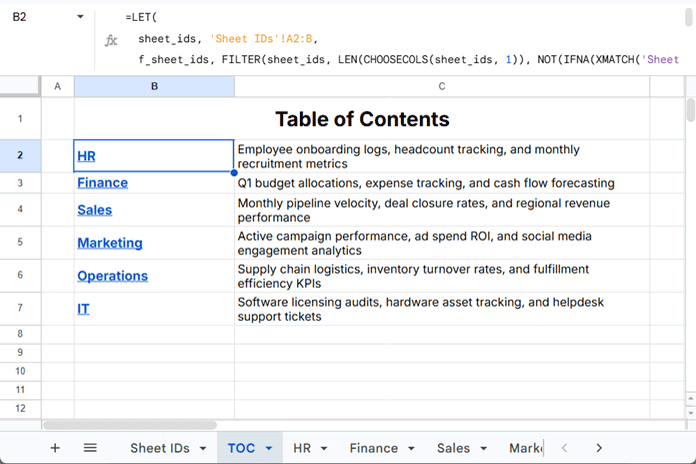
Insert a new sheet and name it TOC. This sheet will contain the table of contents.
Merge cells B1:C1 and enter the heading:
Table of Contents
Then enter the following formula in cell B2.
=LET(
  sheet_ids, 'Sheet IDs'!A2:B,
  f_sheet_ids, FILTER(sheet_ids, LEN(CHOOSECOLS(sheet_ids, 1)), NOT(IFNA(XMATCH('Sheet IDs'!A2:A, VSTACK("Sheet IDs", "TOC"))))),
  tab_names, CHOOSECOLS(f_sheet_ids, 1),
  gids, CHOOSECOLS(f_sheet_ids, 2),
  fnl, MAP( tab_names, gids, LAMBDA(x, y, HYPERLINK("#gid=" & y, x))),
  fnl
)
The formula dynamically generates a clickable list of sheet names. Since it references the automatically updated Sheet IDs sheet, the table of contents automatically expands, shrinks, or updates whenever sheets are added, removed, or renamed.
How the Self-Healing Formula Works
The formula uses the LET function to store intermediate results in named variables, making the formula easier to read and more efficient.
sheet_idsreferences the list of sheet names and GIDs created by the Apps Script.- FILTER removes blank rows and excludes sheets listed in the VSTACK function, such as Sheet IDs and TOC.
- CHOOSECOLS separates the filtered data into two arrays: one for sheet names and another for GIDs.
- MAP loops through each sheet name and GID.
- HYPERLINK combines each GID with the sheet name to create a clickable link that opens the corresponding worksheet.
As the Sheet IDs sheet is updated by the Apps Script, the formula automatically rebuilds the table of contents to reflect any added, deleted, or renamed sheets.
Exclude Specific Sheets
You may not want utility sheets, such as Sheet IDs or TOC, to appear in the table of contents.
This part of the formula controls which sheets are excluded:
VSTACK("Sheet IDs","TOC")To exclude additional sheets, simply add their names to the VSTACK function.
For example:
VSTACK("Sheet IDs", "TOC", "Dashboard", "Settings")(Optional) Add a Description Column
If every sheet stores a description in the same cell (for example, A1), you can display those descriptions beside each hyperlink.
Enter the following formula in cell C2.
=MAP(TOCOL(B2:B, 3), LAMBDA(r, INDIRECT(r&"!A1")))This formula reads the sheet names from the hyperlinks in column B and returns the value from cell A1 of each sheet. If you use a different cell for descriptions, simply replace A1 in the formula.
Things to Keep in Mind
The table of contents updates automatically after the Sheet IDs sheet is refreshed by the Apps Script.
One limitation is that installable On change triggers are not always instantaneous. After inserting, deleting, or renaming a sheet, Google may take a few moments to execute the Apps Script and update the Sheet IDs sheet. Once the script runs, the table of contents refreshes automatically.
After the one-time setup, no further maintenance is required.
Frequently Asked Questions
Does the table of contents update automatically?
Yes. Once the installable On change trigger updates the Sheet IDs sheet, the formulas automatically regenerate the hyperlinks and keep the table of contents synchronized with your workbook.
Can I exclude certain sheets from the table of contents?
Yes. Add the sheet names you want to exclude to the VSTACK function. This is useful for utility sheets such as Sheet IDs, TOC, hidden configuration sheets, or dashboards.
Will hidden sheets appear in the table of contents?
Yes. The Apps Script retrieves all sheets, including hidden ones. If you don’t want hidden sheets to appear, simply include their names in the exclusion list.
Do I need to rerun the Apps Script whenever I add a new sheet?
No. Once you’ve configured the installable On change trigger, the Apps Script updates the Sheet IDs sheet automatically whenever the workbook structure changes.
Conclusion
A manually created table of contents works well for small spreadsheets, but it quickly becomes difficult to maintain as sheets are added, deleted, or renamed.
By combining a simple Apps Script with dynamic array formulas, you can build a self-healing table of contents in Google Sheets that automatically keeps itself up to date.
Whether you’re managing project trackers, dashboards, financial workbooks, departmental reports, or any spreadsheet with multiple tabs, this approach saves time and ensures your navigation links always remain accurate.
After the one-time setup, your table of contents stays synchronized with your workbook automatically, making it a true set-it-and-forget-it solution.
