

A table of contents makes large Google Sheets workbooks (files) much easier to navigate. Instead of scrolling through dozens of sheet tabs, users can jump directly to the sheet or section they need with a single click.
There are two common ways to create a table of contents in Google Sheets:
- Link to different sheets in the workbook.
- Link to specific sections within a worksheet.
This tutorial covers both manual methods.
Method 1: Create a Table of Contents for Navigating Between Sheets
This method is useful when your workbook contains many sheets but users only need quick access to the important ones, such as dashboards, monthly reports, summaries, or input sheets.
Suppose your workbook contains the sheets Jan, Feb, Mar, Apr, May, and Jun.
Step 1: Create an Index Sheet
Click the + (Add Sheet) button and create a new worksheet.
Rename it to Index, Table of Contents, or TOC.
Step 2: Insert Links
Select cell A2.
Choose Insert > Link.
In the dialog box, click Sheets and named ranges.
Select Jan.
Press Enter.
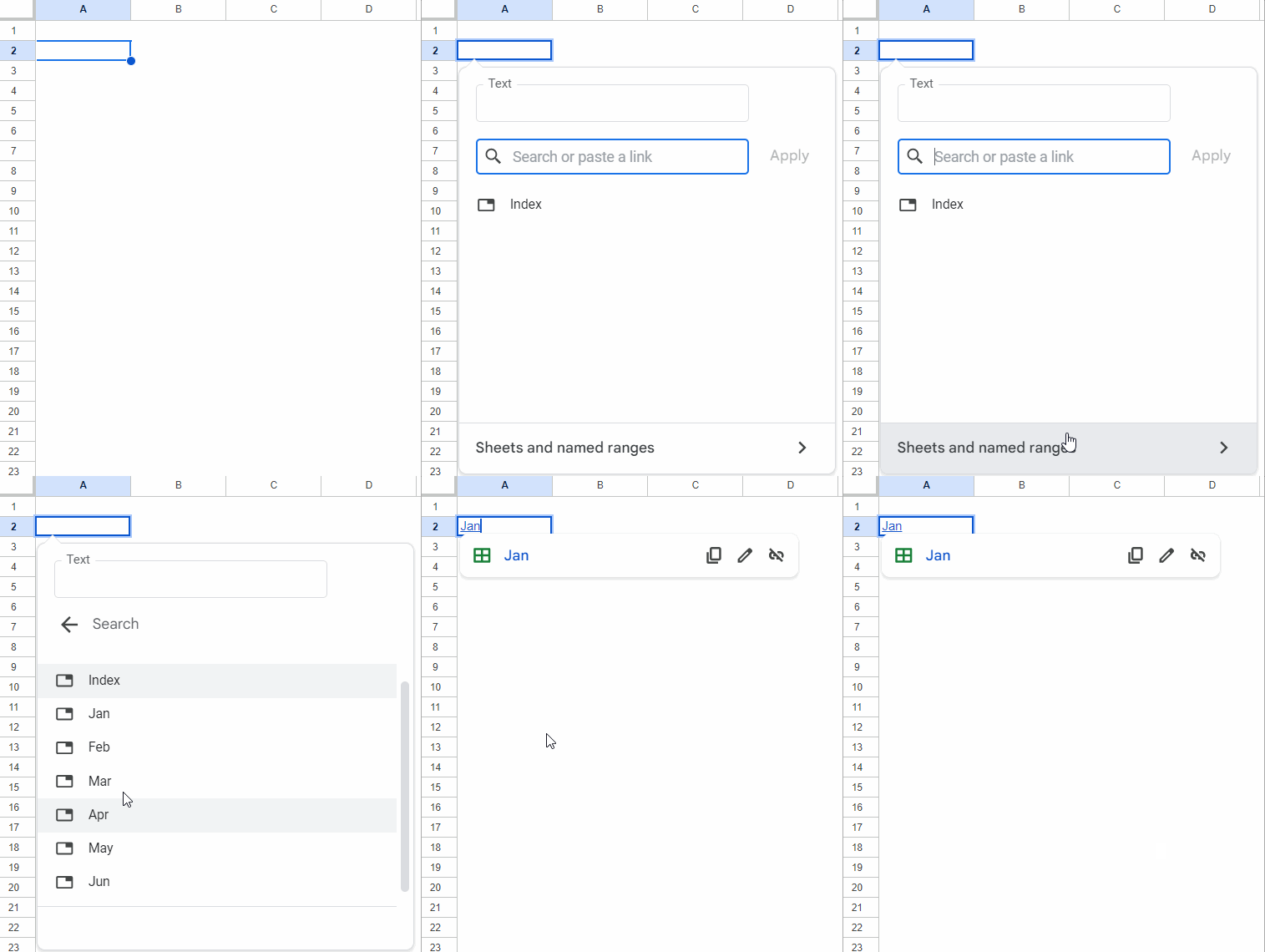
Repeat these steps for the remaining sheets.
Your table of contents is now ready.
Clicking any sheet name opens that worksheet at the last active cell. This approach works well when your workbook structure rarely changes.
Customize the Link Text
If you’d like friendlier names instead of the sheet names:
- Hover over the hyperlink.
- Click the Edit (pencil) icon.
- Replace the displayed text with your preferred label.
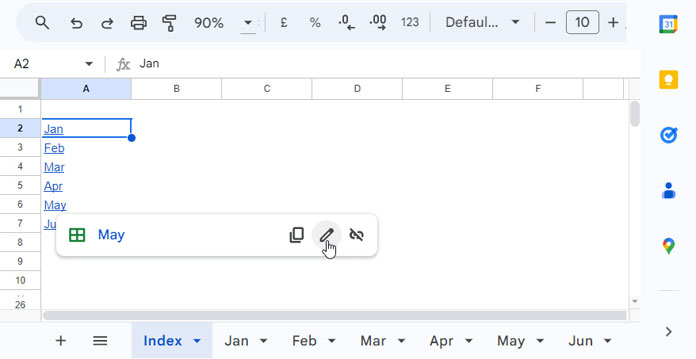
Method 2: Create a Table of Contents for Navigating Within a Sheet
Sometimes your data is stored in one large worksheet rather than multiple sheets.
In that case, it’s more useful to jump directly to individual sections within the sheet.
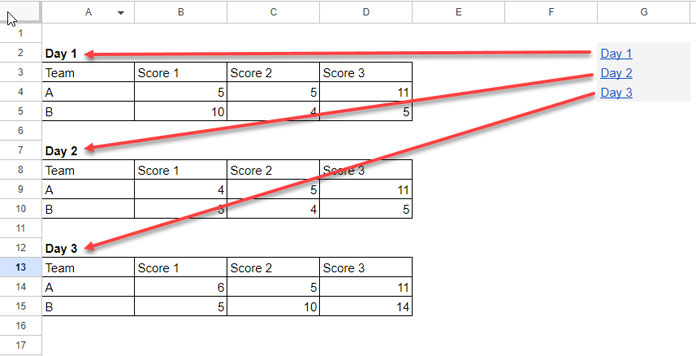
For example, suppose your worksheet contains three tables:
- Day 1
- Day 2
- Day 3
Step 1: Create the Table of Contents
Enter the section names in another location, such as G2:G4, or place them on a separate TOC sheet.
Step 2: Copy the Cell Link
Right-click the first section’s starting cell.
Choose:
View more cell actions → Get link to this cell
Step 3: Insert the Link
Select the corresponding TOC cell.
Choose:
Insert → Link
Paste the copied URL.
Click Apply.
Repeat these steps for the remaining sections.
Now clicking each entry in the table of contents jumps directly to the corresponding section.
Frequently Asked Questions
Can I link to a specific cell instead of an entire sheet?
Yes. Use Get link to this cell and insert that URL as a hyperlink in your table of contents.
Can I rename the hyperlink text?
Yes. Edit the display text without changing the destination.
Does Google Sheets have a built-in table of contents?
No. However, you can easily create one manually using hyperlinks or automatically using Apps Script and formulas.
Can I create a table of contents that updates automatically?
Yes. By combining Apps Script with formulas, you can create a table of contents that automatically reflects sheet additions, deletions, and renames. See How to Create a Self-Healing Table of Contents in Google Sheets for a step-by-step guide.
Conclusion
A table of contents is a simple but effective way to improve navigation in Google Sheets.
If your workbook contains a fixed set of sheets or sections, the manual hyperlink methods covered in this tutorial work well and require no scripting. However, if you frequently add, delete, or rename sheets, an automated table of contents may be a better long-term solution.




The problem with this method is that if the referenced cell changes (e.g., B100 to B110), the link will not update to the new cell, and you’ll have to continuously update the link manually.
I wish there was a way to maintain the reference dynamically after the initial setup.
Hi, Anthony Escribens,
I have a solution to this. I’ll post it separately or update the above post soon.
I’ll update you below.
Thanks for your valuable feedback.
Hi, Anthony Escribens,
This tutorial may help – Dynamic Reference in Table of Contents in Google Sheets.
Thanks for your advice! I learn a lot from your posts.
This is a time-consuming way to do it if you’re looking to link to the whole sheet. Instead, just Right Click > Insert Link > Click in the Link field > Sheets in this spreadsheet > select which sheet
Hi, Andrew,
I understand that. Updated the post.
Thanks.