



















The WRAPCOLS function lets you quickly turn a single column into multiple columns of a set size. It’s a great trick for dashboards or reports when you want to show more data side by side instead of scrolling down.
But what if you want to insert blank columns between each group to make the layout more readable?
That’s exactly what we’ll cover in this post — how to create WRAPCOLS spaced columns in Google Sheets using a dynamic formula that works even when your data changes.
Basic Use – Wrap a Column into Multiple Columns
Let’s start simple.
Here’s a list of products in column A:
Product Name
Apple
Banana
Cherry
Date
Elderberry
Fig
Grape
Honeydew
Kiwi
Lemon
Mango
Nectarine
If you want to split this list into columns with 3 rows each, you can use:
=WRAPCOLS(A2:A13, 3)This gives you:

Handling Blank Values in Open Ranges
If your range is open-ended like A2:A, and might include blanks, use TOCOL to filter out empty cells:
=WRAPCOLS(TOCOL(A2:A, 1), 3)How to Add Spacing Between Columns with WRAPCOLS
Now, let’s say you want to add some breathing room — like inserting one blank column between each group.
We’ll use a combination of WRAPCOLS, TOCOL, VSTACK, and LET to make this work. Don’t worry, the formula might look a bit complex at first, but the logic is simple.
Generic Formula:
=LET(
  data, IFNA(WRAPCOLS(column, n)),
  data_, VSTACK(data, WRAPCOLS(, n * gap)),
  IFNA(WRAPCOLS(TOCOL(data_, , TRUE), n))
)
Just replace:
columnwith your data range (likeA2:A13orTOCOL(A2:A, 1))nwith the number of rows per groupgapwith the number of empty columns you want between each group
Example: WRAPCOLS Spaced Columns with One Empty Column
Here’s the formula using our product list:
=LET(
  data, IFNA(WRAPCOLS(A2:A13, 3)),
  data_, VSTACK(data, WRAPCOLS(, 3 * 1)),
  IFNA(WRAPCOLS(TOCOL(data_, , TRUE), 3))
)n= 3 (rows per column)gap= 1 (one blank column between each group)
Result:
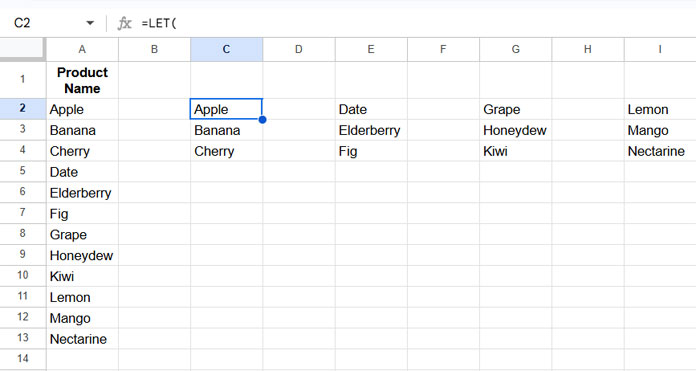
Want two blank columns instead? Just update gap to 2:
=LET(
  data, IFNA(WRAPCOLS(A2:A13, 3)),
  data_, VSTACK(data, WRAPCOLS(, 3 * 2)),
  IFNA(WRAPCOLS(TOCOL(data_, , TRUE), 3))
)
How the Formula Works
Let’s break it down:
WRAPCOLS(A2:A13, 3)— Wraps the product list into columns with 3 rows each.VSTACK(...)— Adds empty rows below each group based on your gap. Forgap = 1, it adds 3 empty rows.TOCOL(..., TRUE)— Turns everything back into a single column (column by column).WRAPCOLS(..., 3)— Re-wraps it again to give you the spaced layout.
It’s a clever layering of wrap, pad, and wrap again — giving you clean blank columns between each data group.
Final Thoughts on WRAPCOLS Spaced Columns in Google Sheets
This method gives you a flexible way to insert empty columns between WRAPCOLS groups without manually editing your layout. It’s especially useful for clean, organized views in dashboards, reports, or printable layouts.
If you ever wanted to fine-tune the way your data looks in Google Sheets, this is a great trick to have in your toolbox.
FAQ – WRAPCOLS Spaced Columns in Google Sheets
1. Can I enter values in the inserted blank columns?
No — if you’re using the formula method, the entire output is formula-generated. That means you can’t manually enter data in those blank columns or any part of the result.
If you want to make changes, you can:
- Copy the entire result (including blank columns)
- Right-click → Paste special → Paste values only
This will turn the formula output into static data that you can edit freely.
2. Can I omit certain values from the spaced-out columns?
Yes! You can filter the original data before passing it to WRAPCOLS using FILTER. For example:
=FILTER(A2:A, A2:A<>"Apple")This removes specific values (like “Apple”) from the input range. You can also use this inside the spaced-out WRAPCOLS formula to create a clean layout without the unwanted entries.
3. Can I make the number of columns or spacing dynamic?
Yes, you can! Just reference the column height (n) and spacing (gap) from cells instead of hardcoding numbers.
If you put:
3in cellE1for column height1in cellF1for the number of empty columns
Then use:
=LET(
  n, E1,
  gap, F1,
  data, IFNA(WRAPCOLS(A2:A13, n)),
  data_, VSTACK(data, WRAPCOLS(, n * gap)),
  IFNA(WRAPCOLS(TOCOL(data_, , TRUE), n))
)
This way, your layout adjusts automatically when you change the input values — perfect for dashboards or templates.
