



















When working with spreadsheets, sometimes you’ll need to validate multiple numbers entered in a single cell, especially when they’re comma-separated. For example, a student’s marks in multiple subjects might be entered as 90, 55, 45, 85, 99.
But how do you check if all those numbers fall within a specific range (say, between 50 and 100) in Google Sheets?
This guide will walk you through:
- How to test comma-separated numbers against a minimum and maximum value.
- How to set up a data validation rule to restrict entries automatically.
Why Format the Cell as Plain Text First
Before entering comma-separated numbers, format the input cell as Plain text:
- Go to Format > Number > Plain text.
Why? Otherwise, Google Sheets may interpret values like 7, 3, 22 as a date (7 March 2022) depending on your locale settings.
Step 1: Test Whether Comma-Separated Numbers Are Within a Range
Suppose cell A1 contains marks:
90, 55, 45, 85, 99We want to test whether all the numbers are between 50 and 100.
Formula 1: Return TRUE or FALSE
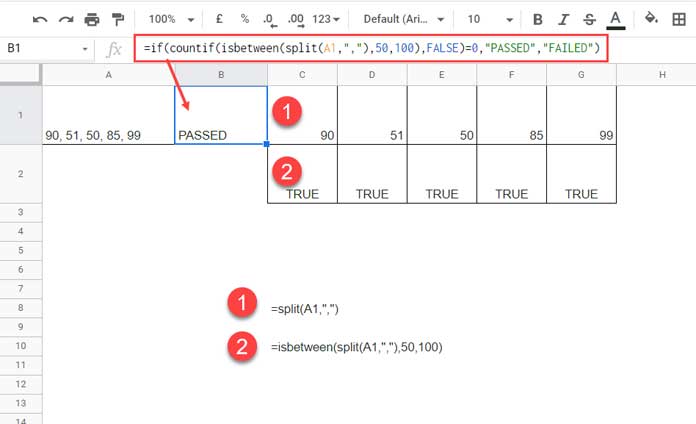
=COUNTIF(ISBETWEEN(SPLIT(A1, ","),50, 100), FALSE)=0This returns TRUE if all numbers are within the range, and FALSE if at least one is outside.
In our example, the output is FALSE because 45 is less than 50.
Formula 2: Return PASSED or FAILED
=IF(COUNTIF(ISBETWEEN(SPLIT(A1, ","), 50, 100), FALSE)=0, "PASSED", "FAILED")This outputs “PASSED” or “FAILED” instead of just TRUE/FALSE.
Step 2: Formula Explanation
Here’s how the formula works:
- SPLIT(A1, “,”) → separates numbers into different cells.
- ISBETWEEN(…, 50, 100) → checks if each number is between 50 and 100.
- Returns
TRUEfor valid numbers,FALSEotherwise.
- Returns
- COUNTIF(…, FALSE) → counts how many numbers are out of range.
- IF(…=0, “PASSED”, “FAILED”) →
- If there are 0 FALSE values, return “PASSED”.
- Otherwise, return “FAILED”.
Step 3: Apply Data Validation in Google Sheets
Instead of just testing, you can restrict cell entries using Data Validation.
Example Setup
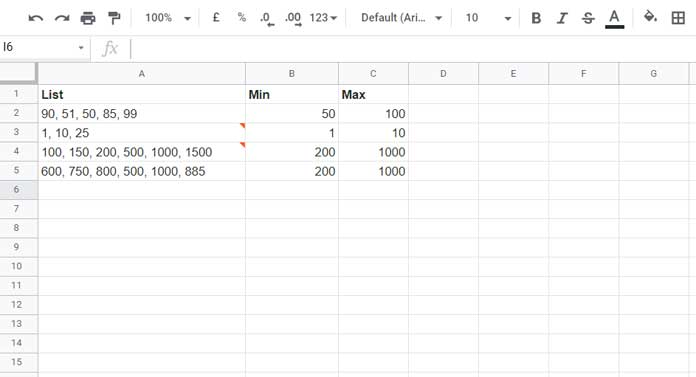
- Numbers to validate: A2:A5
- Minimum values: B2:B5
- Maximum values: C2:C5
Validation Formula
=COUNTIF(ISBETWEEN(SPLIT(A2, ","), B2, C2),FALSE)=0Steps to Apply
- Select A2:A5.
- Go to Data > Data validation.
- Under Criteria, choose Custom formula is.
- Enter the formula above.
- Choose either Show warning or Reject input.
- Click Done.
Cells A3 and A4 will fail validation because they contain values outside their specified ranges.
Frequently Asked Questions (FAQ)
1. Can I validate comma-separated numbers without using ISBETWEEN?
Yes. You can use comparison operators like >= and <= inside an ARRAYFORMULA after splitting the values. However, ISBETWEEN makes the formula shorter and easier to read.
2. What happens if the cell contains spaces after commas?
If values like 25, 10, 22 include spaces, Google Sheets may interpret them incorrectly (sometimes even as dates). That’s why formatting the cell as Plain text and using the SPLIT function ensures correct validation.
3. Can I use different ranges for different cells?
Yes. In the validation formula, replace the hard-coded min and max values with cell references (e.g., B2 and C2). This way, each row can have its own allowed range.
4. Will the validation work if the numbers are decimal values?
Yes. The formula works with decimals (e.g., 45.5, 67.8). Just make sure your min and max references (or hard-coded values) are also decimals if needed.
5. Can I force invalid entries to be rejected instead of showing a warning?
Yes. In the Data validation settings, choose Reject input instead of Show warning. This way, users cannot enter values outside the specified range.
Conclusion
By combining SPLIT + ISBETWEEN + COUNTIF, you can easily validate comma-separated numbers within a custom range in Google Sheets. Using Data Validation ensures users can only enter values that meet your rules.
This method is flexible too—just replace the hardcoded min/max values with cell references for dynamic validation.
Related Resources
- Get Unique Values from a Comma-Separated List in Google Sheets
- VLOOKUP with Comma-Separated Values in Google Sheets
- Comma-Separated Values as Criteria in FILTER – Google Sheets
- Remove Duplicates from Comma-Delimited Strings in Google Sheets
- How to Compare Comma-Separated Values in Google Sheets (4 Easy Methods)
