

When working with comma-separated values (CSV) in Google Sheets, you may need to compare two lists of items.
For example, maybe a customer sends you two CSV lists of products, and you want to know:
- Which items are distinct across both lists
- Which items are unique (appear only once in total)
- Which items are common (matching) in both lists
- Which items are in Set 1 but not in Set 2
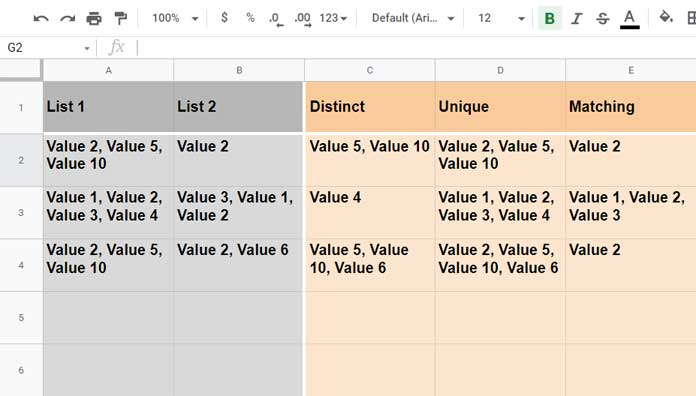
In this guide, you’ll learn step-by-step formulas to handle all four cases using Google Sheets functions like TEXTJOIN, SPLIT, UNIQUE, LET, FILTER, and XMATCH.
Example Data in Google Sheets
Enter the following data in columns A and B:
| CSV Set 1 | CSV Set 2 |
|---|---|
| Value 2, Value 5, Value 10 | Value 2 |
| Value 1, Value 2, Value 3, Value 4 | Value 3, Value 1, Value 2 |
| Value 2, Value 5, Value 10 | Value 2, Value 6 |
👉 Note: In this tutorial, the delimiter used is ", " (comma + space). If your data uses just a comma (,), adjust the formulas accordingly by replacing ", " with ",".
👉 Tip: In all the following formulas, enter the formula in the first row (C2, D2, E2, or F2) and then drag the formula down to apply it to the rest of the rows in your dataset.
1. Compare CSVs and Return Distinct Values
This returns all non-duplicate values across both sets combined.
Formula (C2):
=TEXTJOIN(", ", TRUE, UNIQUE(SPLIT(TEXTJOIN(", ", TRUE, A2, B2), ", ", FALSE), TRUE, TRUE))Explanation:
TEXTJOIN(", ", TRUE, A2, B2)→ Combines the two lists.SPLIT(..., ", ", FALSE)→ Splits them into individual values using the comma + space delimiter.UNIQUE(..., TRUE, TRUE)→ Keeps only distinct values.TEXTJOINagain → Re-combines them into a CSV string.
Example Output (Row 1): Value 5, Value 10
2. Compare CSVs and Return Unique Values
This returns all values but removes duplicates.
Formula (D2):
=TEXTJOIN(", ", TRUE, UNIQUE(SPLIT(TEXTJOIN(", ", TRUE, A2, B2), ", ", FALSE), TRUE, FALSE))Difference from Distinct:
Here, UNIQUE(..., TRUE, FALSE) preserves values that appear once but removes extra duplicates.
Example Output (Row 1): Value 2, Value 5, Value 10
3. Compare CSVs and Return Matching Values
This returns only the common values present in both Set 1 and Set 2.
Formula (E2):
=LET(
  csv_1, SPLIT(A2, ", ", FALSE),
  csv_2, SPLIT(B2, ", ", FALSE),
  ftr, FILTER(csv_1, XMATCH(csv_1, csv_2)),
  TEXTJOIN(", ", TRUE, ftr)
)
Explanation:
SPLIT(A2, ", ", FALSE)→ Splits Set 1.SPLIT(B2, ", ", FALSE)→ Splits Set 2.XMATCH(csv_1, csv_2)→ Checks if Set 1 values exist in Set 2.FILTER→ Keeps only matching values.TEXTJOIN→ Re-combines them.
Example Output (Row 1): Value 2
4. Find Values in One List but Not the Other (Set Difference)
This is the set difference case. It shows values that exist in Set 1 but not in Set 2.
Formula (F2):
=LET(
  csv_1, SPLIT(A2, ", ", FALSE),
  csv_2, SPLIT(B2, ", ", FALSE),
  ftr, FILTER(csv_1, NOT(IFNA(XMATCH(csv_1, csv_2)))),
  TEXTJOIN(", ", TRUE, ftr)
)
Explanation:
XMATCH(csv_1, csv_2)→ Finds matches.NOT(IFNA(...))→ Flags values that don’t exist in Set 2.FILTER→ Returns only non-matching values.TEXTJOIN→ Outputs them as CSV.
Example Output (Row 1): Value 5, Value 10
Real-Life Use Case
Imagine you run an online bookstore:
- A2 contains the original order list of books.
- B2 contains the revised order list.
Using the above formulas, you can:
- Find which books were added or removed
- Get the unique set of all books ordered
- See which books appear in both orders
- Spot books from the first order that aren’t in the second
FAQs
1. What if my delimiter is only a comma (,) instead of comma + space (, )?
Replace every instance of ", " with "," inside the formulas.
2. Can I extend this to more than two CSV sets?
Yes, you can expand the TEXTJOIN part to include more columns (e.g., TEXTJOIN(", ", TRUE, A2:C2)).
3. Does this work for numbers as well?
Yes — it works the same for text or numeric values.
Related Google Sheets Tutorials
- Get Unique Values from a Comma-Separated List in Google Sheets
- Remove Duplicates from Comma-Delimited Strings in Google Sheets
- How to Count Comma-Separated Words in a Cell in Google Sheets
- Sum, Count & Cumulative Sum of Comma-Separated Values in Google Sheets
- Create All Combinations from Comma-Separated Columns in Google Sheets




