

Calculating the percentage position of a value within a range is easy to do in Google Sheets.
You can use this method to quickly assess how close test results (such as medical or instrument measurements) are to the boundaries, evaluate a student’s performance against target ranges, measure salary range penetration, analyze sales with respect to target ranges, and more.
Furthermore, you can use these outputs to create a SPARKLINE bar chart that displays a target range (green) and a certain percentage below and above the target range (red), marking the actual position within this range.
In this tutorial, we will focus on how to calculate the percentage position of a value within a range. We will explore the bar chart option in the next or upcoming tutorials.
Generic Formula to Calculate the Percentage Position within a Range in Google Sheets:
=TO_PERCENT((Actual_Value - Range_Start) / (Range_End - Range_Start))Example: Formula to Calculate Percentage Position Within a Range
The sample data represents the test name in column 1, the test result in column 2, and the required range in columns 3 and 4. The fifth column shows the percentage position of the actual value within the range.
| Parameter | Actual Value | Min Value | Max Value | % of Range Achieved |
| T3 | 1.15 | 0.58 | 1.62 | 54.81% |
| T4 | 9.61 | 5 | 14.5 | 48.53% |
| TSH | 7 | 0.35 | 5.1 | 140.00% |
If the range is A1:D and A1:D1 contains field labels, you can use the following formula in cell E2 and drag it down as far as you want:
=TO_PERCENT((B2 - C2) / (D2 - C2))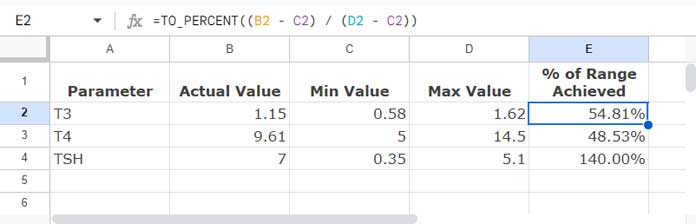
Where:
(B2 - C2) / (D2 - C2)returns the range penetration value, i.e.,(1.15 - 0.58) / (1.62 - 0.58), which is equal to 0.5481.
The TO_PERCENT function converts this number to a percentage.
Array Formula to Calculate the Range Penetration
If you have several test parameters in rows, you might want the results to spill automatically down from the first row.
In the above examples, instead of dragging the formula in cell E2 down, you can convert it into an array formula that spills down as follows:
=ArrayFormula(TO_PERCENT((B2:B4 - C2:C4) / (D2:D4 - C2:C4)))If you extend the range to cover all rows, i.e., B2:B, C2:C, and D2:D, the formula will return errors in empty rows. To handle this, include an IFERROR function to remove these errors:
=ArrayFormula(TO_PERCENT(IFERROR((B2:B - C2:C) / (D2:D - C2:C))))Note: The IFERROR function must be inside the TO_PERCENT function; otherwise, it may interfere with the formatting applied by TO_PERCENT.
Use this array formula to calculate percentage positions within ranges in Google Sheets automatically across multiple rows.
Resources
- How to Use Percentage Value in Logical IF in Google Sheets
- Average of Top N Percent of the Values in Google Sheets
- QUERY to Filter a Column Contains Percentage Values in Google Sheets
- Calculating the Percentage of Total in Google Sheets [How To]
- Percent Distribution of Grand Total in Google Sheets QUERY
- Percentage Change Array Formula in Google Sheets
- How to Round Percentage Values in Google Sheets
- How to Get the Top N Percent Scores From Each Group in Google Sheets
- How to Limit a Percentage Value Between 0 and 100 in Google Sheets
- Calculating the Percentage between Dates in Google Sheets
- How to Calculate Percentage Difference In Google Sheets
- How to Calculate Reverse Percentage in Google Sheets




