



















This tutorial shows you how to use an Array Formula to Sum Multiple Columns in Google Sheets. Along the way, you’ll also learn how to include or exclude specific columns based on their headers.
I have data spanning hundreds of rows and several columns in one of my Google Sheets files. I want to get the total of multiple columns for each row using a single, expanding array formula. Additionally, I want to be able to include or exclude specific columns in the calculation.
The regular SUM function doesn’t expand automatically—even with ARRAYFORMULA. And it doesn’t let you dynamically include or exclude columns by their headers.
Instead, you can use MMULT or BYROW as array formulas to sum multiple columns. These allow you to calculate row-wise totals with a single formula. We’ll also use FILTER to manage dynamic column inclusion or exclusion.
Scenario Explained
Before diving into details, let me clarify what we’re solving.
Let’s say you have data in columns A to J, and you want to sum columns B to J starting from row 2. How do you get the total for each row using a single array formula in cell K2? Also, what if you want to exclude specific days or columns?
Here’s a screenshot to illustrate what I mean:
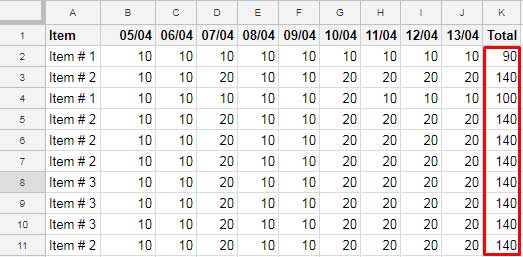
Excluding specific columns (like weekends) can be important—for instance, when calculating employee work hours. This method gives you the flexibility to include or exclude such columns easily.
Array Formulas to Sum Multiple Columns in Google Sheets
MMULT Formula
Use this formula in cell K2 to sum columns B to J for each row:
=ArrayFormula(
   LET(
      cols, B2:J,
      total, MMULT(N(cols), SEQUENCE(COLUMNS(cols), 1, 1, 0)),
      total
   )
)
MMULT syntax:
MMULT(matrix1, matrix2)What it does:
matrix1isN(cols)→ This converts values incols(i.e., B2:J) to numbers, turning blanks or text into 0. This avoids errors.matrix2is a vertical array of 1s →SEQUENCE(COLUMNS(cols), 1, 1, 0)creates that array.
Note: When using an Array Formula to Sum Multiple Columns, you may get trailing zeros in empty rows. We’ll fix that below.
BYROW Formula
Another method is to use the modern BYROW function:
=LET(
   cols, B2:J,
   total, BYROW(cols, LAMBDA(row, SUM(row))),
   total
)
What it does:
BYROWapplies the formulaLAMBDA(row, SUM(row))across each row in the range B2:J.- This is like writing
=SUM(B2:J2)for each row—but dynamically.
To test the lambda alone:
=LAMBDA(row, SUM(row))(B2:J2)Syntax:
BYROW(array_or_range, lambda_function)Remove Zeros from the Sum of Multiple Columns
If you’re summing an open range like B2:J, trailing rows may show 0 even when empty.
Fix for MMULT:
Replace total with an IF condition:
=ArrayFormula(
   LET(
      cols, B2:J,
      total, MMULT(N(cols), SEQUENCE(COLUMNS(cols), 1, 1, 0)),
      IF(total, total, "")
   )
)
Fix for BYROW:
Update the lambda to ignore blank rows:
=LET(
   cols, B2:J,
   total, BYROW(cols, LAMBDA(row, IF(COUNT(row), SUM(row), ""))),
   total
)
Include or Exclude Specific Columns
If you want to include or exclude specific columns from the total based on their headers, you can do that by dynamically filtering the column range.
For example, let’s say:
- Your data is in columns
B2:J - Row 1 (
B1:J1) contains the column headers - You want to exclude columns whose headers are listed in column
O.
In that case, you should replace B2:J in your formula (whether using MMULT or BYROW) with the following filtered range:
FILTER(B2:J, ISNA(XMATCH(B1:J1, O1:O)))This excludes any columns whose headers match those listed in column O.
If you want to include only specific columns listed in, say, column N, use:
FILTER(B2:J, XMATCH(B1:J1, N1:N))This lets you control what’s summed without hardcoding column letters.
Similar Tutorials
- How to Sum Each Row in Google Sheets – Covers all methods to sum across rows, including manual,
BYROW,QUERY,MMULT, and more. It doesn’t cover column inclusion/exclusion by header. - Sum Multiple Columns Dynamically in Google Sheets – Dynamically sum across rows using start and end columns or start and end column headers.

Hi Prashanth,
That worked beautifully! Thank you so much!
Is there a way to apply this technique if the first matrix has a varying length for each row? For example, I have a delimited list in column M, where I must split the list, get the value of the leftmost characters up to the first space, and add those values together so that I have a total for each row.
This formula gets me the split results, but I am stuck on how to get a total for each row’s resulting array using a single array formula at the top of my sheet.
=ARRAYFORMULA(IFERROR(VALUE(LEFT(TRIM(SPLIT(M2:M, ",")),FIND(" ", TRIM(SPLIT(M2:M, ",")))-1))))
Example: M2 = “2.50 This is a test, .50 Here is another item, .25 My 3rd selection” and the corresponding total is 3.25
M3 = “2.50 XYZ, .50 ABC” and the corresponding total is 3.
Hi Amy,
I believe you are familiar with LAMBDA functions. You can use the BYROW LAMBDA to solve this.
I am currently updating my old posts. There are over 1,200 of them, so it may take some time.
Here is my proposed formula:
=ARRAYFORMULA(LET(result,BYROW(IFERROR(VALUE(LEFT(TRIM(SPLIT(M2:M, ",")), FIND(" ", TRIM(SPLIT(M2:M, ",")))-1))),
LAMBDA(r,sum(r))),IF(result=0,,result)))
Is there a way to do this without specifying the number of rows?
Hi, Robert.
I guess you were talking about replacing B2:J11 with B2:J in the below formula.
=ArrayFormula(MMULT(B2:J11,(transpose(COLUMN(B1:J1)^0))))If so, try this.
=ArrayFormula(iferror(((1/MMULT(n(B2:J),(transpose(COLUMN(B1:J1)^0))))^-1)))Another way in the above example could be;
=ArrayFormula(MMULT(N(B2:J12), SEQUENCE(COLUMNS(B:J),1,1,0)))A similar one.
=MMULT(D99:J114, transpose(SPLIT(REPT("1,",COLUMNS(D99:J99)),",")))