



















Printing Facebook News Feed posts with comments might seem unusual to many. But for some, it’s useful — whether for future reference, archiving, or sharing offline.
I never really thought about printing Facebook posts until a friend asked me about it. He wanted a printout of an interesting News Feed post he found on his account. If you’ve ever tried to print a Facebook post with all the comments and realized the option doesn’t exist anymore, you’re not alone.
A few years ago, Facebook allowed us to directly print posts with comments. It was simple — open the post, hit print, and done. But now, in 2025, that feature is gone. Even browser tools like Firefox’s scrolling screenshot or third-party extensions no longer work reliably.
So, does that mean you can’t print posts at all? Not exactly. There’s still one reliable workaround. It’s not perfect, but it gets the job done. In this post, I’ll show you how to print a Facebook post with comments using Google Docs.
Why the Old Options Don’t Work Anymore
Previously, we could rely on Facebook’s built-in print option or browser tools like “Capture Full Page.” Unfortunately, Facebook’s design changes have broken these methods.
The only working solution now is a bit more manual: copy the post and comments into a document editor like Google Docs or Word, then print from there.
Step-by-Step Guide: How to Print a Facebook Post with Comments
Let’s go through the process. In this example, I’ll use Google Docs (free) and the Firefox browser, which works best for preserving the post’s formatting.
Step 1: Open the Facebook Post
- Find the post you want to print on Facebook.
- Click on the comment count at the bottom of the post.
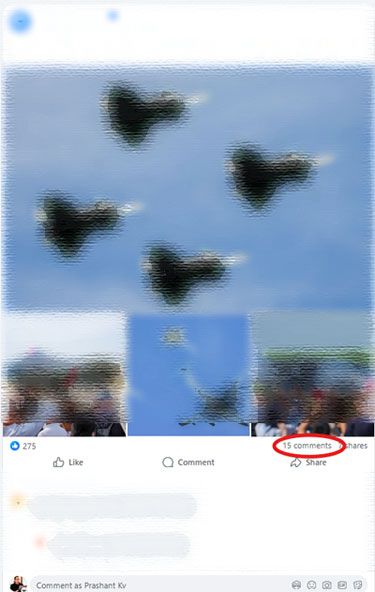
- This opens the post in a popup window with all comments loaded.
- Scroll down to the bottom to ensure every comment is visible.
Make sure you scroll all the way down so you don’t miss any comments — including threaded replies — to ensure your printed copy is complete.
Step 2: Select and Copy Everything
- Hold down the Shift key.
- Click once at the top-left corner of the post (in a blank area).
- Scroll to the bottom by dragging the scroll bar on the right (mouse wheel scrolling may not select everything) and click at the bottom-right corner in a blank area
- This will highlight the entire post with all comments.
- Right-click → Copy.
Note: Take your time selecting the entire post — it’s easy to miss a few lines if you scroll too fast.
Step 3: Paste into Google Docs
- Go to docs.new to create a blank Google Doc.
- Click inside the document.
- Right-click → Paste.
- The full post text and comments will appear — but images won’t be included.
- You may notice repetitive texts like “Facebook” appearing in the paste. To remove them, click and drag to select the unwanted text, then press the Delete key on your keyboard.
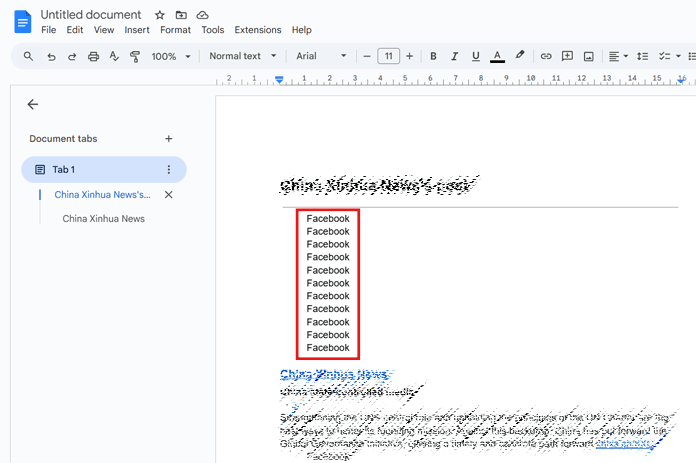
It might look messy at first, but don’t worry — we’ll fix the formatting and add images in the next step.
Step 4: Add Images Back
- Return to the original Facebook post.
- Right-click → Copy image.
- Switch to Google Docs and paste it in the correct position.
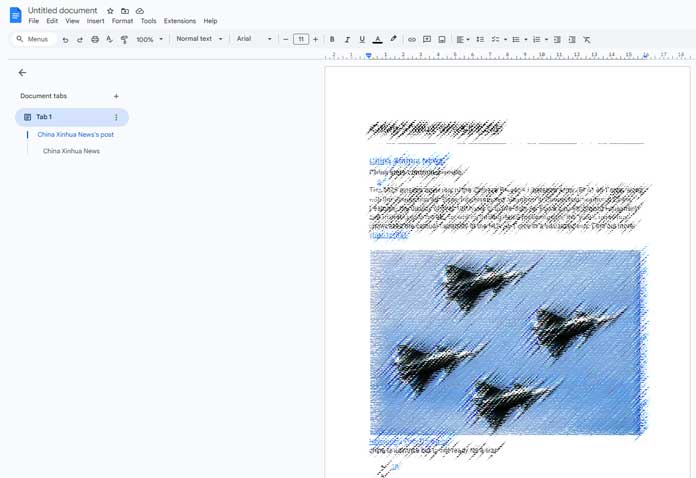
Repeat this for each image — it may take a minute, but it makes your printed post look complete.
Step 5: Print or Save
- Once everything looks okay, go to File → Print or File → Download → PDF.
- You now have a printable version of the Facebook post with all comments.
What’s the Catch?
This method works, but it’s not perfect. Profile pictures from comments won’t be copied, and the layout won’t match Facebook exactly. You may also need to tidy up spacing and formatting in Google Docs to make it more readable. Despite these minor drawbacks, this remains the only reliable way to print a Facebook post with comments in 2025.
Final Thoughts
If you landed here searching for how to print a Facebook post with comments, this guide should help. While Facebook no longer provides a built-in option, using Google Docs ensures you can still save or print important posts — whether it’s for memories, record-keeping, or sharing offline.
Give it a try, and let me know: do you think Facebook should bring back the built-in print feature?
