




















Sorting and filtering are two of the most important techniques for analyzing data in a Pivot Table in Google Sheets. You can further enhance these capabilities by using a few custom techniques.
After summarizing your data, you often need to organize the results to reveal insights such as top-performing products, lowest-sales regions, or rows that meet specific conditions.
Google Sheets provides several built-in options for sorting and filtering Pivot Table results. However, some advanced tasks—such as sorting by another column, filtering multiple values, or showing only the top results with tie-breaking rules—require workarounds using helper columns or custom formulas.
This guide collects several tutorials that explain how to sort, filter, and rank data in a Pivot Table in Google Sheets.
Sorting Pivot Tables in Google Sheets
Sorting helps organize Pivot Table output so that the most important information appears first. You can sort rows or columns by labels, totals, or even custom criteria.
Sort Pivot Table Grand Total Columns
In some Pivot Tables, you may want to sort the column fields based on their grand totals instead of the field labels. This allows you to quickly identify which categories have the highest or lowest totals.
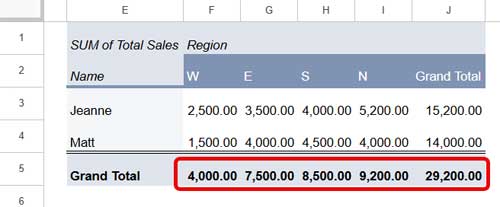
See the tutorial: How to Sort Pivot Table Grand Total Columns in Google Sheets
Sort Pivot Table Columns in a Custom Order
Google Sheets does not provide a built-in option to manually reorder Pivot Table columns. If you want a specific order (for example: North → East → South → West), you must use a helper column to define the custom sort order.
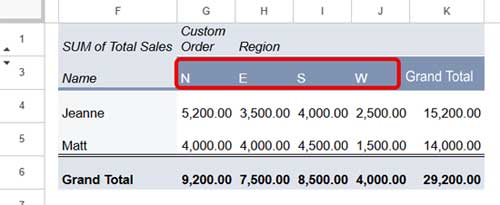
See the tutorial: How to Sort Pivot Table Columns in the Custom Order in Google Sheets
Sort Pivot Table Rows by the Second Column
By default, Pivot Tables sort rows based on the first field. If your Pivot Table contains multiple row fields, sorting by the second column may not work as expected.
For example, you might want to sort items by category, purchase order date, or item code, where Items is the first row field and Category, Purchase Order Date, or Item Code are the second grouping fields. In such cases, a specific formula is required to sort the rows correctly.
A helper column can be used to control the sorting logic.
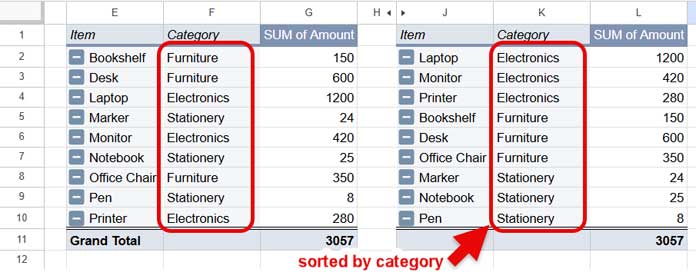
See the tutorial: How to Sort Pivot Table Rows by Second Column in Google Sheets
Filtering Pivot Tables in Google Sheets
Filtering lets you control which records appear in the Pivot Table results. This helps you focus on specific values or remove unwanted data.
Filter Multiple Values in a Pivot Table
In Google Sheets Pivot Tables, the built-in text filter options allow only a single condition. While you can exclude multiple items using Filter by values (by manually unchecking unwanted values), applying more flexible conditions—such as excluding several text strings dynamically—requires a custom formula using REGEXMATCH or other matching functions.
See the tutorial: Filter Multiple Values in Pivot Table in Google Sheets
Filter Pivot Table Rows by Total Values
Sometimes you need to filter Pivot Table rows based on totals instead of individual records. For example, you may want to show only products whose total sales exceed a certain threshold.
This can be achieved using custom formulas like SUMIF or COUNTIF within the Pivot Table filter settings.
See the tutorial: How to Filter by Total in Google Sheets Pivot Tables
Ranking Pivot Table Results (Top and Bottom Values) in Google Sheets
Another useful technique is filtering Pivot Tables to show only the highest or lowest values. This helps identify the best or worst performers in your dataset.
Filter the Top 10 Items in a Pivot Table
Google Sheets does not provide a built-in “Top 10” filter like Excel. However, you can replicate this functionality using a custom formula that ranks the summarized values. The method also supports four tie-breaking modes (0, 1, 2, and 3), allowing you to control how ties are handled when multiple items have the same value.
This is a very handy technique that many users find useful when analyzing Pivot Table summaries.
See the tutorial: How to Filter Top 10 Items in a Google Sheets Pivot Table
Filter the Bottom 10 Items in a Pivot Table
You can also display the lowest values in a Pivot Table using a similar approach. This method supports the same four tie-breaking modes (0, 1, 2, and 3) and helps identify low-performing products, regions, or other categories.
See the tutorial: Filter the Bottom 10 Items in a Pivot Table in Google Sheets
Filter the Top Values Within Each Group in a Pivot Table
In some cases, you may need to filter the top results separately for each group—for example, showing the top three products within each region. This requires a custom ranking formula applied in the Pivot Table filter.
The formula follows the Excel Pivot Table interpretation, returning the highest N values along with any duplicates of the Nth highest value.
See the tutorial: Filter the Top 3 Values in Each Group in a Pivot Table in Google Sheets
Conclusion
Sorting and filtering are essential techniques for making Pivot Tables more useful and easier to analyze. While Google Sheets includes basic sorting and filtering options, many advanced tasks require custom formulas or helper columns.
The tutorials above demonstrate practical solutions to common Pivot Table challenges, including:
- Sorting columns by totals
- Sorting rows by secondary fields
- Filtering multiple values
- Filtering based on totals
- Displaying top or bottom results
- Ranking items within groups
By combining these techniques, you can transform a basic Pivot Table into a powerful data analysis tool.
If you are new to Pivot Tables, you may also want to explore other guides on this site covering Pivot Table basics, calculations, and formatting techniques in Google Sheets.
