

Over the past few months, I’ve built a couple of games in Google Sheets, including a word-guessing game inspired by the popular Wordle format and a Nonogram puzzle game called Sheetogram. While I enjoyed creating both, the Nonogram quickly became my favorite. There’s something uniquely satisfying about watching a hidden pixel-art image gradually emerge as you solve the puzzle using logic alone.
Its grid-based nature also makes it a perfect fit for a spreadsheet, where rows and columns naturally provide the structure needed for the puzzle.
A Nonogram is a visual logic puzzle where you fill cells in a grid based on numerical clues to reveal a hidden image. If you’ve ever played Picross puzzles, the concept is exactly the same.
While creating my own Nonogram in Google Sheets, I quickly realized that manually generating the clues for each row and column was tedious. So, I built a Nonogram clue generator in Google Sheets using spreadsheet formulas.
In this guide, I’ll show you how to generate Nonogram clues automatically from any image you create using Tick boxes (Boolean TRUE and FALSE values) in Google Sheets.
Understanding Nonogram Clues
Nonograms are usually played on rectangular grids such as 10×10 or 15×15.
Let’s consider a 10×10 puzzle.
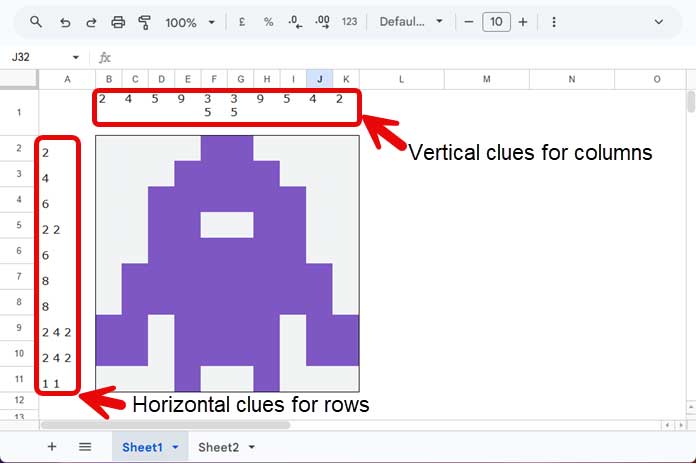
Above each column, you’ll find a sequence of numbers that describes how the cells should be filled. For example, a clue of 3 5 means:
- Fill 3 consecutive cells.
- Leave at least one empty cell.
- Then fill 5 consecutive cells.
Each column has its own set of clues.
Similarly, each row has clues displayed on the left side of the grid.
If a row or column contains no filled cells, its clue area remains blank.
My clue generator automatically creates both:
- Vertical clues for columns.
- Horizontal clues for rows.
Why Generate Nonogram Clues Automatically?
Creating a puzzle with a Nonogram clue generator in Google Sheets is surprisingly easy using Tick boxes and conditional formatting.
Once you draw your image, the formulas generate all the required clues automatically. This means you can design your own custom Nonograms without manually counting every filled block.
Note: After creating a puzzle, you can use Google Apps Script to validate whether the puzzle has a unique solution. I’ll cover that in another tutorial.
📂 Try it Yourself: Want to test the tool immediately or skip the manual setup? Grab a fully automated, ready-to-use copy of this template and start sketching right away!
Get the Nonogram Clue Generator Template
Building the Nonogram Grid
Follow these layout instructions to create an automated drawing canvas with a clean interface that conceals the default spreadsheet gridlines and tick boxes.
Step 1: Creating the Puzzle Grid
- Open a blank spreadsheet and select columns B through K. Right-click any highlighted column header, choose Resize columns B–K, and set the width to 30 pixels.
- Select rows 2 through 11. Right-click any highlighted row number, choose Resize rows 2–11, and set the height to 30 pixels. This creates perfectly square pixel blocks.
- Select the cell range B2:K11 (your 10×10 canvas).
- Click the Borders icon on the toolbar and apply an Outer Border to outline your game board.
- With B2:K11 still highlighted, click Insert > Tick box.
- Keep the range selected and change the Tick box size to 18 to make drawing easier.
- Finally, go to View > Show and deselect Gridlines.
Step 2: Hiding the Checkboxes via Conditional Formatting
To prevent annoying “You may have clicked on a checkbox that is not visible. Toggle anyway” pop-ups while creating pixel-art images, we use a clever formatting trick. By setting the font color exactly 1 unit away from the background color, the checkbox outlines disappear seamlessly without triggering Google’s accessibility warnings.
- Go to Format > Conditional formatting.
- Select Is equal to under the criteria dropdown and type
TRUE. - Set the background fill color to #7E57C2 (Material Purple) and the font color to #7E57C3.
- Add a second rule for the exact same range (B2:K11). Select Is equal to and type
FALSE. - Set the background fill color to #F1F3F4 (Light Gray) and the font color to #F1F3F5.
Now, whenever you click a cell, it instantly shifts into a solid, vibrant purple pixel. Unchecking it returns it to a clean, flat gray background canvas. Go ahead and sketch a test design—such as a rocket ship—across your new 10×10 board!
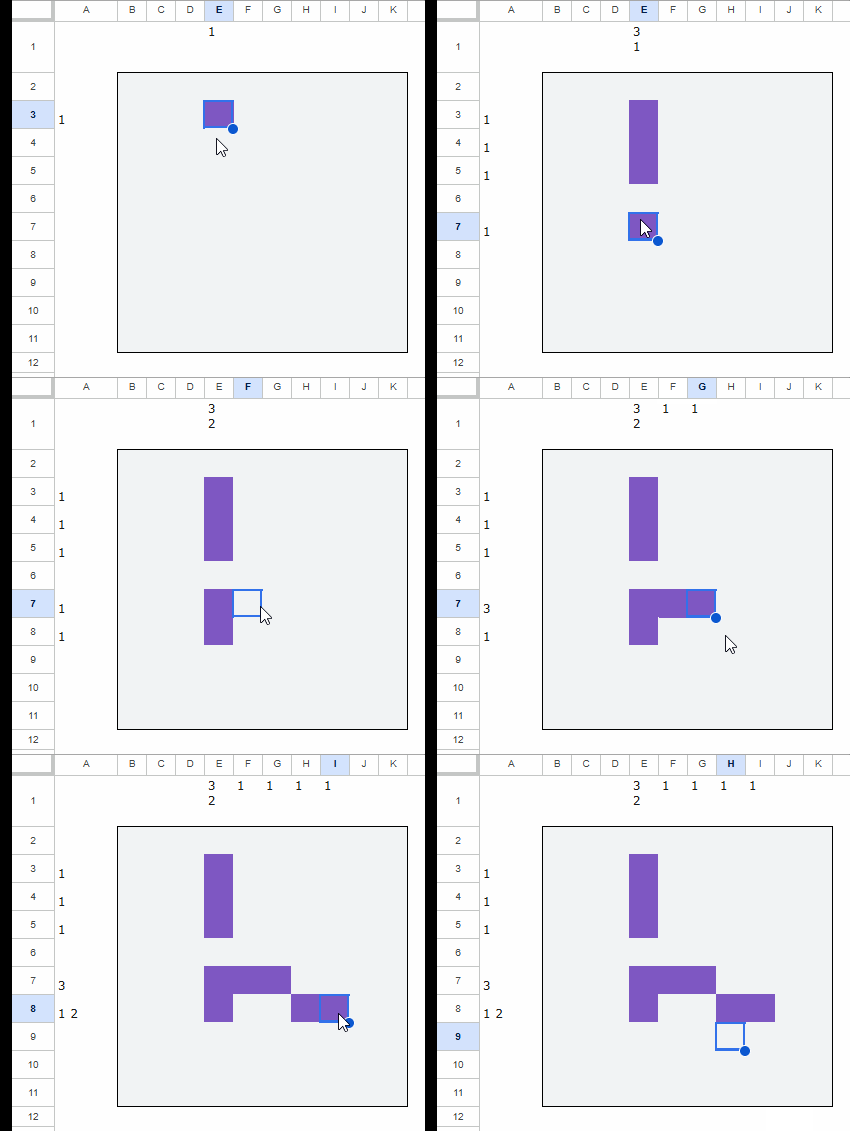
💡 Pro Tip: Click a cell to fill it, and click again to empty it. Never press the Delete key, as this will wipe out the underlying Tick box entirely. Alternatively, you can use the Spacebar to toggle individual cells. If you want to clear the entire image at once, highlight the whole grid and press the Spacebar once or twice to clear all the cells simultaneously.
Now that your drawing grid is set up, it is time to deploy the array formulas that will auto-calculate the math.
Column Formula for the Nonogram Clue Generator
Enter the following formula in cell B1:
=BYCOL(B2:K11,
  LAMBDA(r,
    TEXTJOIN(CHAR(10), TRUE,
      IFERROR(
        MAP(SEQUENCE(11),
          LAMBDA(val,
            LET(
              rc, VSTACK(SCAN(0, r, LAMBDA(acc, val, IF(val, acc+val, ))), ""),
              nv, INDEX(rc, val+1),
              IF(nv="", INDEX(rc, val), )
            )
          )
        )
      )
    )
  )
)
This formula generates the clue sequences for all columns dynamically.
Formula to Generate Row Clues
Enter the following formula in cell A2:
=BYROW(B2:K11,
  LAMBDA(r,
    TEXTJOIN(" ", TRUE,
      IFERROR(
        MAP(SEQUENCE(1, 11),
          LAMBDA(val,
            LET(
              rc, HSTACK(SCAN(0, r, LAMBDA(acc, val, IF(val, acc+val, ))), ""),
              nv, INDEX(rc, val+1),
              IF(nv="", INDEX(rc, val), )
            )
          )
        )
      )
    )
  )
)
The logic is exactly the same as the previous formula. The only difference is that this one processes each row instead of each column.
How the Formula Works
If you want to understand the logic behind this Nonogram clue generator, here are the three key parts of the formula.
1. SCAN Creates Running Counts
The SCAN function moves through the row or column and creates a running total of consecutive TRUE values.
For example:
TRUE FALSE TRUE TRUE TRUE TRUE TRUE FALSE TRUE TRUEbecomes:
1 0 1 2 3 4 5 0 1 2An empty value is then appended to the end.
2. MAP Identifies Completed Groups
The MAP function examines each value and looks ahead to the next one.
Whenever the next value is empty, the current value represents the end of a sequence.
Those ending values are exactly the clue numbers we need.
Using the previous example, the result becomes:
1 5 23. BYCOL and BYROW Process the Entire Grid
Finally:
TEXTJOIN formats the final output:
CHAR(10)stacks column clues vertically." "separates row clues horizontally.
Frequently Asked Questions
Can I use this Nonogram clue generator for a 15×15 grid?
Yes. You simply need to update the ranges used in the formulas.
For example, if your puzzle grid changes from B2:K11 (10×10) to B2:P16 (15×15), replace the range references accordingly.
You will also need to update the SEQUENCE functions:
- Replace
SEQUENCE(11)withSEQUENCE(16)in the column clue formula. - Replace
SEQUENCE(1, 11)withSEQUENCE(1, 16)in the row clue formula.
In general, the sequence length should be one greater than the number of cells in the row or column.
Can I replace Tick boxes with manually entered TRUE/FALSE values?
Yes.
While Tick boxes make it much easier to draw pixel art, the formulas only require Boolean TRUE and FALSE values. You can enter these values manually if you prefer.
The formulas will also work with 1 and 0 values, provided that filled cells evaluate to TRUE and empty cells evaluate to FALSE.
Can I use the same grid as the playable Nonogram board?
Not exactly.
The grid used in this tutorial is designed for creating the puzzle image and generating clues. A playable Nonogram grid usually requires different formatting so that players can mark cells with symbols such as X to indicate cells that should remain empty, while using another value or formatting rule to represent filled cells.
In other words, this setup is intended for puzzle creation, not gameplay. However, you can use the generated clues to build a separate playable version of the puzzle.
Final Thoughts
Building this Nonogram clue generator in Google Sheets completely changed how I design puzzles.
Instead of manually counting groups of cells, I can simply draw the image and let the formulas generate the clues instantly.
What started as a small experiment turned into one of my favorite Google Sheets projects. It’s also a great example of how powerful modern spreadsheet functions like SCAN, MAP, BYROW, and BYCOL can be when combined creatively.
To verify that a generated nonogram has exactly one valid solution, see my tutorial How to Generate Unique 10×10 Nonogram Puzzles in Google Sheets, where I share the Google Apps Script I use to test puzzle uniqueness.
For more fully automated dashboard and tracking tools, feel free to explore my curated library of Free Google Sheets Templates.




