

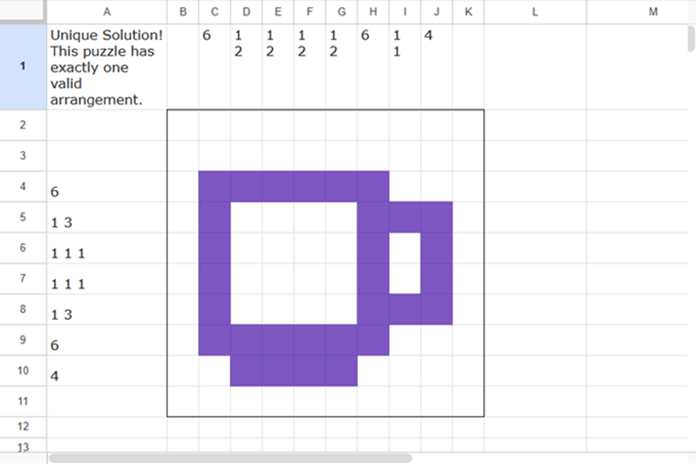
Creating nonogram puzzles in Google Sheets is surprisingly easy. All you need is a 10×10 grid filled with TRUE and FALSE values, along with conditional formatting to visualize the filled cells. From that solution grid, you can generate the row and column clues that players use to solve the puzzle.
However, creating a puzzle is only half the job. The real challenge is ensuring that the puzzle has exactly one valid solution. In other words, you need to verify that it is a unique nonogram puzzle.
In this tutorial, I’ll show you how to generate 10×10 nonogram puzzles in Google Sheets and use Google Apps Script to test whether they have a unique solution.
Note: Even if a puzzle has a unique solution, it’s still a good idea to solve it yourself to ensure it can be completed using logical deduction rather than trial and error.
Why Puzzle Uniqueness Matters
A good nonogram puzzle should have only one valid solution. If multiple solutions satisfy the same clues, the puzzle becomes ambiguous.
That said, uniqueness alone does not guarantee a satisfying solving experience.
A puzzle may be technically unique and solvable by a computer solver, yet still require guessing from a human perspective. Personally, I prefer puzzles that gradually reveal a recognizable piece of pixel art through logical deduction. Watching the image emerge is often the most enjoyable part of solving a nonogram.
Generate 10×10 Nonogram Puzzles in Google Sheets
1. Prepare the Grid
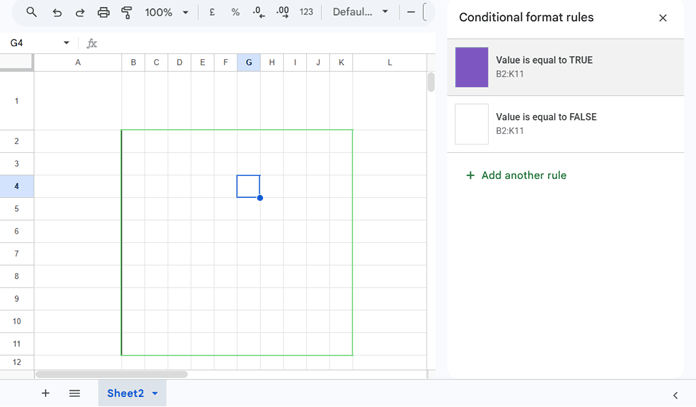
I prefer using a 10×10 grid with row heights and column widths of 30 pixels. We’ll reserve one row at the top and one column on the left for displaying the clues.
- Select the range B:K.
- Right-click and choose Resize columns B–K.
- Enter 30 as the width.
Next:
- Select rows 2–11.
- Right-click and choose Resize rows 2–11.
- Enter 30 as the height.
2. Apply Conditional Formatting
Select the range B2:K11.
Go to Format > Conditional formatting.
Create the following rules:
Rule 1: Filled Cells
- Format cells if: Is equal to
- Value:
TRUE - Choose a fill color and text color of your choice. I prefer using the same color for both. A custom color such as #7E57C2 (dark purple) works well.
Rule 2: Empty Cells
- Format cells if: Is equal to
- Value:
FALSE - Set both the fill color and text color to white.
3. Add the Clues
The uniqueness checker used later in this tutorial requires the row and column clues to be present in the worksheet. If you haven’t set up clue generation yet, refer to my tutorial, How to Build a Dynamic Nonogram Clue Generator in Google Sheets.
Once you’ve added the clue formulas from that tutorial, the row clues should appear in A2:A11, and the column clues should appear in B1:K1.
Create the Nonogram Puzzle
Now, enter TRUE in cells that should be filled and FALSE in cells that should remain blank.
That’s it! You’ve created a nonogram solution grid.
Note: Entering FALSE values is optional. Any cells left blank will be treated as empty cells.
Use AI to Generate Nonogram Designs
If you’re short on ideas, you can use AI to generate a starting design for your nonogram solution grid. Here’s the prompt I use:
Generate a 10x10 nonogram solution grid representing a simple, recognizable jellyfish as 10x10 pixel art. Return only a single uninterrupted line of text containing exactly 100 comma-separated TRUE and FALSE values. In Google Sheets, we will split the output by commas and wrap it into 10 rows of 10 cells each using the WRAPROWS function. Do not include line breaks, spaces, code fences, explanations, clues, or any text other than the comma-separated values.Copy the generated output and paste it into an empty cell, such as O1.
Then, in cell B2, enter the following formula:
=WRAPROWS(SPLIT(O1, ","), 10)The values will instantly populate the 10×10 grid.
Test Nonogram Puzzles for Uniqueness in Google Sheets
Once you’ve generated the puzzle, the next step is to verify that it has only one valid solution.
You can use the following Google Apps Script to test whether your nonogram puzzle is unique.
The script assumes that the row clues are in A2:A11 and the column clues are in B1:K1.
function getCluesFromExactRanges() {
  const sheet = SpreadsheetApp.getActiveSpreadsheet().getActiveSheet();

  const statusCell = sheet.getRange("A1");
  statusCell.setValue("Checking...");
  SpreadsheetApp.flush();

  // 1. GET ROW CLUES (A2:A11)
  const rowRangeValues = sheet.getRange("A2:A11").getValues();
  const rowClues = rowRangeValues.map(row => {
    let cellContent = row[0].toString().trim();
    return cellContent === "" ? [] : cellContent.split(/\s+/).map(Number);
  });

  // 2. GET COLUMN CLUES (B1:K1)
  const colRangeValues = sheet.getRange("B1:K1").getValues()[0];
  const colClues = colRangeValues.map(col => {
    let cellContent = col.toString().trim();
    // Using \s+ handles spaces, tabs, and newlines safely
    return cellContent === "" ? [] : cellContent.split(/\s+/).map(Number);
  });

  // 3. RUN THE CHECK
  const result = checkUniqueness(rowClues, colClues);

  statusCell.setValue(result);
}

function checkUniqueness(rowClues, colClues) {
  let solutionsFound = 0;
  const numRows = 10;
  const numCols = 10;

  let rowSum = rowClues.reduce((sum, current) => sum + current.reduce((a, b) => a + b, 0), 0);
  let colSum = colClues.reduce((sum, current) => sum + current.reduce((a, b) => a + b, 0), 0);
  if (rowSum !== colSum || rowSum === 0) {
    return "Not Unique or Unsolvable: Total row blocks (" + rowSum + ") do not match column blocks (" + colSum + ").";
  }

  let grid = Array.from({ length: numRows }, () => Array(numCols).fill(0));

  // High-speed validation: Checks if a partially filled line breaks the rules early
  function isPartialLineValid(lineArray, clues, isComplete) {
    let runs = [];
    let currentRun = 0;

    for (let val of lineArray) {
      if (val === 1) {
        currentRun++;
      } else if (currentRun > 0) {
        runs.push(currentRun);
        currentRun = 0;
      }
    }
    if (currentRun > 0) runs.push(currentRun);

    // If it's a completely finished line, it must match perfectly
    if (isComplete) {
      if (runs.length !== clues.length) return false;
      return runs.every((v, i) => v === clues[i]);
    }

    // For incomplete lines, make sure we haven't already exceeded the clue constraints
    if (runs.length > clues.length) return false;
    for (let i = 0; i < runs.length - 1; i++) {
      if (runs[i] !== clues[i]) return false;
    }

    // Check the last run (which might still be growing)
    if (runs.length > 0) {
      let lastRunIdx = runs.length - 1;
      if (runs[lastRunIdx] > clues[lastRunIdx]) return false;
    }

    return true;
  }

  function backtrack(row, col) {
    if (solutionsFound > 1) return;

    if (row === numRows) {
      solutionsFound++;
      return;
    }

    let nextRow = col === numCols - 1 ? row + 1 : row;
    let nextCol = col === numCols - 1 ? 0 : col + 1;

    // Try both choices (1 and 0)
    for (let val of [1, 0]) {
      grid[row][col] = val;

      // Slice current row up to the cell we just placed
      let partialRow = grid[row].slice(0, col + 1);
      if (!isPartialLineValid(partialRow, rowClues[row], col === numCols - 1)) continue;

      // Slice current column up to the row we just placed
      let partialCol = [];
      for (let r = 0; r <= row; r++) partialCol.push(grid[r][col]);
      if (!isPartialLineValid(partialCol, colClues[col], row === numRows - 1)) continue;

      backtrack(nextRow, nextCol);
    }
  }

  backtrack(0, 0);

  if (solutionsFound === 1) return "Unique Solution! This puzzle has exactly one valid arrangement.";
  if (solutionsFound > 1) return "Not Unique! There are multiple valid ways to solve this puzzle.";
  return "Unsolvable! The clues contradict each other.";
}
The script reads the row and column clues, reconstructs all possible solutions, and stops as soon as it determines whether the puzzle has one solution, multiple solutions, or none at all.
Run the Uniqueness Checker
- In Google Sheets, click Extensions > Apps Script.
- Delete any sample code already present in the editor.
- Copy and paste the uniqueness-checking script.
- Save the project with a name such as NonogramValidator.
- From the function drop-down menu, select
getCluesFromExactRanges, and then click the Run button in the Apps Script editor toolbar.
The first time you run the script, Google will ask you to authorize it. Review the permissions and continue.
After execution, the result of the uniqueness test will appear in cell A1.
Possible outcomes include:
- Unique Solution! The puzzle has exactly one valid arrangement.
- Not Unique! There are multiple valid ways to solve this puzzle.
- Unsolvable! The clues contradict each other.
Verify That the Puzzle Is Logically Solvable
Passing the uniqueness test doesn’t necessarily mean the puzzle is enjoyable to solve.
A computer can sometimes solve puzzles that require guessing or advanced deduction techniques that casual solvers may find frustrating. Therefore, I recommend solving each puzzle yourself before publishing or sharing it.
If you can complete it using logic alone and the emerging pixel art remains engaging throughout the process, you’ve likely created a high-quality nonogram.
Conclusion
Google Sheets provides a surprisingly effective environment for designing nonogram puzzles. By combining conditional formatting, simple formulas, AI-assisted idea generation, and an Apps Script validator, you can quickly build and verify your own puzzles.
Most importantly, don’t stop at checking for uniqueness. Take the time to solve the puzzle yourself. The best nonograms are not just technically correct—they’re satisfying, logical, and rewarding to complete.
Related: Sheetogram: Free Nonogram Game for Google Sheets (10×10 Puzzle Template)




