

Recently, I built Sheetogram, a Nonogram game for Google Sheets, as a passion project. It recreates the popular picture-logic puzzle using only built-in Google Sheets features such as conditional formatting, data validation, protected ranges, and a couple of dynamic array formulas.
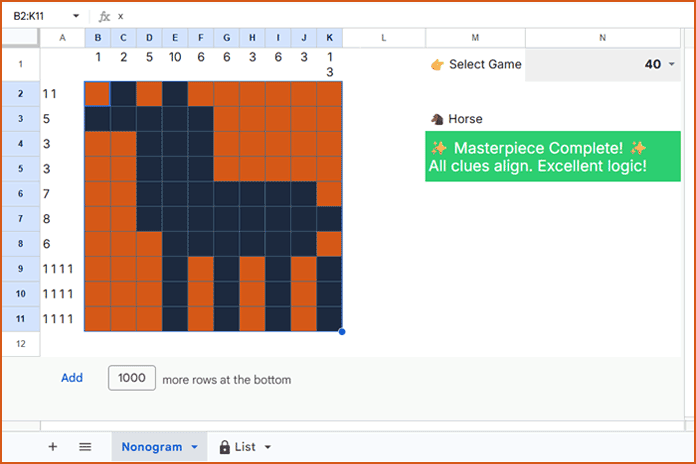
Nonograms are particularly well suited to Google Sheets because of its grid-based layout. This free Sheetogram template includes 40+ puzzles, all tested for unique solutions and designed to be logically solvable by humans. In fact, the puzzles are easy to learn yet addictive to play, as each completed puzzle gradually reveals a piece of pixel art.
What’s more, you can create your own puzzles, test them for uniqueness, and add them to the growing puzzle gallery. I’ll show you how to do all of that in this post.
First, make a copy of the Sheetogram template here:
How to Play Sheetogram (Nonogram) in Google Sheets
First, clear the playing area, as it may contain leftovers from a previously played game. To do this, select the range B2:K11 and press the Delete key on your keyboard.
Next, use the drop-down menu in cell N1 to select a game number. Each number corresponds to a different puzzle.
You are now ready to play.
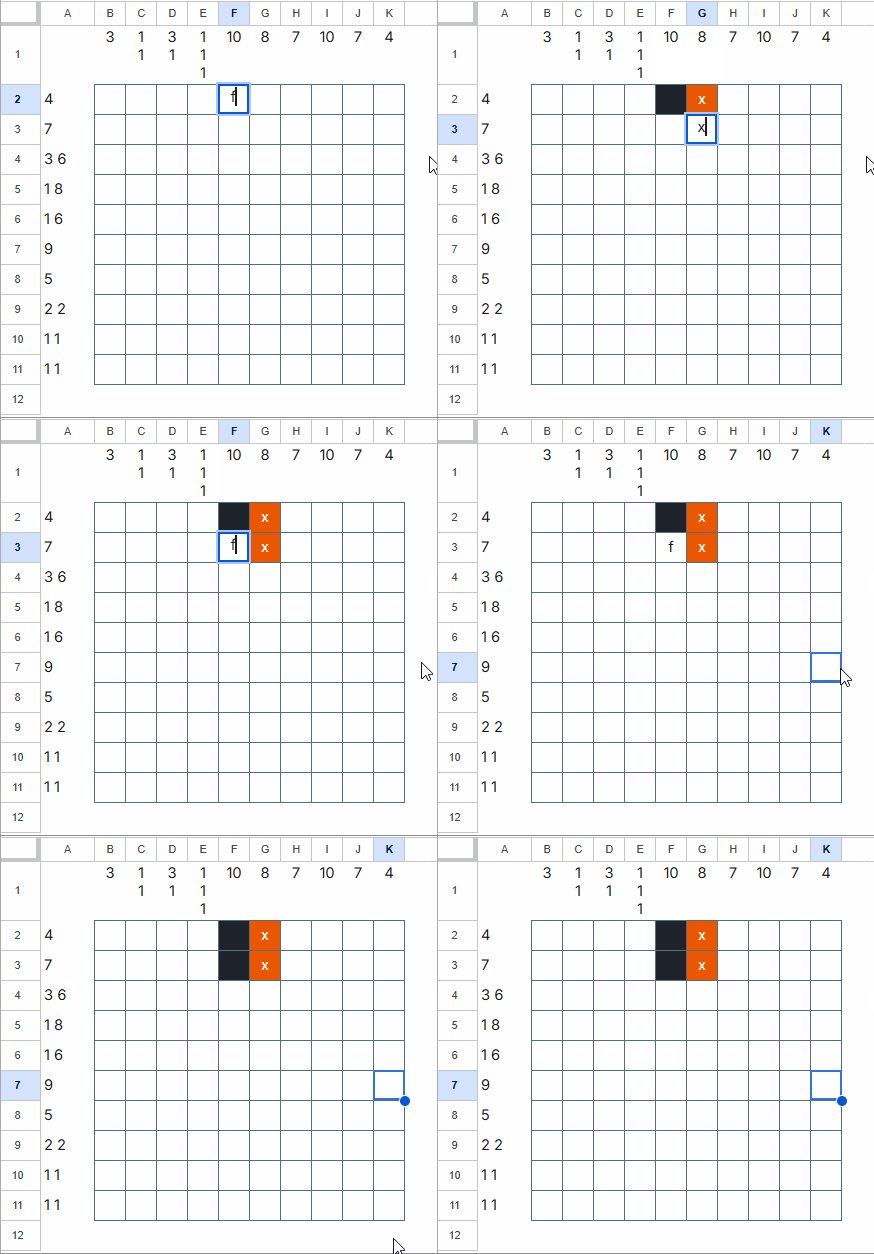
In the playing area, use the lowercase letters “f” and “x” to solve the puzzle:
- Type “f” to fill a cell that you believe is part of the hidden pixel art.
- Type “x” to mark a cell that you believe is not part of the image.
Once you complete the puzzle correctly, a winning message will appear to the right of the grid, along with the name of the pixel art you have revealed. Since the game uses a 10×10 grid, there are limitations in representing certain images precisely. The image name helps identify the artwork and makes it easier to recognize the revealed design.
That’s all there is to playing Sheetogram in Google Sheets.
To start a new game, simply clear the playing area again, choose another game number from the drop-down list, and begin solving the next puzzle.
Adding More Games to the Free Nonogram Game Template
Once you have completed all the available puzzles in Sheetogram, you can add more games of your own.
What you need is a comma-separated list of 100 TRUE/FALSE values, where TRUE represents a filled cell and FALSE represents an empty cell.
To generate this list using AI, refer to my detailed tutorial, How to Generate Unique 10×10 Nonogram Puzzles in Google Sheets. Specifically, follow the steps outlined in the section “Use AI to Generate Nonogram Designs.”
After generating the list, verify that the puzzle has a unique solution as outlined in that tutorial. Then, copy the list and paste it into the first blank cell in column C of the List tab in the Sheetogram template. In the corresponding row, enter the pixel art name in column B.
You may see the following warning message:
You’re trying to edit part of this sheet that shouldn’t be changed accidentally. Edit anyway?
It is safe to click OK, as you are intentionally adding a new puzzle to the template.
Conclusion
I hope you enjoy playing Sheetogram in Google Sheets. Whether you’re new to Nonograms or a long-time fan of picture-logic puzzles, this Nonogram game for Google Sheets offers a fun and convenient way to challenge yourself directly within a spreadsheet.
If you’re interested in building your own Nonogram template, you can start with my tutorial, How to Build a Dynamic Nonogram Clue Generator in Google Sheets. It explains the process of generating Nonogram clues dynamically and serves as a foundation for creating your own puzzle games.




