

Google Sheets works across mobile devices, desktop browsers, and even offline when enabled. That makes it an excellent platform for building and playing a daily word puzzle game anytime, anywhere.
In this tutorial, you’ll learn how to build a Google Sheets word game using formulas, conditional formatting, data validation, and spreadsheet logic—perfect for creating a daily word puzzle in Google Sheets without Apps Script.
This word guessing game challenges players to uncover a hidden five-letter word within six attempts. After each guess, visual clues help players identify correct letters, misplaced letters, and incorrect letters.

What makes this word game stand out is its smart feedback system, including accurate duplicate-letter handling:
- Teal: The letter is correct and in the correct position.
- Saffron: The letter exists in the word but is in the wrong position.
- Dark Grey: The letter does not exist in the word, or it is an extra duplicate letter.
To make things easier, I’ve included a free Google Sheets word game template that you can copy, customize, and start playing right away.
By the end of this guide, you’ll have a fully functional word game in Google Sheets and learn several spreadsheet techniques you can apply in other projects.
Watch the Game in Action
Before building the template, see how the Google Sheets word guess game works—including clue colors, duplicate-letter handling, daily resets, and gameplay rules.
Download the Word Guess Game Template
To start playing immediately, click the template link below.
How to Play the Daily Word Guess Challenge
The goal is simple: guess the hidden 5-letter word within 6 attempts using the visual clues provided after each guess.
Clue highlighting appears only after completing all 5 letters in a row, matching the behavior of popular daily word puzzle games.
Each day, the game automatically selects a new word from a list of 365 (or 366 in a leap year) five-letter words, giving you a full year of gameplay. Once the yearly cycle ends, the game starts again from the beginning.
Want a fresh challenge? You can replace the existing word list with your own words or randomize the list to create a completely new experience.
1. Prepare the Word List
This template uses two sheets:
- Puzzle – where players enter their guesses
- WordList – where the daily words are stored
In column A of the WordList sheet, I’ve included 366 five-letter words. The game automatically picks one word from this list each day.
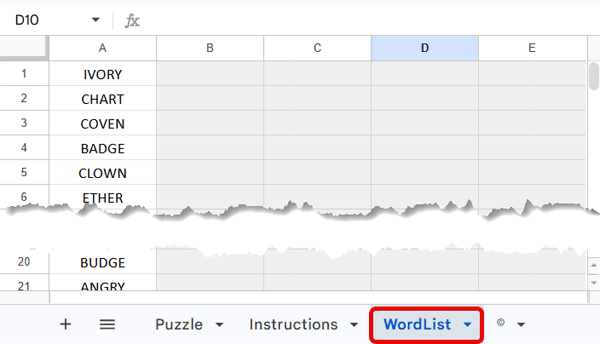
To keep the challenge fresh, I recommend not looking at the WordList sheet while playing.
What happens after the year ends?
After all 365 (or 366 in a leap year) words have been used, the game starts again from the first word in column A.
At the beginning of a new year, you can:
- Shuffle the existing word list for a fresh experience, or
- Generate a new list of five-letter words using AI tools and replace the existing words in column A
If you choose to shuffle the list, select column A and click:
Data → Randomize range
2. Enter Your Guess
Go to the Puzzle sheet to start playing.
Enter one letter in each cell from B2 to F2 to form a 5-letter guess.
If your guess reveals no matching letters, revise your current guess until at least one clue appears. Once you reveal a clue, the next row unlocks.
Players can enter any five-letter combination—even if it is not found in a dictionary. This keeps the Google Sheets word game flexible and allows players to experiment with different letter combinations.
3. Understand the Feedback
After completing a 5-letter guess, the cells change color to reveal clues:
- Teal: Correct letter, correct position
- Saffron: Correct letter, wrong position
- Dark Grey: Letter not in the word, or an extra duplicate letter
Example
Suppose the hidden word is:
ABBEY
And your guess is:
BOBBY
The feedback will correctly identify:
- One B as misplaced
- One B as correctly placed
- The extra duplicate B as invalid
This duplicate-letter handling makes the Google Sheets word game more accurate and closer to professional word puzzle games.
4. Start a New Game
This template uses the TODAY() function, so a new word is automatically selected every day at midnight.
To start a new game, simply clear your previous guesses.
Global Player Note
The template is currently set to IST (GMT+5:30).
To make the game reset at your local midnight, go to:
File → Settings → Time zone
Then select your region.
Additional Features
This spreadsheet template includes several player-friendly features:
- Data validation prevents entering more than one letter in a cell
- Players must complete the current row and reveal at least one matching clue before unlocking the next attempt
- Custom success messages appear based on how quickly the word is guessed
- No dictionary validation is used, keeping the spreadsheet lightweight and fast
Important Note
To keep this Google Sheets word game working correctly, please follow these guidelines:
1. Do not cut, copy, or paste cells inside the Puzzle area.
Doing so may affect data validation, formulas, and clue highlighting rules.
To reset your guesses:
- Desktop: Select the cells and press Delete
- Mobile: Select the cells and tap Clear
Only use Delete or Clear when resetting the game.
2. In the WordList sheet, only edit words in column A.
Do not modify the other columns, as they contain hidden formulas used by the game.
How to Build a Word Guess Game in Google Sheets
Now that you know how the game works, here’s how to build it in Google Sheets.
To build this Google Sheets word game, I used two sheet tabs in a single Google Sheets file:
- Puzzle – where players enter their guesses
- WordList – where the hidden daily words are stored
Important: Use these exact sheet names. The formulas, conditional formatting rules, and data validation rules in this tutorial depend on them.
Let’s start with the WordList sheet.
Preparing the Word List and Picking a Hidden Word
The first step is to create a list of 366 unique five-letter words. Make sure your list does not include offensive or inappropriate words.
You can use AI tools like ChatGPT or Google Gemini to generate the word list, then copy and paste the words into column A of the WordList sheet.
Generate the Dates for the Current Year
In cell B1, enter the formula below:
=LET(start, DATE(YEAR(TODAY()), 1, 1), end, DATE(YEAR(TODAY()), 12, 31), SEQUENCE(end-start+1, 1, start))This formula generates every date in the current year.
For example:
- In 2026, it returns dates from January 1, 2026 to December 31, 2026
- In 2027, it automatically updates to the new year
This allows the Google Sheets word game to assign one word per day.
Pick Today’s Hidden Word
In cell E1, enter:
=SPLIT(REGEXREPLACE(XLOOKUP(TODAY(), B:B, A:A), "(.)", "$1,"), ",")This formula:
- Finds today’s date in column B
- Returns the matching word from column A
- Splits the word into individual letters across five columns
These five letters become today’s hidden word.
Hide the Daily Word
Since players should not see the hidden word:
- Select columns B:I
- Apply a light grey fill color
- Apply the same color to the text
This hides the word from view while keeping the formulas active.
For extra protection:
Open:
Data → Protect sheets and ranges
Then protect columns B:I to prevent accidental edits.
That completes the WordList sheet setup.
Puzzle Sheet – Formatting, Validation, and Clue Logic
Now switch to the Puzzle sheet.
1. Format the Puzzle Board
Let’s start by creating a 6 × 5 game board with equal row height and column width.
Set the Column Width
- Select columns B:F.
- Right-click and select Resize columns B – F.
- Enter 60.
Set the Row Height
- Select rows 2:7.
- Right-click and select Resize rows 2 – 7.
- Enter 60.
This creates evenly sized cells, giving your Google Sheets word game a clean and consistent puzzle layout.
Apply the Game Theme
Now:
- Select the entire sheet and apply a black background
- Select range B2:F7
- Apply dark grey fill
- Add thick black borders
Then format the text:
- Font: Roboto or Inter
- Font size: 26
- Horizontal alignment: Center
- Vertical alignment: Middle
This creates the clean visual layout for your Google Sheets word game.
2. Add the Result Message
In cell B8, enter:
=LET(
  text, JOIN("", WordList!E1:I1),
  try, BYROW(B2:F7, LAMBDA(r, IF(COUNTA(r), JOIN("", r),))),
  matches, IFNA(XMATCH(text, try)),
  id, IFS(matches, matches, AND(ROWS(TOCOL(try, 3))=6, LEN(CHOOSEROWS(try, 6))=5), 7),
  IFNA(
    SWITCH(id, 1, "Outstanding! Incredible guess.", 2, "Brilliant! You're on fire.", 3, "Excellent! Great logic.", 4, "Well Done! Solid play.", 5, "Success! You got it.", 6, "Close call! Nice finish.", 7, "Nice try! The word was: "&text&".")
  )
)
Then select B8:F8 and apply green text color.
This formula shows a custom success message based on how quickly the player guesses the word. If all attempts fail, it reveals the hidden word.
3. Add Data Validation Rules
Data validation makes this Google Sheets word game feel interactive and polished.
The rules should:
- Allow only one letter per cell
- Prevent players from skipping rows
- Require players to reveal at least one clue before unlocking the next row
Select B2:F7, Go to:
Data → Data validation
Choose:
Add Rule → Custom formula is
Then enter:
=ARRAYFORMULA(
  AND(
    LEN(B2)=1,
    OR(
      ROW(B2)=2,
      AND(
        COUNTA(OFFSET($B2,-1,0,1,5))=5,
        COUNT(IFNA(XMATCH(OFFSET($B2,-1,0,1,5), INDIRECT("WordList!E1:I1"))))>0
      )
    )
  )
)
Under Advanced options, select:
Reject input
This ensures players follow the intended game flow.
4. Add Conditional Formatting Rules
Conditional formatting reveals the clues after a complete 5-letter guess is entered.
Select B2:F7, then go to:
Format → Conditional formatting → Custom formula is
Add the rules below in the exact order shown (order matters).
Rule #1 – Correct Letter, Correct Position (Teal)
=AND(B2=INDIRECT("WordList!"&CHAR(64+COLUMN(E1))&1), COUNTA($B2:$F2)=5)Use:
- Fill color: #2A9D8F
- Text color: White
This highlights letters that are in the correct position.
Rule #2 – Correct Letter, Wrong Position (Saffron)
=ArrayFormula(
  LET(
    target, INDIRECT("WordList!E1:I1"),
    matches, $B2:$F2=target,
    total, COUNTA($B2:$F2),
    exactMatches, IF(matches, $B2:$F2),
    nearMatches, IF(NOT(matches), $B2:$F2),
    rc, COUNTIF(exactMatches=B2, TRUE)+COUNTIF(ARRAY_CONSTRAIN(nearMatches, 1, COLUMN(B2)-1), B2),
    AND(rc<=COUNTIF(target, B2), total=5)
  )
)
Use:
- Fill color: #E9C46A
- Text color: White
This rule handles duplicate letters intelligently.
For example, if the hidden word contains two B’s and the player enters three B’s, only the correct number of matches will be highlighted.
This is one of the features that makes the game stand out.
Rule #3 – All Other Letters (Dark Grey)
=B2<>""Use:
- Fill color: #787C7E
- Text color: White
This highlights all non-matching letters.
That completes the core logic behind the game.
FAQ
Is this a daily word game?
Yes. This Google Sheets word game is designed as a daily puzzle with one new word each day for 365 (or 366 in a leap year) days.
How do I play multiple different word puzzles per day?
Go to the WordList sheet and randomize the words in column A. This changes the daily word sequence and lets you play with a different set of puzzles.
When are clues revealed?
Clue highlighting appears only after a complete 5-letter guess is entered, creating a gameplay flow similar to popular daily word puzzle games.
How does duplicate-letter logic work?
The game intelligently handles repeated letters.
For example, if the hidden word contains two B’s and your guess contains three B’s, only the valid matches will be highlighted. The extra duplicate letter will appear in Dark Grey, making the clues more accurate and fair.
Conclusion
If you enjoy daily word puzzle games similar to Wordle, this Google Sheets word game offers a unique spreadsheet-based experience with a customizable word list, smart duplicate-letter handling, and fully automated daily challenges.
This template is an independent educational project created to demonstrate advanced Google formulas, conditional formatting, and data validation techniques. It is not affiliated with or endorsed by any third-party game brands.
Looking for more spreadsheet projects?
Check out these Premium & Free Google Sheets Templates for more ready-to-use tools, dashboards, and dynamic templates.
