



















Whether you’re managing room reservations, equipment rentals, vehicle bookings, or project schedules in Google Sheets, overlapping dates can lead to conflicts that are easy to miss until it’s too late. Google Sheets doesn’t include a built-in feature specifically designed to detect overlapping date ranges, which means you need to rely on formulas to identify these conflicts.
In this tutorial, you’ll learn two practical ways to detect overlapping date ranges for the same item in Google Sheets, using real-world examples.
What You’ll Learn
We’ll cover two different scenarios, because overlap detection depends heavily on how your data grows.
- Search within an existing list
Check whether a specific date range overlaps any records in an existing list of date ranges. - Detect overlaps as you add data
Check overlaps dynamically as new entries are added or edited—this is the approach commonly used in booking and reservation systems.
While the examples use a generic item + date range structure, the same logic applies to bookings, rentals, shifts, student absences, equipment usage, and any situation where you need to find overlapping date ranges for the same item in Google Sheets.
Important Note: Inclusive vs Exclusive End Dates
Before detecting overlaps, you must decide how the end date should be treated. This choice directly affects the overlap logic and formulas.
- Inclusive end date → the end date is part of the range
(the item is still considered active on the end date) - Exclusive end date → the end date is not part of the range
(the item becomes available again on the end date)
Examples:
- In hotel or room bookings, the check-out date is usually exclusive
(a booking from Jan 1 to Jan 10 occupies nights Jan 1–9, and a new booking can start on Jan 10) - In leave or absence tracking, the end date is typically inclusive
(a leave from Jan 1 to Jan 10 includes both Jan 1 and Jan 10)
Both scenarios are covered in this tutorial, and the formulas are adjusted accordingly.
Example 1: Find Students Absent During a Specific Period
In student leave records, you may want to check whether any student from a specific grade was on leave during a given event period. Let’s use a small sample dataset to demonstrate this.
Sample Data (A1:D)
| Student Name | Grade | Leave Start Date | Leave End Date |
|---|---|---|---|
| Ben | Grade 6 | 2026-01-12 | 2026-01-16 |
| Mike | Grade 6 | 2026-01-13 | 2026-01-14 |
| John | Grade 7 | 2026-01-06 | 2026-01-06 |
Now assume you want to find overlapping dates in this data based on the following criteria:
- Event start date → F1 (
2026-01-10) - Event end date → G1 (
2026-01-12) - Grade to check → H1 (
Grade 6)
Formula to Find Overlapping Absences
To find overlapping absences, you can use the COUNTIFS function. Enter the following formula in E2 and copy it down:
=COUNTIFS($H$1, $B2, $F$1, "<="&$D2, $G$1, ">="&$C2)>0This formula returns TRUE for rows where the student’s leave period overlaps the specified event date range and matches the selected grade.
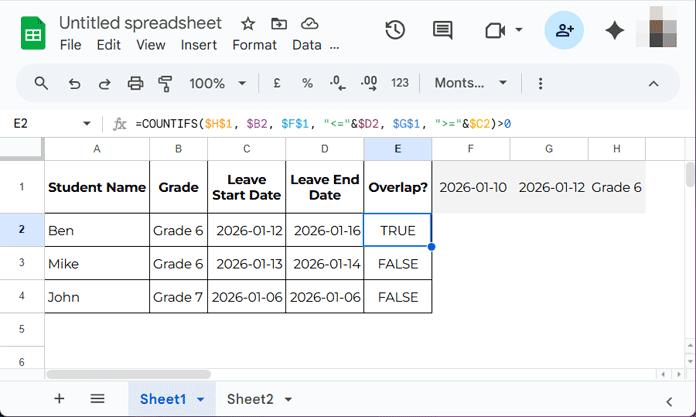
How This Formula Works
This formula checks for overlapping date ranges by comparing the event period with each student’s leave period, one row at a time.
It uses two simple date comparisons:
- Event start date ≤ Leave end date
→ confirms that the event began before the student’s leave ended - Event end date ≥ Leave start date
→ confirms that the event ended after the student’s leave began
When both conditions are true, the two date ranges overlap.
The formula also checks whether the student’s grade matches the selected grade. If all conditions are met for a row, the formula returns TRUE, indicating that the student was on leave during the specified event period.
This row-wise logic makes it easy to identify exactly which records overlap. The same approach applies to scenarios such as bookings, rentals, shifts, or schedules, with the comparison operators adjusted depending on whether the end date is inclusive or exclusive.
Highlight Overlapping Date Ranges
Instead of returning TRUE or FALSE, you may prefer to highlight overlapping records directly. To do that, follow these steps:
- Select A2:D
- Go to Format → Conditional formatting
- Choose Custom formula
- Paste the same formula
- Apply formatting
No helper column is required. This makes it easy to visually identify overlapping date ranges at a glance.
Example 2: Find Overlapping Date Ranges in a Booking System
In booking systems, the logic is different. You’re not checking against a fixed date range. Instead, you want to ensure that a new or edited entry does not overlap any existing booking for the same item.
This is the approach used in well-designed reservation systems to prevent double bookings.
Sample Data (A1:C)
The sample data consists of:
- Room numbers in column A
- Check-in dates in column B
- Check-out dates in column C
| Room | Check-In Date | Check-Out Date |
|---|---|---|
| 100 | 2026-01-20 | 2026-01-25 |
| 100 | 2026-01-25 | 2026-01-27 |
| 101 | 2026-01-22 | 2026-01-31 |
| 100 | 2026-01-18 | 2026-01-21 |
Here, Room 100 has overlapping bookings (first and last rows).
Booking Logic Used
- Check-in date → inclusive
The room is considered occupied starting on the check-in date. - Check-out date → exclusive
The room becomes available again on the check-out date.
What this means in practice: If a room is booked from January 1 to January 10, the guest stays the nights of January 1 through January 9 and checks out on January 10.
So:
- A new booking can start on January 10 without causing an overlap
- A previous booking can end on January 1 without causing an overlap
This logic matches how real-world hotel and accommodation systems calculate booking nights and prevents false overlap warnings when bookings touch but do not actually conflict.
Formula to Detect Overlapping Bookings
You can use the following array formula to check whether the current row overlaps any other row for the same room, excluding itself:
=ArrayFormula(COUNTIFS($A$2:$A, $A2, $B$2:$B, "<"&C2, $C$2:$C, ">"&B2, ROW($A$2:$A), "<>"&ROW($A2))>0)The formula returns TRUE for overlapping bookings.
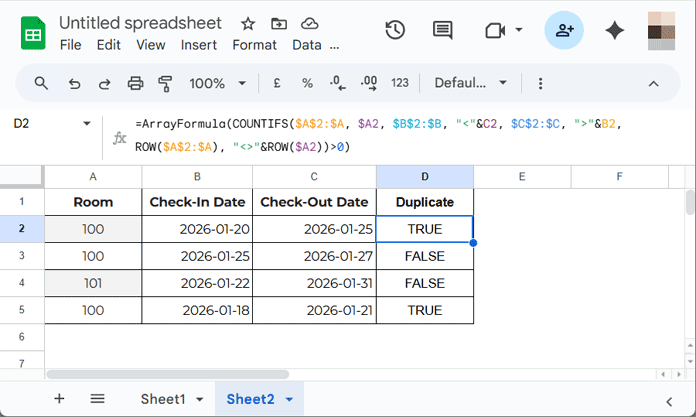
Note: Ideally, apply this formula before or during data entry so that overlapping bookings can be identified and corrected immediately.
How This Formula Works
The formula compares each booking against all other bookings for the same room and checks whether the date ranges overlap. It uses exclusive end-date logic, meaning a booking that starts on another booking’s check-out date is not treated as a conflict.
Highlight Overlapping Bookings
To visually flag conflicts:
- Select A2:C
- Go to Format → Conditional formatting
- Choose Custom formula
- Paste the overlap formula
- Apply a highlight style
This immediately flags double bookings as data is entered or edited.
Conclusion
Finding overlapping date ranges for the same item in Google Sheets requires a formula-based approach, but once set up, it can prevent costly scheduling errors. Whether you’re analyzing historical data or validating new entries in real time, the techniques covered here are flexible, reliable, and scalable.
By understanding date overlap logic—and deciding whether end dates are inclusive or exclusive—you can adapt these formulas to bookings, rentals, absences, shifts, and more.
