



















Are you a content creator managing posts across multiple platforms — Blogs, YouTube, Twitter (X), Facebook, LinkedIn, Pinterest, and more?
Then you’ll love this free, fully dynamic Content Calendar Template in Google Sheets.

This isn’t just a pretty sheet with colors.
It’s a formula-driven, adaptive dashboard powered by modern Google Sheets functions — LET, FILTER, COUNTIFS, SEQUENCE, XMATCH, TOCOL, and more.
You get:
- A smart tiny calendar that updates automatically
- Live status summaries (Posted / Scheduled / Draft)
- Platform totals for each month
- A tick-box filter engine to include or exclude platforms
- A clean, automated workflow without scripts
Let’s walk through how it works.
What Is a Content Calendar Template in Google Sheets?
A Content Calendar Template helps you plan, track, and manage content across multiple channels.
You can record upcoming posts, assign dates, and track their progress — all in one place.
Simply fill in:
- Due Date
- Platform
- Content Topic
- Type (Post, Video, Short, Blog, Reel, etc.)
- Status (Draft, Scheduled, Posted)
- Optional fields: URL, Owner, Notes
The template handles all calculations, summaries, and visualizations automatically.
Why This Content Calendar Template Stands Out
Most templates only give you a color-coded table.
This one gives you a dashboard.
1. Dynamic Tiny Calendar
Automatically updates when you change the Month and Year.
The tiny calendar not only helps you plan by day of the week—it also controls and updates all monthly summaries based on the month currently in view.
2. Status Summary (Overall + Monthly)
You get real-time counts of:
- Posted
- Scheduled
- Draft
Automatically syncs with your selected platforms.
3. Platform Summary (Overall + Monthly)
Platform-wise totals for overall and monthly counts.
4. Tick-Box Powered Platform Filters
Select which platforms to include in the summary.
Everything recalculates instantly.
Powered by modern array formulas
No manual dragging, no repeated copying — just pure dynamic behavior.
How to Use the Content Calendar Template
1. Get Your Copy
Click the button below to get the free Google Sheets template:
Columns A–H are reserved for the tiny calendar and dashboard summaries.
All your data entry begins from I2:P.
2. Enter Your Content Data
Here’s a quick explanation of each column:
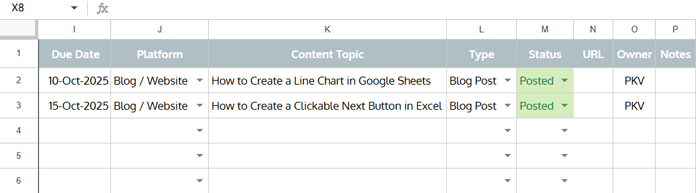
| Column | Purpose |
|---|---|
| Due Date | Planned publishing date |
| Platform | Where you’ll publish (YouTube, Blog, X, etc.) |
| Content Topic | Title or topic of your content |
| Type | Post type (Video, Short, Blog Post, Reel, etc.) |
| Status | Draft, Scheduled, Posted |
| URL | Published link (optional) |
| Owner | Person responsible |
| Notes | Any additional info |
Once you enter your content items, the dashboard updates automatically.
3. Manage Drop-Down Lists
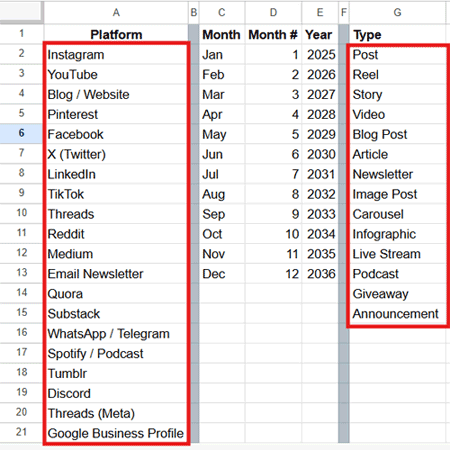
In the Drop-Down Helper sheet, you can edit:
- Platform list
- Content Type list
Important:
Only edit existing cells — don’t add or delete rows.
They’re linked through formulas and dynamic ranges.
Tiny Calendar – How It Works
The tiny calendar in the top-left corner updates automatically based on your selected Month and Year.
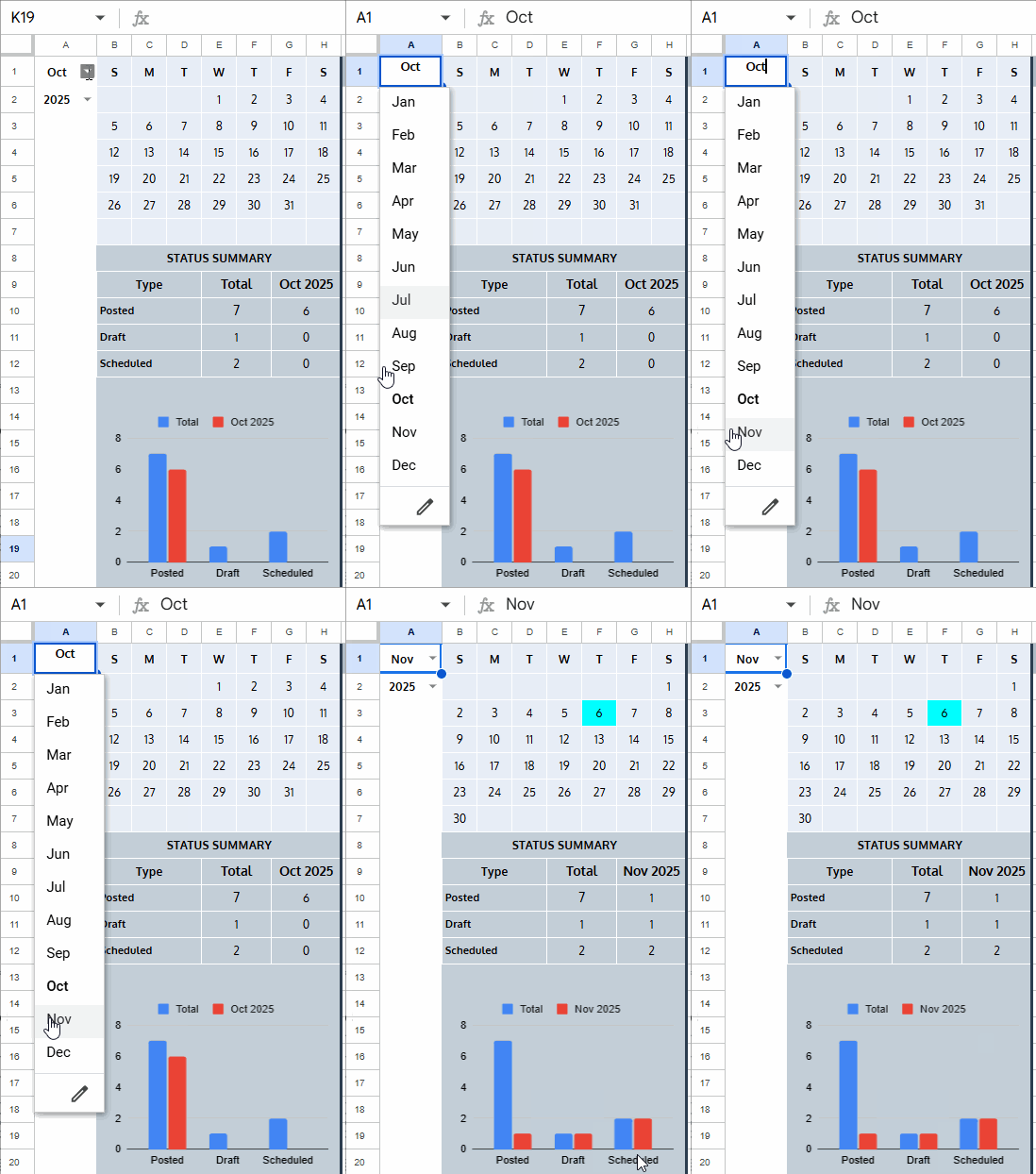
It also drives:
- Monthly status summary
- Monthly platform summary
Here’s the formula used in B2:
=LET(
   start, DATE(A2, MONTH(A1&1), 1),
   seq, SEQUENCE(DAY(EOMONTH(start, 0))),
   test,
      IF(WEEKDAY(start)=1, seq,
      VSTACK(WRAPCOLS(,WEEKDAY(start)-1), seq)
   ),
   IFNA(WRAPROWS(test, 7))
)
Quick breakdown:
start→ calculates the first day of the selected monthseq→ generates all dates in the monthWRAPCOLS / WRAPROWS→ arranges dates into a calendar gridVSTACK→ shifts the first row based on weekday alignmentIFNA→ suppresses empty spill cells
Related: Create Monthly Calendars in Google Sheets (Single & Multi-Cell Formulas)
Today’s date is highlighted automatically if the selected month is the current month.
See Also: Highlighting Today and N Cells Below in Google Sheets Calendar
Dynamic Summaries
1. Status Summary
Shows:
- Overall counts of Posted, Scheduled, Draft
- Monthly counts based on tiny calendar
- Auto-filtered by selected platforms (tick boxes)

Formula in E10:
=ArrayFormula(LET(
  key, ISNUMBER(XMATCH(Publishing_Schedule!J2:J, FILTER(Publishing_Schedule!B27:B46, Publishing_Schedule!A27:A46))),
  IFNA(HSTACK(
    COUNTIFS(M2:M, B10:B12, key, TRUE),
    "",
    COUNTIFS(M2:M, B10:B12, EOMONTH(I2:I, -1)+1, DATE(A2, MONTH(A1&1), 1), key, TRUE))
  ))
)
How it works:
key→ TRUE for selected platforms- First
COUNTIFS→ Total status counts - Second
COUNTIFS→ Counts only for selected Month HSTACK→ Aligns totals with merged columnsIFNA→ Clears padding errors
This gives you a real-time publishing workflow snapshot.
2. Platform Summary
Displays post totals for each platform — overall and monthly.
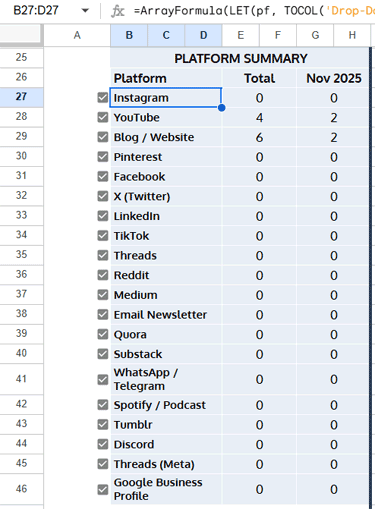
Formula in B27:
=ArrayFormula(LET(
  pf, TOCOL('Drop-Down Helper'!A2:A, 1),
  IFNA(HSTACK(
    pf,
    "",
    "",
    COUNTIFS(J2:J, pf),
    "",
    COUNTIFS(J2:J, pf, EOMONTH(I2:I, -1)+1, DATE(A2, MONTH(A1&1), 1))
  ))
))
How it works:
pf→ Reads platform names from Drop-Down HelperCOUNTIFS→ Computes overall + monthly totals- Empty columns are padded for alignment
IFNAsuppresses blanks
To the left, tick boxes let you filter specific platforms.
FAQs
Q. Can I use this for personal or business content planning?
Yes. It’s suitable for solo creators, marketing teams, agencies, and brands.
Q. Does this work in Excel?
No.
Excel’s array engine behaves differently, and functions like IFNA, FILTER, and TOCOL don’t work identically.
This template is built specifically for Google Sheets.
Q. Can I customize colors and fonts?
Absolutely.
The default theme uses clean blue and grey shades, but you can restyle the sheet however you like.
Conclusion
This free Content Calendar Template in Google Sheets helps you:
- plan your content
- track your publishing workflow
- analyze platform-wise performance
- manage multiple channels from one dashboard
Everything runs on dynamic formulas — no scripts, no plugins, no maintenance.
Get your copy now and take full control of your content schedule.
