

Case-sensitive SUMPRODUCT is possible in Google Sheets, but not in the same way as in Excel. I’ll explain that shortly.
I’ve recently written several posts on case-sensitive formulas in Google Sheets. You can use the search field in the top navigation bar with the keyword ‘Case Sensitive’ to find links to those posts.
Case-Sensitive SUMPRODUCT in Google Sheets
As you know, SUMPRODUCT in Google Sheets is a case-insensitive function. It treats ‘A’ and ‘a’ as identical.
So, how can we make SUMPRODUCT case-sensitive in Google Sheets?
Here’s an example.
Sample Data:
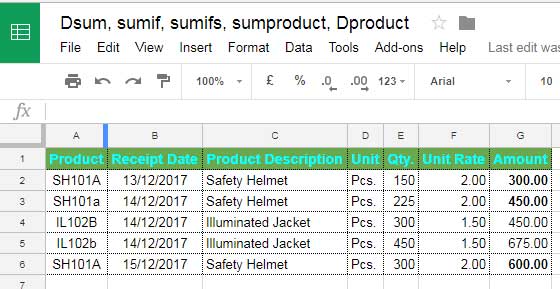
You can enter the sample data into a plain Google Sheets spreadsheet, keeping the range I provided.
Now, let’s find the total amount in column G for the item ‘SH101A’ in column A.
You’ll notice similar items in column A, specifically ‘SH101A’ and ‘SH101a,’ which are different in terms of case sensitivity.
When you use a standard, case-insensitive SUMPRODUCT formula like the one below, it returns the result 1350.00 because it treats cells A2, A3, and A6 as identical.
Case-Insensitive SUMPRODUCT Formula
=SUMPRODUCT(A2:A6="SH101A", G2:G6)This follows the syntax SUMPRODUCT(array1, [array2, …]), where we’ve specified both array1 and array2.
array1isA2:A6="SH101A", which returns an array of TRUE (1) or FALSE (0).array2isG2:G6.
The SUMPRODUCT function returns the sum of the products of elements in these two arrays.
Case-Sensitive SUMPRODUCT Formula:
Now, see the case-sensitive SUMPRODUCT formula in Google Sheets below, which returns 900.00.
=SUMPRODUCT(ISNUMBER(FIND("SH101A", A2:A6)), G2:G6)The reason it returns 900.00 is that it matches only cells A2 and A6. The handling of array1 in the case-insensitive formula is different in this case-sensitive formula.
In this formula, I’ve used the ISNUMBER and FIND functions. Here’s a step-by-step explanation:
Formula Explanation
The FIND function searches for the text “SH101A” in the array A2:A6 and returns a number if it finds a match or a #VALUE! error if it doesn’t. It’s a case-sensitive function.
FIND("SH101A", A2:A6)Result: {1; #VALUE!; #VALUE!; #VALUE!; 1}
When you wrap this with the ISNUMBER function, it returns an array of TRUE or FALSE values.
Result: {TRUE; FALSE; FALSE; FALSE; TRUE}
Here, TRUE represents a case-sensitive match for the criteria “SH101A,” and FALSE indicates a mismatch.
array2 is G2:G6.
In this way, you can convert a case-insensitive SUMPRODUCT formula to a case-sensitive one in Google Sheets.
In Excel, a different approach using the EXACT function is used for case-sensitive comparisons.
Note: When using ISNUMBER and FIND without SUMPRODUCT in an array, you must include the ARRAYFORMULA function. In the example above, you can test it with: =ARRAYFORMULA(ISNUMBER(FIND("SH101A", A2:A6)))
Conclusion
Please note that the FIND function matches the text partially. For an exact match, you might consider using REGEXMATCH as array1.
For example, the following formula will return 900.00, similar to the result from the above formula:
=SUMPRODUCT(REGEXMATCH(A2:A6, "^SH101A$"), G2:G6)You can use this formula for a case-sensitive SUMPRODUCT in Google Sheets.
Advanced Google Sheets SUMPRODUCT Function Formulas and Tutorials:
- How to Use Date Differences as Criteria in SUMPRODUCT in Google Sheets
- Differences Between SUMIFS and SUMPRODUCT Functions in Google Sheets
- Comparing SUMIFS, SUMPRODUCT, and DSUM with Examples in Google Sheets
- Correctly Specifying Criteria in SUMPRODUCT in Google Sheets
- How to Use OR Condition in SUMPRODUCT in Google Sheets
- How to Use Wildcards in SUMPRODUCT in Google Sheets
- How to Use SUMPRODUCT with Merged Cells In Google Sheets
- SUMPRODUCT Differences: Excel vs. Google Sheets




