

Before we explore how to generate triangular numbers in Google Sheets, it’s helpful to understand what they are. Triangular numbers form a sequence in which each number is the sum of all natural numbers up to that point. The sequence starts 1, 3, 6, 10, 15, 21, and continues indefinitely. For example, the 4th triangular number is 10, calculated as 1 + 2 + 3 + 4.
In Google Sheets, you don’t need to calculate each number manually. Using simple formulas, you can automatically generate the entire triangular number series in a column. This makes it easy to create lists, explore number patterns, or use them for further calculations.
In this tutorial, we’ll cover two effective methods for generating triangular numbers in Google Sheets:
- Using the nth triangular number formula
- Using the SCAN function to create a running total
Both approaches are dynamic, allowing you to adjust the sequence length without rewriting formulas, making your spreadsheet more flexible and efficient.
Triangular Numbers Using the nth Formula
The nth triangular number is calculated using the well-known formula:
Tn = n(n+1)/2
For example:
=1*(1+1)/2→ returns 1 (1st triangular number)=10*(10+1)/2→ returns 55 (10th triangular number)
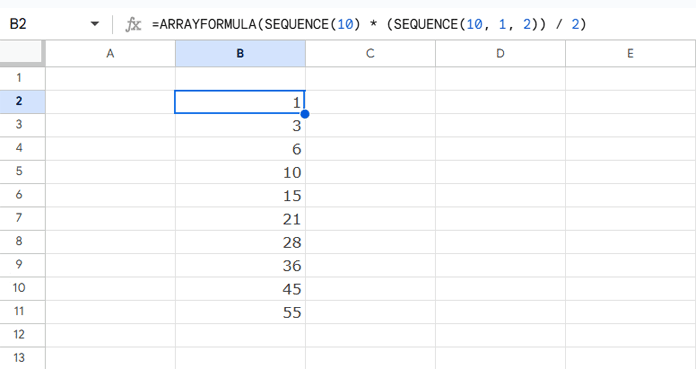
To generate a sequence of triangular numbers from 1st to 10th in Google Sheets, you can use SEQUENCE with ARRAYFORMULA:
=ARRAYFORMULA(SEQUENCE(10) * (SEQUENCE(10, 1, 2)) / 2)Replace 10 with any number n to generate n triangular numbers.
nth Formula Explained
SEQUENCE(10)→ generates numbers 1 through 10 in a column (n).SEQUENCE(10, 1, 2)→ generates numbers 2 through 11 in a column (n+1).- Multiplying them together gives
n × (n+1). - Dividing by 2 applies the triangular number formula.
- Wrapping in
ARRAYFORMULAlets the calculation spill automatically down the column.
This produces the sequence:
Triangular Numbers Using SCAN (Running Total)
Triangular numbers are also the running total of the natural numbers sequence. In Google Sheets, you can generate this using the SCAN function:
=SCAN(0, SEQUENCE(10), LAMBDA(acc, val, acc+val))SEQUENCE(10)→ generates numbers 1 through 10.SCAN(0, ..., LAMBDA(acc, val, acc+val))→ computes a running total starting from 0.- The result is the triangular number series: 1, 3, 6, 10…
Replace 10 with any number n to generate the first n triangular numbers dynamically.
