



















If you are looking for a simple way to track student grades, you are in the right place. This Student Grade Tracker template in Google Sheets helps you record scores for different tasks, automatically calculate lost marks, assign grades based on the loss, and visualize performance through a simple dashboard.
The template allows you to enter scores such as 4/5 (4 out of 5) or 8/10 (8 out of 10). It automatically calculates the loss, summarizes performance by subject, assigns grades, and displays charts on the dashboard. The task list is customizable because it is maintained separately, allowing you to modify it easily without affecting the formulas used for automation. In addition, you can easily adjust the grade scale to match your grading system.
This Student Grade Tracker template in Google Sheets can be used for school subjects, tutoring sessions, or personal study tracking, making it a simple yet effective way to monitor academic performance.
Template Preview
Before downloading the template, here is a quick overview of what it includes.
The Student Grade Tracker template in Google Sheets contains the following sheets:
Sheets Included: Grades, Dashboard, Helper
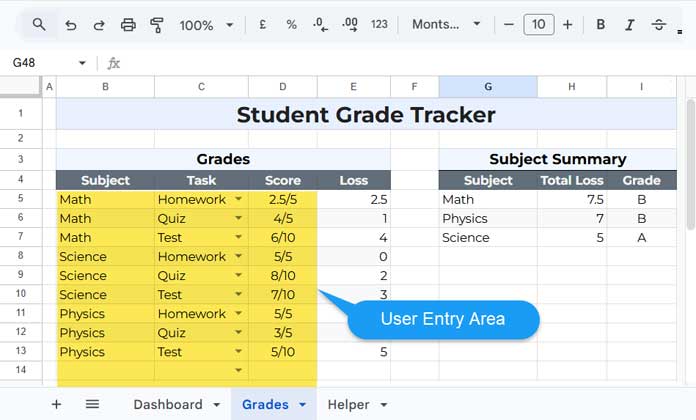
Grades
This is where you enter the subject, task, and score. The sheet automatically calculates the loss and generates a subject summary.
Dashboard
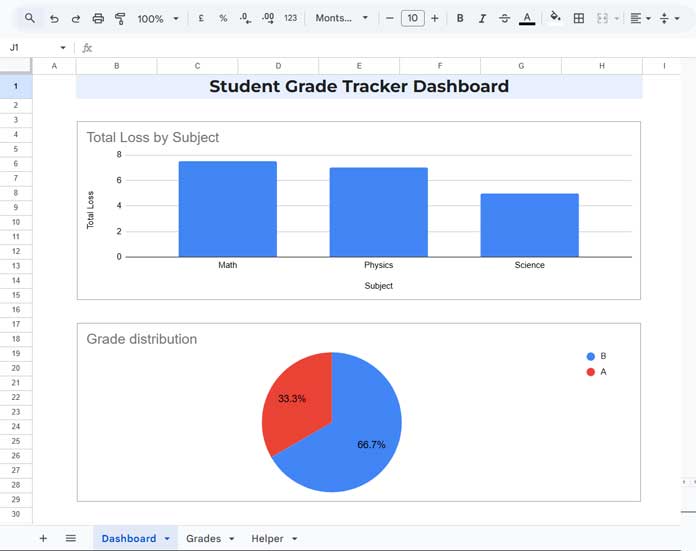
This sheet visualizes performance using charts such as:
- Total loss by subject
- Grade distribution
Helper
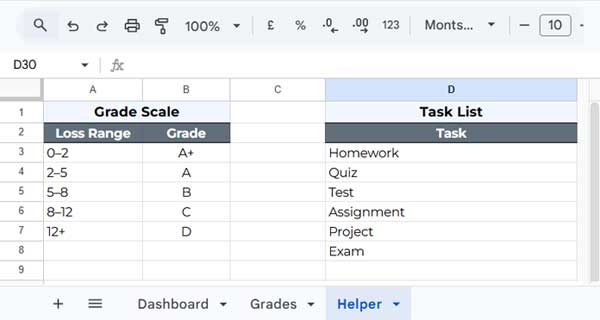
This sheet stores supporting data such as:
- Task dropdown list
- Grade scale table
These helper tables make it easy to customize the template without modifying formulas.
Download the Student Grade Tracker Template
You can download the Student Grade Tracker template in Google Sheets from the link below:
Download Student Grade Tracker
The template will open in preview mode. Click the “Use Template” button to create your own copy.
Once copied, you can start entering subjects, selecting tasks, and recording scores to automatically track student performance.
Features of the Student Grade Tracker Template
This Student Grade Tracker template in Google Sheets includes several useful features that make it easy to record scores, calculate results automatically, and analyze academic performance.
- Simple score entry – Enter scores such as 4/5 or 8/10.
- Automatic loss calculation – The template calculates how many marks were lost for each task.
- Subject-wise summary – Total loss is automatically summarized by subject.
- Automatic grade assignment – Grades are assigned based on the total loss.
- Task dropdown list – Quickly select task types such as homework, quizzes, or tests.
- Customizable grade scale – You can adjust the grade scale to match your institution’s grading system because it is maintained in a separate table.
- Dashboard charts – Visualize performance with charts showing total loss by subject and grade distribution.
Finally, all automations are implemented using array formulas placed in the table headers, helping prevent accidental deletion of formulas when rows are added or edited.
How to Use the Student Grade Tracker Google Sheets Template
Using the template is simple. Most of your work will take place in the Grades sheet.
Step 1 – Enter the Subject
In the Subject column, type the subject name.
Examples:
- Math
- Science
- Physics
You can repeat the same subject for multiple tasks.
Step 2 – Select the Task
The Task column contains a dropdown list. The dropdown options come from a helper range in the Helper sheet (D3:D).
To modify the task list:
- Go to the Helper sheet.
- Locate the task list in D3:D.
- Edit the existing tasks or add new ones below the list.
After updating the list, return to the Grades sheet and select a task from the dropdown.
Example tasks:
- Homework
- Quiz
- Test
- Assignment
- Project
- Exam
Using a dropdown keeps the data consistent.
Step 3 – Enter the Score
In the Score column, enter the score in the format:
EarnedScore/MaximumScore
Examples:
4/5
8/10
3.5/5
The template reads this value and automatically calculates the loss in the Loss column using an array formula placed in the column header.
Step 4 – Review the Loss Column
The Loss column shows how many marks were lost for each task.
Example:
| Score | Loss |
| 2.5/5 | 2.5 |
| 4/5 | 1 |
| 6/10 | 4 |
| 5/5 | 0 |
| 8/10 | 2 |
A lower loss indicates better performance.
Step 5 – Adjust the Grade Scale (Optional)
Go to the Helper sheet to view the grade scale.
Example:
| Loss Range | Grade |
| 0–2 | A+ |
| 2–5 | A |
| 5–8 | B |
| 8–12 | C |
| 12+ | D |
You can modify the ranges to match your grading system.
Example:
0–5
5–10
10–15
15+
Important: Use the same en dash (–) between the lower and upper range values, as it is used as an identifier in one of the formulas.
Subject Summary
Next to the main table, the template automatically generates a Subject Summary.
Example:
| Subject | Total Loss | Grade |
| Math | 7.5 | B |
| Physics | 7 | B |
| Science | 5 | A |
This table shows:
- Total marks lost for each subject
- Grade assigned based on the loss range
It also serves as the data source for the dashboard charts.
Understanding the Dashboard
The template includes a Dashboard sheet with two charts that help visualize the results.
Total Loss by Subject
This column chart shows the total loss for each subject.
It quickly highlights the subjects where the most marks were lost.
Lower bars indicate better performance.
Grade Distribution
This pie chart shows how grades are distributed across subjects.
For example:
- A – 1 subject (33.3%)
- B – 2 subjects (66.7%)
This chart provides a quick overview of overall academic performance.
How the Template Works
Behind the scenes, the template performs three key operations:
- Score parsing – The score entered in the format earned/maximum is processed to determine the earned score and the maximum score.
- Loss calculation – The difference between the maximum score and the earned score determines the loss.
- Grade assignment – Grades are assigned based on predefined loss ranges.
A small grade scale table is used internally to determine the final grade.
Customizing the Template
You can easily customize the template to suit your needs.
Possible customizations include:
- Adding more rows for additional tasks (Grades sheet)
- Modifying the task dropdown list (Helper sheet)
- Adjusting the grade scale (Helper sheet)
- Adding new subjects (Grades sheet)
Since the summary table and dashboard charts are automated, they update automatically when new data is entered.
Who Can Use This Template?
This Student Grade Tracker template in Google Sheets can be useful for:
- Teachers tracking student assignments
- Tutors monitoring progress across subjects
- Students tracking their own performance
- Parents monitoring academic progress
Teachers and tutors can also benefit from our Attendance Sheet template in Google Sheets to monitor student participation.
Final Thoughts
A simple grade tracking system makes it easier to understand academic performance and identify areas that need improvement.
This Student Grade Tracker template in Google Sheets provides an easy way to record scores, calculate results automatically, assign grades, and visualize academic performance through a dashboard.
