

Can we create horizontal bars that extend to the left for negative values and to the right for positive values in a SPARKLINE bar chart in Google Sheets?
Yes! In this post, I’ll show you how to use the SPARKLINE function in Google Sheets for a positive and negative bar graph directly within cells.
We’ll start with a non-array SPARKLINE formula, then convert it into an array formula using the MAP LAMBDA function, and finally package it as a custom Named Function called SPARKLINE_NEGATIVE_BAR().
With the Named Function, you only need to specify the range—it’s that simple.
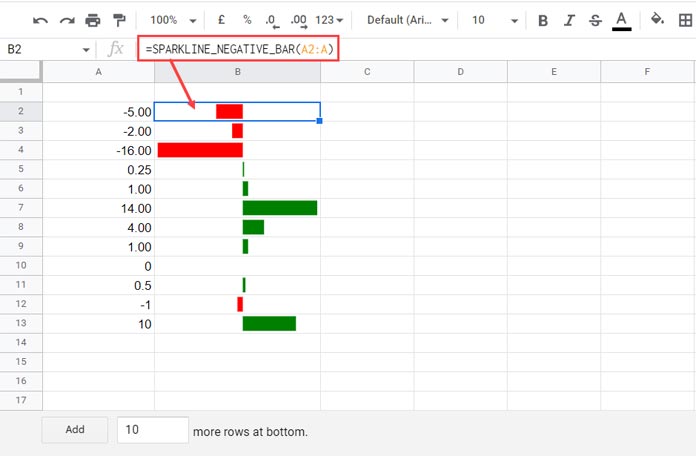
SPARKLINE in Google Sheets for Positive and Negative Bars
By the end of this tutorial, you’ll be able to create positive and negative bar graphs in Google Sheets using SPARKLINE, with optional array and Named Function approaches
SPARKLINE Non-Array Formula (Step 1)
In three steps, we can build a SPARKLINE bar graph with both positive and negative bars in Google Sheets.
We may also need one extra step to expand the formula into an array using LAMBDA functions.
The SPARKLINE function takes two arguments: data and options.
Syntax:
SPARKLINE(data, [options])In this in-cell SPARKLINE chart in Google Sheets, the width of each horizontal bar is proportional to the absolute value of the number it represents. That means both negative and positive values affect the bar length equally.
Step 1 Formula (basic bar chart):
=ArrayFormula(SPARKLINE(A2, {"charttype", "bar"; "max", MAX(ABS($A$2:$A))}))👉 Enter this formula in cell C2. You can drag it down to fill the column for a range, but since we’ll use array formulas later, manual dragging is optional at this stage.

At this stage, all bars use the default color. You can assign different colors for positive and negative values in the next step.
Explanation of the “max” option:
MAX(ABS($A$2:$A))ensures the maximum bar width in the chart corresponds to the absolute largest value in the range, so all bars scale proportionally.
SPARKLINE with Conditional Colors (Step 2)
To assign different colors for positive and negative bars:
=ArrayFormula(SPARKLINE(A2, {"charttype", "bar"; "max", MAX(ABS($A$2:$A)); "color1", IF(A2>0, "green", "red")}))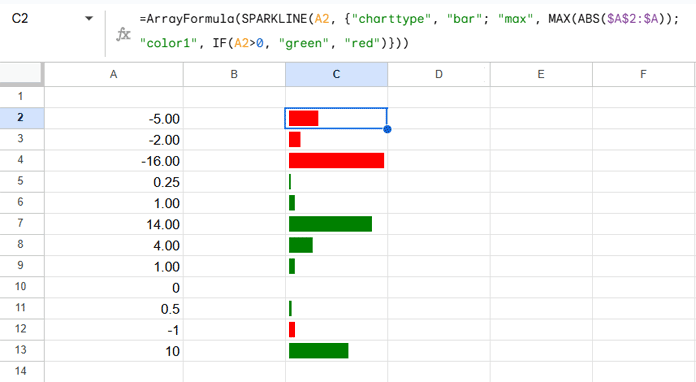
SPARKLINE Positive and Negative Bars (Step 3)
Now let’s split bars around a virtual vertical line: negatives on the left, positives on the right.
=SPARKLINE(
  {IF(A2>0, MIN($A$2:$A), A2 - MIN($A$2:$A)), A2},
  {"charttype","bar"; "max", MAX(0, $A$2:$A)-MIN(0, $A$2:$A); "color1", "white"; "color2", IF(A2>0,"green", "red")}
)
Step 3 Formula Explanation
The Step 3 SPARKLINE formula uses two values to create each bar:
Formula for the two values:
{ IF(A2>0, MIN($A$2:$A), A2-MIN($A$2:$A)), A2 }- First value (white bar) – this creates the space before the colored bar:
- For positive numbers, it uses the minimum value in the range.
- For negative numbers, it shifts the bar to the left using
A2 - MIN($A$2:$A).
- Second value (red/green bar) – this is the actual bar representing the number:
- Positive numbers extend right (green).
- Negative numbers extend left (red).
The "max" option sets the total horizontal scale:
max(0, $A$2:$A) - min(0, $A$2:$A)This ensures all bars are proportional to their absolute values.
Result: negative bars appear to the left, positive bars to the right, with spacing handled automatically.
SPARKLINE Array Formula (Step 4)
To apply this chart to an entire column, use the MAP + LAMBDA combo.
Generic format:
=MAP(A2:A, LAMBDA(r, non_array_formula))Replace non_array_formula with the step 3 SPARKLINE, changing every A2 reference to r.
Final Array Formula:
=MAP(
  A2:A,
  LAMBDA(r, SPARKLINE(
    {IF(r>0, MIN(A2:A), r-MIN(A2:A)), r},
    {"charttype","bar"; "max", MAX(0, A2:A)-MIN(0, A2:A); "color1", "white"; "color2", IF(r>0,"green", "red")}
  ))
)
👉 Make sure column C is empty before entering this formula in C2, since the results spill down.
Custom Named Function
You can convert the above array formula into a Named Function for easier reuse by following my Named Function tutorial.
Syntax:
SPARKLINE_NEGATIVE_BAR(range)Example:
=SPARKLINE_NEGATIVE_BAR(A2:A)How to get this Named Function:
- Click to make a copy of my Sample Sheet.
- The
SPARKLINE_NEGATIVE_BAR()Named Function is already available in the copied sheet. - To use it in other sheets, open your target sheet and go to:
Data → Named Functions → Import Function and follow the instructions.




Thank you for the instruction. I have been looking for a solution for quite a long time.
How can I change the formula in such a way that the virtual vertical line is always in the center of the cell?
Many Thanks again!
Hi, Sebastian,
Syntax: SPARKLINE_NEGATIVE_BAR(range)
Assume the range is A2:A13.
If you use my custom-named function for the -ve and +ve sparklines, insert the following formula at the bottom of the range, here in cell A14.
=if(abs(min(A2:A13))>=max(A2:A13),abs(min(A2:A13)),max(A2:A13)*-1)Use A2:A14 instead of A2:A13 and hide row#14.
Hi, I’ve been trying for two days, but still, I cannot figure out the final formula. It seems to be wrong.
There are three arguments in the IF function, whereas there should be just two.
There must be something wrong with the punctuation, i.e.,
,used instead of\or;.Many thanks.
Hi, Mauri,
You can follow the below steps to get the correct formula as per your locale.
1. Open a new spreadsheet.
2. Go to File > Settings and change the Locale to the United Kingdom.
3. Enter my formula within the tutorial above.
4. Then revert the Locale.
My issue is as follows: I have set the regional settings for Spain. While the formula functions properly, the problem arises in the visualization of the bars. Negative values fail to display on the left, and positive values on the right. I’ve observed that it only displays correctly when the regional settings are set to the United Kingdom.
Could you advise on how to rectify this?
Would you mind trying to make a copy of my sheet and changing the locale to Spain? It seems to be functioning correctly on my end.