

The Snake and Ladder Game in Google Sheets is a fun way to turn a spreadsheet into a fully interactive board game—without using Apps Script.
Since the game is based on a numbered grid, you can recreate it entirely using formulas. This version is dynamic, automated, and beginner-friendly.

It’s also similar to Chutes and Ladders, so you can easily customize the theme.
In This Guide, You’ll Learn
- How to download and use a ready-made template
- How to play the Snake and Ladder Game in Google Sheets
- How to build your own Snake and Ladder Game in Google Sheets step by step
Download the Free Snake and Ladder Game
How to Play the Snake and Ladder Game in Google Sheets
This Snake and Ladder game in Google Sheets supports up to 4 players and is simple to use.
Player 1
- Click the checkbox in cell Q3 to roll the dice.
- Count the number of pips shown on the dice.
- Uncheck Q3 to reset it for the next turn.
- If the result is 1, enter the value in cell S3 (
1represents the starting move).
Player 2
- Click the checkbox in cell Q4 to roll the dice.
- Count the number of pips shown on the dice.
- Uncheck Q4 to reset it for the next turn.
- If the result is 1, enter the value in cell S4.
Player 3
- Click the checkbox in cell Q5 to roll the dice.
- Count the number of pips shown on the dice.
- Uncheck Q5 to reset it for the next turn.
- If the result is 1, enter the value in cell S5.
Player 4
- Click the checkbox in cell Q6 to roll the dice.
- Count the number of pips shown on the dice.
- Uncheck Q6 to reset it for the next turn.
- If the result is 1, enter the value in cell S6.
Continue the Game (Entering Scores)
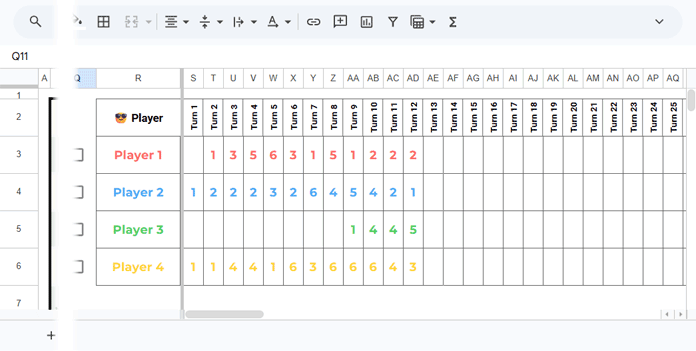
- For each turn, enter the dice result in the next column (T, U, V, W…) for that player.
- Each row represents a player.
- Each column represents a turn.
Use the following structure:
How It Works
- Players start entering values only after rolling 1
- Blank cells represent turns before the player rolls 1 and enters the game
- Once a player starts, their values continue across columns
- All players remain aligned by turn, making gameplay easy to track
This method provides the best experience in the Snake and Ladder Game in Google Sheets by keeping turns structured and visually clear.
Key Tip
A player can start moving only after rolling 1.
Until then, their row may remain blank in the early turns.
Automated Player Movement
Unlike the physical version, this Snake and Ladder Game in Google Sheets does not use pawns.
Player positions are automatically displayed using conditional formatting.
You only need to:
- Roll the dice
- Enter the score
The sheet automatically handles:
- Climbing ladders
- Sliding down snakes
- Updating player positions
If two players land on the same square, one marker may not be visible—this is normal and can be ignored.
Winning Rules
You can continue the game until:
- One player wins
- Two players finish
- All players finish
Choose any rule based on your preference.
Important Note (Exact Roll Rule)
To win the game, a player must land exactly on 100.
Examples:
- If a player is on 99, they must roll 1
- If a player is on 92, they must roll 2
If the dice shows a higher number:
- The move is ignored
- The player stays in the same position
- They must wait for the exact number
To start a new game, clear the score values in S3:FL6
If you’d like a quick overview of the gameplay, watch this video.
How to Build a Snake and Ladder Game in Google Sheets
If you want to create your own Snake and Ladder Game in Google Sheets, follow these steps.
Step 1: Create the Board
Create a new Google Sheets file (type sheets.new in your browser).
Rename Sheet1 → Play
In cell B2, enter:
=LET(
 rows, 10,
 cols, 10,
 start, 1,
 MAKEARRAY(rows, cols, LAMBDA(r, c,
   LET(
     b, rows+1-r,
     base, (b-1)*cols,
     IF(ISODD(b), base+c+start-1, base+cols+1-c+start-1)
   )
  ))
)
This creates a zigzag grid from 1 to 100.
Format the Board
- Column width: 45 px
- Row height: 45 px
- Center-align text (horizontal + vertical)
- Font: Montserrat (recommended)
- Apply a thick black outer border to the entire board
Apply the Board Pattern
Go to:
Format → Conditional Formatting → Custom formula is
=MOD(ROW()+COLUMN(), 2)Set fill color: #dce5dc
Want to understand how this pattern works? See Conditional Format a Chessboard Pattern in Google Sheets.
Step 2: Add Snakes and Ladders
Add a new sheet and rename it Engine
Snakes Table (A2:C10)
| No | Head | Tail |
|---|---|---|
| 1 | 17 | 7 |
| 2 | 34 | 14 |
| 3 | 47 | 18 |
| 4 | 64 | 43 |
| 5 | 79 | 58 |
| 6 | 88 | 24 |
| 7 | 94 | 73 |
| 8 | 98 | 78 |
Ladders Table (E2:G9)
| No | Start | End |
|---|---|---|
| 1 | 4 | 22 |
| 2 | 8 | 30 |
| 3 | 19 | 41 |
| 4 | 28 | 55 |
| 5 | 36 | 62 |
| 6 | 51 | 72 |
| 7 | 75 | 96 |
These placements create a balanced Snake and Ladder Game in Google Sheets.
Add Graphics
Go to the Play sheet and add the snakes and ladders based on the tables above.
You can:
- Use the built-in Drawing tool
- Insert transparent images
You can also use AI tools to generate visuals and fine-tune them using an image editor.
Step 3: Dice Roller
Select cell range Q3:Q6 → Insert → Tick box
In M3, enter:
=ARRAYFORMULA(
  LET(
    diceValue, IF(COUNTIF(Q3:Q6, TRUE), RANDBETWEEN(1, 6), 0),
    spacerRow, SEQUENCE(1, 9)^0,
    dicePatterns,
    {
      0,0,0,0,1,0,0,0,0;
      1,0,0,0,0,0,0,0,1;
      1,0,0,0,1,0,0,0,1;
      1,0,1,0,0,0,1,0,1;
      1,0,1,0,1,0,1,0,1;
      1,0,1,1,0,1,1,0,1
    },
    selectedPattern, XLOOKUP(diceValue, SEQUENCE(6), dicePatterns, 0),
    diceGrid, WRAPROWS(selectedPattern * spacerRow, 3),
    IF(diceGrid=0, , "●")
  )
)
Format the Dice
- Column width: 45 px
- Select M3:O5
- Center-align content
- Font size: 25
- Apply thick black border
- Fill color: #f6f3ed
Note: For a detailed explanation of the dice formula, check out Create a Dice Roller in Google Sheets Using One Formula.
Step 4: Build the Engine
In the Play sheet, enter player names in R3:R6.
To reference these names in the Engine sheet, enter the following formula in A13:
={Play!R3:R6}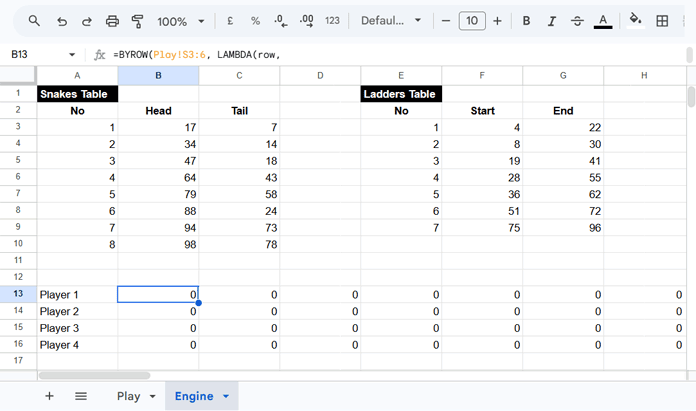
In Engine!B13, enter:
=BYROW(Play!S3:6, LAMBDA(row,
  SCAN(0, row, LAMBDA(acc, val,
    LET(
      score,
        XLOOKUP(
          acc+val,
          $F$3:$F$9, $G$3:$G$9,
          XLOOKUP(acc+val, $B$3:$B$10, $C$3:$C$10, acc+val)
        ),
      IF(score>100, score-val, score)
    )
  ))
))
How It Works
- XLOOKUP (outer) checks if the new position matches a ladder start and returns the ladder end.
- XLOOKUP (inner) checks if it matches a snake head and returns the tail.
- If no match is found, the value remains unchanged.
- SCAN maintains the running total for each move.
- BYROW applies the logic to each player independently.
- The IF condition ensures the score never exceeds 100.
- For example, if a player is at 95 and rolls 6, the move is ignored, and the position remains 95.
Step 5: Highlight Player Positions
Apply conditional formatting to B2:K11 in the Play sheet.
Use the following custom formula:
=B2=CHOOSECOLS(INDIRECT("Engine!B13:13"), -1)Repeat this rule for each player. When duplicating, update the row reference and assign a unique fill color:
- Player 1 →
Engine!B13:13→ Color: #ff6b6b - Player 2 →
Engine!B14:14→ Color: #4dabf7 - Player 3 →
Engine!B15:15→ Color: #51cf66 - Player 4 →
Engine!B16:16→ Color: #ffd43b
Place these rules above the chessboard formatting rule to ensure player positions are visible.
Tip
Choose colors with good contrast against the board background so player positions are easy to identify at a glance.
Step 6: Winner Formula (Optional)
Merge M9:R10 in the Play sheet.
In M9, enter:
=LET(
  winners,
    SORT(
      IFNA(
        HSTACK(
          Engine!A13:A16,
          BYROW(Engine!B13:16, LAMBDA(row, XMATCH(100, row)))
        )
      ),
      2, TRUE
    ),
  rank,
    IFNA(
      FILTER(
        CHOOSECOLS(winners, 1),
        CHOOSECOLS(winners, 2)
      )
    ),
  TEXTJOIN(" | ", TRUE, rank)
)
How It Works
- winners → Finds when each player reaches 100 and sorts by turn order
- rank → Filters winners and joins names into a single result
Step 7: Final Setup
A Snake and Ladder game can sometimes take many turns. Limiting it to around 150 turns helps keep the gameplay engaging. To support this, you can extend the number of columns in both the Play and Engine sheets.
Extend Columns in the Play Sheet
You currently have columns from S to Z. To quickly extend this:
- In cell S1, enter:
=SEQUENCE(1, 150)- This will fill columns up to FL.
- Go to column FM, then select FM and all columns to the right, and delete them.
- Delete the formula in S1.
Extend Columns in the Engine Sheet
- In the Engine sheet, enter the same formula in cell B18:
=SEQUENCE(1, 150)- This will fill columns up to EU.
- Go to column EV, select EV and all columns to the right, and delete them.
- Delete the formula.
Notes
- This ensures enough space for extended gameplay without manually inserting columns
- You can adjust 150 to any number based on your preference
- Finally, go to column R in the Play sheet and select:
View → Freeze → Up to column R
This keeps player names and starting columns visible while scrolling through turns.
Conclusion
You’ve now built a complete Snake and Ladder Game in Google Sheets without using Apps Script.
This project helps you:
- Learn advanced formulas like LET, SCAN, BYROW, and XLOOKUP
- Build interactive spreadsheet tools
- Explore creative use cases in Google Sheets
For more free automated templates, explore the Ultimate Library of Free Google Sheets Templates.
