



















If you’re looking to make duplicates unique without removing them, one of the simplest ways is to add a suffix—like numbers, letters, or Roman numerals.
Let’s say the word “apple” appears three times in a list. You can make each instance unique like this:
1. With numbers:
apple
apple_1
apple_2
2. With Roman numerals:
apple
apple_I
apple_II
3. With letters:
apple
apple_a
apple_b
The best part? You don’t have to do this manually. You can use a formula in Google Sheets that automatically adds the suffix to duplicates as the list grows.
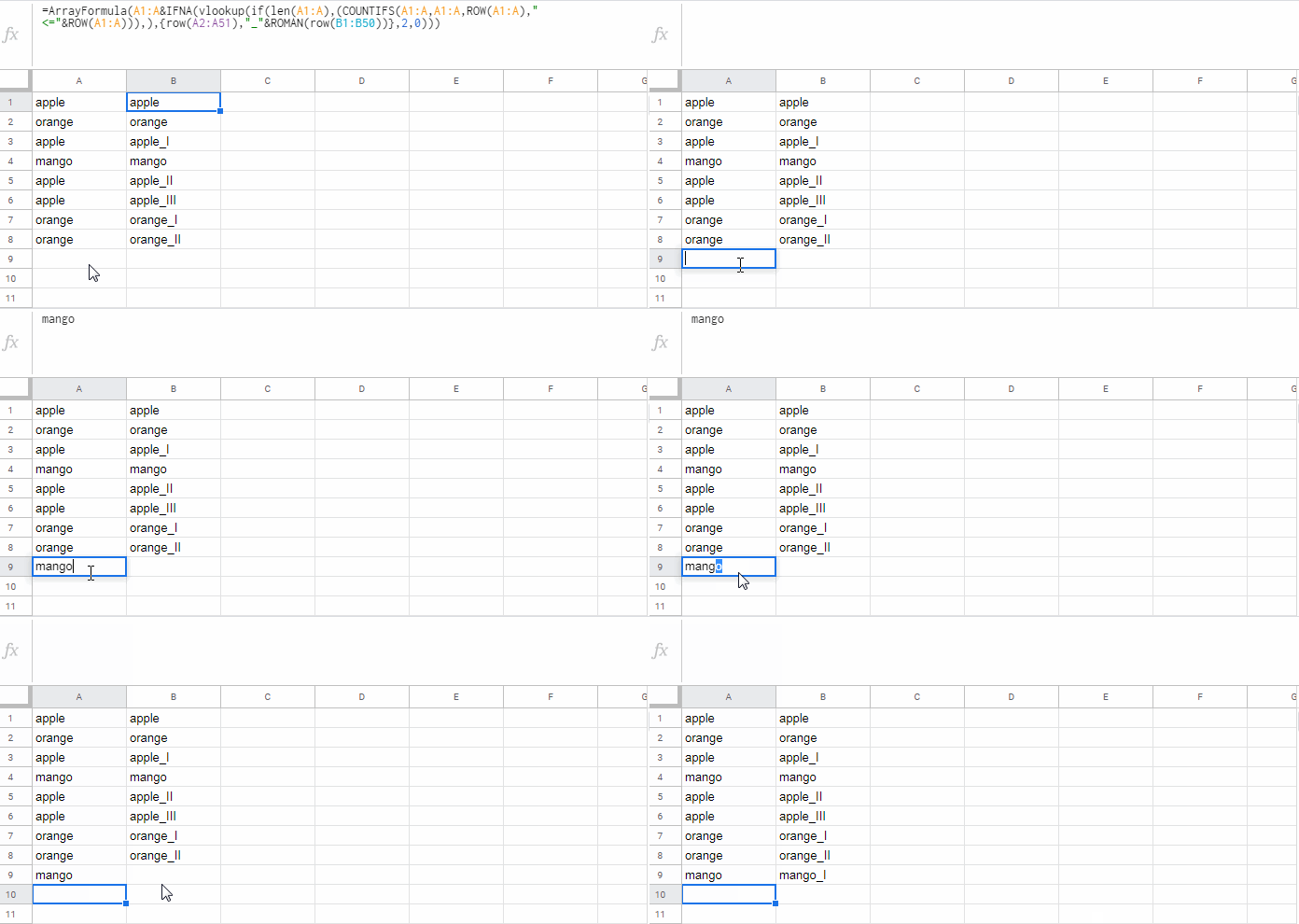
Once you’re done, you can copy the final list and paste it as values over the original if needed.
Let’s look at three ways to add a suffix to duplicates to make them unique in Google Sheets, depending on the type of suffix you prefer.
1. Add Sequential Numbers as a Suffix
If your list starts in cell A2, place this formula in B2:
=ArrayFormula(
   LET(
      list, A2:A,
      seqN, COUNTIFS(list, list, ROW(list), "<=" & ROW(list)) - 1,
      IF(seqN * (list <> ""), list & "_" & seqN, list)
   )
)
This formula adds _1, _2, etc. to only the duplicate entries, starting from the second time each value appears.
How it works:
COUNTIFS(...)gives the running count of each item.- We subtract
1to skip the first occurrence (since it’s not a duplicate). - The
IFcondition ensures that only duplicates get a suffix; the first instance stays as-is.
This is a clean way to add number-based suffixes to duplicates—and it all works without any helper columns.
2. Add Roman Numerals as a Suffix
If you want something a bit fancier than plain numbers, you can go with Roman numerals. Here’s the formula:
=ArrayFormula(
   LET(
      list, A2:A,
      seqN, COUNTIFS(list, list, ROW(list), "<=" & ROW(list)) - 1,
      IF(seqN * (list <> ""), list & "_" & ROMAN(seqN), list)
   )
)
All we’ve done is wrap the running count (seqN) in the ROMAN function.
Example output:
apple
apple_I
apple_II
This option is great if you want a unique format for duplicates that stands out a bit more.
3. Add Alphabet Letters as a Suffix
This version adds lowercase letters—_a, _b, _c, and so on—to duplicates.
Here’s the formula:
=ArrayFormula(
   LET(
      list, A2:A,
      seqN, COUNTIFS(list, list, ROW(list), "<=" & ROW(list)) - 1,
      IF(seqN * (list <> ""), list & "_" & LOWER(REGEXREPLACE(ADDRESS(1, seqN), "[^A-Z]", "")), list)
   )
)
How it works:
COUNTIFS(...) - 1gives the count of previous occurrences, so the first one gets no suffix.ADDRESS(1, seqN)converts the number to a cell address likeA1,B1,C1, etc.REGEXREPLACE(..., "[^A-Z]", "")pulls just the column letter from the address.LOWER(...)turns it into a lowercase letter for the suffix.
So, for duplicates, you’ll get:
apple
apple_a
apple_b
apple_c
Note: This keeps going beyond z. After that, you’ll get aa, ab, ac, and so on—just like spreadsheet columns.
Conclusion
We’ve looked at three simple ways to add suffixes to duplicates to make them unique in Google Sheets:
- Add numbers
- Add Roman numerals
- Add alphabet letters
Each one has its own style and use case. Pick the one that works best for your list!
