

Many of us share rooms with others when we are away from home for job or study. This Automatic Cleaning Roster template will help you assign cleaning tasks and monitor them in an interesting way.
Why might you find this useful?:
Managing cleaning responsibilities in a shared room or apartment can be stressful—especially when tasks feel unfair or someone forgets their turn.
This automatic cleaning roster template solves that by rotating tasks every week, tracking daily ratings, calculating fairness, and ranking members. Everything updates automatically once you set the starting details.
You just need to specify the start date, the date you begin implementing the cleaning roster, the number of members and their names, and an equal number of tasks.
If you want to track performance, you can also enter daily ratings from 1 to 5 to see how each member performs over time.
What This Template Does
- Automatically assigns rotating weekly cleaning tasks
- Tracks daily performance using a 1–5 rating system
- Calculates total score, actual score, fairness index, and ranking
- Works with any number of roommates
- Runs for months automatically once you enter the start date
Let’s understand how to use the free but advanced Automatic Cleaning Roster for Shared Rooms in Google Sheets.
Sheet 1: Control Panel (Configuration)
This sheet has only the input fields needed for automation.
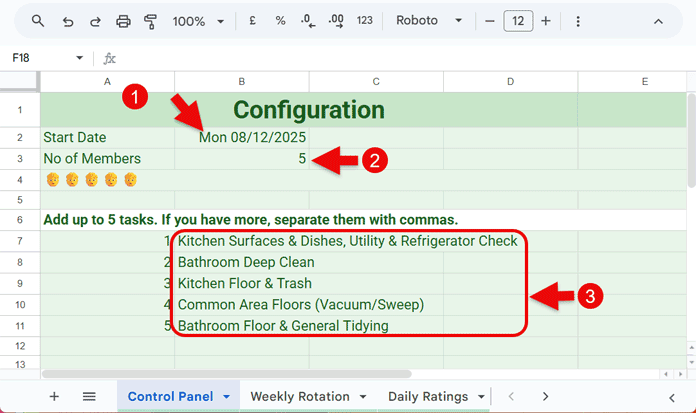
You enter the start date in B2, number of members in B3, and the equivalent number of tasks in B7:B.
You don’t need to change the date once entered unless you want to restart the roster when new members join and existing members leave.
If you have 5 members, enter five tasks in B7:B.
What if I have more than 5 tasks?
Combine smaller tasks by comma-separating them so that you still end up with 5 rows.
What if I have fewer tasks or just one?
No issue. Enter only what you have. The members will balance out their duties across weeks.
That’s all about the Control Panel setup of the Automatic Cleaning Roster in Google Sheets.
Sheet 2: Weekly Rotation (Automatic Task Assignment)
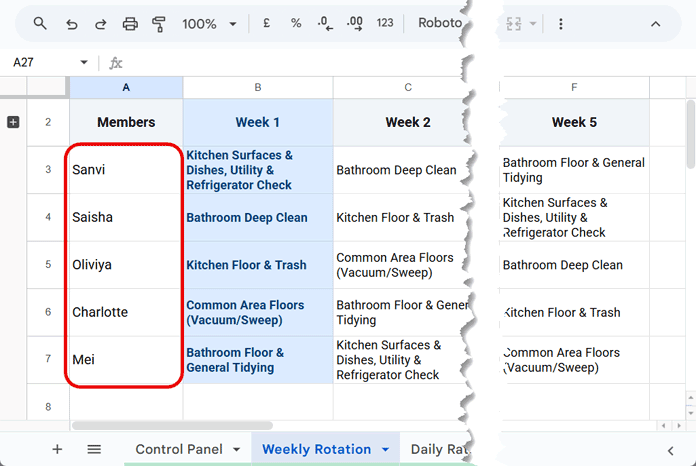
This is where you see the current task assigned to each member for the running week.
Enter the member names in column A (A3:A). You’ll get that many columns with rotating tasks. For example, if there are 5 members, you’ll see 5 columns — each representing one week.
How It Works
A highlighting rule cycles week by week.
Once it reaches the fifth week (meaning all members have done all the jobs), it jumps back to the first week. This looping continues without your intervention.
So you can easily see what job each member has for the current week, whether it’s a daily task or a weekly one.
Sheet 3: Daily Ratings
This is optional and only for those who want to monitor the performance of each member.
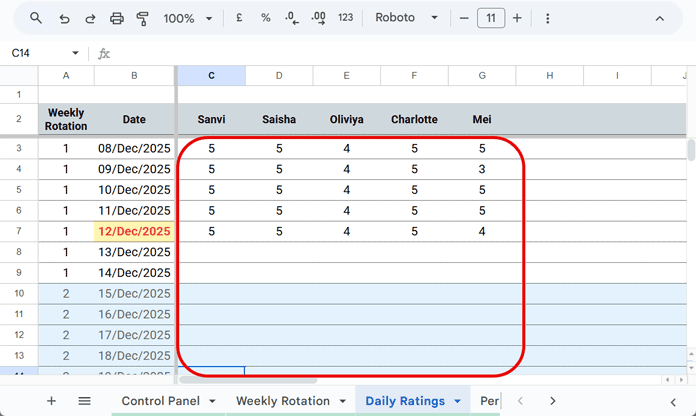
Column B (B3:B) lists the dates for a full year (365 days) from the start date you set in the Control Panel.
Row 2, from column C across, shows the member names.
Below that, you enter each member’s daily score from 1 to 5.
Sheet 4: Performance Summary (Fairness & Ranking)
This sheet works only if you fill the Daily Ratings sheet.
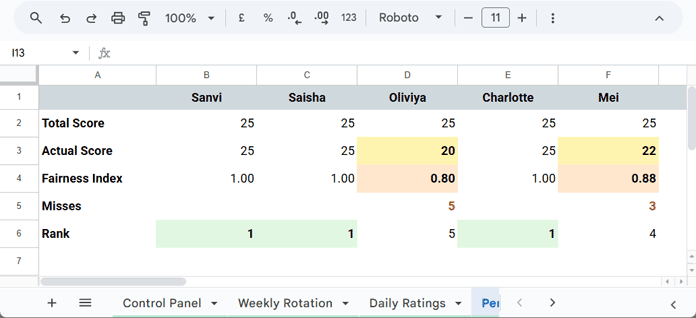
It gives important statistics such as:
- Total Score
- Actual Score
- Fairness Index
- Misses
- Rank
A lower Fairness Index indicates lower performance.
Conclusion
I have used several advanced formulas and highlighting rules in the Cleaning Roster for Shared Rooms template to make the entire system fully automated. Every sheet contains formulas, and all sheets except the Control Panel include highlight rules.
So, when you use this template, follow the instructions above carefully. Do not insert or delete rows or columns, as everything is mapped correctly already. There are enough rows and columns in all sheets to support the required number of members and tasks.
Just select and delete the mockup data wherever needed.
Your template will take care of the heavy lifting by rotating duties automatically and promoting fairness with full transparency. It also helps you identify who is most consistent and prevents unnecessary arguments about cleaning responsibilities. This makes it ideal for:
- Family chore planning
- Shared rooms
- Hostels & dorm rooms
Explore our growing Google Sheets templates collection for more helpful tools.
