

In this tutorial, we’ll learn how to multiply every two columns in Google Sheets and total the results using both dynamic array formulas and traditional methods.
We’ll cover two main approaches:
- A LAMBDA-based array formula.
- A classic MMULT-based array formula.
Along the way, you’ll also see where such a calculation comes in handy and why it can be a time-saver for repetitive data operations.
Why Multiply Every Two Columns in Google Sheets?
There are several scenarios where multiplying every two columns makes sense — one common example is calculating total purchase costs when prices change over time.
Let’s say you have data like this:
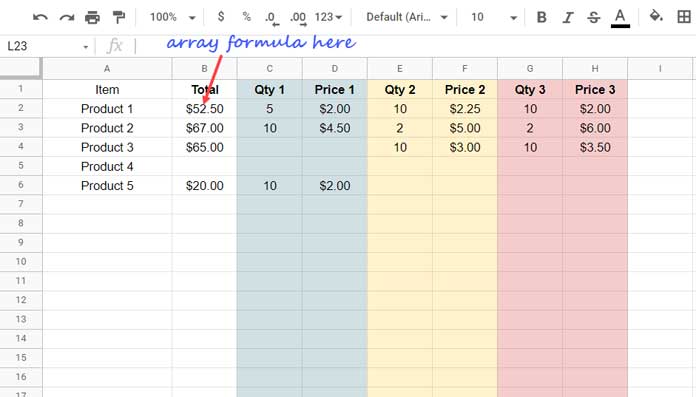
Here, each “Qty” column is paired with a “Price” column. You want to multiply each pair (Qty × Price) and sum them up for the total cost.
Non-Array Methods to Multiply Every Two Columns in Google Sheets
If you only have a few rows and want a simple, manual approach, you can directly multiply and add:
Option 1: Direct Multiplication
=C2*D2 + E2*F2 + G2*H2Option 2: Using the MULTIPLY Function
=MULTIPLY(C2,D2) + MULTIPLY(E2,F2) + MULTIPLY(G2,H2)Drag down the formula to apply it to all rows.
Dynamic Array Formulas to Multiply Every Two Columns in Google Sheets
If you want something automatic that works for all rows without manual adjustments, a dynamic array formula is the way to go.
We’ll look at two options:
1. LAMBDA + BYROW Approach
Enter this formula in B2:
=ArrayFormula(
  LET(total,
    BYROW(
      C2:H,
      LAMBDA(r, SUM(
        FILTER(r, ISODD(COLUMN(r))) *
        FILTER(r, ISEVEN(COLUMN(r)))
      ))
    ),
    IF(total=0,,total)
  )
)
How it works
FILTER(r, ISODD(COLUMN(r)))→ selects the odd-positioned columns from the rowr(the quantity columns).FILTER(r, ISEVEN(COLUMN(r)))→ selects the even-positioned columns from the rowr(the price columns).- Multiplying those two filtered arrays does element-by-element Qty × Price for that row.
SUM(...)totals the products for the row.- BYROW applies this logic to every row in the range
C2:H. IF(total=0,,total)converts zero results to blanks so the output column stays clean.
This approach is very readable and flexible (easy to adapt if you add more Qty/Price pairs). For very large sheets, the MMULT version can be slightly faster, but this LAMBDA version is more straightforward to understand and maintain.
2. MMULT (Matrix Multiplication) Approach
Enter this formula in B2:
=ArrayFormula(
  IFERROR(
    LET(
      qty, FILTER(C2:H, ISODD(COLUMN(C1:H1))),
      rate, FILTER(C2:H, ISEVEN(COLUMN(C1:H1))),
      1 / MMULT(qty * rate, SEQUENCE(COLUMNS(C1:H1)/2)^0) ^ -1
    )
  )
)
How it works:
- Odd columns are extracted into
qty, even columns intorate. - Multiplying them (
qty * rate) produces a table of row-by-row products. MMULT(..., SEQUENCE(...)^0)sums the products for each row without looping through each row manually.- Wrapping the result in
1/x ^ -1is a clever trick: it forces the correct summation output in an array context and automatically converts any0values into blanks in the result column. This helps keep the output clean.
This method avoids BYROW and is highly efficient for large datasets.
Which Formula Should You Use to Multiply Every Two Columns?
- LAMBDA + BYROW → Best for readability and ease of understanding.
- MMULT → Best for performance with very large datasets.
Conclusion
The two formulas above are the best ways to multiply every two columns in Google Sheets dynamically. While you could use QUERY or manual multiplication, these array formula methods will save you from repetitive editing when your data grows.
If you enjoyed this, you may also like:




