



















Want to make grocery shopping faster and more organized? Try our free Smart Grocery List template for Google Sheets. In this guide, you’ll learn how to use the template right away and also how to build one yourself step by step.
Why Use Google Sheets for Your Grocery List?
You might be wondering, why not just use a paper list or a grocery app? Well, a Google Sheets Grocery List Template gives you the best of both worlds—simplicity and flexibility.
First, it’s completely free. Whether you’re on your laptop, desktop, or even your phone, you don’t need to pay for yet another app.
Second, it’s easy to share. If you live with family or roommates, you can all update the same grocery list in real time. No more “forgot the milk” moments—everyone sees the same list.
Third, it’s customizable. Want to group items by category, change units, or add your own products? You can. Unlike rigid apps, Google Sheets bends to your needs.
And finally, it’s searchable and flexible. You can quickly find items, filter by category, or even expand the sheet into a full-blown meal planner if you’d like.
In short, using Google Sheets for grocery shopping keeps things organized, collaborative, and stress-free—without the clutter of extra apps.
What’s Inside the Smart Grocery List Template
The template has three simple tabs:
- Data – your master inventory (Item | Category | Unit).
- List – the current shopping selection (drop-downs + qty).
- Summary – a three-column, category-grouped shopping list ready to print.
This tutorial walks you through the sheets, the settings, and the formulas that power this smart grocery list in Google Sheets.
How to Use the Grocery List Template in Google Sheets
Since you’ve already downloaded the template, the first step is to understand how it works—and you’ll see how powerful yet simple it really is. Before creating your own, let’s walk through how to use it.
Data Tab – Master Your Items, Categories, and Units
This sheet is a one-time setup. Populate the tab once with your usual grocery items, categories, and units.
- In Column A, enter all the items you usually buy (e.g., Eggs, Milk, Bread).
- In Column B, assign each item to a category. For example, Eggs, Milk, and Cheese all belong to Dairy. If Eggs is in cell A3, Milk in A4, and Cheese in A5, then enter Dairy in B3, B4, and B5.
- In Column C, add the unit for each item (e.g., pcs, lbs, boxes).

You only need to modify this tab when you add new items or fix something like an incorrect unit.
List Tab – Select Items and Enter Quantities
This is your active grocery list—the items you plan to buy on your next trip.
- In Column A, select the items you want to purchase from the dropdown.
- In Column C, enter the quantity you need.
- The Category and Unit columns fill in automatically from the Data tab, so no extra typing required. If a unit looks wrong, just fix it once in the Data tab and it will update everywhere.
- You can add extra details in the Notes column (for example: “organic only” or “use coupon”).
- ✅ As you shop, check the box in Column E when you add an item to your cart.
- ⚠️ If an item isn’t available, simply leave the box unchecked so you know it wasn’t purchased.
- 🔴 If you accidentally add the same item more than once, it will be highlighted in red so you can fix duplicates.
This way, your grocery list works like a digital checklist—you always know what’s left to grab and your Summary tab stays perfectly updated.

Summary Tab – View Your Shopping List by Category
The Summary tab gives you a clean, organized shopping list. Items are grouped by category in a simple hierarchy table, powered by smart formulas.

Create a Smart Grocery List Template in Google Sheets – Step by Step
Step 1: Create a New Google Sheet
- Open a new Google Sheet by typing sheets.new in your browser’s address bar and pressing Enter (or click here).
- Click the + button at the bottom left to add two more sheets.
- Rename the tabs from Sheet1, Sheet2, Sheet3 to List, Data, and Summary.
- At the top, rename Untitled Spreadsheet to Grocery List—this will be your file name.
Step 2: Prepare the Data Sheet
In row 2 (cells A2:C2), enter the headers: 🍎 Item | 🛍️ Category | 📦 Unit.
Below these headers, start listing your grocery items, their categories, and their units.
Apply some quick formatting for clarity:
- Select A2:C2 and make the text bold.
- (Optional) Add alternating row colors for easier reading.
This tab will act as your master inventory—the source of all items you’ll later use in your grocery list.
Step 3: Prepare the List Sheet
- In row 2, add the field labels:
- Item in A2
- Quantity in C2
- Added? in E2
- Notes in F2
Add Drop-Down for Items
- Select A3:A.
- Go to Insert > Drop-down.
- In the sidebar, under Criteria, choose Drop-down (from a range).
- Enter Data!$A$3:$A and click Done.
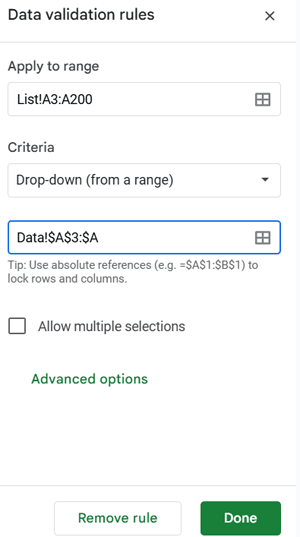
This allows you to select grocery items directly from the Data tab.
Auto-Populate Category and Unit
- In B2, enter this formula to fetch the category:
=ArrayFormula(VSTACK("🛍️ Category", XLOOKUP(A3:A, Data!A3:A, Data!B3:B,)))- In D2, enter this formula to fetch the unit:
=ArrayFormula(VSTACK("📦 Unit", XLOOKUP(A3:A, Data!A3:A, Data!C3:C,)))Add Checkbox for “Added?”
- Select E3:E, go to Insert > Checkbox.
- Make the headers bold and apply alternating colors (like in the Data tab).
Finally, select A1:F1, merge the cells (Format > Merge cells > Merge all), and type Grocery List as the title.
Step 4: Prepare the Summary Sheet
- In row 2 (cells A2:C2), enter the headers: 🛍️ Category | 🍎 Item | 🔢 Qty.
- Select A1:C1, merge them, and type the title: Smart Grocery List (Auto-Grouped).
Create a Hierarchy View of Categories and Items
In A3, enter the following formula:
=IFERROR(ArrayFormula(
  LET(
    topL, List!B3:B,
    subCat, List!A3:A,
    stg_1, REDUCE(TOCOL(,1), TOCOL(UNIQUE(topL), 1),
              LAMBDA(a, v, VSTACK(a, HSTACK(v, VSTACK(, UNIQUE(FILTER(subCat, topL=v))))))),
    IFNA(stg_1)
  )
))
This creates a clean, category-based hierarchy of your shopping list.
Related: 3-Column Hierarchical Table in Google Sheets (No Scripts!)
Add Quantities and Units Automatically
In C3, enter:
=ArrayFormula(LET(
  qty,
    IFNA(VLOOKUP(B3:B, QUERY(List!A2:E, "SELECT A, B, MAX(D), SUM(C) WHERE E=TRUE GROUP BY B, A", 1), {4, 3}, FALSE)),
  IFERROR(CHOOSECOLS(qty, 1)&" "&CHOOSECOLS(qty, 2))
))
This will display the total quantities along with their units, alongside the items, which are neatly grouped under each category.
Feel free to enhance the design—add fill colors, increase font size, or use bold text to make the list stand out.
Step 5: Test the Smart Grocery List Template
- Go to the List tab.
- Select a few items from the drop-down in column A.
- Enter their quantity in column C.
- Tick the checkbox in column E to mark them as “added.”
- Finally, check the Summary tab—you’ll see your items neatly grouped by category with their quantities.
That’s it! You now have a fully functional Smart Grocery List Template in Google Sheets.
FAQ – Using a Google Sheets Grocery List Template
Here are some common questions people ask about using a grocery list in Google Sheets. If you’re new to the template or wondering how it compares to other tools, these answers should help:
1. Can I use this grocery list template on my phone?
Yes! Google Sheets works on both Android and iOS. Just install the Google Sheets app and open your template. You can add items, check off purchases, and view the summary while shopping.
2. Can I share this template with my family?
Absolutely. Click the Share button in the top-right corner of Google Sheets and give access to your family members. Everyone can update the same grocery list in real time.
3. Is there a way to turn this into a meal planner as well?
Definitely. You can add a Meal Planner tab and link recipes to ingredients. From there, your grocery list can automatically pull items based on planned meals.
4. How does a Google Sheets Grocery List Template compare to grocery apps?
Apps often have ads, premium versions, or fixed features. A Google Sheets Grocery List Template is free, flexible, and can even work offline. Plus, sharing with family is simple.
5. Can I print the grocery list?
Yes. Go to File > Print and choose the Summary tab for a clean, category-based shopping list you can take to the store.
6. Can I add budgets or prices to the grocery list?
Yes. Add a “Price” column and formulas to calculate totals, turning the template into a grocery expense tracker.
