



















Building self-discipline requires more than good intentions—it requires consistent tracking and reflection. In this post, you’ll get our free modern self-discipline tracker in Google Sheets, along with a complete step-by-step guide on how to use it effectively.
This is not just a simple checklist or static format. The template is powered by array formulas, automated calculations, conditional formatting, and dynamic charts, so you can focus more on building discipline and less on manual tracking.
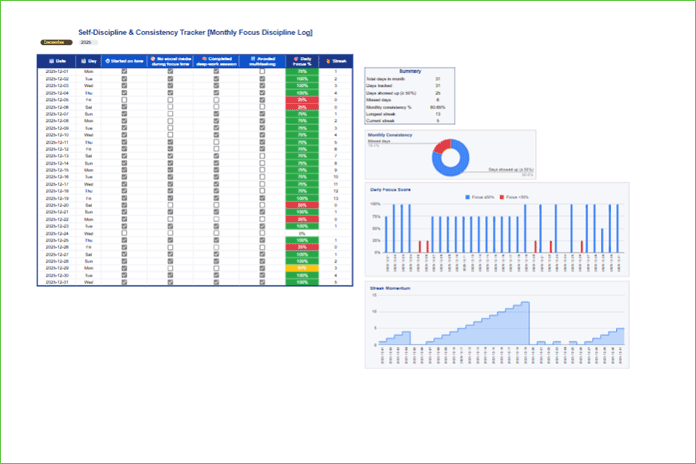
Habit Tracker vs Self-Discipline Tracker in Google Sheets
We’ve already shared a Habit Tracker template, but this one serves a different purpose.
- A habit tracker focuses on action tracking (Did you do it or not?)
- A self-discipline tracker in Google Sheets focuses on effort, focus, and commitment
This tracker helps you measure how consistently you show up, even on days when motivation is low—making it ideal for long-term personal growth.
Why Track Self-Discipline?
Tracking your daily focus and effort is one of the most effective ways to:
- Build self-discipline
- Improve consistency
- Achieve long-term goals
Our Self-Discipline & Consistency Tracker – Monthly Focus Discipline Log is a ready-to-use Google Sheets template designed to help you:
- Monitor focus levels daily
- Track streaks
- Visualize monthly performance at a glance
With dynamic date generation, tick-box inputs, conditional formatting, and automated charts, this self-discipline tracker in Google Sheets delivers instant insights into your productivity and keeps you motivated throughout the month.
Download the Template
Use the link below to preview the template and make a copy in Google Sheets:
Preview & Copy the Self-Discipline Tracker Template
Start Using the Self-Discipline Tracker Template for Google Sheets
The template includes sample (mockup) data, which you should clear before you start using it.
Some tick boxes may already be checked, the dates may not match the current month, and the default tasks may differ from your personal goals. The template also contains hidden columns that support automation and chart creation.
It’s important to understand how the template automatically adapts to months with 31 days, 30 days, or 28/29 days, and how the formulas adjust accordingly.
For these reasons, going through the template step by step is the best way to start using this self-discipline tracker template in Google Sheets effectively.
1. Monthly Selection
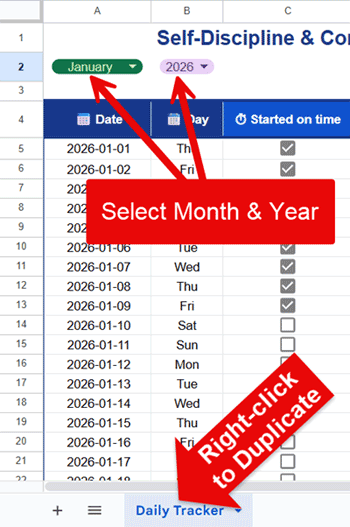
At the top of the sheet, select:
- Month – From the drop-down list (January–December) in cell A2
- Year – From the drop-down list (2026–2035) in cell B2
For example, if you start in January 2026, select January in A2 and 2026 in B2. The sheet will then automatically generate all dates for that month in column A (A4:A35).
When the month ends, simply right-click the sheet tab → Duplicate, and change the month (for example, to February) in the duplicated sheet.
How Dates Are Generated
The following formula in cell A4 generates the full monthly date sequence:
=ArrayFormula(
  LET(
    dt, DATE(B2, MONTH(A2&1), 1),
    VSTACK("📅 Date", SEQUENCE(DAY(EOMONTH(dt, 0)), 1, dt))
  )
)
Weekday Names Automation
In cell B4, the following formula generates the weekday names automatically:
=ArrayFormula(
  VSTACK("📆 Day", IF(A5:A35, TEXT(A5:A35, "ddd"),))
)
Important Notes
- Do not edit the range A4:B35
- These columns are fully automated using array formulas
- The formulas adapt to:
- 31-day months
- 30-day months
- February (28 or 29 days)
Array formulas are used wherever possible in this self-discipline tracker in Google Sheets to keep the sheet clean, dynamic, and easy to maintain.
2. Adding Tasks
The template is designed to track up to 6 tasks—enough to stay focused without overwhelming your self-discipline.
- Initially, you’ll see 4 tasks in columns C, D, E, and F
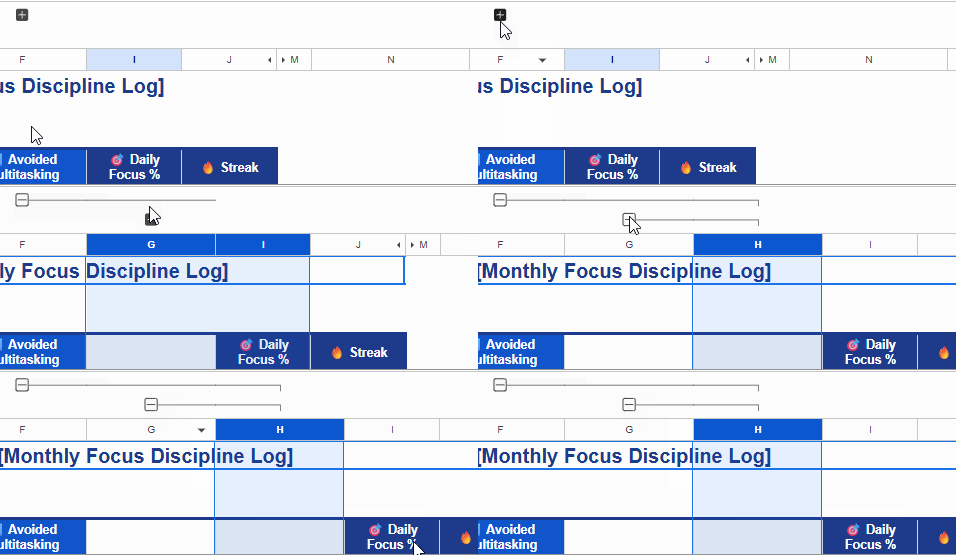
- To add a fifth task, click the + button at the top of column F
- To add a sixth task, click the + button at the top of column G. You will see this button only after revealing the fifth task.
Default Tasks (Cells C4:F4)
- ⏱ Started on time
- 🚫 No social media during focus time
- 🧠 Completed deep-work session
- 🔀 Avoided multitasking
These default tasks are chosen to represent core self-discipline behaviors—starting on time, avoiding distractions, maintaining deep focus, and reducing multitasking.
Replace them with tasks that match your own focus goals. If you add more tasks, enter them in cells G4 and H4.
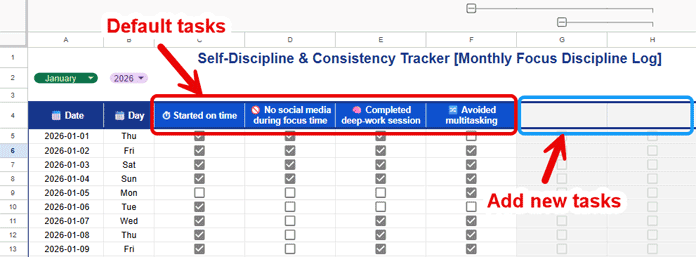
Note: Newly revealed columns may appear shaded at first. Once you enter task names in the header row, they will automatically match the formatting of the other task columns.
3. Recording Your Task Progress
Use the tick boxes below each task to record your daily progress.
Initial Setup
When using the template for the first time:
- Select C5:F35
- Press the space bar twice to clear all tick boxes
How to Record Tasks
Assume today is 01 Jan 2026 and you’re using the default tasks:
- C5 → Started on time
- D5 → No social media during focus time
- E5 → Completed deep-work session
- F5 → Avoided multitasking
Tick only the tasks you actually completed. Repeat this process daily.
Tick Box Shading (Smart Guidance)
The template uses conditional formatting to guide your focus:
- Tick boxes are shaded based on:
- The number of days in the selected month
- Whether columns G and H are used
Rules Used
=G$4=""→ Shades unused task columns (G & H)=$A33=""→ Shades unused rows at the end of the month
This keeps your attention on only the active tracking area.
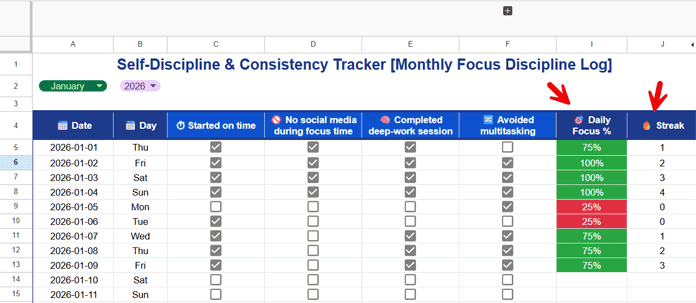
4. Self-Discipline Tracking (Focus % & Streaks)
Based on your daily inputs, the template calculates key discipline metrics:
- Column I → Daily Focus Percentage
- Column J → Streak (consecutive days with focus ≥ 50%)
Daily Focus % Formula (Cell I4)
=ArrayFormula(
  VSTACK(
    "🎯 Daily Focus %",
    IF(
      (A5:A35<=TODAY())*(A5:A35<>""),
      BYROW(FILTER(C5:H35, C4:H4<>""), LAMBDA(r, PERCENTIF(r, TRUE))),
    )
  )
)
Streak Formula (Cell J4)
=ArrayFormula(
  VSTACK(
    "🔥 Streak",
    IF(
      I5:I35,
      SCAN(0, I5:I35>=50%, LAMBDA(acc, val, IF(val, acc+val, 0))),
    )
  )
)
Related: Longest Winning and Losing Streak Formulas in Google Sheets
Hidden Helper Columns
- Columns K and L are hidden
- They separate:
- Focus ≥ 50%
- Focus < 50%
- Used for chart creation
Conditional Formatting for Daily Focus %
Three conditional formatting rules are used to highlight the Daily Focus % column (range I5:I35):
- Green (≥ 75%) →
=I5>=75% - Yellow (50–74%) →
=AND(I5>=50%, I5<=74%) - Red (1–49%) →
=AND(I5>0, I5<50%)
This instantly highlights strong and weak focus days.
5. Charts (Visual Insights)
The template includes three charts:
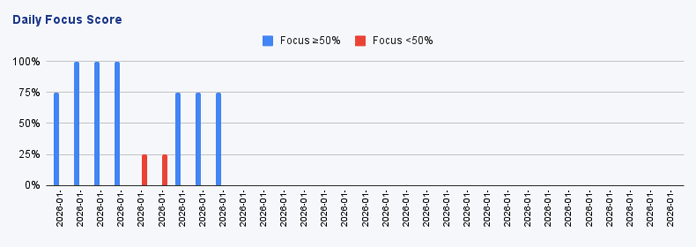
1. Daily Focus Score (Column Chart)
- X-axis: Dates
- Shows daily focus performance
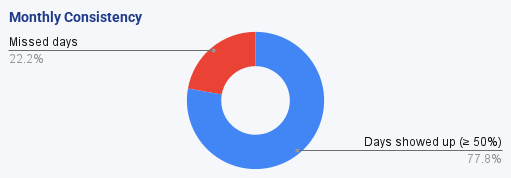
2. Monthly Consistency (Doughnut Chart)
- Days showed up (≥50%) vs Missed days
- Quick discipline overview
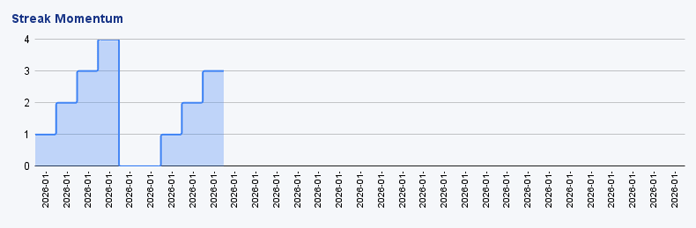
3. Streak Momentum (Stepped Area Chart)
- Visualizes consecutive discipline days
- Reinforces consistency over perfection
Charts are stacked vertically for easy viewing while entering data.
6. Summary Section
Located in N6:O12, titled “Summary”, it calculates:
- Total days in month
- Days tracked
- Days showed up (≥50%)
- Missed days
- Monthly consistency %
- Longest streak
- Current streak
This provides an at-a-glance discipline overview for the month.
The calculations use simple (non-array) formulas, which you can view in the range O6:O12.
Template Features at a Glance
Below is a quick overview of the key features that make this self-discipline tracker in Google Sheets both powerful and easy to use.
- Dynamic month/year selection
- Automated date & weekday generation
- Tick-box-based daily tracking
- Conditional formatting for instant feedback
- Daily Focus % & streak calculations
- Monthly summary dashboard
- Three visual charts
- Clean layout with hidden helper columns
Why Use This Self-Discipline Tracker in Google Sheets?
This template is ideal if you want:
- A monthly self-discipline dashboard
- Visual motivation through streaks
- Clear feedback on daily effort
- A reusable template that works month after month
Simply copy the sheet, select the month and year, and start tracking.
Conclusion
Consistency—not perfection—is the real measure of discipline. Even if some days are low, your streaks and monthly metrics reveal long-term progress. This self-discipline tracker in Google Sheets helps you stay aware, accountable, and consistent—one day at a time.
Google Sheets Tracker Templates
Are you looking for real, feature-rich Google Sheets tracker templates for free—not just basic formats? Below are some powerful templates and tutorials designed to help you track, analyze, and visualize your data more effectively.
- Track Remaining Days in Tasks with Sparkline Gantt Charts
- Visually Track Where Your Data Falls Within Limits (Google Sheets)
- Google Sheets Reading List Tracker Template (Free Download)
- How to Build an Advanced Book Tracker in Google Sheets: Formulas Explained
- Employee Annual Leave Tracker (Google Sheets Template)
- Inventory Tracker with Unit Conversion in Google Sheets (Packs, Inner, Each)
- The Ultimate Google Sheets Subscription Tracker (Free Template)
