



















When you start learning the QUERY function, one of the most important skills to master is string matching, or text filtering. Unlike numbers and dates, which use simple comparison operators, filtering text correctly requires more specialized string operators.
Whether you need an exact match, a partial match, or rows that start or end with specific text, choosing the right string-matching method makes your formulas easier to read, faster to calculate, and easier to maintain.
In this guide, you’ll learn all string-matching operators used within QUERY conditions in Google Sheets, when to use each one, and how to avoid common mistakes.
Scope note: This guide focuses on text-matching operators used in QUERY conditions.
It does not cover how conditions are combined or structured logically.
For AND / OR / NOT logic and condition structuring, see WHERE Clause in Google Sheets QUERY: Logical Conditions Explained.
What Is String Matching in Google Sheets QUERY?
String matching in Google Sheets QUERY refers to filtering rows based on text values using string-specific operators inside QUERY conditions.
For example, you may want to:
- Return only rows that contain the word “Apple”
- Exclude rows equal to “Apple”
- Match values that start with or end with specific text
- Use patterns or regular expressions for advanced logic
The best way to understand these options is through examples.
Use the following quick guide to choose the right string-matching operator:
Sample Data Used in This Tutorial
Use the following dataset for all examples:
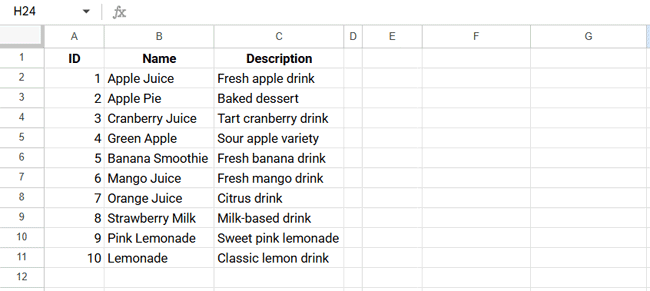
Overview of String Matching Methods in QUERY
The table below summarizes all string-matching operators available in the QUERY WHERE clause and helps you quickly decide which one to use.
| Operator | Type | Case‑sensitive | Use when |
|---|---|---|---|
= | Exact | Yes | Exact match |
CONTAINS | Substring | Yes | Partial text match |
STARTS WITH | Prefix | Yes | Text begins with |
ENDS WITH | Suffix | Yes | Text ends with |
LIKE | Pattern | Yes | Simple wildcards |
MATCHES | Regex | Yes | Advanced patterns |
Note: All string-matching operators are case-sensitive by default.
Use LOWER() or UPPER() to perform case-insensitive matching.
Exact String Match
Use an exact match when the text must match precisely.
=QUERY(A1:C,"select * where B = 'Apple Juice'",1)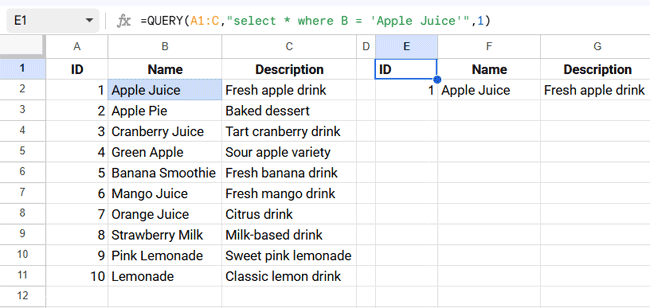
Case-Insensitive Exact String Match
=QUERY(A1:C,"select * where LOWER(B) = 'apple juice'",1)Excluding an Exact Match
=QUERY(A1:C,"select * where B <> 'Apple Juice'",1)These examples demonstrate exact string matching using simple comparison operators in Google Sheets QUERY.
Using CONTAINS for Substring Matching
CONTAINS is used when a column contains the specified text anywhere in the value.
=QUERY(A1:C,"select * where B contains 'Apple'",1)
Case-Insensitive CONTAINS Match
=QUERY(A1:C,"select * where LOWER(B) contains 'apple'",1)Excluding a Substring Match
=QUERY(A1:C,"select * where NOT B contains 'Apple'",1)Related guides
STARTS WITH and ENDS WITH String Matching in QUERY
STARTS WITH is used for prefix matching, while ENDS WITH is used for suffix matching.
Starts With “Apple”
=QUERY(A1:C,"select * where B starts with 'Apple'",1)Ends With “Juice”
=QUERY(A1:C,"select * where B ends with 'Juice'",1)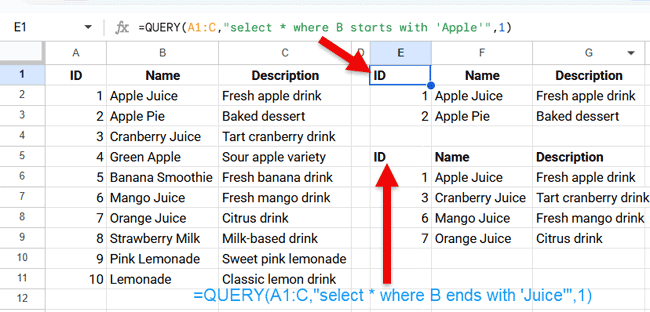
You can combine these with:
LOWER()orUPPER()for case-insensitivityNOTto exclude matches
Related guides
Using the LIKE Operator for Pattern Matching
LIKE supports simple wildcard matching and offers more control than CONTAINS.
Wildcards:
%→ zero or more characters_→ exactly one character
LIKE Operator Example With Wildcards
To match descriptions like:
- Fresh apple drink
- Fresh banana drink
- Fresh mango drink
Use:
=QUERY(A1:C,"select * where C like 'Fresh % drink'",1)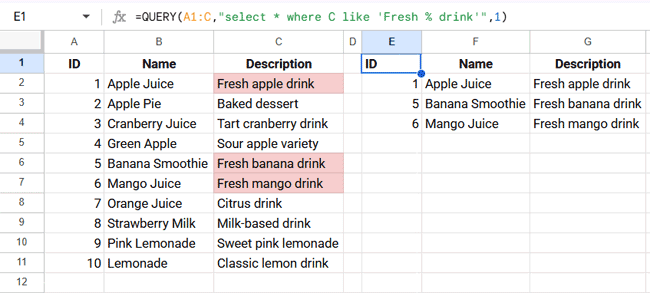
Related guides
REGEX Matching With MATCHES
MATCHES is the most powerful string-matching operator in Google Sheets QUERY. It supports regular expressions and, in many cases, can replace all other string-matching methods.
Common Equivalents Using MATCHES
All the previous string-matching examples can be rewritten using MATCHES, as shown below:
=QUERY(A1:C,"select * where B matches 'Apple Juice'",1)      // exact match
=QUERY(A1:C,"select * where B matches '.*Apple.*'",1)        // contains
=QUERY(A1:C,"select * where B matches 'Apple.*'",1)          // starts with
=QUERY(A1:C,"select * where B matches '.*Juice'",1)          // ends with
=QUERY(A1:C,"select * where C matches 'Fresh .* drink'",1)   // LIKE equivalent
Although MATCHES is flexible, it is not always the best choice. In many cases, simpler operators such as CONTAINS, STARTS WITH, or ENDS WITH are easier to read and maintain.
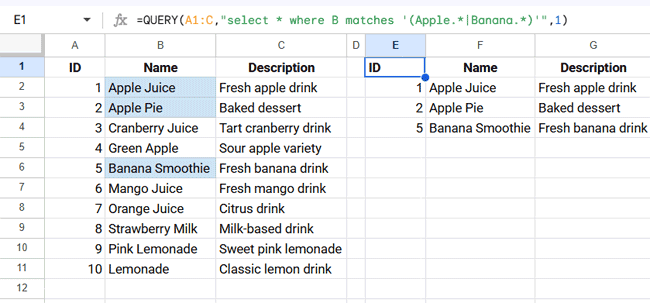
Starts With Apple or Banana
=QUERY(A1:C,"select * where B matches '(Apple.*|Banana.*)'",1)This returns rows where the text in column B starts with Apple or Banana.
Related guides
When MATCHES is used to test a value against a list of allowed values (for example, as an alternative to SQL’s IN operator), the focus shifts from text pattern matching to logical condition handling.
In such cases, MATCHES is being used for condition logic, not for text pattern selection.
Choosing the Right String Matching Method
- I need partial text →
CONTAINS - Text begins with… →
STARTS WITH - Text ends with… →
ENDS WITH - Simple patterns →
LIKE - Advanced logic →
MATCHES
Common Mistakes With String Matching in QUERY
- Using string operators on numeric or date columns
- Forgetting that QUERY string matching is case-sensitive by default
- Using
MATCHESwhen a simpler operator would work
Tip: Use the simplest operator that solves the problem. MATCHES is powerful but can be harder to read and slightly heavier to calculate, so use it only when simpler operators are not sufficient.
Conclusion
Mastering string matching in Google Sheets QUERY allows you to build cleaner, faster, and more reliable formulas. By choosing the correct operator for each scenario, you avoid unnecessary complexity while keeping your queries easy to understand.
