



















It’s common to have multiple comma-separated values in a single cell across several columns in Google Sheets. But what if you want to generate all possible combinations of those values?
In this tutorial, we’ll show you how to use powerful functions like LET, MAKEARRAY, and SPLIT to generate the Cartesian product from multi-column comma-separated lists — without writing a single line of Apps Script.
Why Use Comma-Separated Lists in Google Sheets
A structure like:
| Name | Skills | Languages | Projects |
| Alice | Excel, PowerPoint | English, French, Hindi | Budget, Sales |
| Rohan | Sheets, Slides | English, Hindi | Marketing |
| Anita | LibreOffice | English, French | Marketing |
is often used to keep datasets compact and human-readable, especially when:
- Each row represents one record (e.g., a person or project)
- Each field can have multiple associated values (e.g., skills, languages, projects)
- You want to avoid row duplication for every value combination manually
- It’s easier to read or export in a tidy format
- Saves space when printing or displaying
However, this format presents challenges:
- Aggregating data becomes tricky (e.g., counting how many people know “Excel”)
- Filtering individual values like “French” or “Sales” requires splitting
- Assigning scores to each value isn’t straightforward
- Joining with other tables (e.g., skill categories) is limited
- Pivot tables and charts can’t interpret embedded comma-separated data
Flattening and expanding this kind of data enables more powerful manipulation, filtering, and visualization.
Sample Scenario #1: Combine Skills

We’ll identify the delimiter ", " and use it to split the values. Here’s how to generate all possible combinations for Alice:
Formula:
=LET(
  col_1, SPLIT(A2, ", "), col_2, SPLIT(B2, ", "),
  nCol_1, COUNTA(col_1), nCol_2, COUNTA(col_2),
  total, nCol_1 * nCol_2,
  MAKEARRAY(total, 2, LAMBDA(r, c,
    IFERROR(IF(c=1, INDEX(col_1, MOD(r-1, nCol_1)+1),
      INDEX(col_2, INT((r-1)/nCol_1)+1)
    ))
  ))
)
Output:
| Alice | Excel |
| Alice | PowerPoint |
Formula Breakdown
col_1: SPLIT for namescol_2: SPLIT for skillsnCol_1,nCol_2: item countstotal: product of counts
Cartesian logic:
MOD(r-1, nCol_1)+1   → repeats col_1 values
INT((r-1)/nCol_1)+1  → cycles col_2 values
This gives every combination of the split values.
Make It Dynamic: Apply Across Rows Using MAP
To apply this logic across multiple rows:
=WRAPROWS(TOCOL(MAP(A2:A, B2:B, LAMBDA(a, b, TOROW(LET(
  col_1, SPLIT(a, ", "), col_2, SPLIT(b, ", "),
  nCol_1, COUNTA(col_1), nCol_2, COUNTA(col_2),
  total, nCol_1 * nCol_2,
  MAKEARRAY(total, 2, LAMBDA(r, c,
    IFERROR(IF(c=1, INDEX(col_1, MOD(r-1, nCol_1)+1),
      INDEX(col_2, INT((r-1)/nCol_1)+1)
    ))
  ))
)))), 3), 2)
⚠️ Important Note About MAP-Based Formulas
If column A has a value, the corresponding columns in that row (e.g., B) should not be left empty. If any of those cells are blank, the output from WRAPROWS may become misaligned due to inconsistent array lengths. To avoid this, insert a placeholder like a hyphen (-) in empty cells.
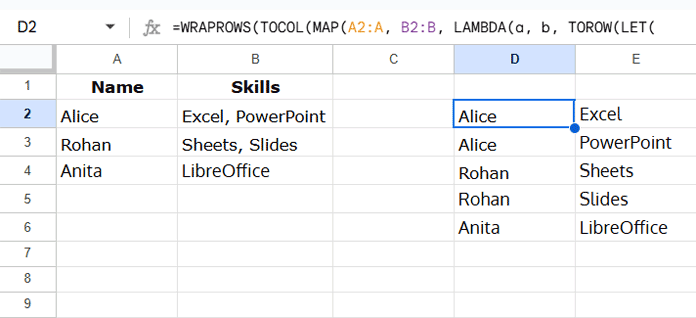
Explanation:
MAPapplies logic row-by-rowTOROWflattens each outputTOCOLstacks all outputs into one columnWRAPROWS(..., 2)reshapes into a two-column result
Sample Scenario #2: Combine Skills and Languages

Formula (single row):
=LET(
  col_1, SPLIT(A2, ", "), col_2, SPLIT(B2, ", "), col_3, SPLIT(C2, ", "),
  nCol_1, COUNTA(col_1), nCol_2, COUNTA(col_2), nCol_3, COUNTA(col_3),
  total, nCol_1 * nCol_2 * nCol_3,
  MAKEARRAY(total, 3, LAMBDA(r, c,
    IFERROR(IF(c=1, INDEX(col_1, MOD(r-1, nCol_1)+1),
      IF(c=2, INDEX(col_2, MOD(INT((r-1)/nCol_1), nCol_2)+1),
        INDEX(col_3, INT((r-1)/(nCol_1*nCol_2))+1)
      ))
    ))
))
Output:
| Alice | Excel | English |
| Alice | PowerPoint | English |
| Alice | Excel | French |
| Alice | PowerPoint | French |
| Alice | Excel | Hindi |
| Alice | PowerPoint | Hindi |
What this does:
- Column 1:
MOD(r-1, nCol_1)+1→ repeats names - Column 2:
MOD(INT((r-1)/nCol_1), nCol_2)+1→ cycles skills - Column 3:
INT((r-1)/(nCol_1 * nCol_2))+1→ progresses languages
Apply to All Rows:
=WRAPROWS(TOCOL(MAP(A2:A, B2:B, C2:C, LAMBDA(a, b, c, TOROW(LET(
  col_1, a, col_2, SPLIT(b, ", "), col_3, SPLIT(c, ", "),
  nCol_2, COUNTA(col_2), nCol_3, COUNTA(col_3),
  total, nCol_2 * nCol_3,
  MAKEARRAY(total, 3, LAMBDA(r, col,
    IFERROR(
      IF(col=1, col_1,
      IF(col=2, INDEX(col_2, MOD(r-1, nCol_2)+1),
              INDEX(col_3, INT((r-1)/nCol_2)+1)
      ))
    )
  ))
)))), 3), 3)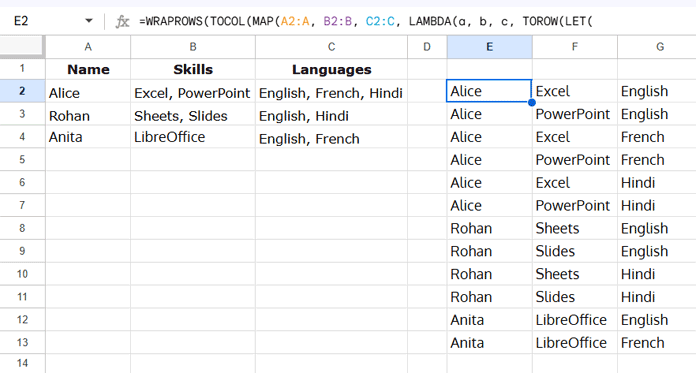
Sample Scenario #3: Add More Dimensions

Formula (single row):
=LET(
  col_1, SPLIT(A2, ", "), col_2, SPLIT(B2, ", "), col_3, SPLIT(C2, ", "), col_4, SPLIT(D2, ", "),
  nCol_1, COUNTA(col_1), nCol_2, COUNTA(col_2), nCol_3, COUNTA(col_3), nCol_4, COUNTA(col_4),
  total, nCol_1 * nCol_2 * nCol_3 * nCol_4,
  MAKEARRAY(total, 4, LAMBDA(r, c,
    IFERROR(IF(c=1, INDEX(col_1, MOD(r-1, nCol_1)+1),
      IF(c=2, INDEX(col_2, MOD(INT((r-1)/nCol_1), nCol_2)+1),
        IF(c=3, INDEX(col_3, MOD(INT((r-1)/(nCol_1*nCol_2)), nCol_3)+1),
          INDEX(col_4, INT((r-1)/(nCol_1*nCol_2*nCol_3))+1)
        )
      ))
    ))
))
What this does:
- Column 1: repeats names
- Column 2: cycles skills
- Column 3: cycles languages
- Column 4: progresses projects after all other combinations
Array Formula Across Rows:
=WRAPROWS(TOCOL(MAP(A2:A, B2:B, C2:C, D2:D, LAMBDA(a, b, c, d, TOROW(LET(
  col_1, SPLIT(a, ", "), col_2, SPLIT(b, ", "), col_3, SPLIT(c, ", "), col_4, SPLIT(d, ", "),
  nCol_1, COUNTA(col_1), nCol_2, COUNTA(col_2), nCol_3, COUNTA(col_3), nCol_4, COUNTA(col_4),
  total, nCol_1 * nCol_2 * nCol_3 * nCol_4,
  MAKEARRAY(total, 4, LAMBDA(r, c,
    IFERROR(IF(c=1, INDEX(col_1, MOD(r-1, nCol_1)+1),
      IF(c=2, INDEX(col_2, MOD(INT((r-1)/nCol_1), nCol_2)+1),
        IF(c=3, INDEX(col_3, MOD(INT((r-1)/(nCol_1*nCol_2)), nCol_3)+1),
          INDEX(col_4, INT((r-1)/(nCol_1*nCol_2*nCol_3))+1)
        )
      ))
    ))
)))
)), 3), 4)
Conclusion
Flattening comma-separated values in Google Sheets into all possible combinations empowers you to analyze, visualize, and manipulate your data more effectively. By generating the Cartesian product from multi-column lists using formulas like LET, MAKEARRAY, SPLIT, and MAP, you avoid manual repetition, improve data structure, and unlock powerful integrations with pivot tables, filters, and charts.
This formula-based, no-code method is especially useful when your data has compact multi-value cells. Whether you’re managing multilingual skillsets, complex project roles, or layered categories, expanding those values gives you the flexibility you need — all without leaving Google Sheets.
