



















If you want to convert date to words in Google Sheets for legal documents, certificates, or resumes, you will find this tutorial useful. In this guide, you’ll learn Google Sheets formulas to convert dates to words for legal documents, school certificates, birth certificates, and resumes.
Converting a date to words is not the same as converting a date to text using the TEXT function. The TEXT function can only return a date as plain text, and while it allows you to format the day or month as text, it cannot convert a date into full legal words.
What we want here is something different.
For example, when you enter a date such as 15/12/2025, you should get one of the following results based on your requirement.
School Certificates
Fifteenth-December-Two Thousand Twenty-Five
Birth Certificates
FIFTEENTH-DECEMBER-TWO THOUSAND TWENTY-FIVE
Legal Documents
The Fifteenth Day of December, Two Thousand Twenty-Five
Resume
15th December 2025
For the first three formats, we can use one formula with minor changes. For the resume format, we use a completely different formula.

Convert Date to Words in Google Sheets (Overview)
There are many online tools that convert dates to words for legal documents. However, the advantage of using Google Sheets is that you can convert multiple dates at once instead of one date at a time. You can also use Google Sheets online or offline, and access it through a web browser or mobile apps on any platform.
To convert a date to words in Google Sheets, this tutorial uses a modern and advanced formula. If you are interested in learning how the formula works, you’ll find a clear explanation at the end of this post. If you just want the result, you can copy the formula and use it directly in your own sheet.
What if you are a complete beginner and only want a ready-made date-to-words converter?
Don’t worry. At the bottom of this page, you’ll find a ready-to-use Google Sheets template. Simply download it and enter your date in the specified cell.
Formula to Convert Date to Words for School Certificates
Use the following formula to convert a date into words in the school certificate format, where the output appears in title case and each part is separated by hyphens.
Example output:
Fifteenth-December-Two Thousand Twenty-Five
Formula
=LET(
  x, DATEVALUE(A2),
  word_1_19, LAMBDA(n, CHOOSEROWS(VSTACK(
    "One","Two","Three","Four","Five","Six","Seven","Eight","Nine","Ten",
    "Eleven","Twelve","Thirteen","Fourteen","Fifteen","Sixteen",
    "Seventeen","Eighteen","Nineteen"), n)),
  word_tens, LAMBDA(n, CHOOSEROWS(VSTACK(
    "","Twenty","Thirty","Forty","Fifty","Sixty","Seventy","Eighty","Ninety"), n)),
  word_1_99, LAMBDA(n, IF(n<20, word_1_19(n),
    TEXTJOIN("-", TRUE, word_tens(INT(n/10)), IFERROR(word_1_19(MOD(n,10)))))),
  word_1_999, LAMBDA(n, LET(h, INT(n/100), r, MOD(n,100),
    TEXTJOIN(" ", TRUE,
      IF(h=0, "", word_1_19(h)&" Hundred"),
      IF(r=0, "", word_1_99(r))))),
  number_words, LAMBDA(n, LET(t, INT(n/1000), r, MOD(n,1000),
    TEXTJOIN(" ", TRUE,
      IF(t=0, "", word_1_19(t)&" Thousand"),
      IF(r=0, "", word_1_999(r))))),
  IFERROR(SWITCH(DAY(x),
    1,"First",2,"Second",3,"Third",4,"Fourth",5,"Fifth",6,"Sixth",
    7,"Seventh",8,"Eighth",9,"Ninth",10,"Tenth",11,"Eleventh",
    12,"Twelfth",13,"Thirteenth",14,"Fourteenth",15,"Fifteenth",
    16,"Sixteenth",17,"Seventeenth",18,"Eighteenth",19,"Nineteenth",
    20,"Twentieth",21,"Twenty-First",22,"Twenty-Second",
    23,"Twenty-Third",24,"Twenty-Fourth",25,"Twenty-Fifth",
    26,"Twenty-Sixth",27,"Twenty-Seventh",28,"Twenty-Eighth",
    29,"Twenty-Ninth",30,"Thirtieth",31,"Thirty-First")
  & "-" & TEXT(x,"mmmm") & "-" & number_words(YEAR(x)))
)
How to use the formula
- Enter the date in cell A2.
- Copy the formula and paste it into cell B2.
- Press Enter to convert the date into words.
- Drag the fill handle down to apply the formula to multiple dates.
Formula to Convert Date to Words for Birth Certificates
Birth certificates use a format similar to school certificates, but the output is in uppercase. So, in the previous formula, you only need to include the UPPER function.
Example output:
FIFTEENTH-DECEMBER-TWO THOUSAND TWENTY-FIVE
Below is the formula to convert a date to words for birth certificates in Google Sheets.
Formula
=LET(
  x, DATEVALUE(A2),
  word_1_19, LAMBDA(n, CHOOSEROWS(VSTACK(
    "One","Two","Three","Four","Five","Six","Seven","Eight","Nine","Ten",
    "Eleven","Twelve","Thirteen","Fourteen","Fifteen","Sixteen",
    "Seventeen","Eighteen","Nineteen"), n)),
  word_tens, LAMBDA(n, CHOOSEROWS(VSTACK(
    "","Twenty","Thirty","Forty","Fifty","Sixty","Seventy","Eighty","Ninety"), n)),
  word_1_99, LAMBDA(n, IF(n<20, word_1_19(n),
    TEXTJOIN("-", TRUE, word_tens(INT(n/10)), IFERROR(word_1_19(MOD(n,10)))))),
  word_1_999, LAMBDA(n, LET(h, INT(n/100), r, MOD(n,100),
    TEXTJOIN(" ", TRUE,
      IF(h=0, "", word_1_19(h)&" Hundred"),
      IF(r=0, "", word_1_99(r))))),
  number_words, LAMBDA(n, LET(t, INT(n/1000), r, MOD(n,1000),
    TEXTJOIN(" ", TRUE,
      IF(t=0, "", word_1_19(t)&" Thousand"),
      IF(r=0, "", word_1_999(r))))),
  IFERROR(UPPER(SWITCH(DAY(x),
    1,"First",2,"Second",3,"Third",4,"Fourth",5,"Fifth",6,"Sixth",
    7,"Seventh",8,"Eighth",9,"Ninth",10,"Tenth",11,"Eleventh",
    12,"Twelfth",13,"Thirteenth",14,"Fourteenth",15,"Fifteenth",
    16,"Sixteenth",17,"Seventeenth",18,"Eighteenth",19,"Nineteenth",
    20,"Twentieth",21,"Twenty-First",22,"Twenty-Second",
    23,"Twenty-Third",24,"Twenty-Fourth",25,"Twenty-Fifth",
    26,"Twenty-Sixth",27,"Twenty-Seventh",28,"Twenty-Eighth",
    29,"Twenty-Ninth",30,"Thirtieth",31,"Thirty-First")
  & "-" & TEXT(x,"mmmm") & "-" & number_words(YEAR(x))))
)
How to use the formula
The usage instructions are the same as in the previous section.
To help you understand what changed, I’ve highlighted the relevant portion in the formula — the inclusion of the UPPER function.
Formula to Convert Date to Words for Legal Documents
Dates in legal documents follow a slightly different format than certificates. You need to add some additional text, such as “The” at the beginning, “Day of” between the day and the month, and include some other formatting changes.
Example output:
The Fifteenth Day of December, Two Thousand Twenty-Five
Below is the formula to convert a date to words for legal documents in Google Sheets.
Formula
=LET(
  x, DATEVALUE(A2),
  word_1_19, LAMBDA(n, CHOOSEROWS(VSTACK(
    "One","Two","Three","Four","Five","Six","Seven","Eight","Nine","Ten",
    "Eleven","Twelve","Thirteen","Fourteen","Fifteen","Sixteen",
    "Seventeen","Eighteen","Nineteen"), n)),
  word_tens, LAMBDA(n, CHOOSEROWS(VSTACK(
    "","Twenty","Thirty","Forty","Fifty","Sixty","Seventy","Eighty","Ninety"), n)),
  word_1_99, LAMBDA(n, IF(n<20, word_1_19(n),
    TEXTJOIN("-", TRUE, word_tens(INT(n/10)), IFERROR(word_1_19(MOD(n,10)))))),
  word_1_999, LAMBDA(n, LET(h, INT(n/100), r, MOD(n,100),
    TEXTJOIN(" ", TRUE,
      IF(h=0, "", word_1_19(h)&" Hundred"),
      IF(r=0, "", word_1_99(r))))),
  number_words, LAMBDA(n, LET(t, INT(n/1000), r, MOD(n,1000),
    TEXTJOIN(" ", TRUE,
      IF(t=0, "", word_1_19(t)&" Thousand"),
      IF(r=0, "", word_1_999(r))))),
  IFERROR("The "&SWITCH(DAY(x),
    1,"First",2,"Second",3,"Third",4,"Fourth",5,"Fifth",6,"Sixth",
    7,"Seventh",8,"Eighth",9,"Ninth",10,"Tenth",11,"Eleventh",
    12,"Twelfth",13,"Thirteenth",14,"Fourteenth",15,"Fifteenth",
    16,"Sixteenth",17,"Seventeenth",18,"Eighteenth",19,"Nineteenth",
    20,"Twentieth",21,"Twenty-First",22,"Twenty-Second",
    23,"Twenty-Third",24,"Twenty-Fourth",25,"Twenty-Fifth",
    26,"Twenty-Sixth",27,"Twenty-Seventh",28,"Twenty-Eighth",
    29,"Twenty-Ninth",30,"Thirtieth",31,"Thirty-First")
  & " Day of " & TEXT(x,"mmmm") & ", " & number_words(YEAR(x)))
)
How to use the formula
Follow the same usage instructions as in the previous two sections:
- Enter the date in cell A2.
- Copy the formula and paste it into the desired cell.
- Press Enter to convert the date into words.
- Drag the fill handle down to apply the formula to multiple dates.
Here also, to help you understand the change from the first formula, note the highlighted portions: the addition of “The”, “Day of”, and the comma before the year.
Formula to Convert Date to Words for Resume
This format is totally different from the previous three and a little easier to use.
In resumes, the date appears as:
15th December 2025
Below is the formula to convert a regular date into this format in Google Sheets.
Formula
=LET(
  dt, DATEVALUE(A2),
  d, DAY(dt),
  suffix, IF(MOD(d,100)<14,
    IF(MOD(d,100)>10,"th",
      SWITCH(MOD(d,10),1,"st",2,"nd",3,"rd","th")),
    SWITCH(MOD(d,10),1,"st",2,"nd",3,"rd","th")),
  IFERROR(d&suffix&" "&TEXT(dt,"MMMM ")&YEAR(dt))
)
How to use the formula
- Enter the date in cell A2.
- Paste the formula into cell B2.
- Press Enter to get the formatted date.
- Drag the fill handle down to apply the formula to all dates in the range (e.g., A2:A).
Multiple Legal Formats and Formula Adaptation: What Changes and Why
The formulas for school certificates, birth certificates, and legal documents are very similar. In fact, they all use the same base logic to convert numbers (day, month, year) into words. The main differences come down to formatting and small additions.
Here’s what changes between formats:
- School Certificates
- Output is in title case.
- Day, month, and year are separated by hyphens.
- Example:
Fifteenth-December-Two Thousand Twenty-Five.
- Birth Certificates
- Same as school certificates, but the output is uppercase.
- Example:
FIFTEENTH-DECEMBER-TWO THOUSAND TWENTY-FIVE. - Achieved by wrapping the day-month-year portion in the UPPER function.
- Legal Documents
- Adds “The” at the beginning and “Day of” between the day and the month.
- Includes a comma before the year.
- Example:
The Fifteenth Day of December, Two Thousand Twenty-Five.
- Resume Format
- Uses a completely different, simpler formula.
- Appends the correct ordinal suffix (
st,nd,rd,th) to the day. - Uses normal spacing instead of hyphens or extra text.
- Example:
15th December 2025.
Why this approach works
- You can reuse most of the formula logic for three of the formats, which saves time and reduces errors.
- Only minor adjustments (like UPPER or adding “The … Day of …”) are needed to match the specific requirements of each legal format.
- Beginners can start with the base formula and apply small changes instead of memorizing multiple formulas.
How the Date-to-Words Formula Works
Here’s a breakdown of how the formulas convert a date into words in Google Sheets.
1. Converting the Year to Words
The first formula uses LET and LAMBDA to create custom reusable functions.
x, DATEVALUE(A2)
x is the defined name for the date in cell A2. Using DATEVALUE ensures the formula returns an error (handled by IFERROR) if the cell contains invalid data.
word_1_19
LAMBDA(n, CHOOSEROWS(VSTACK("One","Two","Three",...,"Nineteen"), n))Converts numbers from 1 to 19 into words. For example, word_1_19(5) → Five.
word_tens
LAMBDA(n, CHOOSEROWS(VSTACK("","Twenty","Thirty",...,"Ninety"), n))Converts multiples of ten (20, 30, … 90) into words. Example: word_tens(3) → Thirty.
word_1_99
LAMBDA(n, IF(n<20, word_1_19(n), TEXTJOIN("-", TRUE, word_tens(INT(n/10)), IFERROR(word_1_19(MOD(n,10))))))Combines the previous two functions to handle numbers 1–99, including hyphenated numbers like Twenty-Five.
word_1_999
LAMBDA(n, LET(h, INT(n/100), r, MOD(n,100), TEXTJOIN(" ", TRUE, IF(h=0,"",word_1_19(h)&" Hundred"), IF(r=0,"",word_1_99(r)))))Handles numbers 1–999, building on word_1_99. Example: 123 → One Hundred Twenty-Three.
number_words
LAMBDA(n, LET(t, INT(n/1000), r, MOD(n,1000), TEXTJOIN(" ", TRUE, IF(t=0,"",word_1_19(t)&" Thousand"), IF(r=0,"",word_1_999(r)))))Handles numbers 1–9999, used to convert the year into words.
Example: 2025 → Two Thousand Twenty-Five.
In short, these custom functions work together to convert any year into words.
2. Converting the Day to Words
The day is converted using a SWITCH statement inside IFERROR:
IFERROR(SWITCH(DAY(x),
1,"First",2,"Second",3,"Third",4,"Fourth",5,"Fifth",6,"Sixth",
...
31,"Thirty-First")
& "-" & TEXT(x,"mmmm") & "-" & number_words(YEAR(x)))
DAY(x)returns the day of the month.SWITCHmaps each number (1–31) to its ordinal word.TEXT(x,"mmmm")adds the month name.number_words(YEAR(x))adds the year in words.- For School Certificates, hyphens separate day, month, and year.
This combination creates the final date-to-words format for certificates and legal documents.
3. Converting Dates for Resume Format (Fourth Formula)
The resume format is simpler and uses ordinal suffixes:
=LET(
  dt, DATEVALUE(A2),
  d, DAY(dt),
  suffix, IF(MOD(d,100)<14, IF(MOD(d,100)>10,"th",
    SWITCH(MOD(d,10),1,"st",2,"nd",3,"rd","th")),
    SWITCH(MOD(d,10),1,"st",2,"nd",3,"rd","th")),
  IFERROR(d&suffix&" "&TEXT(dt,"MMMM ")&YEAR(dt))
)dt: Converts the input cell into a valid date.d: Extracts the day number.suffix: Calculates the correct ordinal suffix (st,nd,rd,th) based on the day.- Days ending in 1 →
st(except 11 →th) - Days ending in 2 →
nd(except 12 →th) - Days ending in 3 →
rd(except 13 →th) - All other days →
th
- Days ending in 1 →
IFERROR(d&suffix&" "&TEXT(dt,"MMMM ")&YEAR(dt)): Combines the day with suffix, month, and year.
Example output: 15th December 2025
This formula is shorter and easier because the resume format doesn’t need to convert the day or year to words.
Common Issues and How to Fix Them
If the date-to-words converter formula returns an empty result, it usually means that the date entered is invalid. One common reason is that your Google Sheets locale may use MM/DD/YYYY, but you entered the date in DD/MM/YYYY format (or vice versa).
How to check your date format
- Add a new sheet to your workbook by clicking the + (Add Sheet) button at the bottom left.
- In cell A1, enter the formula:
=TODAY() - Look at the displayed date. The format shown reflects your current Sheets locale, helping you understand how to enter dates correctly.
Tip: Always enter dates according to your sheet’s locale to ensure the formula works properly.
Single Formula to Convert Dates to Multiple Legal Formats
If you want, you can use a single formula to convert dates into your chosen legal format.
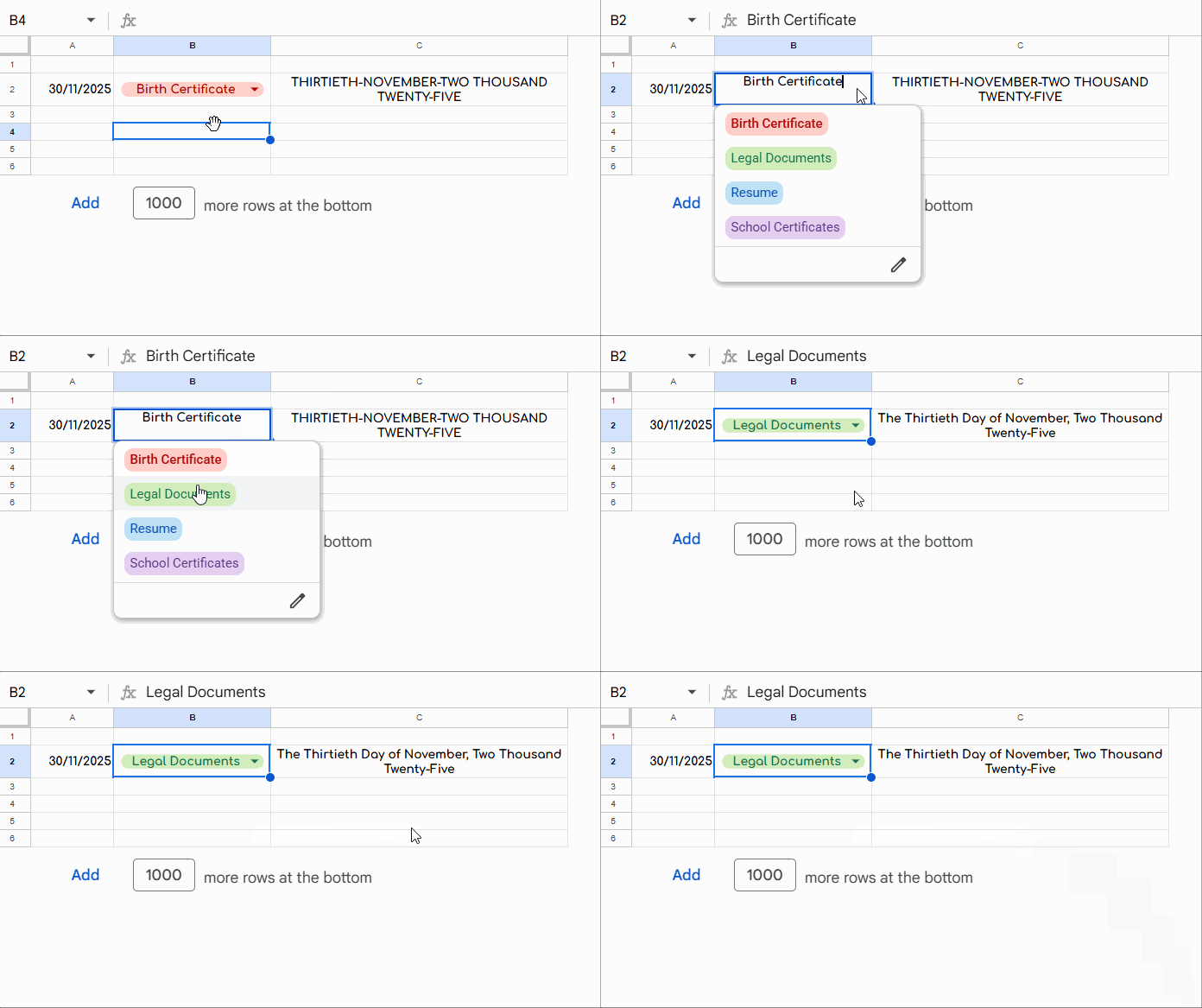
As per the formula setup, enter the date in cell A2 and select your required format in cell B2.
The format should be one of the following:
- School Certificates
- Birth Certificates
- Legal Documents
- Resume
I recommend inserting a drop-down in cell B2.
Go to Insert → Drop-down and add the above values.
Then, enter the following formula in cell C2.
=LET(
  x, DATEVALUE(A2),
  format, B2,
  word_1_19, LAMBDA(n, CHOOSEROWS(VSTACK(
    "One","Two","Three","Four","Five","Six","Seven","Eight","Nine","Ten",
    "Eleven","Twelve","Thirteen","Fourteen","Fifteen","Sixteen",
    "Seventeen","Eighteen","Nineteen"), n)),
  word_tens, LAMBDA(n, CHOOSEROWS(VSTACK(
    "","Twenty","Thirty","Forty","Fifty","Sixty","Seventy","Eighty","Ninety"), n)),
  word_1_99, LAMBDA(n, IF(n<20, word_1_19(n),
    TEXTJOIN("-", TRUE, word_tens(INT(n/10)), IFERROR(word_1_19(MOD(n,10)))))),
  word_1_999, LAMBDA(n, LET(h, INT(n/100), r, MOD(n,100),
    TEXTJOIN(" ", TRUE,
      IF(h=0, "", word_1_19(h)&" Hundred"),
      IF(r=0, "", word_1_99(r))))),
  number_words, LAMBDA(n, LET(t, INT(n/1000), r, MOD(n,1000),
    TEXTJOIN(" ", TRUE,
      IF(t=0, "", word_1_19(t)&" Thousand"),
      IF(r=0, "", word_1_999(r))))),
  day_to_words, SWITCH(DAY(x),
    1,"First",2,"Second",3,"Third",4,"Fourth",5,"Fifth",6,"Sixth",
    7,"Seventh",8,"Eighth",9,"Ninth",10,"Tenth",11,"Eleventh",
    12,"Twelfth",13,"Thirteenth",14,"Fourteenth",15,"Fifteenth",
    16,"Sixteenth",17,"Seventeenth",18,"Eighteenth",19,"Nineteenth",
    20,"Twentieth",21,"Twenty-First",22,"Twenty-Second",
    23,"Twenty-Third",24,"Twenty-Fourth",25,"Twenty-Fifth",
    26,"Twenty-Sixth",27,"Twenty-Seventh",28,"Twenty-Eighth",
    29,"Twenty-Ninth",30,"Thirtieth",31,"Thirty-First"),
  IFS(
    format="School Certificates",
      IFERROR(day_to_words&"-"&TEXT(x,"mmmm")&"-"&number_words(YEAR(x))),
    format="Birth Certificates",
      IFERROR(UPPER(day_to_words&"-"&TEXT(x,"mmmm")&"-"&number_words(YEAR(x)))),
    format="Legal Documents",
      IFERROR("The "&day_to_words&" Day of "&TEXT(x,"mmmm")&", "&number_words(YEAR(x))),
    format="Resume",
      LET(
        d, DAY(x),
        suffix, IF(MOD(d,100)<14,
          IF(MOD(d,100)>10,"th",
            SWITCH(MOD(d,10),1,"st",2,"nd",3,"rd","th")),
          SWITCH(MOD(d,10),1,"st",2,"nd",3,"rd","th")),
        IFERROR(d&suffix&" "&TEXT(x,"MMMM ")&YEAR(x))
      ),
    1=1, ""
  )
)
You can download the ready-to-use template below, with the drop-down and formula already set up.
Note: Date wording and formatting requirements may vary slightly by country or organization. Always follow the format specified by the issuing authority.
Conclusion
You can use this as your date-to-words converter in Google Sheets.
In this tutorial, you learned how to convert dates to words in Google Sheets for different legal and official formats, including school certificates, birth certificates, legal documents, and resumes. We started with simple, purpose-specific formulas and then explored a single advanced formula that dynamically switches formats based on your selection.
If you only need one specific format, the individual formulas are easier to understand and use. If you work with multiple document types, the single-formula approach with a drop-down can save time and reduce repetition.
You can also make a copy of the ready-to-use Google Sheets template and start converting dates to words immediately—no setup required.
Choose the method that best fits your workflow, and you’ll never have to manually type dates in words again.
