




















Watermarks help you instantly communicate the status or purpose of a document. Whether it’s labeling something as CONFIDENTIAL, marking a DRAFT, stamping it as FINAL, or simply branding it with your company name — a watermark makes your spreadsheet look professional and clear.
But here’s the catch: Google Sheets doesn’t have a native watermark feature. That’s right — unlike Google Docs, there’s no built-in option to put a watermark behind your data.
So how do you insert a watermark in Google Sheets if the app doesn’t support it natively?
The good news: with a few clever workarounds, you can achieve the watermark effect pretty easily. And I’ll even show you a “smart” trick that lets you control your watermark text dynamically from a cell.
Why Google Sheets Doesn’t Support Watermarks (Yet)
Google Sheets is designed primarily for data entry, analysis, and collaboration. Since it focuses on clarity and accuracy of data, background elements like watermarks could interfere with readability. That’s likely why a built-in watermark feature isn’t available yet.
But with the methods below, you can still insert watermark-like text or symbols without breaking your spreadsheet layout.
Before we dive in, keep these limitations in mind:
- A watermark can’t appear behind cell data (you’ll need to position it strategically).
- It won’t repeat across every page automatically — you’ll need to copy/paste it where required.
- The transparency is limited to text color adjustments, not full image fading.
If you’re okay with those, let’s jump into the two best workarounds for creating a watermark in Google Sheets.
How to Insert a Watermark in Google Sheets (2 Best Methods)
You can’t insert a true background watermark in Google Sheets, but you can mimic it by either adding text via the Drawing tool or using a Scorecard chart linked to a cell.
1. Insert a Watermark Using the Drawing Tool
This method lets you create watermark text and place it anywhere on your sheet. You can even rotate it diagonally to mimic the “classic” watermark look.
Best for: Static watermarks that don’t need frequent changes.
Here’s the step-by-step:
Step 1: Open the Drawing Canvas
In your Google Sheet, go to Insert > Drawing to open the drawing canvas.
Step 2: Add Your Watermark Text
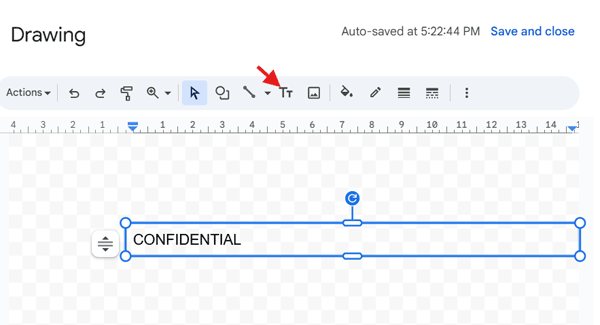
Click the Text box icon (the “T” inside a box), then click anywhere inside the canvas and type your watermark text — for example, DRAFT, CONFIDENTIAL, or your company name.
Step 3: Customize Your Watermark
Adjust your watermark to get the desired look (you may need to click the three vertical dots for more options):
- Change text color to light grey (for a subtle look).
- Increase font size to make it visible.
- Rotate diagonally by dragging the rotate handle on the text box.

Step 4: Insert It Into Your Sheet
Click Save and Close to insert it into your sheet.

Step 5 (Optional): Copy to Other Sections
Copy and paste the watermark into other sections of your sheet if needed.
Simply double-click the watermark to open the drawing object, copy it straight from the drawing window, then close the canvas. Next, open a new drawing canvas wherever you want the watermark to appear, paste it in, make any adjustments, and click Save and Close.
Tip: Since Sheets doesn’t allow “Send to Back,” place the watermark in a blank area of the grid, or resize your sheet layout to keep the watermark subtle.
2. Insert a Smart Watermark Using a Chart
This Scorecard chart trick is a clever Google Sheets watermark hack that makes your text dynamic.
By using a Scorecard chart, you can link your watermark text to a cell, so updating the cell value automatically updates the watermark in your sheet.
Best for: Dynamic watermarks where you may want to switch between texts like DRAFT → FINAL or CONFIDENTIAL → INTERNAL USE ONLY.
Here’s how:
Step 1: Prepare the Watermark Text
To get started, first create the text you want to use as your watermark in a helper sheet.
- Go to a helper sheet (e.g., Sheet2).
- In cell A1, type your watermark text — for example, CONFIDENTIAL.
Step 2: Insert a Scorecard Chart
Now, turn that text into a chart so it can act as a dynamic watermark.
- Select A1.
- Go to Insert > Chart.
- In the Chart Editor, change Chart type to Scorecard chart.

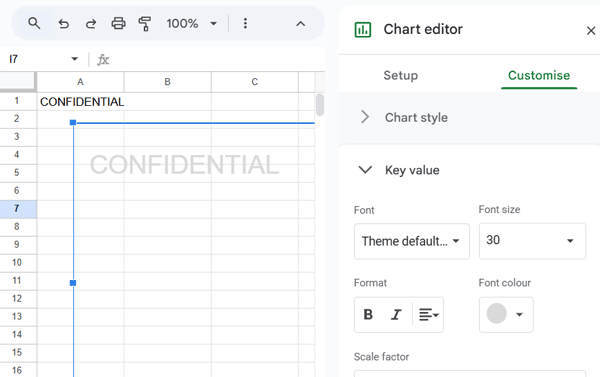
Step 3: Customize the Style
Next, style the Scorecard so it looks like a subtle watermark instead of a chart.
- In the Customize tab → Chart style, set:
- Background color → None
- Border color → None
- Under Key value, change font color to light grey and increase or decrease size as needed.
Step 4: Move the Watermark to Your Target Sheet
Finally, bring your styled watermark into the sheet where you want it to appear.
- Click outside the chart to close the editor.
- Select the chart → Edit > Copy.
- Go to Sheet1 (your main sheet) → Edit > Paste.
- Position the watermark wherever you like.

Step 5: Make It Dynamic
The best part of this method is that your watermark updates automatically.
Simply change the text in cell A1 of Sheet2, and the watermark in Sheet1 will refresh instantly to reflect the new text — no extra steps required.
With the Scorecard chart method, you can create a dynamic watermark in Google Sheets that updates in real time whenever the linked cell changes.
Note: Once you’ve copy-pasted the watermark to your main sheet, you can either delete it from Sheet2 or keep it there for easy copy-pasting later.
FAQs About Watermarks in Google Sheets
1. Can I put a watermark behind text in Google Sheets?
No. Google Sheets doesn’t support layering, so the watermark will always sit “on top.”
2. Will the watermark print when I print my Google Sheet?
Yes, if the watermark is visible on the sheet, it will appear in printouts or PDFs.
3. Can I apply the watermark to all sheets at once?
No, you’ll need to manually copy/paste the watermark into each sheet.
5. How to insert an image watermark in Google Sheets?
Yes, you can add an image watermark using the same Drawing Tool method. First, create a transparent watermark image using an online image editor or tools like Paint, Photoshop, or Canva. Then in Google Sheets, go to Insert > Drawing, click the Image icon, and upload your watermark. Resize and position it to achieve the watermark effect.
Conclusion
While Google Sheets doesn’t yet have a built-in watermark tool, these two workarounds — the Drawing Tool and the Scorecard Chart — give you effective ways to add watermarks.
- Use the Drawing Tool for quick, static watermarks.
- Use the Scorecard Chart if you want a smart watermark that updates dynamically from a cell.
Either way, you can clearly label your spreadsheets with text like CONFIDENTIAL, DRAFT, or DO NOT COPY, and give your Google Sheets a polished, professional touch.
So the next time you need to add a watermark in Google Sheets, you’ll know exactly what to do.
Did this trick help? Share your favorite Google Sheets hack in the comments!
