





















Here is a formula-based approach to convert rupees to words in Excel — that is, spell numbers in words using the Indian (Lakh–Crore) numbering system. This system is used in India, Pakistan, Bangladesh, Nepal, and Sri Lanka (informally).
The formula already outputs values in Rupees and Paise.
If you want to use the same logic for other currencies that follow the Lakh–Crore grouping, you only need to change the unit labels in the final step (for example, “Rupees/Paise” → “Taka/Poisha”).
You can adapt it easily for:
- Taka & Poisha (Bangladesh)
- Pakistani Rupee & Paisa
- Sri Lankan Rupees & Cents (if you prefer the Lakh–Crore notation)
Since numbers are infinite (you can always add 1 to form a larger number), we define a practical usable range.
This formula converts any amount from:
0 to 999,999,999,999,999 (15 digits)
plus two decimal places for paise.
There is no built-in Excel function to convert numbers into words in the Indian system. Most examples online use VBA, because the Indian system is more complex than the international system from a developer’s perspective.
However, with modern Excel functions — LET, LAMBDA, MAP, VSTACK, CHOOSEROWS, XMATCH, etc. — a formula-only approach is now possible.
This means the solution works only in:
✔ Excel Microsoft 365
✔ Excel 2024
The formula is fully dynamic and recalculates instantly, even for large ranges.
What the Formula Does
If you enter the amount:
1234567.89
The formula returns:
Twelve Lakh Thirty-Four Thousand Five Hundred Sixty-Seven Rupees and Eighty-Nine Paise
This is especially useful for invoices, receipts, salary slips, purchase orders, and other business templates where you need the amount in words in Lakhs and Crores.
The solution uses custom LAMBDA functions, making the rupees-to-words conversion smooth and efficient — and easy to maintain.
A short disclaimer is included below for clarity.
˃ Disclaimer
This rupees-to-words formula is provided for general guidance and convenience only. Please verify all outputs independently before using them in financial, legal, or official documents. Neither the author nor this blog is responsible for any errors or consequences arising from its use.
Formula to Convert Rupees to Words in Excel (Indian System)
Assume the amount is in cell A2.
Enter the following formula in any empty cell (e.g., B2):
=LET(
  x, A2, Rupees, INT(x), Paise, ROUND((x-INT(x))*100, 0),
  d, LEN(TEXT(Rupees, "0")),
  limit, TAKE(VSTACK(0, 3, 5, 7, 9, 11, 13),
          IFS(d<=3, 1, d<=5, 2, d<=7, 3, d<=9, 4, d<=11, 5, d<=13, 6, d<=15, 7)),

  scale_word, LAMBDA(n, CHOOSEROWS(VSTACK("", "Thousand", "Lakh", "Crore", "Arab", "Kharab", "Neel"), n)),

  word_1_19, LAMBDA(n, CHOOSEROWS(VSTACK(
       "One","Two","Three","Four","Five","Six","Seven","Eight","Nine","Ten","Eleven",
       "Twelve","Thirteen","Fourteen","Fifteen","Sixteen","Seventeen","Eighteen","Nineteen"), n)),

  word_tens, LAMBDA(n, CHOOSEROWS(VSTACK(
       "","Twenty","Thirty","Forty","Fifty","Sixty","Seventy","Eighty","Ninety"), n)),

  word_1_99, LAMBDA(n, IF(n<20, word_1_19(n),
       TEXTJOIN("-", TRUE, word_tens(INT(n/10)), IFERROR(word_1_19(MOD(n, 10)), "")))),

  word_1_999, LAMBDA(n, LET(h, INT(n/100), r, MOD(n, 100),
       TEXTJOIN(" ", TRUE,
         IF(h=0, "", word_1_19(h)&" Hundred"),
         IF(r=0, "", word_1_99(r))))),

  number_words, LAMBDA(n,
     TEXTJOIN(" ", TRUE,
       SORTBY(MAP(limit, LAMBDA(i,
         LET(part, INT(MOD(n / 10^i, IF(i=0, 1000, 100))),
             word_1_999(part) & " " &
             IF(part=0, "", scale_word(XMATCH(i, limit)))
         ))),
       limit, -1)
     )
  ),

  IF(
    AND(ISNUMBER(x), x >= 0, x < 10^15),
    TRIM(TEXTJOIN(" ", TRUE,
      IF(Rupees=0, "Zero", number_words(Rupees)),
      IF(Rupees=1, "Rupee", "Rupees"),
      "and",
      IF(Paise=0, "No Paise", IF(Paise=1, "One Paise", word_1_99(Paise)&" Paise"))
    )),
    "Out of Range"
  )
)
This will convert rupees to words in Excel using the Indian number system.
If you have a range such as A2:A10, simply drag the formula from B2 down to B10.

Note: You can replace the highlighted “Rupee”, “Rupees”, and “Paise” with the appropriate currency terms if your currency is different but still follows the Indian numbering format.
Create a Reusable RUPEES_TO_WORDS Named Function (Optional but Recommended)
If you want to use this converter like a built-in Excel function, you can turn the entire formula into a reusable Named Function. This keeps your worksheet clean and allows you to convert any amount simply with:
=RUPEES_TO_WORDS(A2)
Steps to Create the Named Function
- Modify the formula
- Wrap the full
LETblock (the formula above) inside:=LAMBDA(amount, LET_block_here) - Replace the single reference
A2in theLETblock withamount.
- Wrap the full
- Create the Named Function
- Go to Formulas → Name Manager.
- Click New.
- Set Name:
RUPEES_TO_WORDS - In Refers to, paste the modified formula exactly.
- Click OK, then Close.
- Use the function anywhere
- Now, you can simply type:
=RUPEES_TO_WORDS(A2)
- Now, you can simply type:
This makes your workbook easier to maintain, cleaner to read, and ideal for templates such as invoices and financial forms.
Formula Explanation
This section is for users who want to understand how the formula works internally. It is not required for using the formula.
The full formula is organized using LET and several custom LAMBDA functions, which make the logic easier to read and maintain. Below is a breakdown of each major part.
1. Separating the Integer and Decimal Parts
x, A2,
Rupees, INT(x),
Paise, ROUND((x - INT(x)) * 100, 0)xstores the original amount from A2.INT(x)extracts the whole-number Rupees.ROUND((x - INT(x)) * 100, 0)extracts the Paise (two decimal digits).
These values are assigned meaningful names — Rupees and Paise.
2. Grouping Engine (Indian Numbering System)
d, LEN(TEXT(Rupees, "0")),
limit, TAKE(
        VSTACK(0, 3, 5, 7, 9, 11, 13),
        IFS(d<=3,1, d<=5,2, d<=7,3, d<=9,4, d<=11,5, d<=13,6, d<=15,7)
)d= number of digits in the Rupees part.VSTACK(0,3,5,7,9,11,13)represents starting digit positions of Indian groups:- 0 → Units
- 3 → Thousand
- 5 → Lakh
- 7 → Crore
- 9 → Arab
- 11 → Kharab
- 13 → Neel
TAKE()trims this list based on the size of the number, ensuring only necessary groups are processed.
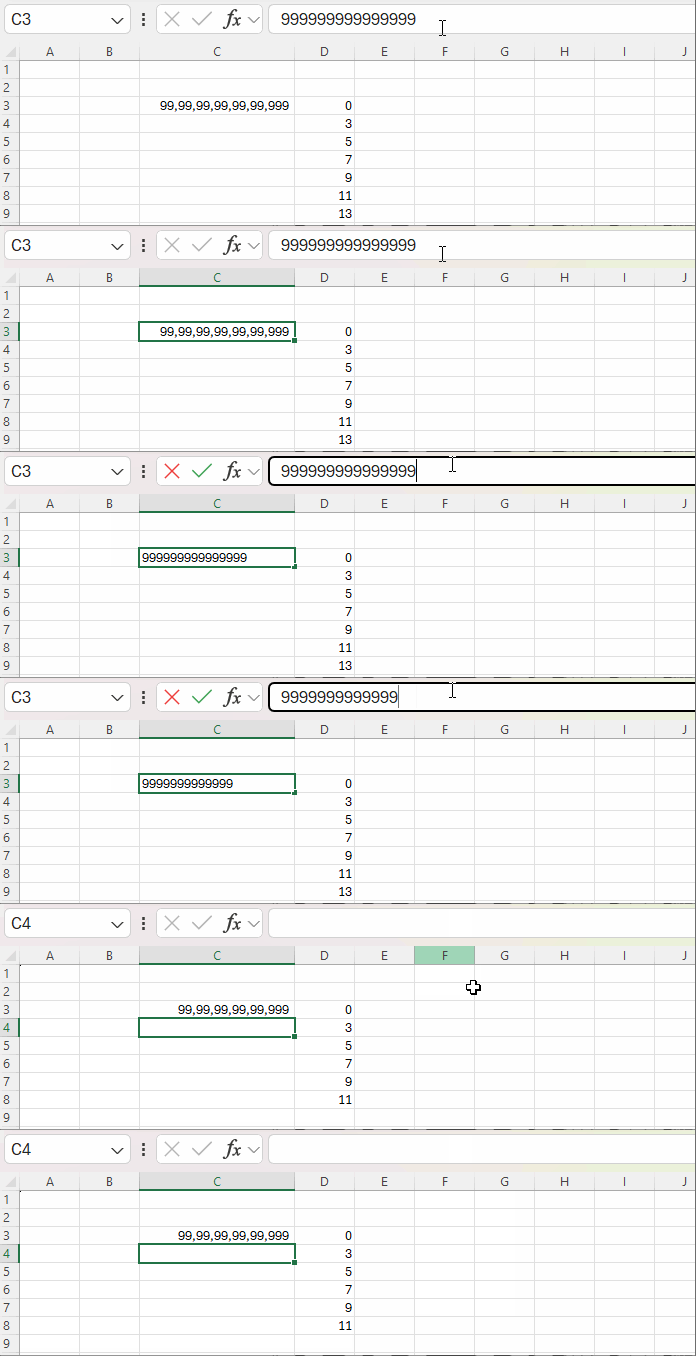
This array forms the “group engine” that tells Excel how to break large numbers into Indian-style chunks.
3. Custom Word Functions
a. scale_word
LAMBDA(n, CHOOSEROWS(
    VSTACK("","Thousand","Lakh","Crore","Arab","Kharab","Neel"), n))
This returns the correct scale word (Thousand, Lakh, Crore…) for each group based on its position.
b. word_1_19
LAMBDA(n, CHOOSEROWS(
    VSTACK("One","Two","Three","Four","Five","Six","Seven","Eight","Nine","Ten",
           "Eleven","Twelve","Thirteen","Fourteen","Fifteen","Sixteen","Seventeen",
           "Eighteen","Nineteen"), n))
This is a lookup list for numbers 1 to 19, which are irregular in English and must be mapped directly.
c. word_tens
LAMBDA(n, CHOOSEROWS(
    VSTACK("","Twenty","Thirty","Forty","Fifty","Sixty","Seventy","Eighty","Ninety"), n))
Returns the word for the tens place (20, 30, 40, … 90).
d. word_1_99
LAMBDA(n,
    IF(n < 20,
       word_1_19(n),
       TEXTJOIN("-", TRUE,
            word_tens(INT(n/10)),
            IFERROR(word_1_19(MOD(n,10)), "")
       )
    )
)- If number < 20 → directly fetch from word_1_19
- Otherwise:
- combine Tens + Units (e.g., “Twenty-Three”)
This handles all numbers from 1 to 99.
e. word_1_999
LAMBDA(n,
   LET(
     h, INT(n/100),
     r, MOD(n,100),
     TEXTJOIN(" ", TRUE,
        IF(h=0, "", word_1_19(h) & " Hundred"),
        IF(r=0, "", word_1_99(r))
     )
   )
)
Converts any number from 1 to 999 into words, handling:
- Hundreds
- Tens
- Units
4. Core Group Engine (number_words)
This is the heart of the converter:
LAMBDA(n,
 TEXTJOIN(" ", TRUE,
   SORTBY(
     MAP(limit, LAMBDA(i,
        LET(
          part, INT(MOD(n / 10^i, IF(i=0,1000,100))),
          word_1_999(part) & " " &
          IF(part=0, "", scale_word(XMATCH(i, limit)))
        )
     )),
     limit, -1
   )
 )
)
How it works:
MAP()iterates over each group starting position in limit.- For each position
i, it extracts:- The 1–3 digit group value using
MODand division.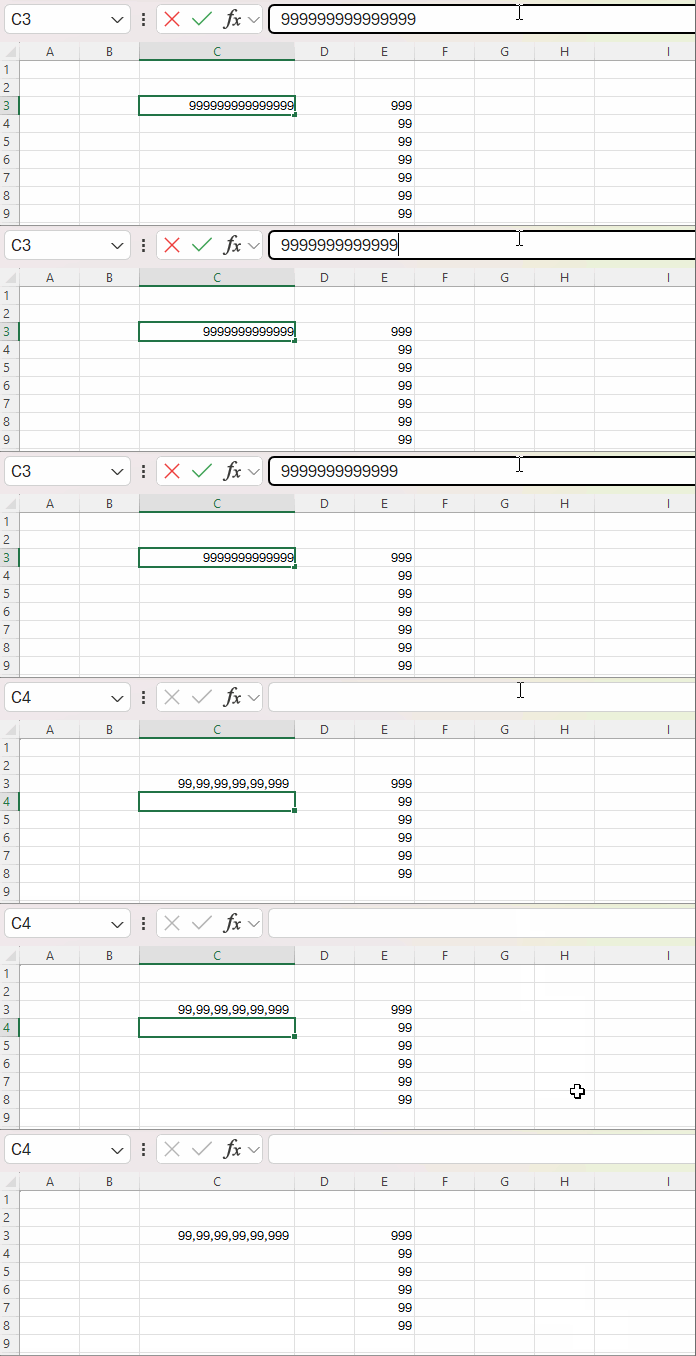
- Converts that into words using word_1_999.
- Adds the correct scale word using
scale_word.
- The 1–3 digit group value using
XMATCH(i, limit)determines the correct scale name index.SORTBY(..., limit, -1)arranges groups from highest to lowest (Crore → Lakh → Thousand → Units).TEXTJOIN()merges everything into a single readable phrase.
This function produces the Rupees part in words (without currency labels).
Example: One Thousand Five Hundred Fifty-Five
You May Like: MAP Function in Excel Simplified: A Beginner’s Guide
5. Final Output Logic
IF(
  AND(ISNUMBER(x), x >= 0, x < 10^15),
  TRIM(TEXTJOIN(" ", TRUE,
       IF(Rupees=0, "Zero", number_words(Rupees)),
       IF(Rupees=1, "Rupee", "Rupees"),
       "and",
       IF(Paise=0, "No Paise",
          IF(Paise=1, "One Paise", word_1_99(Paise) & " Paise")
       )
  )),
  "Out of Range"
)
What this does:
- Validates the input (
0 ≤ x < 10^15). - Converts the Rupees part using
number_words. - Chooses singular/plural currency label (
"Rupee"vs"Rupees"). - Converts Paise using
word_1_99(Paise)for values 2–99 (handles “Twenty-Three Paise”, etc.), special-casing 0 →"No Paise"and 1 →"One Paise". - Returns
"Out of Range"when input exceeds supported size.
FAQs
1. Will this work in Excel 2016 or 2019?
No. This version of the formula relies on modern dynamic functions such as LET, LAMBDA, MAP, VSTACK, TAKE, etc.
It works only in Excel 365 and Excel 2024.
2. Can I change Rupees/Paise to another currency?
Yes. You can replace the currency words in the final part of the formula.
Be sure to update both singular and plural forms.
Example for Bangladeshi currency:
- Replace “Rupee” → “Taka”
- Replace “Rupees” → “Takas”
- Replace “Paise” → “Poisha”
Everything else remains identical — the number-to-words logic and grouping system do not change.
3. Is “Crore” spelled correctly as “Crore”?
Yes — this is the correct spelling in Indian English.
4. Does it support negative numbers?
Not by default.
You can handle negative values by adding your own logic—such as prefixing “Minus” and converting the number with ABS(A2) before processing it.
5. Can I modify this formula to convert amounts to words in the International format?
Yes, but the structure differs because the scale system and logic change.
I’ve written a separate tutorial here: Convert Numbers to Words in Excel (No VBA, US/Global Format).
6. How do I convert Rupees to words in Google Sheets?
Excel and Google Sheets use different functions, so the formulas are not interchangeable.
Refer to this guide: Convert Numbers to Words in Google Sheets (US & Indian Formats).
Conclusion
Converting Rupees to words in Excel is now easier than ever—no VBA required. Using modern dynamic functions available in Excel 365 and Excel 2024, you can generate a clean, accurate amount-to-words output that follows the Indian numbering system (Lakhs and Crores).
Whether you’re preparing invoices, bills, or financial statements, this formula offers a reliable, customizable, and future-proof solution. Simply change the currency words (Rupees/Paise) if needed, and the core logic continues to work seamlessly.
With this approach, Excel becomes a complete tool for producing polished, professional-looking financial documents—fully automated and entirely formula-based.
