



















PDF files often end up being larger than necessary — especially scanned documents or image-heavy reports. A large file can be tough to email, slow to upload, or even get rejected by portals with size limits. The good news is you don’t have to sacrifice readability or clarity just to shrink the file.
The easiest way to compress PDF files without losing quality is by using Adobe’s free online PDF compressor.
Compress PDF Files Using Adobe Acrobat Online
Adobe provides a simple, reliable online tool that reduces PDF file size while keeping text readable and images clear. Unlike many third-party services, it generally preserves the quality of your file without unnecessary pixelation or detail loss.
Step-by-Step Guide to Compress PDF Files
1. Open the Adobe Compressor Tool
- Go to Adobe Acrobat Online PDF Compressor in your browser.
2. Upload Your PDF File
- Click the Select a file button (or drag and drop your file).
- Choose the PDF you want to compress from your computer.

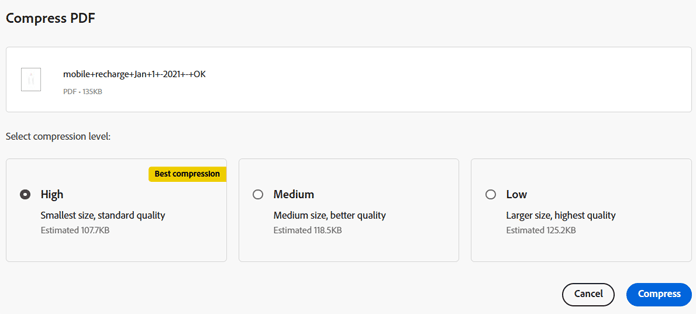
3. Select Compression Level
- Adobe gives you three options: High, Medium, or Low compression.
- You’ll also see the estimated compressed file size for each option.
- Pick the one that balances size reduction with your preferred quality.
4. Start Compression
- Click the Compress button.
- Adobe will process your file in just a few seconds.
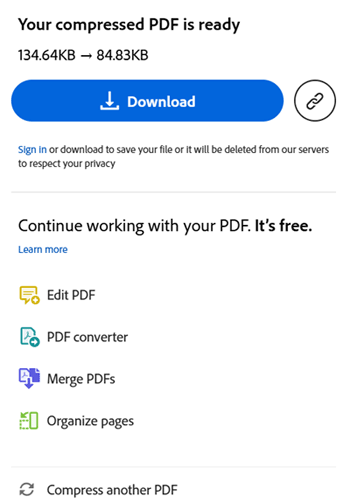
5. Download the Compressed File
- Once done, click the Download button.
- Save the compressed PDF back to your device.
Note About Encrypted PDFs
If your PDF is password-protected or encrypted, Adobe’s tool may not be able to compress it. In that case, you’ll first need to unlock the PDF (using the password) before uploading it. This ensures that sensitive files aren’t processed without your consent.
Why Use Adobe’s Compressor?
- Official & Secure – Direct from Adobe, no untrusted third parties.
- Quality Preserved – Text and images stay sharp.
- Quick & Easy – Works in just a few clicks.
- No Installations – Everything happens in your browser.
Final Thoughts
Dealing with oversized PDFs doesn’t have to be a headache. With Adobe Acrobat Online, you can compress PDF files without losing quality in seconds. Just upload, choose your compression level, and download — it’s that simple.
Other Tips and Tricks
- How to Edit and Republish eBook and Paperback on Amazon Kindle
- Not Acceptable! This Error was Generated by Mod_Security – Solve WordPress Login Issue
- How to Remove Permission Given to Uninstalled Android Apps
- How to Remove Multiple Tabs Opening on Chrome Start-Up
- Change the Background Color of Web Pages on Chrome (Official Plugin)
- How to Delete More Than 50 Messages at a Time in Yahoo Mail
- How to Send Emails to Multiple Recipients Privately
- 25 Popular Chat Short Words (Chat Slang) You May Love to Use
