





















When using the QUERY function to group and aggregate data in Google Sheets, “Top N” and “row limiting” often sound like the same thing—but they are not.
Depending on your data structure and reporting goal, you may need one of the following approaches:
- Native row limiting (
LIMIT)
Restricting the number of rows returned after aggregation, with or without sorting.
(Single row-field grouping) - Top N (global ranking)
Ranking aggregated results usingSORTN()with full control over duplicate (tie) handling.
(Single row-field grouping) - Top N per group
Extracting the highest N values within each category, similar to an Excel Pivot Table, usingCOUNTIFS()withQUERY.
(Two row-field groupings)
This hub explains all three techniques, their limitations, and—most importantly—when to use each one. It also acts as a navigation guide to the detailed tutorials linked under each section.
First: Row Limiting vs Ranking (Critical Distinction)
Before choosing a formula, clarify what problem you’re solving.
| Question | You need |
|---|---|
| Show only the first N rows, with or without sorting aggregated values | Row limiting |
| Show the highest N values with control over duplicates (ties) | Ranking (Top N) |
| Show the highest N values per category (similar to an Excel Pivot Table) | Per-group ranking |
Many QUERY formulas appear to rank data—but in reality, they only limit rows after sorting.
Sample Data
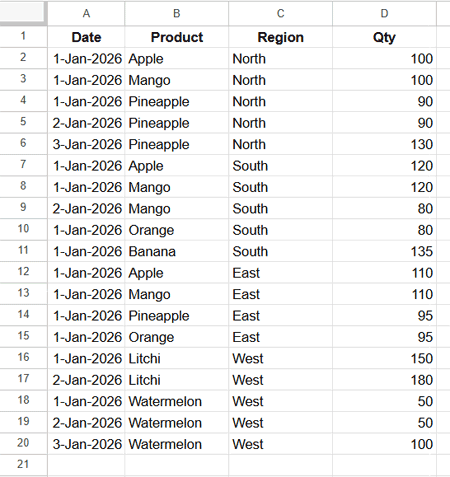
In all the techniques below, we use the same sample dataset representing fruit production quantities across the North, South, East, and West regions.
- Column A: Fruit picking date
- Column B: Fruit name
- Column C: Region
- Column D: Quantity
Technique 1: Limiting Rows Using QUERY (LIMIT)
This is the simplest and fastest method.
Use this when:
- You don’t care about ranking logic
- You only want to restrict the output size
- Duplicate aggregated values don’t matter
Example: Basic row limiting
=QUERY(A1:D,
 "SELECT Col2, SUM(Col4)
  WHERE Col2 IS NOT NULL
  GROUP BY Col2 LIMIT 3", 1)
This returns three fruits because the number of output rows is limited to 3.
| Product | sum Qty |
| Apple | 330 |
| Banana | 135 |
| Litchi | 330 |
It is useful when you want to pick any three fruits along with their total production quantity, without considering which fruits have the highest totals.
Sorting + limiting
=QUERY(A1:D,
 "SELECT Col2, SUM(Col4)
  WHERE Col2 IS NOT NULL
  GROUP BY Col2 ORDER BY SUM(Col4) DESC LIMIT 3", 1)
This also returns three fruits, but only after sorting the total production quantity in descending order.
| Product | sum Qty |
| Mango | 410 |
| Pineapple | 405 |
| Apple | 330 |
Important limitation
If the aggregated values are:
410, 405, 330, 330, …
LIMIT 3 simply returns the first three rows after sorting. There is no control over ties, and duplicate values beyond the third row are ignored.
Detailed tutorial: Limiting Number of Rows in Google Sheets QUERY
Note: In this hub article, the QUERY examples use Col1, Col2, etc., for clarity and consistency. In the detailed child tutorial, the same logic is shown using direct column references (A, B, etc.). Both approaches are functionally identical in Google Sheets.
Technique 2: Extract Top N from Aggregated QUERY Results (Global Ranking)
Here, ranking actually matters.
While ORDER BY + LIMIT may look like ranking, it cannot handle duplicate aggregated values (ties). This is where SORTN() becomes essential.
Why QUERY alone is not enough
If your aggregated values are:
10, 10, 9, 9, 7, 6
Using QUERY with ORDER BY and LIMIT 3 returns:
10, 10, 9
There is no way to:
- Return
10, 10, 9, 9(include all ties at the Nth position), or - Return
10, 9, 7(unique ranking) - Return
10, 10, 9, 9, 7(unique ranking with all duplicates included)
Correct approach using SORTN()
=SORTN(
 QUERY(
  QUERY(A1:D,
   "SELECT Col2, SUM(Col4)
    WHERE Col2 IS NOT NULL
    GROUP BY Col2
    ORDER BY SUM(Col4) DESC"),
  "OFFSET 1", 0),
 3, 1, 2, FALSE)
Result (Top 3 with ties included):
| Product | sum Qty |
| Mango | 410 |
| Pineapple | 405 |
| Apple | 330 |
| Litchi | 330 |
Why this works
- Inner QUERY → performs aggregation and sorts the aggregated values
- Outer QUERY → removes the header row
SORTN()→ applies true ranking with full control over duplicates
Tie handling (briefly)
SORTN()supports multiple tie modes- In this example, the tie mode returns N rows plus all duplicates of the Nth value
Full explanations, examples, and edge cases are covered in the detailed tutorial below.
Detailed tutorial: Extract Top N from Aggregated Query Results in Google Sheets
This is the best method for extracting Top N values after aggregation in Google Sheets.
Technique 3: Extract Top N Per Group (QUERY Workaround)
This is the most advanced scenario.
Think of an Excel Pivot Table with two row fields:
- Category (e.g., Region)
- Item (e.g., Product)
Goal
Show the Top N products within each region, including duplicates at the Nth rank.
Example formula
=ArrayFormula(
 LET(
  qry,
   QUERY(
    QUERY(A1:D,
     "SELECT Col3, Col2, SUM(Col4)
      WHERE Col3 IS NOT NULL
      GROUP BY Col3, Col2
      ORDER BY Col3, SUM(Col4) DESC", 1),
    "OFFSET 1", 0),

  rnk,
   COUNTIFS(
    CHOOSECOLS(qry,1), CHOOSECOLS(qry,1),
    CHOOSECOLS(qry,3), ">"&CHOOSECOLS(qry,3)
   ) + 1,

  FILTER(qry, rnk <= 3)
 )
)
Result
This returns the Top 3 fruits for each region. If the 3rd-ranked total quantity is tied, all tied rows are included in the result.
| Region | Product | sum QTY |
| East | Apple | 110 |
| East | Mango | 110 |
| East | Orange | 95 |
| East | Pineapple | 95 |
| North | Pineapple | 310 |
| North | Apple | 100 |
| North | Mango | 100 |
| South | Mango | 200 |
| South | Banana | 135 |
| South | Apple | 120 |
| West | Litchi | 330 |
| West | Watermelon | 200 |
How it works
- Inner QUERY → aggregates data by category and item
- Outer QUERY → removes the header row
- COUNTIFS → calculates the rank within each category
- FILTER → keeps only the Top N rows per category
This approach mimics Excel Pivot Table ranking (Top N per group), which Google Sheets’ QUERY function cannot perform natively.
Detailed tutorial: Google Sheets: Extract Top N per Group from Query Aggregation
Conclusion
While Google Sheets’ QUERY function is powerful, row limiting and ranking are not the same thing.
Quick guidance
- Use
LIMITwhen you just want fewer rows - Use
SORTN()when ranking and duplicates matter - Use
COUNTIFS()+ QUERY for Top N per group
Understanding this distinction prevents incorrect reports and ensures your formulas match your analytical intent.
Use this guide as your starting point, then dive into the linked tutorials for full step-by-step explanations and variations.
