

You can use the ISREF function in Google Sheets to verify whether a cell reference is valid. It returns a boolean value, either TRUE or FALSE.
If you’re specifying a cell reference within a cell, it’s recommended to use the INDIRECT function in combination with it.
You might see ISREF used alongside lookup functions like VLOOKUP, XLOOKUP, HLOOKUP, LOOKUP, and INDEX, as well as with OFFSET. I’ll explain this in more detail later.
Syntax:
ISREF(value)value: The value to be verified as a cell reference.
Examples
The following ISREF formula will return TRUE if 'Sales Data'!A1 is a valid cell reference; otherwise, it will return FALSE.
=ISREF('Sales Data'!A1)You can enter Sales Data!A1 in any cell, for example, cell A10, and use the following ISREF and INDIRECT combination formula instead:
=ISREF(INDIRECT(A10))This returns TRUE if 'Sales Data'!A1 is a valid cell reference in your file.
Tip: This is a clever way to check if a sheet (spreadsheet) named “Sales Data” exists in a Google Sheets file (workbook) with multiple tabs.
ISREF Function in Logical Tests
Here’s a straightforward example:
=IF(ISREF('Sales Data'!A1), 'Sales Data'!A1, "Invalid Cell Reference")In this example, the IF function evaluates whether the ISREF formula returns TRUE or FALSE. If TRUE, the IF function returns the value in ‘Sales Data’!A1; otherwise, it returns a warning text.
ISREF Function with Lookup Functions
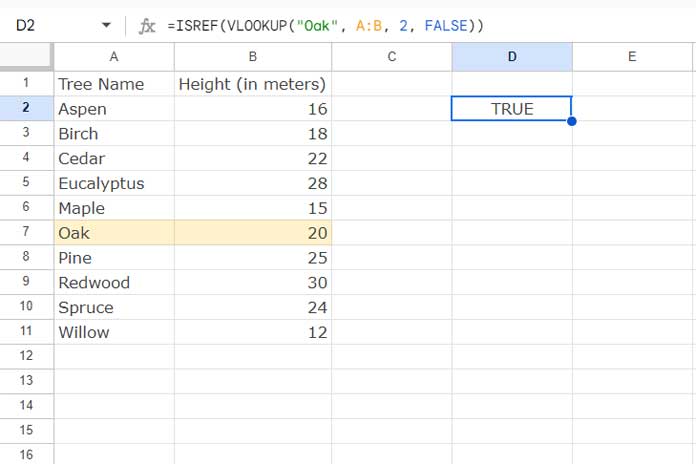
Assume column A contains tree names and column B contains their heights. The data is sorted by tree names in A-Z order.
The following formulas will look up the tree name “Oak” in column A and return its height from column B:
=VLOOKUP("Oak", A:B, 2, FALSE)
=XLOOKUP("Oak", A:A, B:B)
=LOOKUP("Oak", A:A, B:B)
=INDEX(A:B, MATCH("Oak", A:A, FALSE), 2)
These formulas will return 20 from cell B7, which corresponds to the height of the tree listed in cell A7.
Since B7 is a valid cell reference, if you wrap the above formulas with ISREF, it will return TRUE:
=ISREF(VLOOKUP("Oak", A:B, 2, FALSE))
=ISREF(XLOOKUP("Oak", A:A, B:B))
=ISREF(LOOKUP("Oak", A:A, B:B))
=ISREF(INDEX(A:B, MATCH("Oak", A:A, FALSE), 2))
If the lookups fail to find a match, ISREF will return FALSE.
The point is that if you want to check whether a lookup returns a valid cell reference, you can use ISREF with the lookup function.
These lookup functions return cell references but might not work with ISREF as expected when combined with ARRAYFORMULA or other array functions to expand the result.
ISREF will work similarly with the OFFSET function:
=ISREF(OFFSET(A1, 6, 1))Resources
ISREF is an information-type function in Google Sheets. Check out our function guide for other popular information-type functions.




